
1. Introduction
Thank you for choosing the MEDIACOM MCI 899 UHF PRO Wireless Microphone System. This system is designed to provide high-quality audio transmission with excellent reliability and ease of use. Featuring dual handheld microphones and a robust receiver, it is suitable for a variety of applications including home entertainment, stage performances, karaoke, and public speaking events. Please read this manual carefully to ensure proper setup, operation, and maintenance of your new wireless microphone system.
2. Product Overview
2.1 Key Features
- UHF Wireless Microphone System with Dual Handsets for Multifunctional Use
- 96 Selectable Frequency Channels to minimize interference in all environments
- Smooth Wireless Operation with a wide range of over 50 meters
- Each Handset has a display screen to indicate channel number and signal strength
- Ideal for indoor and outdoor use including home, stage shows, karaoke parties, educational and religious gatherings, etc.
- Cardioid and Omni Polar Patterns
2.2 Components
The MEDIACOM MCI 899 UHF PRO system includes the following components:
- 1 x UHF Wireless Receiver
- 2 x Handheld Wireless Microphones
- 1 x Power Adapter for Receiver
- 1 x 6.35mm Audio Cable
- 1 x Quick Start Guide

Image: The complete MEDIACOM MCI 899 UHF PRO Wireless Microphone System, showing the receiver unit and two handheld microphones.
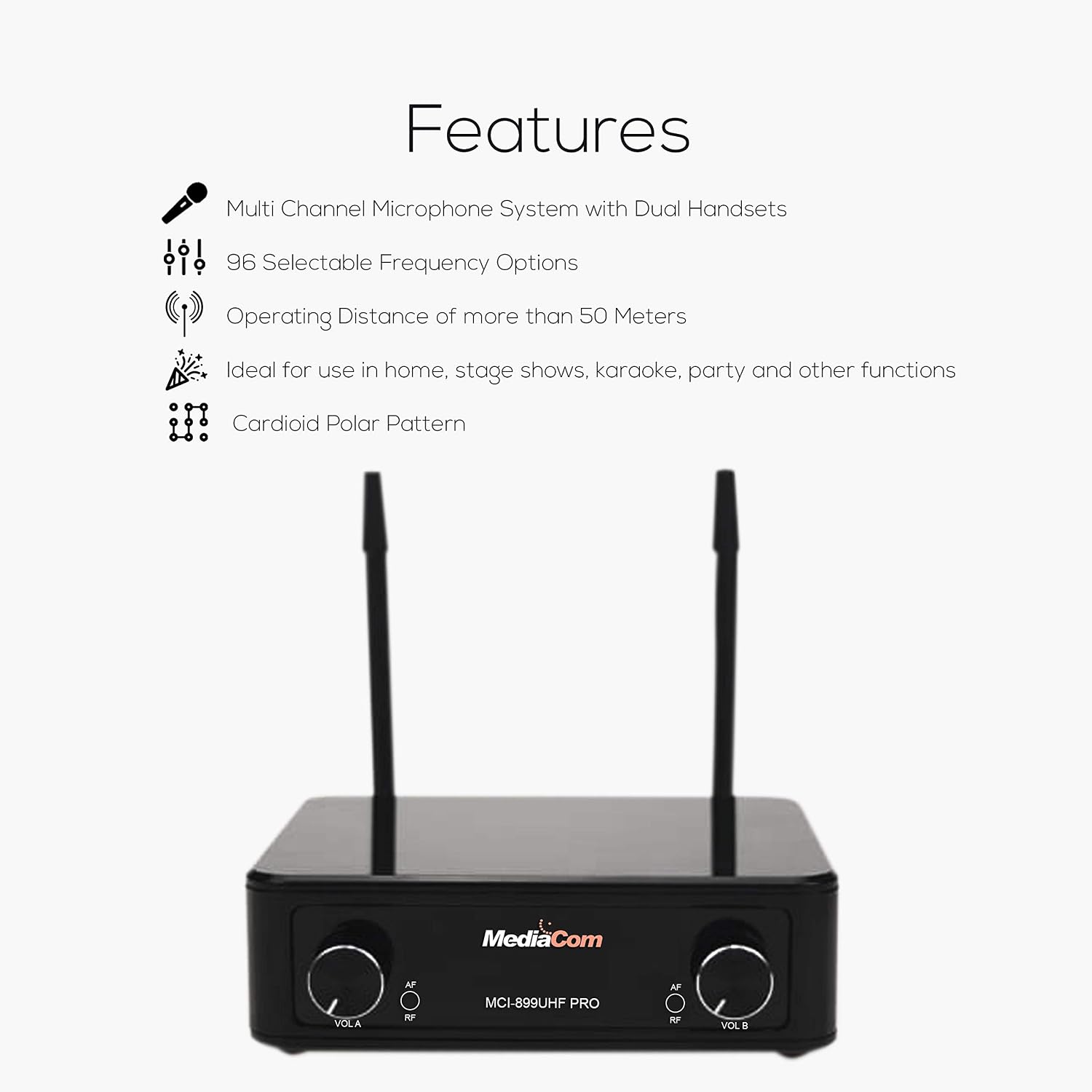
Image: Diagram illustrating the key features of the microphone system, including multi-channel support, selectable frequencies, and operating distance.
3. Setup Instructions
3.1 Receiver Connection
- Power Connection: Connect the provided power adapter to the 'DC IN' port on the back of the receiver. Plug the adapter into a suitable power outlet.
- Audio Output: Connect one end of the 6.35mm audio cable to the 'MIX OUT' port on the receiver. Connect the other end to the audio input (e.g., 'MIC IN', 'AUX IN') of your mixer, power amplifier, karaoke machine, or active speaker.
- Antenna Setup: Ensure both antennas ('ANT-A' and 'ANT-B') are securely attached to the receiver and positioned vertically for optimal signal reception.
- Power On: Flip the 'ON/OFF' switch on the receiver to the 'ON' position. The power indicator light should illuminate.
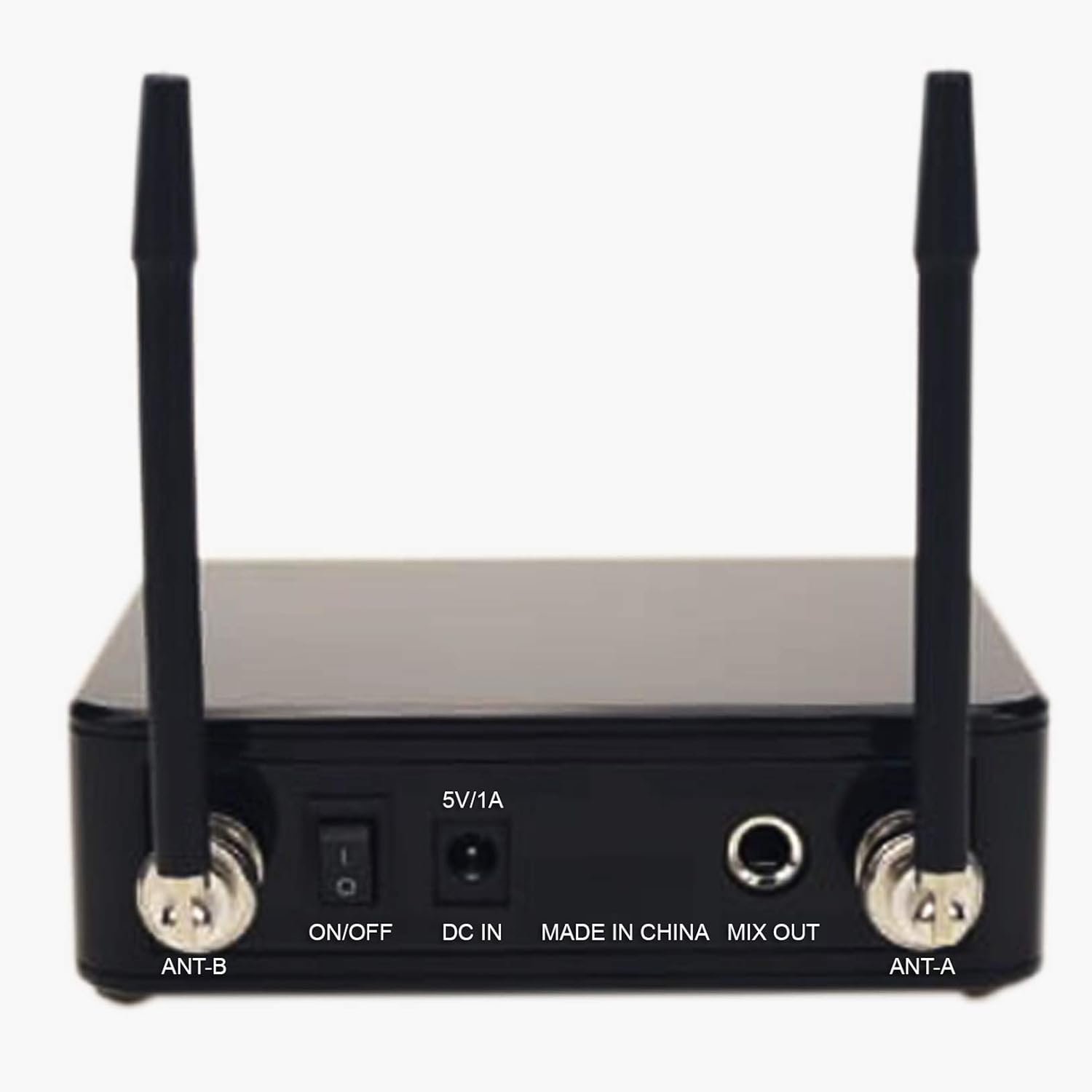
Image: Rear panel of the receiver, highlighting the ON/OFF switch, DC IN, MIX OUT, and antenna connections.

Image: A visual guide demonstrating how to connect the receiver to various audio devices such as a mixer, power amplifier, karaoke machine, or active speaker.
3.2 Microphone Setup
- Battery Installation: Unscrew the bottom part of each microphone to access the battery compartment. Insert two AA batteries (not included) into each microphone, ensuring correct polarity (+/-).
- Power On: Slide the power switch on each microphone to the 'ON' position. The microphone display should light up, showing the channel number and signal strength.
- Channel Pairing: The microphones should automatically pair with the receiver. If interference occurs, you can change the frequency channel on the microphone. Refer to the 'Operating Instructions' section for details on changing channels.

Image: A detailed view of one of the handheld microphones, showing its power switch and display area.
4. Operating Instructions
4.1 Basic Operation
- Power On/Off: Use the 'ON/OFF' switch on the receiver and the power switch on each microphone to turn the units on or off.
- Volume Control: Adjust the volume for each microphone independently using the 'VOL A' and 'VOL B' knobs on the receiver.
- Signal Indicators: The 'RF' (Radio Frequency) indicator on the receiver will light up when a microphone is connected and transmitting. The 'AF' (Audio Frequency) indicator will light up when audio is being received.
4.2 Changing Frequency Channels
If you experience interference, you can change the operating frequency of the microphones:
- On the microphone, locate the channel selection button (usually near the display).
- Press the button to cycle through the available 96 frequency channels.
- Observe the receiver's 'RF' indicator. When a clear channel is selected, the 'RF' indicator should be stable, and the audio quality should improve.
- Ensure both the microphone and receiver are on the same channel for proper operation.
4.3 Optimal Performance Tips
- Maintain a clear line of sight between the microphones and the receiver whenever possible.
- Avoid placing the receiver near large metal objects or other electronic devices that may cause interference.
- Keep the operating distance within 50 meters for best performance.
- Regularly check microphone battery levels to prevent unexpected power loss during use.
5. Maintenance
5.1 Cleaning
- Wipe the receiver and microphones with a soft, dry cloth.
- Do not use liquid cleaners or abrasive materials, as they may damage the finish or internal components.
5.2 Battery Replacement
- Replace batteries in the microphones when the display indicates low power or when audio quality degrades.
- Always use fresh AA batteries and dispose of old batteries responsibly.
5.3 Storage
- When not in use for extended periods, remove batteries from the microphones to prevent leakage.
- Store the system in a cool, dry place away from direct sunlight and extreme temperatures.
6. Troubleshooting
6.1 No Sound Output
- Check Power: Ensure both the receiver and microphones are powered on.
- Volume Levels: Verify that the volume knobs on the receiver and the connected audio device are turned up.
- Cable Connection: Confirm the 6.35mm audio cable is securely connected from the receiver's 'MIX OUT' to the audio input of your sound system.
- Battery Level: Check microphone battery levels and replace if low.
6.2 Interference or Poor Sound Quality
- Change Channel: Select a different frequency channel on the microphone to avoid interference from other wireless devices.
- Distance: Ensure the microphones are within the effective operating range (up to 50 meters) of the receiver.
- Obstructions: Remove any large metal objects or other electronic devices between the microphones and the receiver.
- Antenna Position: Ensure receiver antennas are positioned vertically and unobstructed.
6.3 Microphone Not Pairing
- Power Cycle: Turn off both the microphone and receiver, then turn them back on.
- Battery Check: Ensure batteries are correctly installed and have sufficient charge.
- Channel Mismatch: Verify that the microphone and receiver are attempting to connect on compatible channels.
7. Specifications
| Specification | Detail |
|---|---|
| Brand | MEDIACOM |
| Model Name | MCI 899 |
| Part Number | MCI899U |
| Product Type Name | UHF Multi-Channel Wireless Microphones |
| Connectivity Technology | Wireless |
| Connector Type | 6.35 mm Jack |
| Special Feature | Wireless |
| Included Components | Quick Start Guide |
| Polar Pattern | Cardioid, Omni |
| Microphone Form Factor | Handheld |
| Power Source | Battery Powered |
| Material | Semi-metal |
| Signal-to-Noise Ratio | 80 dB |
| Hardware Platform | Karaoke Machine |
| Number of Channels | 96 |
| Frequency Range | 20 Hz - 20 kHz |
| Manufacturer | MEDIACOM |
8. Warranty and Support
8.1 Warranty Information
This MEDIACOM MCI 899 UHF PRO Wireless Microphone System comes with a manufacturer's warranty of two years from the date of purchase. This warranty covers defects in materials and workmanship under normal use. Please retain your proof of purchase for warranty claims.
The warranty does not cover damages resulting from:
- Improper installation or operation.
- Accidental damage, misuse, abuse, or neglect.
- Repairs or modifications performed by unauthorized service personnel.
- Normal wear and tear.
8.2 Customer Support
For technical assistance, troubleshooting beyond this manual, or warranty inquiries, please contact MEDIACOM customer support. Refer to the contact information provided with your product packaging or visit the official MEDIACOM website for support details.