
BINIZE B08B5SR2ZJ
BINIZE Wireless CarPlay & Android Auto Adapter User Manual
Model: B08B5SR2ZJ
1. Introduction
This manual provides detailed instructions for the installation, operation, and maintenance of your BINIZE Wireless CarPlay & Android Auto Adapter. This device converts your vehicle's existing wired CarPlay or Android Auto system into a wireless connection, enhancing your driving experience with convenience and seamless integration.
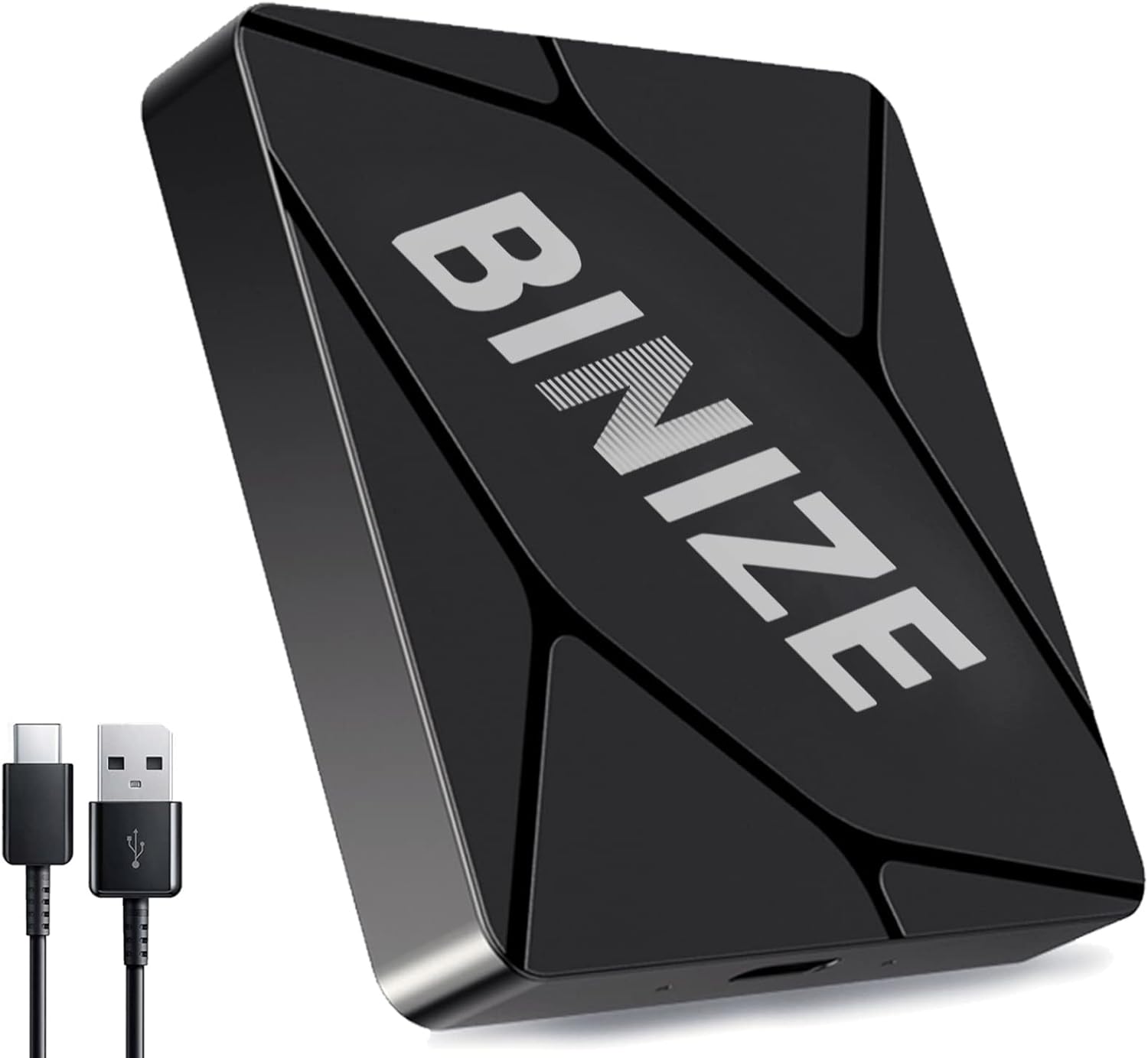
Image 1.1: The BINIZE Wireless CarPlay & Android Auto Adapter, a compact black device with included USB-C and USB-A cables.
2. Safety Information
Please read all safety instructions before using this product. Improper use may result in damage to the device or vehicle. Do not attempt to disassemble or modify the adapter. Keep the device away from water, extreme temperatures, and direct sunlight.
3. Package Contents
Verify that all items are present in the package:
- BINIZE Wireless CarPlay & Android Auto Adapter
- USB-A to USB-C Cable
- USB-C to USB-C Cable
- User Manual (this document)

Image 3.1: The complete package contents of the BINIZE Wireless Adapter, including the adapter unit, two USB cables, and the user manual.
4. Product Overview
The BINIZE Wireless CarPlay & Android Auto Adapter is a compact device designed to enable wireless connectivity for your vehicle's infotainment system. It features a USB-C port for power and data connection, and integrates Bluetooth 5.2 and 5.8GHz Wi-Fi for stable and fast communication with your smartphone.

Image 4.1: A visual representation of the adapter's internal technology, highlighting its 5G chip and 5.8GHz Wi-Fi capabilities for fast processing and smooth operation.
5. Compatibility
This adapter is compatible with vehicles that have a factory-installed wired CarPlay or Android Auto system. It supports a wide range of car models from various manufacturers. If your car stereo is not a touchscreen, a remote control may be required for full functionality.

Image 5.1: An illustration showing various car brands (Honda, Nissan, Ford, Toyota, Kia, Hyundai, VW, Citroen, Buick, Mitsubishi, Skoda, Mazda, Lada, Haval, Lexus) indicating broad compatibility with the BINIZE adapter.
6. Setup Instructions
Follow these steps to set up your BINIZE Wireless Adapter:
- Connect the Adapter: Plug the BINIZE Wireless Adapter into your vehicle's USB port that supports wired CarPlay or Android Auto. Use the appropriate USB-A to USB-C or USB-C to USB-C cable provided.
- Power On: The adapter will power on automatically.
- Enable Bluetooth & Wi-Fi on Phone: On your smartphone, ensure both Bluetooth and Wi-Fi are enabled.
- Pair with Adapter: Search for the adapter's Bluetooth name on your phone and connect. If your phone was previously connected to other Bluetooth or Wi-Fi devices, please disconnect or 'forget' those connections first.
- Confirm Connection: Once connected via Bluetooth, your phone will prompt you to enable CarPlay or Android Auto. Confirm the connection.
- Automatic Connection: After the initial successful connection, the adapter will automatically connect to your phone when you start your vehicle.
Image 6.1: A step-by-step diagram illustrating the connection process: plug into USB, turn on phone's Bluetooth/Wi-Fi, and successful wireless connection.
7. Operating Instructions
Once connected, your vehicle's display will show the CarPlay or Android Auto interface. You can navigate through applications, make calls, send messages, and use navigation features directly from your car's screen. The adapter retains the functionality of your vehicle's original control methods, including touchscreen, steering wheel controls, and OEM knob controls, as well as voice assistants like Siri.
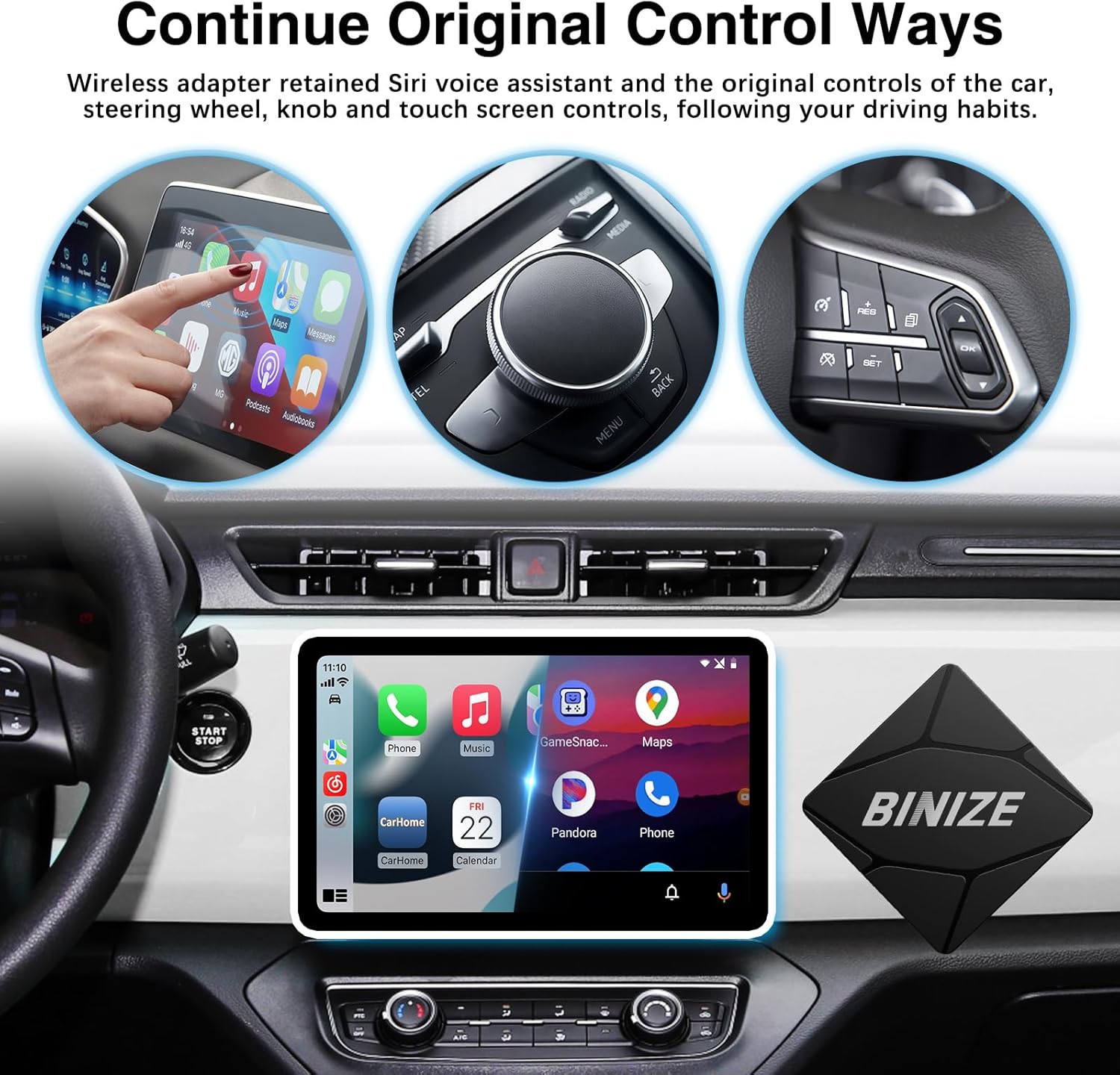
Image 7.1: Images demonstrating how the BINIZE adapter retains original car controls, including touchscreen, rotary knob, and steering wheel buttons, for operating CarPlay or Android Auto.
8. Maintenance
To ensure optimal performance and longevity of your BINIZE Wireless Adapter, keep it clean and free from dust. Use a soft, dry cloth for cleaning. Avoid exposing the device to liquids or extreme temperatures.
9. Troubleshooting
Common Issues and Solutions
- No Connection:
- Ensure your vehicle has factory-wired CarPlay or Android Auto.
- Verify the adapter is securely plugged into the correct USB port.
- On your phone, ensure Bluetooth and Wi-Fi are enabled and connected to the adapter. Forget other Bluetooth/Wi-Fi connections if necessary.
- Restart your phone and vehicle's infotainment system.
- Intermittent Connection:
- Check for firmware updates (see 'Firmware Update' section below).
- Ensure no other devices are interfering with Bluetooth or Wi-Fi signals.
- Relocate the adapter if possible to improve signal strength.
- Slow Performance:
- Ensure your phone's operating system is up to date.
- Close unnecessary applications on your phone.
- Check for firmware updates.
- Non-Touchscreen Stereo:
- If your car stereo is not a touchscreen, a remote control may be required for full functionality.
Firmware Update
Regularly updating the adapter's firmware can improve performance and compatibility. Follow these steps:
- Plug the adapter into your vehicle's USB port.
- Connect your phone to the product's Wi-Fi network.
- Open a web browser on your phone and enter the IP address 192.168.1.101 to access the update interface.
- Follow the on-screen instructions to check for and install available updates.
Note: Please contact customer service for version upgrades. Self-upgrades may cause product damage if not performed correctly.
10. Specifications
| Feature | Detail |
|---|---|
| Product Dimensions | 0.98"L x 3"W x 1"H |
| Item Weight | 3.84 ounces |
| Hardware Interface | Bluetooth 5.2, USB |
| Wireless Technology | 5.8GHz Wi-Fi, Bluetooth 5.2 |
| Color | Black |
| Compatible Devices | iPhone (for CarPlay), Android phones (for Android Auto) |
11. Warranty and Support
BINIZE provides customer service support for this product. If you encounter any issues, please contact the BINIZE customer service team via Amazon email. Do not return the product without first contacting support, as many issues can be resolved with assistance.
For further assistance, please refer to the contact information provided with your purchase or visit the official BINIZE store on Amazon: BINIZE Amazon Store
Related documentsB08B5SR2ZJ


Ask a question about this manual
Ask about setup, troubleshooting, compatibility, parts, safety, or missing instructions. Manuals+ will review the question and use this page’s manual context to help answer it.