
RICOH SP-1130N
RICOH SP-1130N Network Enabled Color Duplex Document Scanner User Manual
Model: SP-1130N
1. Introduction
This manual provides essential instructions for the safe and efficient operation of your RICOH SP-1130N Network Enabled Color Duplex Document Scanner. Please read this manual thoroughly before using the product and retain it for future reference. The RICOH SP-1130N is designed for high-performance document scanning, featuring network connectivity and duplex scanning capabilities.
2. Product Overview
The RICOH SP-1130N is a compact and user-friendly document scanner equipped with an Automatic Document Feeder (ADF) for efficient batch scanning. Key features include:
- Duplex Scanning: Scans both sides of a document simultaneously.
- Network Enabled: Connects via Ethernet for shared use.
- Automatic Document Feeder (ADF): Holds up to 50 sheets for continuous scanning.
- One-Push Button Scanning: Simplifies the scanning process.
- PaperStream ClickScan Software: Intuitive software for easy document management.
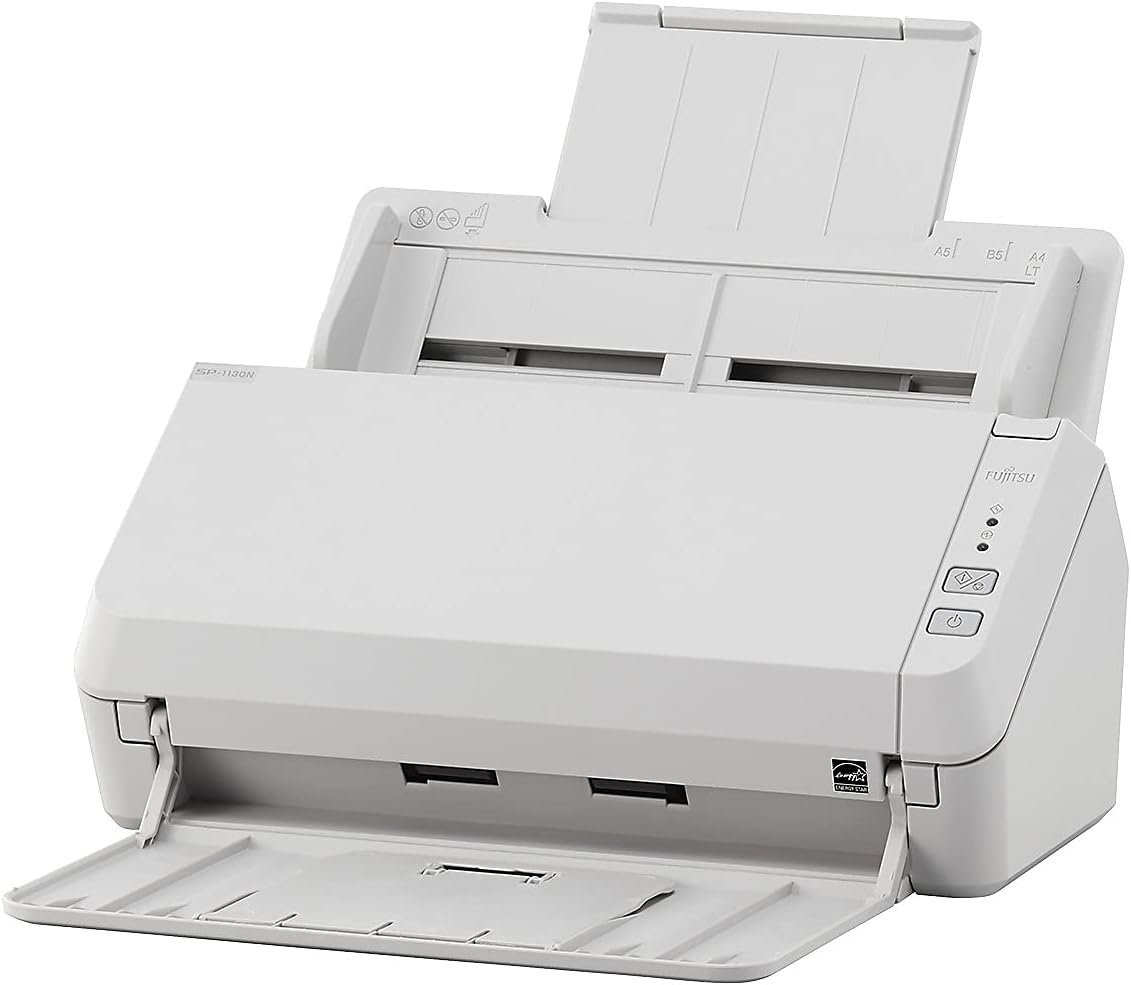
Figure 2.1: Front view of the RICOH SP-1130N scanner with trays open.
3. Setup
3.1 Unpacking and Placement
- Carefully remove the scanner and all accessories from the packaging.
- Place the scanner on a stable, flat surface with adequate space for document feeding and ejection.
- Attach the input and output trays as instructed in the quick setup guide.
3.2 Connecting the Scanner
- Power Connection: Connect the AC adapter to the scanner's power input and then to a power outlet.
- USB Connection (Optional): For direct connection, use the provided USB cable to connect the scanner to your computer.
- Ethernet Connection (Network): For network scanning, connect an Ethernet cable from the scanner to your network router or switch.
3.3 Software Installation
Install the necessary drivers and PaperStream ClickScan software from the provided installation media or by downloading them from the official RICOH support website. Follow the on-screen instructions to complete the installation.
4. Operating Instructions
4.1 Loading Documents
- Open the input tray and extend the paper guides.
- Place documents face-down in the input tray, ensuring the leading edge is aligned with the feed opening. Adjust the paper guides to fit the document width.
- Ensure documents are free of staples, paper clips, or tears to prevent jams.
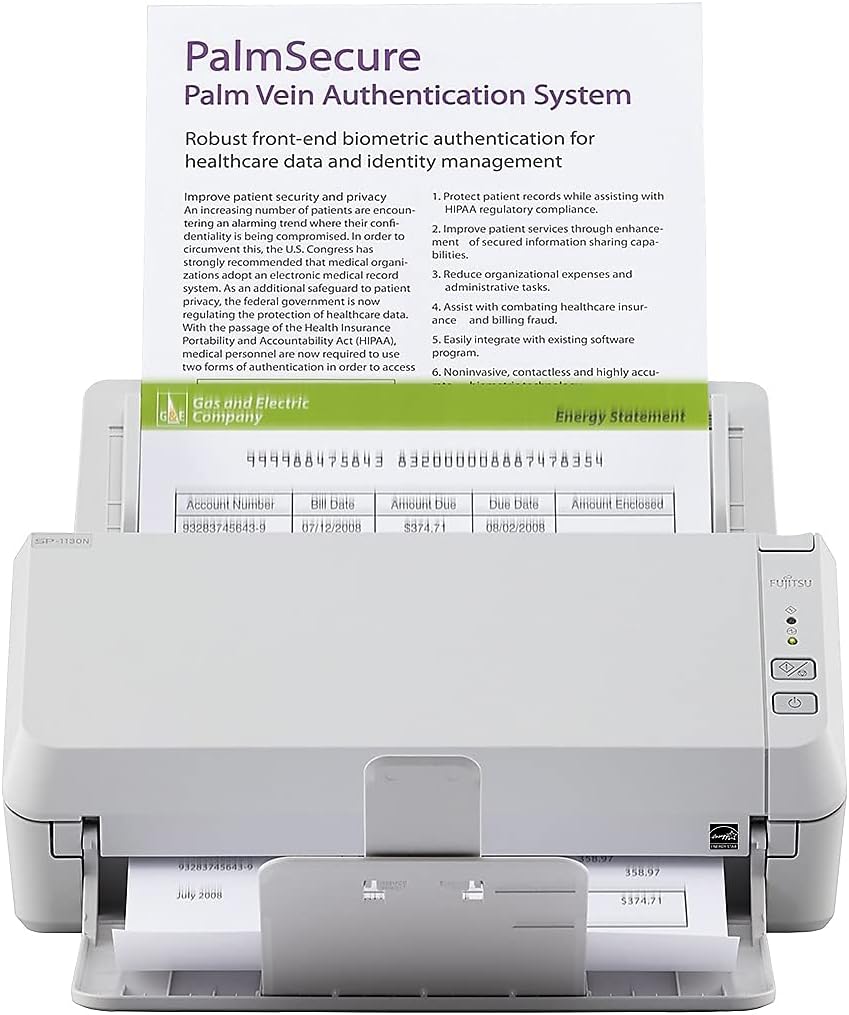
Figure 4.1: Document loaded into the scanner's automatic document feeder.
4.2 Performing a Scan with PaperStream ClickScan
- Ensure the scanner is powered on and connected to your computer or network.
- Load your documents into the ADF.
- Press the "Scan" button on the scanner unit or launch the PaperStream ClickScan application on your computer.
- In the PaperStream ClickScan interface, select your desired output destination (e.g., folder, email, printer, application).
- Review the scanned images and save them to the chosen location.

Figure 4.2: Three simple steps for scanning documents using PaperStream ClickScan software.
4.3 Image Enhancement Features
PaperStream ClickScan includes features to improve scanned image quality, such as automatic color detection, blank page removal, and image cleanup. These features help produce clear and readable digital documents.

Figure 4.3: Demonstration of image cleanup, showing a warranty card before and after processing.
5. Maintenance
5.1 Cleaning the Scanner
- Always power off and unplug the scanner before cleaning.
- Use a soft, lint-free cloth lightly dampened with water or a mild, non-abrasive cleaner to wipe the exterior.
- For internal components like rollers and glass, refer to the detailed cleaning instructions in the full user manual available on the RICOH support website.
5.2 Consumables
Periodically inspect the feed rollers and separation pad for wear. Replace these consumables as needed to maintain optimal scanning performance. Replacement parts can be ordered through authorized RICOH dealers.
6. Troubleshooting
| Problem | Possible Cause | Solution |
|---|---|---|
| Scanner does not power on. | Power cable not connected; power outlet issue. | Ensure power cable is securely connected. Test power outlet with another device. |
| Documents are jamming. | Misaligned paper guides; damaged documents; worn rollers. | Adjust paper guides. Remove staples/clips. Clean or replace rollers. |
| Scanned images are blurry or streaky. | Dirty scanner glass or rollers. | Clean the scanner glass and rollers as per maintenance instructions. |
| Scanner not detected by computer/network. | Incorrect cable connection; driver not installed; network configuration issue. | Check USB/Ethernet cable. Reinstall drivers. Verify network settings. |
For more detailed troubleshooting, refer to the comprehensive user manual or contact RICOH technical support.
7. Specifications
| Model Name | SP-1130N |
| Scanner Type | ADF (Automatic Document Feeder), Duplex |
| Connectivity | Ethernet, USB |
| Optical Resolution | 600 dpi |
| Standard Sheet Capacity | 50 sheets |
| Product Dimensions (L x W x H) | 11.7 x 5.3 x 5.2 inches |
| Item Weight | 5.5 pounds |
| Power Consumption | 18 watts (Operating) |
8. Warranty and Support
The RICOH SP-1130N scanner typically comes with a manufacturer's warranty. Please refer to the warranty card included with your product or visit the official RICOH website for detailed warranty terms and conditions.
For technical assistance, driver downloads, or further support, please visit the RICOH Support Website or contact your local RICOH service center.
Related Documents - SP-1130N
 |
RICOH Document Scanner Limited Warranty Guide and Services This guide provides comprehensive information on the limited warranty and service options available for RICOH Document Scanners distributed by PFU America, Inc. (PAI), covering warranty terms, exclusions, and how to obtain support. |
 |
RICOH Document Scanners: Limited Warranty Guide & Services Details the limited warranty, service options (On-Site, Advance Exchange, Depot), and contact information for RICOH Document Scanners provided by PFU America, Inc. Learn about warranty coverage, exclusions, and how to obtain service for your RICOH scanner. |
 |
RICOH fi-8950/fi-8930/fi-8820 Operator's Guide This operator's guide provides comprehensive instructions for the RICOH fi-8950, fi-8930, and fi-8820 scanners, covering setup, basic operations, advanced scanning techniques, daily care, troubleshooting, and network settings. |
 |
Ricoh IM C Series User Guide: Operation and Specifications Comprehensive user guide for Ricoh IM C2010, C2510, C3010, C3510, C4510, C5510, and C6010 series multifunction printers, covering operation, maintenance, troubleshooting, and specifications. |
 |
RICOH Image Scanner fi-70F Operator's Guide Explore the RICOH Image Scanner fi-70F with this Operator's Guide. Learn about installation, operation, software, and troubleshooting for efficient document scanning. |
 |
RICOH ScanSnap 简易操作指南 (Windows) RICOH ScanSnap 简易操作指南 (Windows) 为用户提供全面的文档扫描仪操作指导,涵盖设置、软件集成、扫描技巧及故障排除,帮助您高效管理纸质文档。适用于多种 ScanSnap 型号。 |
Ask a question about this manual
Ask about setup, troubleshooting, compatibility, parts, safety, or missing instructions. Manuals+ will review the question and use this page’s manual context to help answer it.