
1. Introduction
The SiMPNiC SiMP Keeper Smart Home Gateway (Model S1-J) serves as the central hub for your SiMPNiC smart home devices. It enables seamless communication between your smart devices and allows for remote control and voice operation through compatible platforms like Amazon Alexa, Google Home, and Apple Siri. This manual provides comprehensive instructions for setting up, operating, maintaining, and troubleshooting your gateway.
2. Product Overview
The SiMPNiC Smart Home Gateway is designed to integrate various SiMP devices such as sensors, LED bulbs, smart plugs, and remote controls into a unified system. It connects to the internet via LAN cable or Wi-Fi, facilitating communication with the SiMPNiC app and voice assistants.
- Manages and operates SiMPNiC smart home devices.
- Compatible with Amazon Alexa, Google Home, and Apple Siri for voice control.
- Easy setup via dedicated SiMPNiC app for iOS and Android.
- Equipped with a 922.5MHz Z-wave module for robust device communication.
- Features a reset button for system recovery.
- Includes one RJ-45 10/100 Ethernet port for wired network connection.

Image: The SiMPNiC Smart Home Gateway (white device) shown next to a smartphone displaying the SiMPNiC app interface, indicating its smart home integration capabilities.
3. Package Contents
Please ensure all the following items are included in your package:
- SiMPNiC Smart Home Gateway (Model S1-J)
- USB Cable
- USB Power Adapter
- Warranty Card
- Wall Mounting Screw Set
- Instruction Manual
4. Setup
4.1 Physical Connection
- Power Connection: Connect the provided USB cable to the gateway's micro USB port and the USB power adapter. Plug the adapter into a standard electrical outlet. The gateway will power on automatically.
- Network Connection (Wired): For a stable connection, connect an Ethernet cable (not included) from your router to the RJ-45 port on the gateway.
- Network Connection (Wireless): Alternatively, the gateway supports Wi-Fi connection. Configuration for Wi-Fi is done through the SiMPNiC app during initial setup.
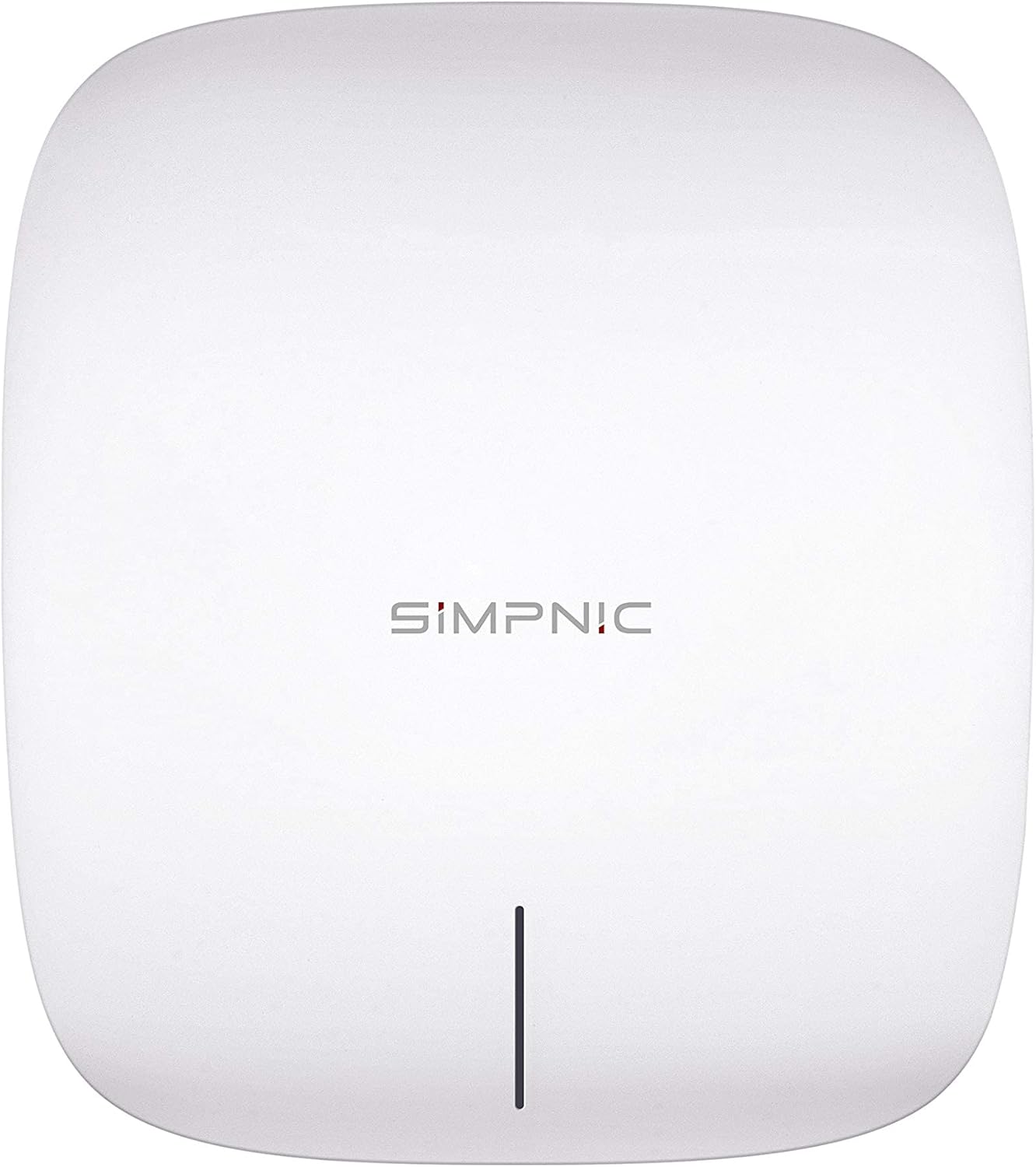
Image: Rear view of the SiMPNiC Gateway showing ports for power and Ethernet connection.
4.2 App Installation & Pairing
- Download the SiMPNiC App: Search for "SiMPNiC" in the Apple App Store (for iOS devices) or Google Play Store (for Android devices) and install the application.
- Create an Account: Open the SiMPNiC app and follow the on-screen instructions to create a new user account or log in if you already have one.
- Add Device: In the app, select the option to add a new device. Choose "Gateway" from the list of device types.
- Follow In-App Instructions: The app will guide you through the pairing process, which may involve confirming the gateway's status indicator light or scanning a QR code on the device. Ensure your smartphone is connected to a 2.4 GHz Wi-Fi network during this process.
- Connect to Voice Assistants: Once the gateway is successfully paired with the SiMPNiC app, you can link your SiMPNiC account to Amazon Alexa, Google Home, or Apple Siri through their respective applications to enable voice control.
5. Operating Instructions
5.1 Voice Control Integration
The SiMPNiC Gateway supports voice commands through Amazon Alexa, Google Home, and Apple Siri. After linking your SiMPNiC account in their respective apps, you can use voice commands to control connected SiMP devices. For example, "Alexa, turn on the living room light" or "Hey Google, set the bedroom temperature to 22 degrees."
5.2 Remote Operation via App
The SiMPNiC app allows you to control your smart home devices from anywhere with an internet connection. You can:
- Turn devices on/off.
- Adjust settings (e.g., light brightness, color).
- Monitor sensor data (e.g., temperature, humidity if compatible sensors are connected).
- Set schedules and timers for automated actions.
5.3 Scene Management
The gateway supports scene creation, allowing you to group multiple actions into a single command. For example, a "Good Morning" scene could turn on lights, open blinds (if compatible devices are connected), and start your coffee maker. These scenes can be activated via the app or voice commands.

Image: The SiMPNiC Gateway seamlessly integrated into a modern home environment, highlighting its discreet design.
6. Maintenance
To ensure optimal performance and longevity of your SiMPNiC Smart Home Gateway, follow these simple maintenance guidelines:
- Cleaning: Gently wipe the exterior of the gateway with a soft, dry cloth. Do not use liquid cleaners, aerosols, or abrasive solvents, as these may damage the device.
- Placement: Place the gateway in a well-ventilated area, away from direct sunlight, heat sources, and moisture. Ensure it is within range of your Wi-Fi network or connected directly via Ethernet.
- Firmware Updates: Regularly check the SiMPNiC app for available firmware updates for your gateway. Keeping the firmware updated ensures the best performance and security.
7. Troubleshooting
If you encounter issues with your SiMPNiC Smart Home Gateway, please refer to the following common troubleshooting steps:
| Problem | Possible Cause | Solution |
|---|---|---|
| Gateway not powering on. | Power adapter or cable issue; outlet problem. | Ensure the USB cable and power adapter are securely connected. Try a different power outlet. |
| Cannot connect to Wi-Fi. | Incorrect Wi-Fi password; gateway out of range; 5GHz network. | Verify Wi-Fi password. Move gateway closer to router. Ensure your router is broadcasting a 2.4 GHz network. |
| Devices not pairing with gateway. | Device too far; pairing mode not activated; interference. | Bring devices closer to the gateway. Ensure both gateway and device are in pairing mode as per their respective manuals. Reduce interference from other wireless devices. |
| Voice control not working. | Account not linked; incorrect commands; internet connectivity issue. | Verify SiMPNiC account is linked in Alexa/Google Home/Siri app. Use correct voice commands. Check internet connection. |
| Gateway unresponsive / needs reset. | Temporary software glitch. | Locate the reset button on the side of the gateway (refer to image below). Use a paperclip to press and hold the reset button for approximately 5-10 seconds until the indicator light changes. This will restore factory settings. |

Image: Side view of the SiMPNiC Gateway, highlighting the recessed reset button.
8. Specifications
| Feature | Detail |
|---|---|
| Brand | SiMPNiC |
| Model Number | S1-J |
| Product Dimensions | 12 x 12 x 3.7 cm |
| Product Weight | 200 g |
| Color | White |
| Material | Polycarbonate |
| Power Source | Electric (USB) |
| Input Power | DC 5V 2A (Micro USB, PSE compliant) |
| Power Consumption | Max 6W |
| Wireless Communication Standard | 2.4 GHz Wireless Frequency (IEEE 802.11b/g/n) |
| Connectivity Technology | Wi-Fi, Ethernet (1 x RJ-45 10/100) |
| Operating Environment | 0 ~ 50°C (Indoor use only) |
| Supported OS | iOS, Android (via SiMPNiC App) |
| Technical Conformity | Certified |

Image: Technical diagram showing the dimensions (120mm x 140mm x 37mm) and key specifications of the SiMPNiC Gateway.
9. Warranty and Support
Warranty: The SiMPNiC Smart Home Gateway comes with a manufacturer's warranty of 1 year from the date of purchase. Please retain your proof of purchase for warranty claims.
Support: For technical support, troubleshooting assistance beyond this manual, or warranty inquiries, please contact Connection Technology Systems Inc., the manufacturer and seller. Their contact information is typically found on the product packaging or their official website.
- Manufacturer/Seller: Connection Technology Systems Inc.
- Product Information: https://simpnic.com/ja
- Phone: 06-6450-8890 (Monday-Friday, 9:00-17:30 JST, excluding year-end/New Year holidays and public holidays)

