Introduction
This manual provides detailed instructions for the E-YOOSO K630 Mechanical Keyboard. Please read this guide thoroughly to ensure proper setup, operation, and maintenance of your device. The E-YOOSO K630 is a compact 87-key mechanical keyboard featuring low-profile blue switches and customizable rainbow backlighting, designed for both typing and gaming.
Package Contents
Verify that all items listed below are present in your package:
- 1 x E-YOOSO K630 Mechanical Keyboard
- 1 x USB Cable
- 1 x English User Manual
Product Features
- Compact 87-Key Layout: Ultra-thin and light design, measuring approximately 350x120x12 mm and weighing 750g.
- Low-Profile Blue Switches: Provides tactile feedback and a distinct clicky sound, suitable for gaming and typing. Designed for a lifespan of up to 50 million clicks.
- 100% Anti-Ghosting: Ensures every keystroke is registered accurately, even when multiple keys are pressed simultaneously.
- Water-Resistant Design: Constructed from top-grade ABS and metal material with a matte-finish texture. Features three drain holes for spill resistance.
- Customizable Rainbow Backlighting: Offers 9 different lighting modes, adjustable via function keys.
- Durable Construction: Features double-shot keycaps and a robust build for extended use.
- Wide Compatibility: Compatible with Windows XP, Vista, 7, 8, 10, and Mac operating systems. No additional drivers required.
Setup
- Unpack the Keyboard: Carefully remove the E-YOOSO K630 Mechanical Keyboard and its accessories from the packaging.
- Connect the USB Cable: Insert the USB-C end of the provided cable into the port on the back of the keyboard.
- Connect to Computer: Plug the standard USB-A end of the cable into an available USB port on your computer.
- Automatic Recognition: The keyboard is plug-and-play. Your operating system should automatically detect and install the necessary drivers. No manual driver installation is required.

Image: The E-YOOSO K630 keyboard connected via its USB-C cable, highlighting its thin profile and connectivity.
Operating Instructions
Function Key Combinations (FN)
The keyboard features several function key combinations to control various settings and shortcuts:
- FN + INS: Cycles through 9 different backlight modes.
- FN + W: Swaps the WASD keys with the arrow keys. Press again to revert.
- FN + Windows Key: Locks the Windows key to prevent accidental presses during gaming. Press again to unlock.
- FN + F12: Locks the entire keyboard. Press again to unlock.
- FN + F1-F12: Accesses various multimedia and system shortcuts (e.g., calculator, email, web browser, volume control).
Backlight Adjustment
The brightness and speed of the looped lighting effects can be adjusted:
- FN + Up Arrow Key: Increases backlight brightness.
- FN + Down Arrow Key: Decreases backlight brightness.
- FN + Left Arrow Key: Adjusts the speed of looped lighting effects (slower).
- FN + Right Arrow Key: Adjusts the speed of looped lighting effects (faster).

Image: A close-up view of the E-YOOSO K630 keyboard, highlighting the illuminated keys and the blue mechanical switches beneath the keycaps.

Image: A user's hands actively typing on the E-YOOSO K630 mechanical keyboard, showcasing its rainbow backlighting in use.
Maintenance
To ensure the longevity and optimal performance of your E-YOOSO K630 Mechanical Keyboard, follow these maintenance guidelines:
- Cleaning: Use a soft, dry cloth to wipe down the keyboard surface. For dust and debris between keys, use compressed air.
- Spill Management: While the keyboard is water-resistant, it is not waterproof. In case of a spill, immediately disconnect the keyboard from your computer, turn it upside down to drain liquid, and allow it to dry completely before reconnecting.
- Keycap Removal: Keycaps can be carefully removed for deeper cleaning or switch replacement using a keycap puller (not included). Exercise caution to avoid damaging the switches.
- Storage: Store the keyboard in a clean, dry environment away from extreme temperatures and direct sunlight.
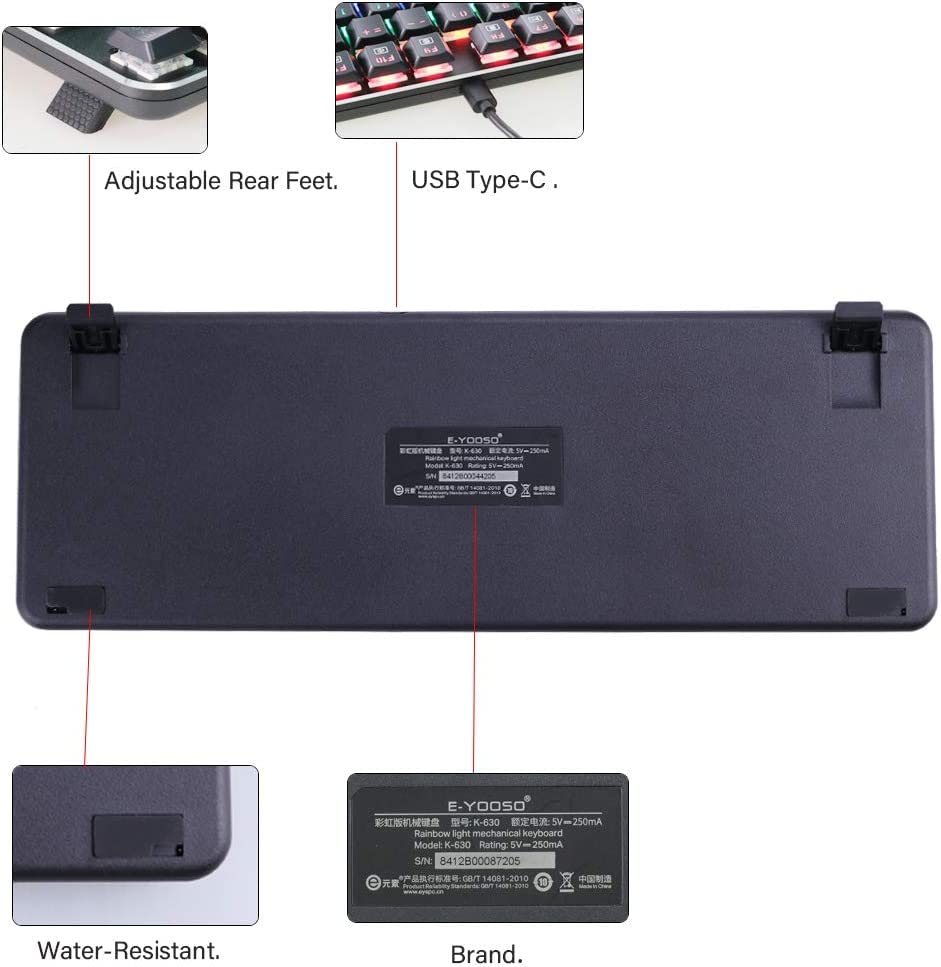
Image: The underside of the E-YOOSO K630 keyboard, illustrating its adjustable rear feet, USB Type-C port, and water-resistant design with drain holes.
Troubleshooting
If you encounter issues with your E-YOOSO K630 Mechanical Keyboard, refer to the following common solutions:
- Keyboard Not Responding:
- Ensure the USB cable is securely connected to both the keyboard and the computer.
- Try plugging the keyboard into a different USB port on your computer.
- Restart your computer.
- Check if the keyboard lock (FN+F12) is activated.
- Backlighting Not Working:
- Ensure the backlight brightness is not set to minimum (FN + Up Arrow Key to increase).
- Cycle through backlight modes using FN + INS.
- Keys Not Registering:
- Clean around the affected keys to remove any debris.
- Ensure the keyboard is not locked (FN+F12).
- Windows Key Locked:
- Press FN + Windows Key to unlock the Windows key.
Specifications
| Feature | Detail |
|---|---|
| Model Number | K630 |
| Keyboard Type | Mechanical, 87-Key Compact |
| Switch Type | Low-Profile Blue Switches |
| Key Durability | Up to 50 million clicks |
| Connectivity | USB (Wired) |
| Backlighting | Rainbow LED, 9 modes |
| Anti-Ghosting | 100% Anti-Ghosting with 87 Key Roll-over |
| Material | ABS and Metal |
| Dimensions (LxWxH) | Approximately 350 x 120 x 12 mm (13.7" x 4.7" x 0.47") |
| Weight | Approximately 750g (26.45 oz) |
| Operating System Compatibility | Windows XP/Vista/7/8/10, Mac |
| Special Features | Water Resistant, Backlit, Multimedia Shortcuts |
Warranty and Support
For warranty information and technical support, please refer to the documentation included with your purchase or contact E-Yooso customer service through their official website. Keep your purchase receipt as proof of purchase for warranty claims.


