
1. Introduction
The TP-Link M7000 4G+ MiFi is a portable wireless device that allows you to share a 4G/3G mobile internet connection with multiple Wi-Fi enabled devices. Its compact design and long-lasting battery make it ideal for travel, business trips, or any situation where you need a reliable internet connection on the go.
2. Package Contents
- TP-Link M7000 4G+ MiFi Device
- 2000mAh Battery
- Micro USB Cable
- Quick Installation Guide
Please check the package contents carefully. If any item is missing or damaged, contact your retailer.
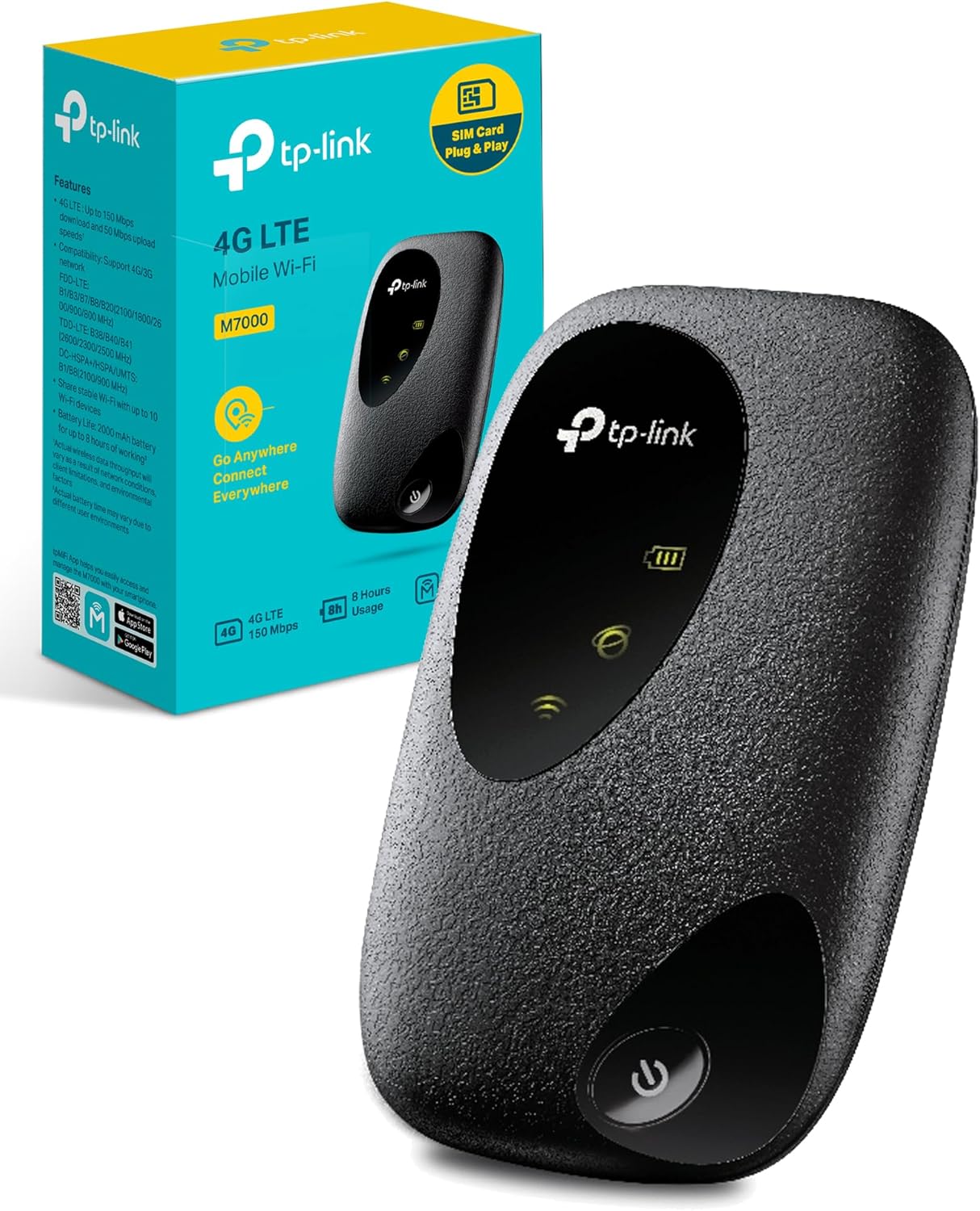
Image: The TP-Link M7000 MiFi device shown alongside its retail packaging, highlighting its compact size and branding.
3. Product Overview
3.1 Physical Appearance and Dimensions
The M7000 features a sleek, portable design, making it easy to carry in a pocket or bag. Its dimensions are optimized for mobility.

Image: A visual comparison of the TP-Link M7000 MiFi's dimensions (94mm x 56.7mm x 19.8mm) against a standard credit card, illustrating its compact and portable form factor. It also shows the USB port output.
3.2 LED Indicators
- Power LED: Indicates power status (on/off) and charging status (flashing while charging).
- Internet LED: Indicates internet connection status.
- Wi-Fi LED: Indicates Wi-Fi network status.
4. Setup
4.1 SIM Card and Battery Installation
Before using the device, you must install a valid 4G/3G SIM card and the provided battery.
- Remove the back cover of the M7000 device.
- Insert your standard 4G/3G SIM card into the SIM card slot as indicated by the diagram. Ensure the SIM card is correctly oriented.
- Insert the 2000mAh battery into its compartment.
- Replace the back cover until it clicks into place.

Image: An exploded view diagram illustrating the correct placement of the battery and SIM card within the TP-Link M7000 MiFi device.
4.2 Powering On/Off
- To Power On: Press and hold the Power button until the LED indicators light up.
- To Power Off: Press and hold the Power button until the LED indicators turn off.
4.3 Initial Configuration
Upon first power-on, the device will attempt to connect to the mobile network. The default Wi-Fi name (SSID) and password are typically printed on a label inside the battery compartment or on the device itself. You can manage settings via the tpMiFi App or a web browser.
5. Operating the Device
5.1 Connecting Devices to Wi-Fi
To connect your smartphone, tablet, laptop, or other Wi-Fi enabled device to the M7000:
- Ensure the M7000 is powered on and the Wi-Fi LED is active.
- On your device, go to Wi-Fi settings and search for available networks.
- Select the M7000's Wi-Fi network name (SSID).
- Enter the Wi-Fi password when prompted.
The M7000 can share its 4G/3G connection with up to 10 Wi-Fi devices simultaneously.

Image: Several individuals are depicted using laptops, tablets, and smartphones, all wirelessly connected to a central TP-Link M7000 MiFi device, demonstrating its capability to provide high-speed internet to multiple users.
5.2 Managing Settings with tpMiFi App
The tpMiFi App provides an easy way to manage your M7000 from your smartphone. Download the app from your device's app store (Google Play Store or Apple App Store).
- Monitor data usage and set data limits.
- View connected devices.
- Change Wi-Fi name and password.
- Manage SMS messages.
5.3 Global Compatibility
The M7000 supports 4G FDD/TDD-LTE mobile standards, offering fast Wi-Fi in most countries and regions. It is recommended to check with your network provider if special manual settings are required for internet access when traveling overseas.

Image: A world map illustrating the extensive global coverage of the TP-Link M7000, indicating its compatibility with 4G FDD-LTE and TDD-LTE networks across over 100 countries and regions, including Europe, Middle East, Asia, Africa, and Australia.
6. Maintenance
6.1 Charging the Battery
The M7000 is equipped with a 2000mAh battery, providing up to 8 hours of usage and up to 600 hours of standby time. To charge the device, connect it to a power source using the provided Micro USB cable. This can be a laptop, a laptop charger, or a standard USB power adapter.
6.2 Battery Care
- Avoid exposing the battery to extreme temperatures.
- Do not puncture, disassemble, or short-circuit the battery.
- If the device will not be used for an extended period, charge the battery to about 50% and store it in a cool, dry place.
6.3 Cleaning
Use a soft, dry cloth to clean the device. Do not use liquid cleaners or aerosols.
7. Troubleshooting
This section addresses common issues you might encounter with your M7000 device.
7.1 No Internet Connection
- Ensure your SIM card is correctly inserted and active.
- Check if you have mobile data allowance remaining with your service provider.
- Verify the APN settings in the device's management interface (tpMiFi App or web page) match your service provider's requirements.
- Restart the M7000 device.
- Check the signal strength indicator on the device. If the signal is weak, try moving to a different location.
7.2 Cannot Connect to Wi-Fi
- Ensure the M7000 is powered on and the Wi-Fi LED is lit.
- Verify you are entering the correct Wi-Fi password.
- Move your device closer to the M7000.
- Check if the maximum number of connected devices (10) has been reached.
7.3 Device Overheating or Battery Draining Quickly
- Continuous heavy usage, especially in areas with poor signal, can cause the device to warm up. This is normal.
- If the device becomes excessively hot or shuts down, power it off and allow it to cool down.
- Battery life can vary based on usage, number of connected devices, and signal strength. For extended use, consider keeping it plugged into a power source.
8. Specifications
| Feature | Description |
|---|---|
| Model Name | M7000 |
| Product Dimensions | 9.4 x 5.7 x 2 cm |
| Item Weight | 160 g |
| Battery | 2000 mAh Lithium Polymer (up to 8 hours usage) |
| Connectivity Type | 4G LTE (Cat4) |
| Wireless Type | 802.11b/g/n (2.4 GHz) |
| LTE Speed | Download up to 150 Mbps, Upload up to 50 Mbps |
| Co-current Clients | Up to 10 devices |
| Interface | 1 Standard SIM Card Slot, 1 Micro USB Port |
| Operating Temperature | 0°C ~ 35°C |
| Wireless Carrier | Unlocked |

Image: A close-up view of the TP-Link M7000 MiFi device accompanied by a list of its key technical specifications, including frequency bands (4G LTE FDD/TDD, 3G DC-HSPA+), LTE speeds, Wi-Fi standard, battery capacity, and dimensions.
9. Warranty and Support
For warranty information, please refer to the warranty card included in your product package or visit the official TP-Link website. TP-Link provides technical support for its products.
For further assistance, you can visit the TP-Link support page or contact their customer service. Ensure you have your product model number (M7000) and purchase details ready when seeking support.
TP-Link Official Website: www.tp-link.com


