
Introduction
Thank you for choosing the QNECT Smart Video Doorbell. This manual provides essential information for the proper installation, operation, and maintenance of your device. Please read it thoroughly before use to ensure optimal performance and safety.
The QNECT Smart Video Doorbell offers 1080P video resolution, IP65 weather resistance, night vision, two-way audio communication, and compatibility with smart home systems like Alexa and Google Home.
Setup and Installation
The QNECT Smart Video Doorbell is designed for straightforward installation. Ensure you have a stable Wi-Fi connection available at the installation location.
Package Contents
- QNECT Smart Video Doorbell
- Mounting accessories (screws, anchors)
- User Manual
Physical Installation
- Choose a Location: Select a suitable outdoor location near your door, ensuring a clear view and within Wi-Fi range. The device is IP65 rated, making it resistant to rain.
- Mounting: Use the provided screws and anchors to securely mount the doorbell to the wall. Ensure it is positioned at an appropriate height for optimal viewing.

Image: Front view of the QNECT Smart Video Doorbell, showing the camera lens, motion sensor, speaker grille, and illuminated doorbell button.
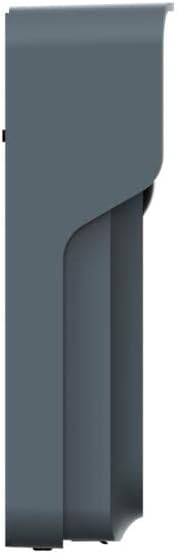
Image: Side profile of the QNECT Smart Video Doorbell, illustrating its slim design and mounting bracket.
App Connection
- Download the QNECT App: Search for the 'QNECT' app on your smartphone's app store (iOS or Android) and install it.
- Create an Account: Open the app and follow the on-screen instructions to create a new user account or log in if you already have one.
- Add Device: In the app, select the option to add a new device. Follow the pairing instructions, which typically involve scanning a QR code on the doorbell or entering a device ID.
- Connect to Wi-Fi: Configure the doorbell to connect to your home's 2.4GHz Wi-Fi network through the app.
Operating Instructions
Live View and Two-Way Audio
- When someone presses the doorbell, you will receive a notification on your smartphone via the QNECT app.
- Tap the notification to access a live video feed from the doorbell.
- Use the microphone and speaker icons within the app to engage in two-way communication with the visitor at your door, even when you are away from home.
Motion Detection and Night Vision
- The doorbell features a motion sensor that activates when someone approaches, triggering a recording and sending an alert to your phone.
- Equipped with an IR sensor and infrared LED, the doorbell provides clear night vision, ensuring visibility even in low-light conditions.
- The 140° wide-angle lens offers a broad view of your doorstep.
Storage Options
Video recordings and event footage can be stored using two methods:
- Cloud Storage: Subscribe to the optional cloud storage service through the QNECT app for secure online storage of your recordings.
- Micro SD Card: Insert a compatible micro SD card (not included) into the designated slot on the doorbell for local storage of recordings.
Smart Home Integration
The QNECT Smart Video Doorbell is compatible with popular smart home platforms:
- Alexa: Connect your doorbell to Amazon Alexa to receive announcements when the doorbell is pressed or motion is detected, and view the live feed on compatible Echo Show devices.
- Google Home: Integrate with Google Home for similar functionalities, including notifications and live viewing on Google Nest Hub devices.
Maintenance
- Cleaning: Periodically wipe the camera lens and the doorbell's exterior with a soft, damp cloth to remove dust and dirt. Avoid using harsh chemicals or abrasive materials.
- Firmware Updates: Ensure your doorbell's firmware is up to date through the QNECT app. Updates often include performance improvements and security enhancements.
- Battery Check: If your doorbell is battery-powered, monitor the battery level via the app and recharge or replace batteries as needed.
- Wi-Fi Connection: Regularly check the Wi-Fi signal strength in the app to ensure a stable connection for optimal performance.
Troubleshooting
No Power/Doorbell Not Responding
- Check if the battery is charged or if the power connection is secure.
- Ensure the doorbell button is not stuck.
Poor Video Quality or Connectivity Issues
- Verify your Wi-Fi network is active and the signal strength at the doorbell's location is adequate.
- Ensure your router is broadcasting a 2.4GHz Wi-Fi signal, as the doorbell may not support 5GHz.
- Restart your Wi-Fi router and the doorbell.
- Move the doorbell closer to the router or consider a Wi-Fi extender.
Motion Detection Not Working
- Check the motion detection settings in the QNECT app to ensure it is enabled and sensitivity is adjusted correctly.
- Ensure there are no obstructions blocking the sensor's view.
Two-Way Audio Problems
- Check your smartphone's volume settings and ensure the app has microphone permissions.
- Ensure the doorbell's speaker and microphone are not obstructed.
Doorbell Not Connecting to Alexa/Google Home
- Ensure the doorbell is properly connected to the QNECT app and has a stable internet connection.
- Follow the specific linking instructions within the Alexa or Google Home app to connect third-party devices.
- Verify that your Alexa/Google Home devices are on the same network as the doorbell.
Specifications
| Feature | Detail |
|---|---|
| Model Number | QNEP0007EUN |
| Manufacturer | QNECT |
| Dimensions | 21.2 x 10.2 x 4.8 cm |
| Weight | 420 grams |
| Power Source | Battery Powered |
| Battery Type | Lithium-ion |
| Weather Resistance | IP65 Certified |
| Video Resolution | 1080P |
| Viewing Angle | 140° |
| Night Vision | IR Sensor and Infrared LED |
| Storage Options | Cloud, Micro SD Card |
| Smart Home Compatibility | Alexa, Google Home |
Warranty and Support
For warranty information, please refer to the documentation provided with your purchase or visit the official QNECT website. If you encounter any issues or require technical assistance, please contact QNECT customer support through their official channels.
Keep your proof of purchase for warranty claims.

