
URANT ASDIOFJ2
URANT Super Boost WiFi Extender Instruction Manual
Model: ASDIOFJ2
Product Overview
The URANT Super Boost WiFi Extender is designed to amplify your existing wireless signal, extending coverage up to 2500 feet. Featuring 4 external advanced antennas and a data transfer rate of 1200 MBPS, this dual-band device ensures a strong and stable internet connection throughout your home or office. It also includes LAN/Ethernet ports for wired connections.

Image: The URANT Super Boost WiFi Extender, a black rectangular device with four adjustable antennas, plugged into a wall outlet. Green indicator lights are visible on its front panel.
Setup Instructions
Setting up your URANT WiFi Extender is a straightforward process. Follow these steps for a quick and easy installation:
- Power On: Plug the WiFi Extender into a power outlet near your existing router. Wait for the Power indicator light to turn solid green.
- WPS Setup (Recommended):
- Locate the WPS button on your existing wireless router.
- Press the WPS button on your router.
- Within 2 minutes, press the WPS button on the URANT WiFi Extender (located on the front panel, typically labeled "WPS").
- The extender's signal lights will flash and then turn solid, indicating a successful connection.

Image: Illustration showing two hands pressing WPS buttons on a router and the URANT WiFi Extender, with a signal wave indicating connection. Text reads "Easy Setup One Button Operation".
- Manual Setup (Alternative): If your router does not have a WPS button or if WPS setup fails, refer to the detailed instructions in the included quick start guide for browser-based setup.
- Relocate Extender: Once connected, unplug the extender and move it to a location between your router and the area with poor Wi-Fi coverage. Ensure the signal lights remain strong after relocation.
- Connect Devices: Your extended network will appear with your original network name followed by "_EXT" (e.g., "MyHomeWiFi_EXT"). Connect your devices to this new network.
Operating Modes
The URANT Super Boost WiFi Extender supports multiple operating modes to suit various networking needs:
- Repeater Mode: This is the most common mode, extending the range of your existing wireless network. The extender receives the wireless signal from your main router and re-broadcasts it, effectively eliminating Wi-Fi dead zones.

Image: A diagram illustrating three operating modes: AP Mode, Repeater Mode, and Router Mode. The Repeater Mode section shows a wireless router connecting wirelessly to the extender, which then extends the signal to WLAN clients and a wired connection.
- AP Mode (Access Point Mode): In this mode, the extender connects to your wired router via an Ethernet cable and transforms your wired network into a wireless one. This is useful for adding Wi-Fi capability to a non-wireless router.
Image: A diagram illustrating three operating modes: AP Mode, Repeater Mode, and Router Mode. The AP Mode section shows a wired router connected via Ethernet to the extender, which then provides a wireless signal to WLAN clients.
- Router Mode: The extender can function as a basic wireless router, connecting directly to a modem via an Ethernet cable to create a new wireless network.
Image: A diagram illustrating three operating modes: AP Mode, Repeater Mode, and Router Mode. The Router Mode section shows a modem connected via Ethernet to the extender, which then provides a wireless signal to WLAN clients.
The extender also features an extra Ethernet port, allowing you to connect a wired device (like a game console or smart TV) directly to your Wi-Fi network for a stable connection.

Image: The URANT WiFi Extender with two Ethernet ports labeled WAN and LAN. An illustration shows the signal passing through a wall, emphasizing its long-range capability. Text reads "High-speed Signal Through The Wall Without Loss".
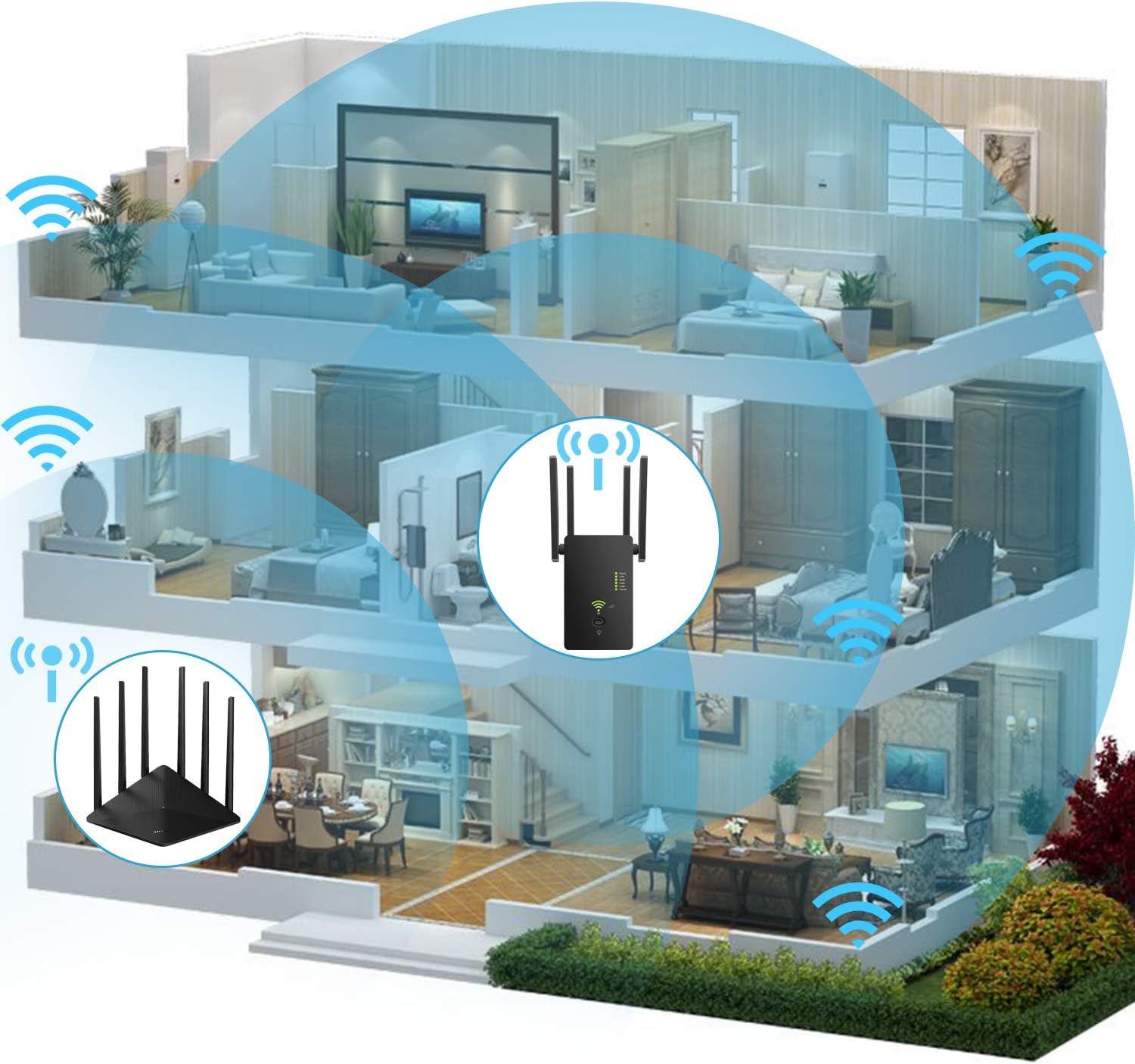
Image: A cutaway diagram of a multi-story house showing a router on the ground floor and the URANT WiFi Extender on the second floor, with blue signal waves indicating extended Wi-Fi coverage throughout the entire house.
Maintenance
To ensure optimal performance and longevity of your URANT Super Boost WiFi Extender, consider the following maintenance tips:
- Placement: Place the extender in a well-ventilated area, away from direct sunlight, heat sources, and obstructions that could block the signal.
- Cleaning: Periodically wipe the device with a soft, dry cloth to remove dust. Do not use liquid cleaners or aerosols.
- Firmware Updates: Check the manufacturer's website periodically for firmware updates. Keeping the firmware updated can improve performance and security.
- Power Cycle: If you experience performance issues, try power cycling the extender by unplugging it from the power outlet for 10-15 seconds and then plugging it back in.
Troubleshooting
If you encounter issues with your URANT Super Boost WiFi Extender, refer to the following common troubleshooting steps:
| Problem | Possible Cause | Solution |
|---|---|---|
| No Power Light | Extender not plugged in or power outlet issue. | Ensure the extender is securely plugged into a working power outlet. Try a different outlet. |
| Cannot Connect to Extended Network | Incorrect password, extender out of range, or setup incomplete. | Verify the Wi-Fi password. Move the extender closer to the main router. Re-run the setup process. |
| Slow Internet Speed | Poor signal strength to extender, network congestion, or interference. | Relocate the extender to a spot with better signal from the main router. Reduce the number of connected devices. Avoid placing near microwaves or cordless phones. |
| WPS Setup Fails | Router WPS timeout, or incompatible WPS. | Try pressing the WPS buttons simultaneously or within the specified time frame. Use the manual browser-based setup method. |
For further assistance, please consult the full user manual or contact URANT customer support.
Specifications
- Brand: URANT
- Model Number: ASDIOFJ2
- ASIN: B089SQRPPH
- Wireless Communication Standard: 802.11ac
- Data Transfer Rate: 1200 MBPS
- Frequency Band Class: Dual-Band
- Special Feature: Long Range with Advanced Antennas and Dual-Band High-Speed Data Transfer
- Package Dimensions: 5.39 x 4.57 x 2.44 inches
- Item Weight: 7.4 ounces
- Date First Available: January 24, 2021
Warranty and Support
For information regarding product warranty, technical support, or service, please refer to the warranty card included with your product packaging or visit the official URANT website. Contact details for customer support are typically provided on the manufacturer's website or in the full user manual.
Ask a question about this manual
Ask about setup, troubleshooting, compatibility, parts, safety, or missing instructions. Manuals+ will review the question and use this page’s manual context to help answer it.