
1. Product Overview
The Inova PX1 Bluetooth Gamepad is a versatile wireless controller designed to enhance your gaming experience across multiple platforms. Featuring dual 360-degree analog sticks, it provides precise control for various game genres, including shooting, sports, adventure, and more. Its ergonomic design ensures comfortable use during extended gaming sessions.
Key Features:
- Wireless Bluetooth connectivity
- Dual 360-degree analog sticks
- Compatible with Android, iOS, PC, and P3 consoles
- Rechargeable battery
- Effective wireless range of up to 7 meters

Image: Top view of the Inova PX1 Bluetooth Gamepad, showing the dual analog sticks, D-pad, action buttons (A, B, X, Y), and central function buttons (Select, Start, Inova logo button).
2. Package Contents
Please check the package carefully to ensure all items are present:
- 1 x Inova PX1 Bluetooth Gamepad
- 1 x USB Charging Cable
- 1 x Smartphone Holder Clip

Image: The Inova PX1 Bluetooth Gamepad laid out with its accessories: a black USB charging cable and a black smartphone holder clip.
3. Setup Guide
3.1 Charging the Gamepad
Before initial use, fully charge the gamepad. The Inova PX1 features a built-in rechargeable battery.
- Connect the small end of the provided USB charging cable to the micro-USB port on the front of the gamepad.
- Connect the standard USB end of the cable to a USB power source (e.g., computer USB port, USB wall adapter).
- The charging indicator light (if present, usually an LED) will illuminate during charging and turn off or change color when fully charged.
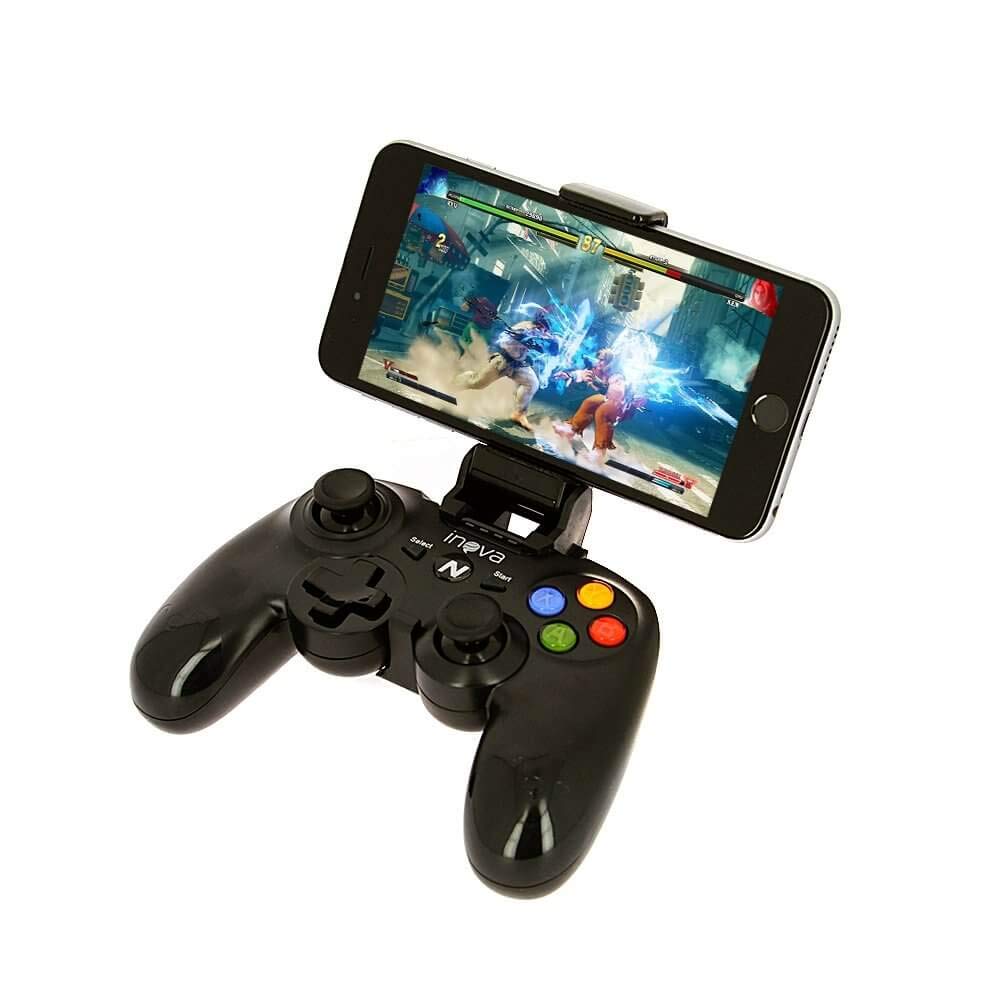
Image: Side view of the Inova PX1 Bluetooth Gamepad, highlighting the micro-USB charging port located on the top edge between the shoulder buttons.
3.2 Bluetooth Pairing
The Inova PX1 gamepad connects wirelessly via Bluetooth. The pairing process may vary slightly depending on your device (Android, iOS, PC, P3).
3.2.1 Pairing with Android/iOS Devices
- Ensure the gamepad is sufficiently charged.
- Turn on the gamepad by pressing and holding the power button (often the "Inova" logo button or a dedicated power button) until an indicator light flashes, signifying pairing mode.
- On your Android or iOS device, go to Settings > Bluetooth.
- Enable Bluetooth. Your device will scan for available devices.
- Select "Inova PX1" or a similar name from the list of available devices.
- Once connected, the gamepad's indicator light will typically become solid.
- For optimal mobile gaming, attach your smartphone to the gamepad using the provided holder clip.
3.2.2 Pairing with PC
- Ensure the gamepad is charged.
- Turn on the gamepad and activate pairing mode.
- On your Windows PC, go to Settings > Devices > Bluetooth & other devices.
- Click "Add Bluetooth or other device" and select "Bluetooth".
- Select "Inova PX1" or a similar name from the list.
- Follow any on-screen prompts to complete the pairing.
- For some PC games, you may need to configure controller settings within the game or use third-party software for XInput emulation.
3.2.3 Pairing with P3 (PlayStation 3)
- Connect the gamepad to the P3 console using the USB charging cable.
- Turn on the P3 console.
- Press the "Inova" logo button (or equivalent Home button) on the gamepad. This should register the controller with the console.
- Once registered, you can disconnect the USB cable, and the gamepad should connect wirelessly.
4. Operating the Gamepad
4.1 Basic Controls
The Inova PX1 gamepad features standard controller layouts:
- Left Analog Stick: For movement and directional input.
- Right Analog Stick: For camera control or aiming.
- D-Pad (Directional Pad): For precise directional input, often used in menus or specific game actions.
- Action Buttons (A, B, X, Y): For in-game actions (e.g., jump, attack, interact).
- Shoulder Buttons (L1/LB, R1/RB): For various actions, often quick commands.
- Trigger Buttons (L2/LT, R2/RT): For actions requiring variable input, like acceleration or shooting.
- SELECT/BACK Button: Often used for menu navigation or specific game functions.
- START/MENU Button: Often used to pause games or access in-game menus.
- HOME/INOVA Button: To power on/off the gamepad, return to the system home screen, or activate pairing mode.

Image: Front view of the Inova PX1 Bluetooth Gamepad, displaying the L1/LB, R1/RB shoulder buttons and L2/LT, R2/RT trigger buttons.
4.2 Using the Smartphone Holder
The included clip allows you to securely attach your smartphone to the gamepad for a portable gaming setup.
- Gently expand the spring-loaded clamps of the smartphone holder.
- Carefully place your smartphone into the holder, ensuring it is centered and securely gripped.
- Attach the holder to the designated slot on the gamepad (usually on the top center). Ensure it clicks into place firmly.
- Adjust the angle of your phone for optimal viewing.
5. Maintenance
Proper care will extend the life of your Inova PX1 Gamepad.
- Cleaning: Use a soft, dry cloth to wipe the gamepad. For stubborn dirt, slightly dampen the cloth with water. Avoid harsh chemicals or abrasive cleaners.
- Storage: Store the gamepad in a cool, dry place away from direct sunlight and extreme temperatures.
- Battery Care: To maintain battery health, avoid fully discharging the battery frequently. If storing for a long period, charge the gamepad to about 50% every few months.
- Avoid Drops: Protect the gamepad from drops and impacts, which can damage internal components.
6. Troubleshooting
6.1 Gamepad Does Not Turn On
- Ensure the gamepad is fully charged. Connect it to a power source and wait for at least 30 minutes before attempting to turn it on again.
- Try a different USB charging cable or power adapter.
6.2 Cannot Pair with Device
- Ensure Bluetooth is enabled on your host device (smartphone, PC, P3).
- Make sure the gamepad is in pairing mode (indicator light flashing). Refer to Section 3.2.
- Move the gamepad closer to your device (within 7 meters).
- Turn off and on Bluetooth on your host device.
- Restart both the gamepad and your host device.
- Remove "Inova PX1" from your device's Bluetooth history and try pairing again.
- Ensure no other Bluetooth devices are interfering.
6.3 Gamepad Disconnects Frequently
- Ensure the gamepad is fully charged. Low battery can cause unstable connections.
- Reduce the distance between the gamepad and your device.
- Avoid obstacles (walls, large electronic devices) that might interfere with the Bluetooth signal.
- Check for firmware updates for your host device or gamepad (if available from Inova).
6.4 Buttons/Joysticks Not Responding Correctly
- Restart the gamepad and your host device.
- Ensure the gamepad is properly paired and connected.
- Test the gamepad with a different game or application to determine if the issue is game-specific.
- For PC, check controller settings within the game or operating system.
- Clean around the buttons and joysticks to remove any debris.
7. Specifications
| Brand: | INOVA |
| Model: | PX1 |
| Part Number: | 451CON-8199 |
| Connectivity Technology: | Bluetooth |
| Wireless Range: | Up to 7 meters |
| Compatible Platforms: | Android, iOS, PC, P3 (PlayStation 3) |
| Power Source: | Rechargeable Battery |
| Special Features: | Wireless, Dual 360-degree analog sticks |
| Product Dimensions: | 15 x 15 x 20 cm (approximate) |
| Product Weight: | 1 Kilogram (approximate) |
8. Warranty and Support
For warranty information and customer support, please refer to the documentation provided at the point of purchase or contact your retailer. INOVA does not provide specific warranty details in this manual. Keep your proof of purchase for any warranty claims.
For further assistance, you may also visit the official INOVA website or contact their customer service if available in your region.