
1. Introduction
This manual provides detailed instructions for the HXSJ J600 Mechanical Gaming Mouse. Please read this guide thoroughly to understand the features, setup, and operation of your new gaming mouse. Proper use and maintenance will ensure optimal performance and longevity of the product.
2. Product Overview
The HXSJ J600 is a high-performance mechanical gaming mouse designed for precision and customization. It features a human body engineering design for comfortable use, 9 programmable keys, adjustable DPI settings up to 6400, and cool LED lighting effects.
Key Features:
- Full-key 9 customizable macro programming.
- Six-level adjustable DPI (800-1600-2400-3200-4800-6400).
- Integrated aluminum alloy sandblasted metal floor design.
- Electroplated apron wheel with 3D carving for enhanced grip.
- 16 million color backlight with multiple mode changes.
- Durable switches with a 20 million click cycle life.
Package Contents:
- 1 x HXSJ J600 Gaming Mouse
- 1 x English User Manual
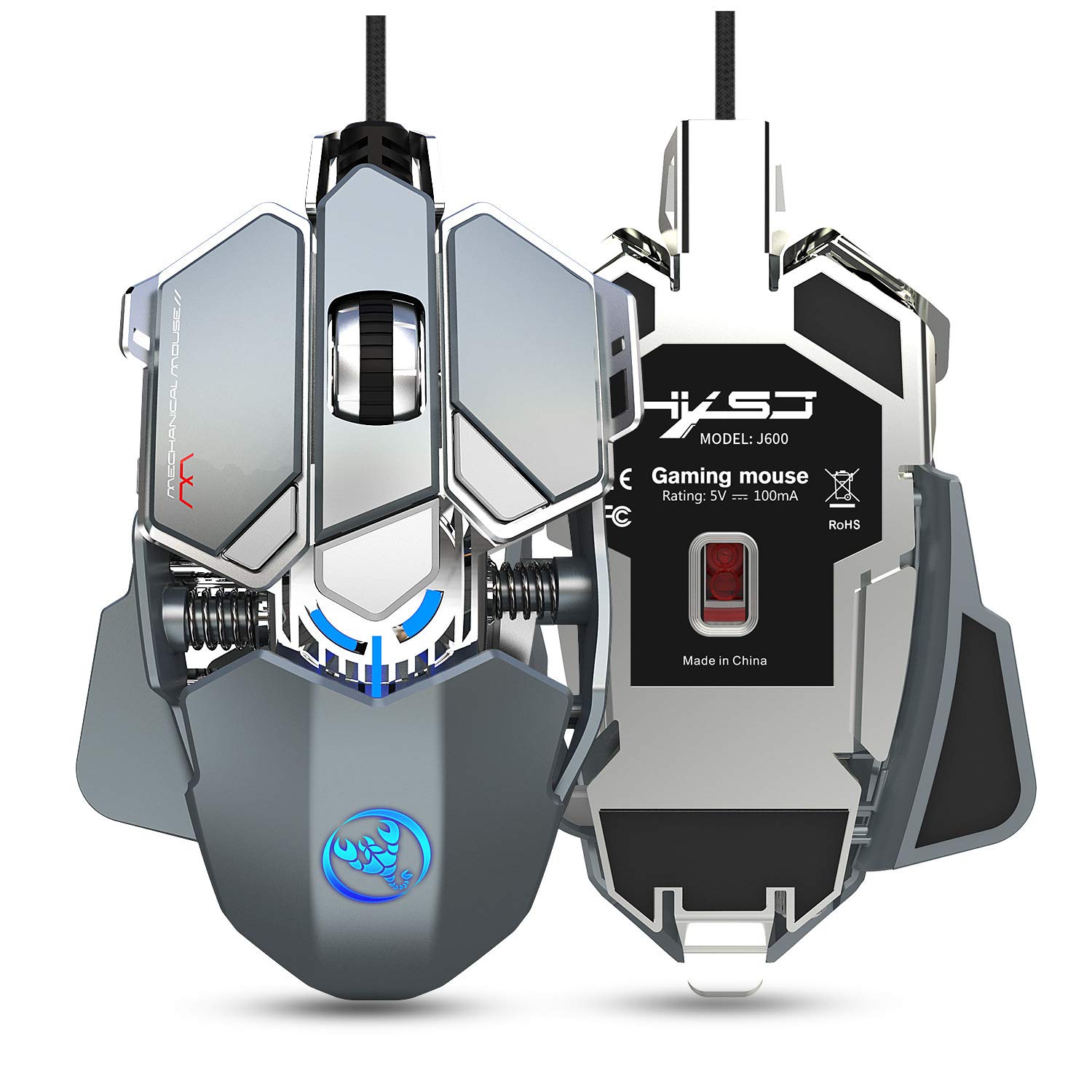
Figure 2.1: HXSJ J600 Mechanical Gaming Mouse. This image shows the overall design of the mouse, highlighting its mechanical aesthetic and wired connection.
3. Setup Instructions
Follow these steps to set up your HXSJ J600 Mechanical Gaming Mouse:
- Connect the Mouse: Plug the USB connector of the HXSJ J600 mouse into an available USB port on your computer. The mouse is plug-and-play, and your operating system should automatically detect and install the necessary basic drivers.
- Install Macro Programming Software: For full customization of the 9 programmable keys, DPI settings, and LED effects, you need to install the dedicated macro programming software.
- Locate the software download link. This is typically provided on the manufacturer's official website or a designated support page.
- Download the software package (e.g., "setup.exe") to your computer.
- Run the installer and follow the on-screen prompts to complete the installation.
- Once installed, a "J600" drive icon should appear on your desktop. Double-click this icon to launch the software.
Note: Ensure your mouse is connected and functioning normally before attempting software installation. The software is compatible with Windows 2000 / XP / Win7 / Win8 / Win10 / Vista 32bit / IOS or later operating systems.
4. Operating Instructions
The HXSJ J600 mouse offers various customizable features to enhance your gaming experience.
4.1 Button Settings and Macro Programming
The mouse features 9 programmable buttons. These buttons can be customized using the macro programming software to perform specific actions or complex sequences (macros) in games or applications.

Figure 4.1: Button Layout. This diagram illustrates the numbered programmable buttons on the HXSJ J600 mouse, including the left, right, middle, and various side buttons.
To customize buttons:
- Launch the J600 macro programming software.
- Navigate to the "Button Settings" or "Custom Settings" section.
- Select the desired button (1-9) you wish to program.
- Choose an action from the available options (e.g., single key, macro, multimedia function).
- For macro editing, record your desired key presses and delays.
- Click "Applications" to apply the changes, then "Save Configuration" to store your settings.

Figure 4.2: Macro Programming Interface. This image displays the software interface for setting up hardware macros, including examples for various in-game weapon configurations.
4.2 DPI Adjustment
The mouse supports 6-level adjustable DPI settings, ranging from 800 to 6400 DPI. You can cycle through these settings using the dedicated DPI buttons on the mouse or customize them via the software.

Figure 4.3: DPI Switching and LED Indicators. This image shows the DPI adjustment buttons and the corresponding LED light colors for each DPI level (800 Green, 1600 Purple, 2400 Blue, 3200 Red, 4800 Yellow, 6400 Cyan-blue).
To adjust DPI:
- Use the DPI+ and DPI- buttons on the mouse to cycle through the preset DPI levels.
- The LED light on the mouse will flash in a specific color to indicate the current DPI setting.
- In the software, you can customize the exact DPI values for each of the six segments.
4.3 LED Settings
The HXSJ J600 features customizable LED lighting. You can configure the lighting effects through the software:
- Always On: The LED lights remain constantly illuminated.
- Custom Breath: The lights pulse in a breathing effect with customizable colors.
- Spectral Cycle: The lights cycle through a spectrum of colors.
- Off: The LED lights are turned off.
4.4 Mouse Parameters
Within the software, you can also fine-tune general mouse parameters:
- Pointer Precision: Adjust the accuracy of the mouse pointer.
- Wheel Speed: Control the scrolling speed of the mouse wheel.
- Double Click Speed: Set the required speed for a double-click to register.
5. Maintenance
To ensure the longevity and optimal performance of your HXSJ J600 Mechanical Gaming Mouse, follow these maintenance guidelines:
- Cleaning: Regularly clean the mouse with a soft, dry cloth. For stubborn dirt, slightly dampen the cloth with water or a mild cleaning solution. Avoid using harsh chemicals or abrasive materials.
- Sensor Cleaning: Occasionally clean the optical sensor on the underside of the mouse with a cotton swab to prevent tracking issues.
- Cable Care: Avoid sharp bends or excessive pulling on the USB cable to prevent internal damage.
- Storage: When not in use, store the mouse in a clean, dry environment away from extreme temperatures.

Figure 5.1: Alloy Plating Rubber Roller. This image highlights the durable and sensitive scroll wheel, designed for anti-slip performance and smooth rolling.
6. Troubleshooting
If you encounter issues with your HXSJ J600 mouse, refer to the following troubleshooting tips:
6.1 Mouse Not Responding
- Check USB Connection: Ensure the USB cable is securely plugged into a functioning USB port on your computer. Try a different USB port.
- Restart Computer: A simple system restart can often resolve connectivity issues.
- Test on Another Computer: If possible, test the mouse on another computer to determine if the issue is with the mouse or your system.
6.2 Software/Driver Issues
- Software Download: Ensure you have downloaded the correct and latest version of the macro programming software for the J600 model. Verify the source of the download.
- Reinstall Software: If the software is not functioning correctly, uninstall it from your system, restart your computer, and then perform a fresh installation.
- Administrator Privileges: Run the software installer and the application itself with administrator privileges.
6.3 LED Lights Not Working or Incorrect Colors
- Check Software Settings: Open the macro programming software and verify the LED settings. Ensure they are not set to "Off" or an unintended mode.
- Software Conflict: If other lighting control software is running, it might conflict with the mouse's LED settings. Close other lighting applications.
6.4 Buttons Not Responding or Performing Incorrect Actions
- Check Macro Settings: Review your button assignments and macro configurations in the software. Ensure they are saved correctly.
- Software Activation: After saving configurations, ensure you restart the driver or software as instructed to activate all customizations.
- Default Settings: If issues persist, try resetting the mouse to its default settings via the software.
7. Specifications
Detailed technical specifications for the HXSJ J600 Mechanical Gaming Mouse:
| Feature | Specification |
|---|---|
| Product Model | J600 Mechanical Macros Define the game mouse |
| Keys | 9 programmable keys |
| DPI Levels | 800-1600-2400-3200-4800-6400 (adjustable) |
| Voltage / Current | DC 5V / 100mA |
| Interface | USB (Plug and Play) |
| Switch Life | 20 million cycles |
| Cable Length | 150 cm |
| Item Weight | 137.5g (approx. 4.85 oz) |
| Item Dimensions | 130 x 80 x 35 mm (L x W x H) |
| Supported OS | Windows 2000 / XP / Win7 / Win8 / Win10 / Vista 32bit / IOS or latest |
| Hand Orientation | Ambidextrous |
| Special Feature | Soundless (referring to click sound) |
8. Warranty and Support
For warranty information and technical support, please refer to the documentation included with your purchase or visit the official HXSJ website. Keep your proof of purchase for any warranty claims.
If you require further assistance, please contact HXSJ customer support through their official channels.
