
Introduction
This manual provides essential information for the proper setup, operation, and maintenance of your Fujitsu FI-7140 Color Duplex Scanner. Please read these instructions carefully before using the device to ensure optimal performance and longevity.

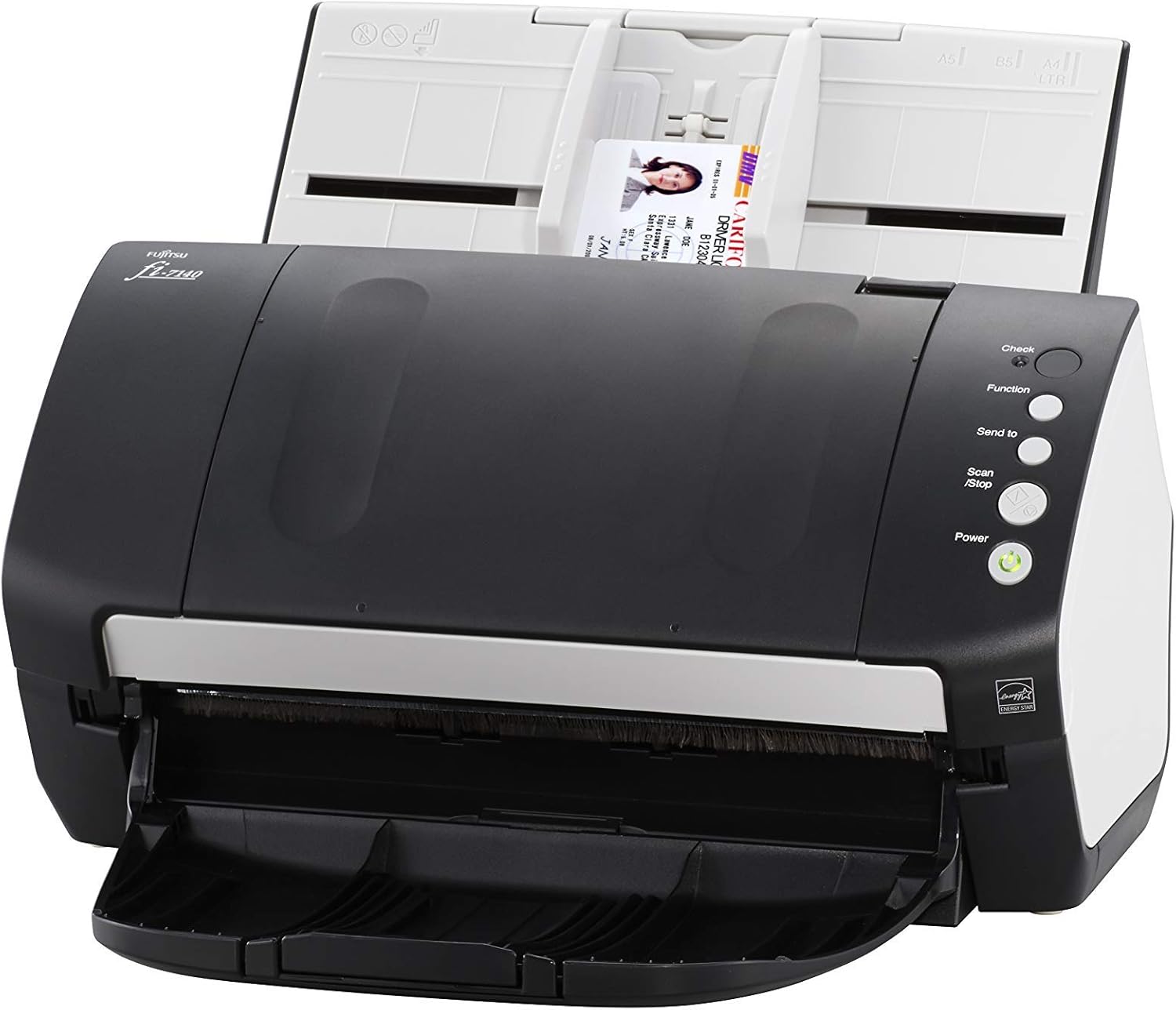
Front view of the Fujitsu FI-7140 scanner with the document feeder open and a document loaded, ready for scanning.
Setup
1. Unpacking and Physical Placement
- Carefully remove the scanner and all accessories from the packaging.
- Place the scanner on a stable, flat surface with adequate space for document feeding and output.
- Extend the input and output trays as needed to accommodate documents.
The Fujitsu FI-7140 scanner showing the extended output tray, ready to receive scanned documents.
2. Connecting the Scanner
- Connect the power adapter to the scanner and a power outlet.
- Connect the USB cable from the scanner to an available USB port on your computer.
3. Software Installation
- Insert the provided installation CD/DVD into your computer's drive, or download the latest drivers and software (including PaperStream IP) from the official Fujitsu support website.
- Follow the on-screen instructions to complete the software installation. PaperStream IP is a TWAIN compliant driver that offers powerful image cleanup tools.
Operating Instructions
1. Loading Documents
- Open the document feeder cover and adjust the side guides to match the width of your documents.
- Load documents into the automatic document feeder (ADF). The scanner supports mixed paper sizes and weights, eliminating the need for pre-sorting.
- The ADF has a standard sheet capacity of 80 pages.
- The scanner also supports scanning of plastic and embossed cards.

A document being fed into the Fujitsu FI-7140 scanner's automatic document feeder, illustrating the scanning process.
2. Initiating a Scan
- Ensure the scanner is powered on (green light on the Power button).
- On your computer, open the scanning software (e.g., PaperStream Capture or other compatible application).
- Select your desired scanning profile or adjust settings such as color mode (color, grayscale, monochrome), resolution (up to 600 dpi optical), and output destination.
- Press the 'Scan/Stop' button on the scanner or initiate the scan from the software interface. The scanner operates at 40 pages per minute (ppm) and performs duplex scanning.
3. Utilizing Software Features
- PaperStream IP includes tools to remove colored and decorated backgrounds, automatically remove blank pages, and improve Optical Character Recognition (OCR) accuracy for searchable PDFs.
- Review scanned images within the software and make any necessary adjustments or corrections before saving.
Maintenance
1. Cleaning Procedures
- Regularly clean the scanner's rollers and glass surfaces to prevent dust and debris from affecting scan quality.
- Use a soft, lint-free cloth lightly dampened with a mild, non-abrasive cleaner. Avoid spraying cleaner directly onto the scanner.
- Refer to the detailed cleaning instructions in the full user manual for specific components.
2. Roller Replacement
- Over time, the feed rollers may wear out, leading to paper feeding issues.
- Consult the full user manual for instructions on how to inspect and replace the rollers. Replacement kits are available from authorized Fujitsu dealers.
Troubleshooting
Common Issues and Solutions:
- Paper Jams: If a paper jam occurs, carefully open the scanner covers and remove any jammed paper. Ensure documents are loaded correctly and the side guides are adjusted.
- Poor Scan Quality: Clean the scanner's glass and rollers. Ensure the original documents are clean and flat. Adjust scanning settings (e.g., resolution, brightness) in the software.
- Scanner Not Detected: Verify that the USB cable is securely connected to both the scanner and the computer. Check that the scanner's power is on. Reinstall the scanner drivers if necessary.
- Software Errors: Ensure your scanning software and drivers are up to date. Restart the software and/or your computer.
For more detailed troubleshooting steps, refer to the comprehensive troubleshooting guide available in the full user manual or on the Fujitsu support website.
Specifications
| Model Name | FI-7140 |
| Scanner Type | Document, Color Duplex |
| Scanning Speed | 40 ppm (pages per minute) in color, grayscale, and monochrome |
| Automatic Document Feeder (ADF) Capacity | 80 pages |
| Optical Resolution | Up to 600 dpi |
| Connectivity Technology | USB |
| Product Dimensions | 11.8 x 6.7 x 6.4 inches |
| Item Weight | 10.88 pounds |
| Wattage | 36 watts |
| Maximum Media Size | A4 |
| Minimum System Requirements | Windows 7 |
Warranty and Support
Warranty Information
This product is covered by the Amazon Renewed Guarantee. If you are not satisfied with your purchase, renewed products are eligible for replacement or refund under the Amazon Renewed Guarantee. Please refer to the Amazon Renewed program terms and conditions for full details.
Technical Support
For technical assistance, driver downloads, or further product information, please visit the official Fujitsu support website or contact their customer service. Keep your product model and serial number handy when seeking support.


