
1. Introduction
The Savetek Professional Voice Activated Digital Audio Recorder 16GB (Model GS-R07) is a versatile device designed for high-quality audio recording, MP3 playback, and secure data storage. This manual provides essential information for setting up, operating, maintaining, and troubleshooting your device to ensure a seamless user experience.

Image: Savetek Professional Voice Activated Digital Audio Recorder 16GB.
2. Product Overview
The Savetek GS-R07 recorder features a durable metal casing, a color display, and intuitive controls. It is equipped with dual stereo microphones for clear audio capture and offers various functionalities beyond basic recording.
2.1 Package Contents
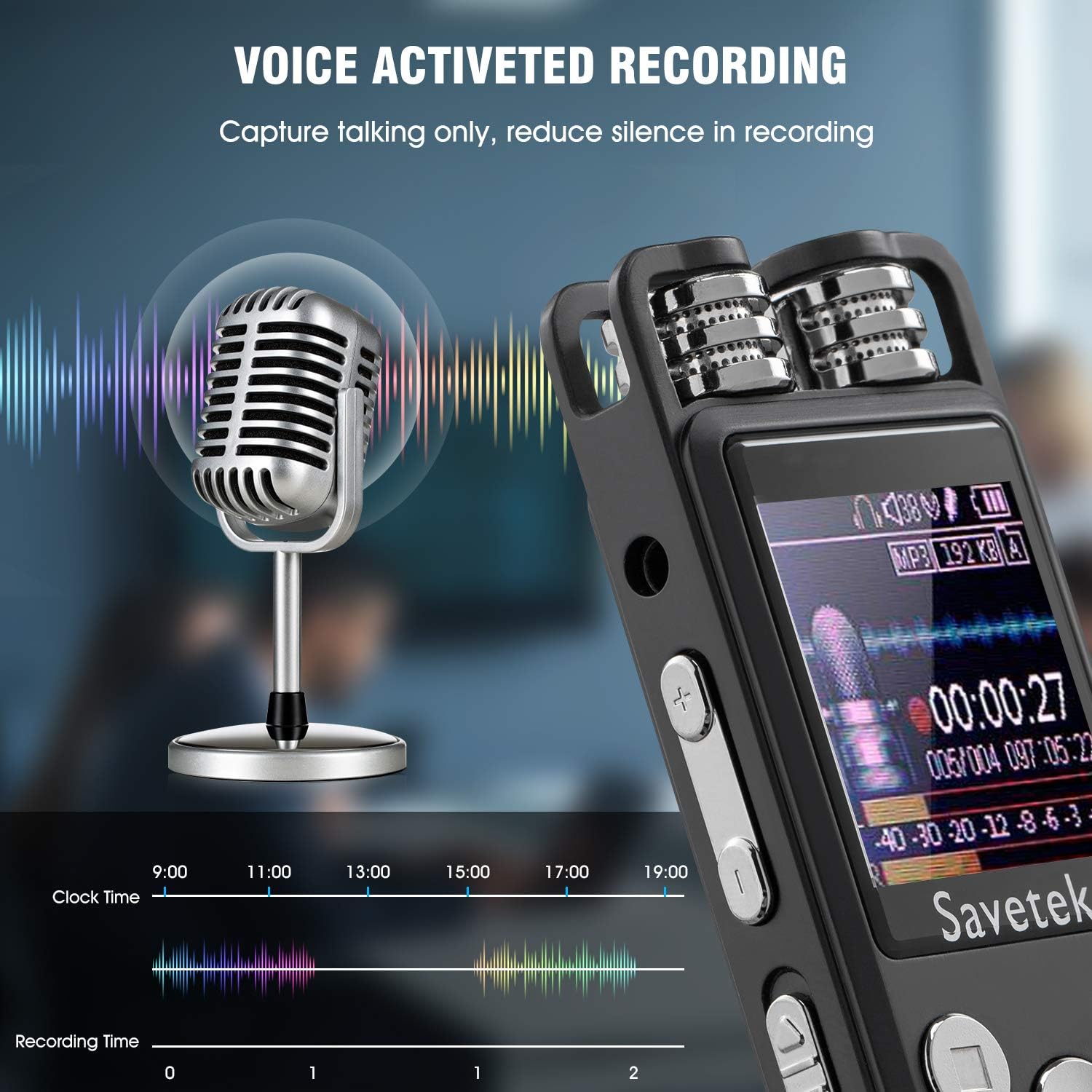
Image: Savetek Digital Voice Recorder with included accessories: headphones, USB cable, and user manual.
Upon unboxing, please ensure all items are present:
- Savetek Digital Voice Recorder (Model GS-R07)
- USB Charging/Data Cable
- Earphones
- User Manual
2.2 Key Features

Image: Savetek voice recorder displaying icons representing its various functions.
- One-Button Recording: Simple operation for instant recording.
- Voice-Activated Recording (AVR): Automatically records when sound is detected, saving storage space.
- Intelligent Noise Reduction: Enhances human voice and filters background noise for clear audio.
- Mass Storage & Expandability: Built-in 16GB memory, supports TF card expansion up to 128GB.
- Password Protection: Secures your recordings and files.
- Lossless MP3 Player: Supports MP3, FLAC, APE formats with built-in speakers.
- Scheduled/Time Recording: Set specific times for automatic recording.
- Time Stamp: Automatically names files by date and time for easy organization.
3. Setup
3.1 Charging the Device
Before first use, fully charge the recorder. Connect the device to a computer's USB port or a USB wall adapter (not included) using the provided USB cable. The battery indicator on the screen will show charging status. A full charge typically takes a few hours.
3.2 Power On/Off
- To power on, slide the power switch to the 'ON' position.
- To power off, slide the power switch to the 'OFF' position.
3.3 Initial Settings (Date and Time)
It is recommended to set the correct date and time upon first use. This ensures that your recordings are accurately time-stamped. Refer to the on-screen menu for 'System Settings' to adjust these parameters.

Image: Close-up of the Savetek voice recorder's color display and control buttons.
4. Operating Instructions
4.1 Basic Recording
- Ensure the device is powered on.
- Press the "REC" button to start recording. The recording indicator will illuminate.
- To pause recording, press the "PAUSE" button. Press again to resume.
- To stop recording and save the file, press the "STOP" button. The file will be automatically named with the date and time.
4.2 Voice-Activated Recording (AVR)
The AVR function allows the recorder to start recording automatically when sound is detected and pause when there is silence, optimizing storage space.

Image: Savetek voice recorder display showing voice activated recording feature.
- Navigate to the recording settings menu.
- Locate and enable the 'AVR' or 'Voice Activated Recording' option.
- Adjust the sensitivity level if available (higher sensitivity detects quieter sounds).
- Start recording as usual; the device will now operate in voice-activated mode.
4.3 Intelligent Noise Reduction
This feature helps to filter out background noise, resulting in clearer recordings, especially in noisy environments.

Image: Savetek voice recorder display illustrating noise reduction effect.
- Access the recording settings menu.
- Find the 'Noise Reduction' option and ensure it is enabled.
4.4 Password Protection
To protect your sensitive recordings, you can set a password for the device.
- Go to 'System Settings' in the main menu.
- Select 'Password Setting' or similar option.
- Follow the on-screen prompts to set your desired password.
- The device will require this password upon startup and when connected to a computer via USB.
4.5 Scheduled/Time Recording
Set the recorder to automatically power on and start recording at a specified time.
- In the main menu, navigate to 'Time Record' or 'Scheduled Recording'.
- Set the desired start time and end time for the recording.
- Ensure the device has sufficient battery life for the scheduled recording duration.
4.6 MP3 Player Functionality
The device can also function as a lossless MP3 player, supporting MP3, FLAC, and APE audio formats.

Image: Savetek voice recorder screen showing MP3 playback interface.
- Transferring Music: Connect the recorder to your computer via USB. Drag and drop music files into the designated 'Music' folder on the device.
- Playback: Select 'Music' from the main menu. Browse and select your desired audio file. Use the control buttons for play, pause, skip, and volume adjustment.
- A-B Repeat: During playback, activate the A-B repeat function to loop a specific segment of an audio file.

Image: Savetek voice recorder illustrating the A-B repeat function.
4.7 File Management
Recordings are automatically named with a date and time stamp for easy organization.

Image: Savetek voice recorder showing file names with date and time stamps.
- Connect the device to a computer using the USB cable.
- The device will appear as a removable disk.
- You can transfer, delete, or organize your recording and music files directly from your computer.
5. Maintenance
- Cleaning: Use a soft, dry cloth to clean the device. Avoid liquid cleaners or abrasive materials.
- Battery Care: To prolong battery life, avoid fully discharging the device frequently. Charge it regularly, even if not in use for extended periods.
- Storage: Store the device in a cool, dry place away from direct sunlight and extreme temperatures.
- Data Backup: Regularly back up important recordings to a computer or external storage device to prevent data loss.
6. Troubleshooting
| Problem | Possible Solution |
|---|---|
| Device does not power on. |
|
| Buttons feel loose or rattle. |
|
| Menu navigation is difficult. |
|
| Poor recording quality. |
|
| Cannot connect to computer. |
|
7. Specifications
| Brand | Savetek |
| Model | GS-R07 |
| Memory Storage Capacity | 16 GB |
| Screen Size | 1.44 Inches |
| Battery Life (Recording) | Up to 50 Hours |
| Battery Type | 1 Lithium Ion battery required |
| Product Dimensions | 10 x 3.7 x 1.2 cm; 160 g |
| Hardware Interface | USB, USB 2.0 |
| Microphone Form Factor | Built-In, Stereo |
| Headphones Jack | 3.5 millimeters |
| Supported Audio Formats | MP3, WAV, WMA, FLAC, APE |
| Recording Bitrate | Up to 1536Kbps |

Image: Savetek voice recorder in various usage scenarios.
8. Warranty and Support
For warranty information or technical support, please refer to the documentation included with your purchase or contact the seller directly. Keep your purchase receipt as proof of purchase.


