1. Introduction
Thank you for purchasing the NOKLEAD NK5244 Alarm Clock with Qi Wireless Charging. This device combines the functionality of a digital alarm clock with the convenience of a wireless charging station, designed to simplify your bedside or desk setup. Please read this manual carefully before use to ensure proper operation and to maximize the lifespan of your product.

Image 1.1: NOKLEAD NK5244 Alarm Clock with Qi Wireless Charging.
2. Safety Information
- Do not charge phones when covered by metal phone cases. Silicone or plastic cases are generally compatible.
- The charging induction distance is 4mm. Please remove heavy-duty or thick phone cases to ensure effective charging.
- This wireless charger includes protection against short circuit, overvoltage, overcurrent, overcharge, overheat, EMF, and anti-reverse-charging.
- Use the provided 5V/1A adapter or a QC 2.0/3.0 adapter for optimal performance and fast charging.
- Keep the device away from water and high humidity environments.
- Do not disassemble, repair, or modify the product yourself.
3. Package Contents
Please check the package for the following items:
- 1 x NOKLEAD Portable Digital Alarm Clock (Model: NK5244)
- 1 x User Manual
- 1 x 5V/1A Adapter
- 1 x TYPE-C Cable
4. Product Overview
Familiarize yourself with the components and controls of your NOKLEAD alarm clock.

Image 4.1: Bottom view of NOKLEAD NK5244 showing control buttons and Type-C port.
Control Buttons:
- Time Setting Button: Used to enter time setting mode.
- Alarm Setting Button: Used to enter alarm setting mode.
- Down Button (-): Decreases values during setting; also used for 12/24H format switch.
- Up Button (+): Increases values during setting.
- Type-C Port: Power input for the device.
- Snooze/Dimmer Bar (Top Surface): Press the top surface of the clock to activate snooze or adjust display brightness.
5. Setup
5.1 Power Connection
- Connect the provided Type-C cable to the Type-C port on the back of the alarm clock.
- Plug the other end of the cable into the 5V/1A adapter.
- Plug the adapter into a standard wall outlet. The display will light up.
5.2 Initial Time Setting
- Press the Time Setting button on the bottom of the clock. The hour digits will start flashing.
- Use the Up (+) or Down (-) buttons to adjust the hour.
- Press the Time Setting button again to confirm the hour and move to minute setting. The minute digits will flash.
- Use the Up (+) or Down (-) buttons to adjust the minutes.
- Press the Time Setting button one more time to save the time and exit setting mode.
- To switch between 12-hour and 24-hour format, press and hold the Down (-) button while in normal time display mode.
6. Operating Instructions
6.1 Setting the Alarm
- Press the Alarm Setting button on the bottom of the clock. The alarm hour digits will start flashing.
- Use the Up (+) or Down (-) buttons to adjust the alarm hour.
- Press the Alarm Setting button again to confirm the alarm hour and move to alarm minute setting. The alarm minute digits will flash.
- Use the Up (+) or Down (-) buttons to adjust the alarm minutes.
- Press the Alarm Setting button one more time to save the alarm time and exit setting mode. The alarm icon will appear on the display, indicating the alarm is active.
- To turn the alarm ON/OFF, press the Alarm Setting button briefly while in normal time display mode. The alarm icon will appear/disappear accordingly.
6.2 Snooze Function
When the alarm sounds, gently press the top surface of the alarm clock (the Snooze/Dimmer bar). The alarm will pause for 9 minutes and then sound again. The snooze icon (Zzz) will flash on the display.

Image 6.1: Pressing the top surface for snooze function.
To turn off the alarm completely after it sounds, press and hold the top surface of the clock for a few seconds until the alarm icon disappears.
6.3 Adjusting Display Brightness
The display has 4 levels of brightness (Off/Dim/Medium/Bright). To adjust the brightness, gently press the top surface of the alarm clock (the Snooze/Dimmer bar) repeatedly while the alarm is not sounding. Each press will cycle through the brightness levels.

Image 6.2: Four levels of display brightness.
6.4 Wireless Charging
The NOKLEAD alarm clock features a Qi-certified wireless charging pad on its top surface.

Image 6.3: Wireless charging in use on a nightstand.
- Compatibility: Compatible with iPhone (12/12 Pro/12 mini/11/11 Pro/XS/XR/8/8 Plus/SE), Samsung Galaxy (S21/S20/S10/S9/S8/S7), Note (20/10/9/8), Google Pixel (5/4/4XL/3/3XL), and other Qi-Certified smartphones and wireless earbuds.
- How to Charge: Simply place your Qi-compatible device on the center of the charging pad. The charging indicator (lightning bolt icon) on the clock display will illuminate to confirm charging has begun.
- Charging Speed: Supports up to 10W fast charging. For fast charging, ensure you are using the original adapter of your phone or a QC 2.0/3.0 adapter to power the clock.
- Case Friendly: The charger supports charging through phone cases up to 4mm thick. However, it does not support charging through metal phone cases, cases with grips/stands, or cases with magnets.
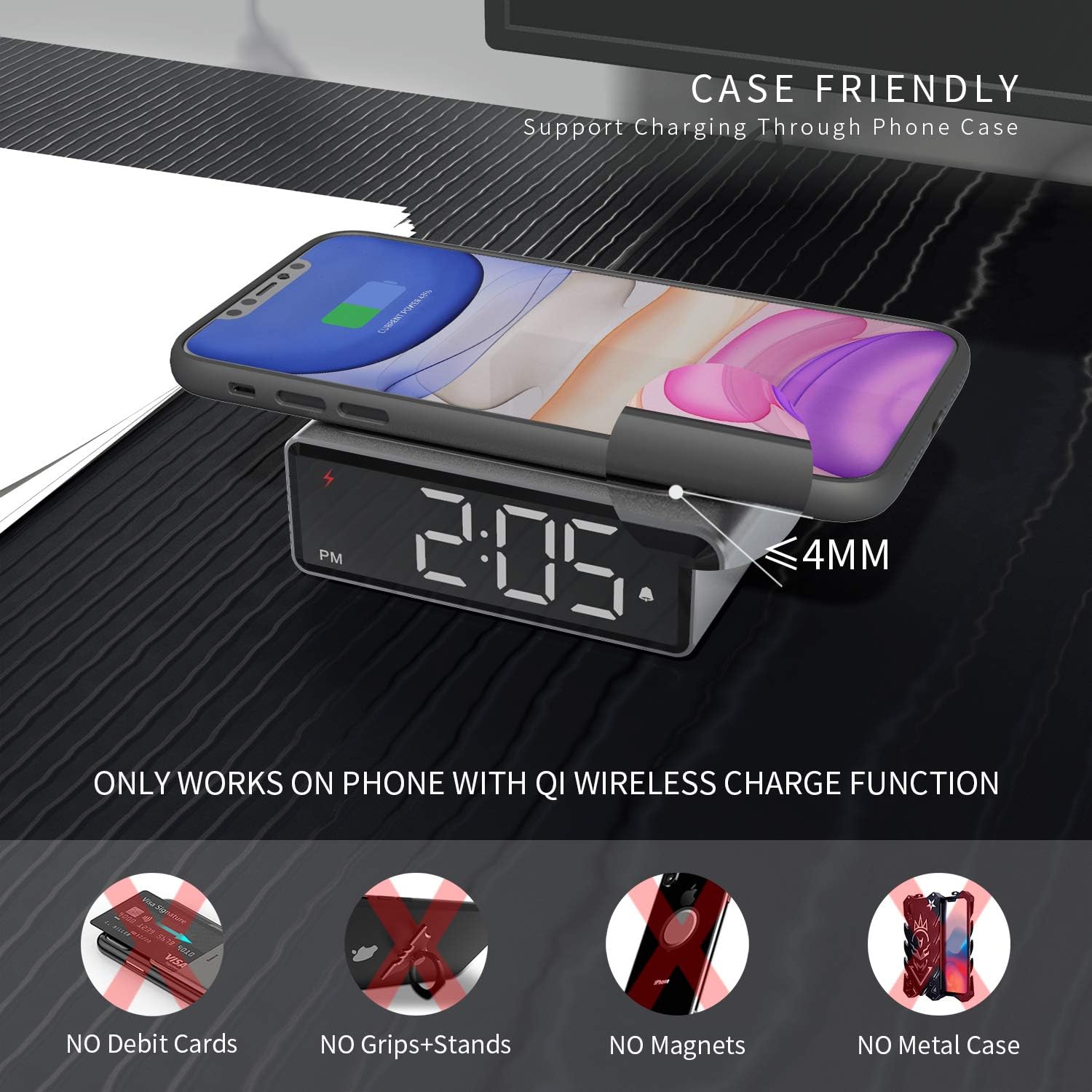
Image 6.4: Case-friendly wireless charging.

Image 6.5: Universal compatibility with Qi-certified devices.
7. Maintenance
- Clean the device with a soft, dry cloth. Do not use abrasive cleaners or solvents.
- Ensure the device is unplugged before cleaning.
- Avoid exposing the device to extreme temperatures or direct sunlight.
8. Troubleshooting
- Clock not powering on: Ensure the Type-C cable is securely connected to both the clock and the power adapter, and the adapter is plugged into a working wall outlet.
- Wireless charging not working:
- Ensure your phone is Qi-compatible and placed centrally on the charging pad.
- Remove any metal phone cases, cases with grips/stands, or cases with magnets.
- Check if your phone case is thicker than 4mm.
- Ensure the clock is powered by the original adapter or a QC 2.0/3.0 adapter.
- Display too bright/dim: Press the top surface of the clock to cycle through the 4 brightness levels.
- Alarm not sounding: Ensure the alarm icon is visible on the display, indicating the alarm is active. Re-check alarm time settings.
- Time/settings lost after power outage: The built-in button battery should retain settings. If not, ensure the battery is properly seated or consider replacing it if issues persist over time.
9. Specifications
| Brand | NOKLEAD |
| Model | NK5244 |
| Color | Silver |
| Product Dimensions | 8.3 x 8.3 x 3 cm |
| Item Weight | 260 g |
| Material | Metal |
| Display Type | Digital LED |
| Brightness Levels | 4 (Off/Dim/Medium/Bright) |
| Time Format | 12/24 Hour Switchable |
| Snooze Duration | 9 Minutes |
| Wireless Charging Output | Max 10W |
| Power Input | 5V/1A (Adapter Included), QC 2.0/3.0 Compatible |
| Backup Battery | Built-in button battery for settings memory |
10. Warranty and Support
NOKLEAD products are designed and manufactured to the highest quality standards. For warranty information or technical support, please refer to the contact details provided on the product packaging or contact your retailer. Keep your purchase receipt as proof of purchase.


