
1. Introduction
This manual provides comprehensive instructions for the installation, operation, and maintenance of your Yale YMF 40 Smart Door Lock. The Yale YMF 40 offers advanced security and convenience with multiple access methods, including biometric fingerprint recognition, PIN codes, mechanical keys, and smartphone control via the Yale App. Please read this manual thoroughly before using your smart lock to ensure proper function and safety.
2. Product Overview and Features
The Yale YMF 40 Smart Door Lock is designed to provide secure and flexible access to your property. It integrates various technologies to enhance your home security experience.
2.1 Key Features
- Multiple Access Options: Unlock your door using biometric fingerprint, a personalized PIN code, traditional mechanical keys, or through the Yale Link app via Bluetooth. Optional Wi-Fi connectivity is available with the Yale Link Wi-Fi Bridge for remote access.
- One-Touch Fingerprint Verification: Advanced biometric technology allows for quick and secure access with a single touch.
- Voice Guidance: The lock provides step-by-step voice prompts for various operations, including user registration, password setting, and status notifications (e.g., low battery, lock/unlock status).
- Automatic Locking: The auto-lock feature automatically secures your door after it closes, providing peace of mind.
- Internal Forced Lock: This security function disables external authentication methods (fingerprint, PIN, RFID) when activated from inside, enhancing privacy and security.
- Low Battery Alarm & Emergency Power: The lock warns you with an alarm and LED indicator when batteries are low. In case of complete battery discharge, emergency power can be supplied using a standard 9V battery.
- Security Alarms: An 80dB alarm activates if tampering is detected, the door is forced open, or if the lock senses high temperatures (above 60°C) due to fire.
- Fake PIN Code: This feature allows users to enter random numbers before or after their actual PIN to prevent exposure of the code to onlookers.
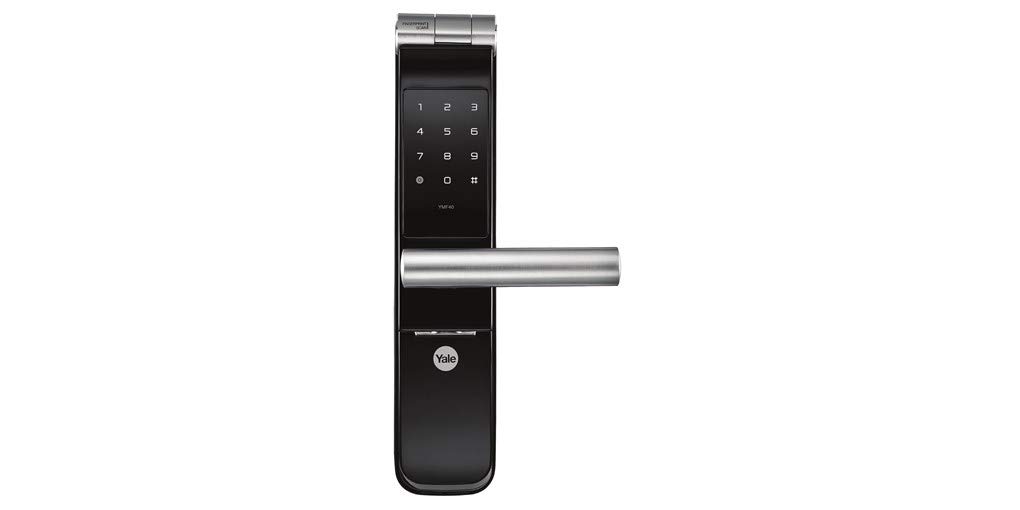
Figure 2.1: Front view of the Yale YMF 40 Smart Door Lock, showcasing the keypad and handle.

Figure 2.2: Front and back components of the Yale YMF 40 Smart Door Lock, illustrating the internal mechanism and external keypad.
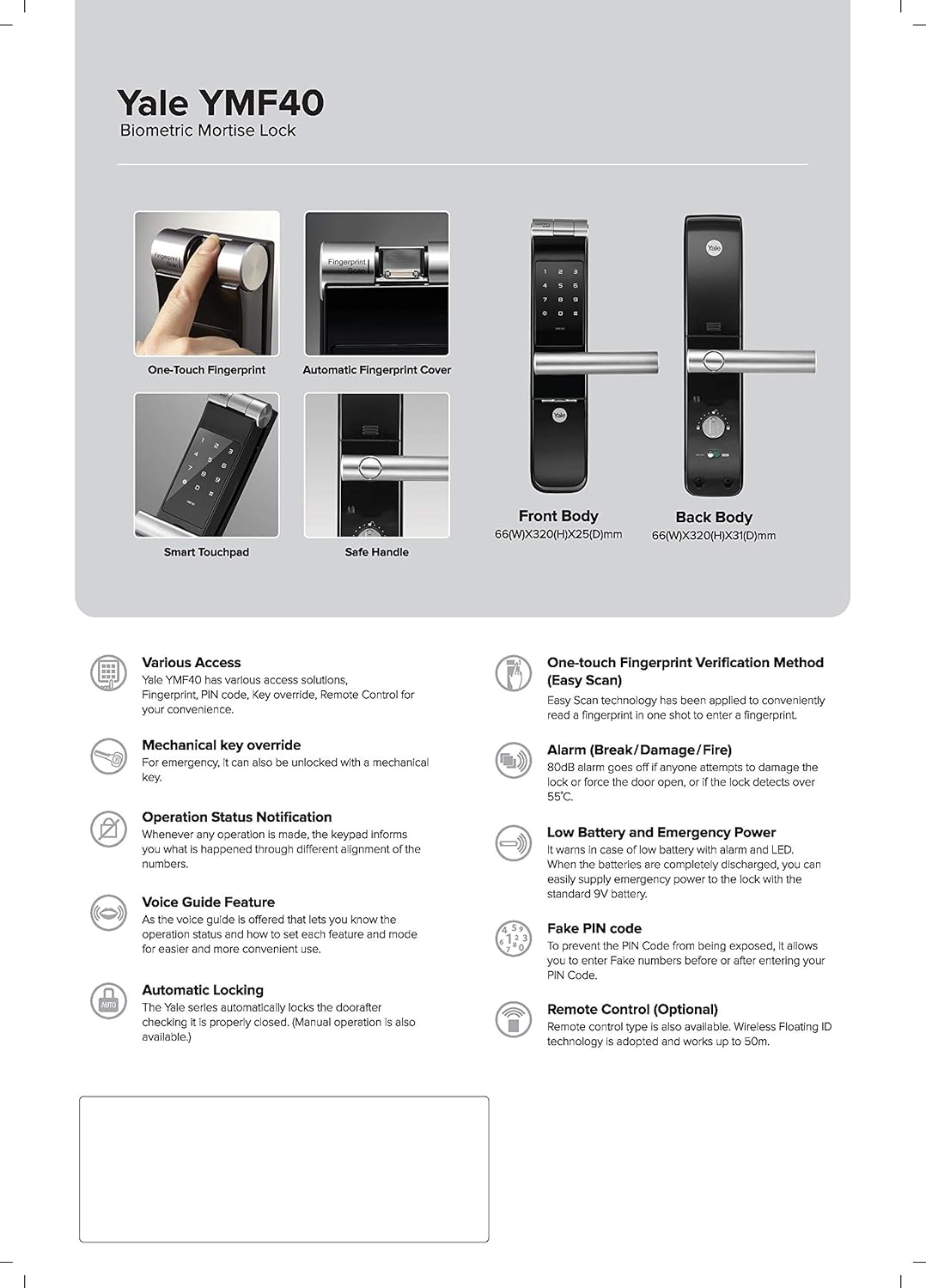
Figure 2.3: Detailed diagram highlighting various features and dimensions of the Yale YMF 40 Smart Door Lock, including one-touch fingerprint, smart touchpad, and safe handle.
3. Setup and Installation
The Yale YMF 40 Smart Door Lock is designed for easy replacement of existing door locks and supports door thicknesses from 40 mm to 100 mm. While installation can be straightforward, professional installation is recommended to ensure optimal performance and security. For installation assistance, please refer to the warranty and support section.
3.1 Package Contents
- Yale YMF 40 Smart Door Lock unit (Front and Back bodies)
- 4 x AA Batteries
- Mechanical Keys
- Installation Template and Hardware (not explicitly listed but implied for installation)
3.2 Battery Installation
- Locate the battery compartment on the interior unit of the lock.
- Open the battery cover.
- Insert the 4 AA batteries, ensuring correct polarity (+/-).
- Close the battery cover. The lock will typically provide a voice prompt upon successful battery installation.
Note: The lock's memory retains all credentials and settings when changing batteries, simplifying the replacement process.
4. Operating Instructions
The Yale YMF 40 offers multiple ways to lock and unlock your door. Follow the voice guidance for step-by-step assistance during operation.
4.1 Unlocking with Fingerprint
- Place your registered finger on the biometric sensor.
- The lock will verify your fingerprint and unlock the door.
- A voice prompt will confirm the unlock status.
4.2 Unlocking with PIN Code
- Touch the keypad to activate it.
- Enter your registered PIN code.
- Press the '#' key to confirm.
- The lock will unlock, and a voice prompt will confirm.
Tip: Use the Fake PIN Code feature by entering random numbers before or after your actual PIN to obscure your code from others.
4.3 Unlocking with Mechanical Key
In case of emergency or battery failure, the door can be unlocked using the provided mechanical keys. Insert the key into the keyhole and turn to unlock.
4.4 Unlocking via Yale App (Bluetooth/Wi-Fi)

Figure 4.1: Illustration of Yale Link App features, including alarm notifications, remote access, visitor management, and auto-lock settings.
- Download the Yale Link app from your smartphone's app store (available on App Store and Google Play).
- Follow the in-app instructions to pair your smartphone with the Yale YMF 40 lock via Bluetooth.
- To enable remote access outside Bluetooth range, install the Yale Link Wi-Fi Bridge (sold separately) and connect it to your local Wi-Fi network.
- Use the app to lock/unlock the door, manage user access, view activity logs, and receive notifications.
4.5 Automatic Locking
The lock is equipped with an automatic locking feature. Once the door is closed, the lock will automatically engage after a short delay. This feature can typically be configured or disabled via the lock's settings or the Yale Link app.
4.6 Internal Forced Lock
To activate the Internal Forced Lock, locate the corresponding button or switch on the interior unit of the lock. Once activated, all external authentication methods (fingerprint, PIN, RFID) will be disabled, preventing entry from the outside. This is ideal for enhanced privacy when inside your home.
5. Maintenance
Proper maintenance ensures the longevity and reliable operation of your Yale YMF 40 Smart Door Lock.
5.1 Low Battery Alarm and Emergency Power
When the batteries are running low, the lock will provide an audible alarm and an LED indicator. It is recommended to replace the batteries promptly upon this warning.
If the batteries are completely discharged, you can supply emergency power to the lock using a standard 9V battery. Locate the emergency power terminal on the exterior unit (usually two small contacts) and hold a 9V battery against them while attempting to unlock with your PIN or fingerprint.
5.2 Battery Replacement
Replace all four AA batteries simultaneously with new, high-quality alkaline batteries. Refer to section 3.2 for detailed battery installation steps. The lock's settings will be preserved during battery replacement.
5.3 Cleaning
Clean the lock's exterior with a soft, dry cloth. Avoid using abrasive cleaners, solvents, or harsh chemicals, as these can damage the finish and electronic components.
6. Troubleshooting
This section addresses common issues you might encounter with your Yale YMF 40 Smart Door Lock.
| Problem | Possible Cause | Solution |
|---|---|---|
| Lock does not respond. | Dead batteries. | Replace batteries (refer to Section 5.2) or use emergency 9V power (refer to Section 5.1). |
| Fingerprint not recognized. | Finger is dirty, wet, or improperly placed; fingerprint not registered. | Ensure finger is clean and dry. Place finger firmly and completely on the sensor. Re-register fingerprint if necessary. |
| PIN code not accepted. | Incorrect PIN entered; keypad not active. | Ensure the keypad is illuminated before entering the PIN. Verify the correct PIN. |
| Alarm sounds unexpectedly. | Tampering attempt; forced entry; high temperature detected. | Investigate the cause. The alarm will typically reset after the threat is removed or after a set period. If persistent, contact support. |
| Cannot connect to Yale Link app. | Bluetooth/Wi-Fi issues; lock not paired; Yale Link Bridge not connected. | Ensure Bluetooth is enabled on your phone. Check Yale Link Bridge connection if using Wi-Fi. Re-pair the lock with the app if necessary. |
For issues not covered here, please contact customer support.
7. Specifications
| Feature | Detail |
|---|---|
| Brand | Yale |
| Model Name | Yale YMF 40 |
| Lock Type | Electronic Lock, Key Lock |
| Access Methods | Biometric Fingerprint, PIN Code, Mechanical Keys, Yale Link App (Bluetooth & Optional Wi-Fi) |
| Material | Aluminium |
| Color | Black |
| Dimensions (L x W x H) | 6.2 x 2.8 x 30.8 Centimeters |
| Item Weight | 4.3 kg (4300 Grams) |
| Door Thickness Compatibility | 40 mm to 100 mm |
| Power Source | 4 x AA Batteries |
| Connectivity Protocol | Bluetooth, Wi-Fi (with optional Yale Link Bridge) |
| Control Method | App, Remote, Touch |
| Special Features | Automatic Locking, Voice Guidance, Internal Forced Lock, Low Battery Alarm, Emergency Power Terminal, Security Alarms |
8. Warranty and Support
Yale provides comprehensive support for your YMF 40 Smart Door Lock.
- Warranty: The product comes with a 1-year warranty. Please retain your proof of purchase for warranty claims.
- Customer Support: For installation assistance, service support, or any queries, please contact our 24/7 toll-free customer support helpline. Refer to the product packaging or Yale's official website for contact details.
9. Safety Information
- Do not attempt to disassemble or repair the lock yourself. This may void the warranty and could lead to malfunction.
- Use only the specified battery type (AA alkaline batteries). Do not mix old and new batteries or different types of batteries.
- Keep mechanical keys in a safe place, separate from the lock, and ensure they are not accessible to unauthorized individuals.
- Regularly check the lock for any signs of damage or wear.
- Protect your PIN codes and ensure they are not easily discoverable. Change PIN codes periodically.
- Ensure your smartphone and the Yale Link app are secured with strong passwords or biometric authentication.


