
1. Introduction
The Tek Styz OTG MicroUSB 2.0 adapter provides On-The-Go (OTG) functionality, allowing you to connect various USB peripherals directly to your MicroUSB-enabled devices, such as the DragonTouch V80X Plus. This adapter expands the capabilities of your smartphone or tablet by enabling connections to devices like keyboards, mice, flash drives, and game controllers.
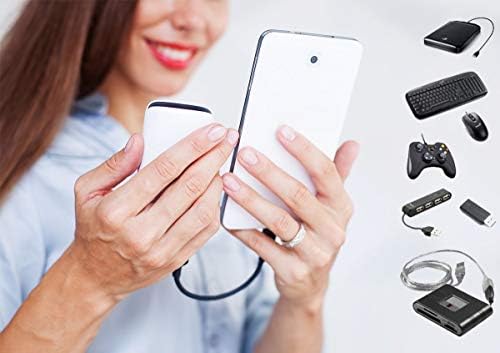
Image 1.1: The OTG adapter facilitates connection to various USB peripherals.
2. Setup
The Tek Styz OTG MicroUSB 2.0 adapter is designed for plug-and-play operation, requiring no additional drivers or software for most compatible devices.
- Verify Device Compatibility: Ensure your smartphone or tablet supports USB On-The-Go (OTG) functionality. Most modern Android devices with a MicroUSB port support this feature.
- Connect the Adapter: Insert the MicroUSB connector of the OTG adapter into the MicroUSB port of your compatible device.
- Connect Peripheral: Plug your desired USB peripheral (e.g., keyboard, mouse, flash drive, game controller) into the standard USB-A port on the OTG adapter.
- Automatic Recognition: Your device should automatically detect the connected peripheral. A notification may appear indicating the device is connected.

Image 2.1: The adapter supports a wide range of USB peripherals.
3. Operating Instructions
Once connected, the OTG adapter allows your device to interact with various USB peripherals as a host.
3.1. Connecting a Keyboard or Mouse
Connect a USB keyboard or mouse to the OTG adapter. Your device will typically recognize these input devices immediately, allowing you to type, navigate, and interact with your device more efficiently, similar to a computer.
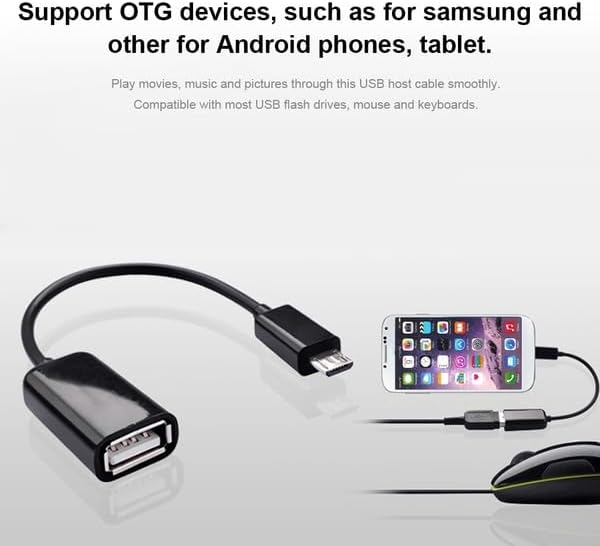
Image 3.1: Connecting a USB mouse to a smartphone via the OTG adapter.

Image 3.2: Connecting a USB keyboard to a smartphone via the OTG adapter.
3.2. Connecting a Flash Drive or External Storage
Plug a USB flash drive or other compatible external storage device into the adapter. Your device's file manager application should detect the storage, allowing you to browse, open, transfer, and manage files directly from the external drive.
3.3. Connecting a Game Controller
Attach a compatible USB game controller. Many Android games and emulators support USB controllers, providing an enhanced gaming experience with physical controls.
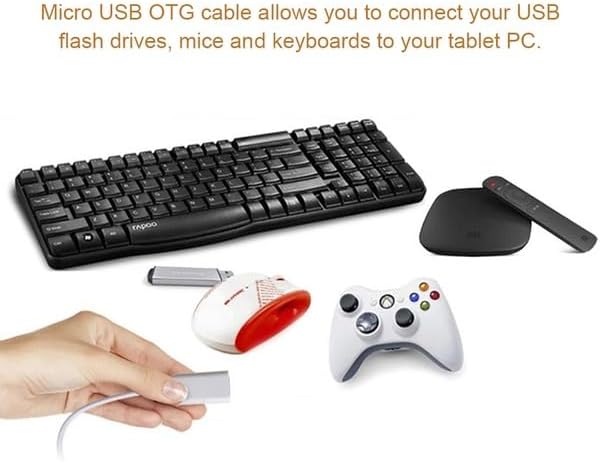
Image 3.3: Examples of peripherals compatible with the OTG adapter.
3.4. Data Transfer Speed
The adapter supports Full USB 2.0 super speed data transfer, allowing speeds up to 480 Mbps. This enables quick transfer of files, HD movies, and music between your device and connected peripherals.
4. Maintenance
To ensure the longevity and optimal performance of your Tek Styz OTG MicroUSB 2.0 adapter, follow these maintenance guidelines:
- Keep the adapter clean and free from dust and debris. Use a soft, dry cloth for cleaning.
- Store the adapter in a dry environment, away from extreme temperatures and direct sunlight.
- Avoid excessive bending, twisting, or pulling of the cable to prevent internal damage.
- Do not expose the adapter to water or other liquids.
- Handle the connectors gently when plugging in or unplugging to prevent damage to the ports.
5. Troubleshooting
If you encounter issues while using your OTG adapter, refer to the following troubleshooting tips:
5.1. Peripheral Not Recognized
- Check OTG Compatibility: Ensure your smartphone or tablet explicitly supports USB On-The-Go (OTG) functionality. Not all MicroUSB devices have this capability.
- Verify Peripheral Functionality: Test the USB peripheral (e.g., flash drive, keyboard) with a computer to confirm it is working correctly.
- Reconnect: Disconnect and reconnect both the OTG adapter to your device and the peripheral to the adapter.
- Restart Device: Sometimes, a simple restart of your smartphone or tablet can resolve connection issues.
5.2. Slow Data Transfer
- USB 2.0 Standard: The adapter operates at USB 2.0 speeds (up to 480 Mbps). Ensure your peripheral also supports USB 2.0 or higher for optimal performance. Older USB 1.0 devices will operate at their native slower speeds.
- File Size: Transferring very large files will naturally take more time.
5.3. Peripheral Not Powering On
- Power Source: The OTG adapter facilitates data connection and draws power from your host device to power the peripheral. It does not provide external power to your host device.
- High-Power Peripherals: Some high-power USB peripherals (e.g., certain external hard drives) may require more power than your smartphone or tablet can supply via OTG. In such cases, the peripheral may need its own external power source or a powered USB hub.
6. Specifications
| Feature | Description |
|---|---|
| Product Dimensions | 4 x 0.2 x 0.2 inches |
| Item Weight | 0.2 ounces |
| Connector Type | Micro USB (Male), USB Type A (Female) |
| Compatible Devices | Android devices, DragonTouch V80X Plus, Windows devices with MicroUSB OTG support |
| Data Transfer Speed | Up to 480 Mbps (USB 2.0) |
| Material | Durable ABS Plastic alloys |
7. Warranty and Support
The Tek Styz OTG MicroUSB 2.0 adapter is backed by a 12-Month Warranty.
For any questions, technical assistance, or support inquiries, please contact our customer service team. We are committed to resolving any issues within 24 hours.