
Wixann LDD-25W-C
Wixann Smart Floor Lamp User Manual
Model: LDD-25W-C
Introduction
Thank you for choosing the Wixann Smart Floor Lamp. This intelligent LED floor lamp offers adjustable brightness, 16 million color options, music synchronization, and smart control via Wi-Fi, touch, and voice assistants like Amazon Alexa and Google Home. This manual provides detailed instructions for assembly, setup, operation, and maintenance to ensure optimal performance and a seamless smart home experience.

Image: The Wixann Smart Floor Lamp, showcasing its sleek design, compatibility with smart speakers (Google Home, Amazon Echo), and the mobile app interface for control.
Safety Information
- Ensure the power supply voltage matches the lamp's requirements (220V AC).
- Do not disassemble or modify the lamp. Refer all servicing to qualified personnel.
- Keep the lamp away from water and high humidity environments. This product is not waterproof.
- Avoid direct eye exposure to the light source for extended periods.
- Place the lamp on a stable, flat surface to prevent tipping. The base is designed for stability.
- Only use the lamp indoors.
Package Contents
Verify that all components are present in the package:
- Wixann Smart Floor Lamp (main body and base)
- Remote control
- User Manual (this document)
Product Overview
The Wixann Smart Floor Lamp features a minimalist design with advanced lighting capabilities. Key components include:
- Lamp Head: Contains the LED light source, capable of 16 million colors and adjustable color temperature (2700K-6500K). It can be adjusted up and down by 30°.
- Lamp Pole: The main vertical support structure.
- Touch Control Button: Located on the lamp pole for manual operation.
- Stable Disc Base: A weighted base (2.2KG) ensuring stability.

Image: Overview of the Wixann Smart WiFi LED Floor Lamp, highlighting its three primary control methods: Touch Control, App Control, and Voice Control.
Setup
1. Assembly
- Carefully unpack all components from the box.
- Connect the lamp pole sections by screwing them together clockwise until secure. Ensure the internal wiring is not pinched.
- Attach the assembled lamp pole to the disc base, screwing it firmly into place.
- Plug the power cord into a standard electrical outlet.
2. App Installation and Wi-Fi Connection
The lamp operates with the "Smart Life" app. Ensure your Wi-Fi network is 2.4GHz, as 5.0GHz networks are not supported for initial setup.
- Download the "Smart Life" app from the App Store (iOS) or Google Play Store (Android).
- Register or log in to your Smart Life account.
- Ensure your mobile device is connected to a 2.4GHz Wi-Fi network.
- Power on the lamp. If it's not already blinking rapidly, press and hold the touch control button on the lamp pole for 5-10 seconds until the light blinks rapidly, indicating pairing mode.
- In the Smart Life app, tap the "+" icon to add a device. Select "Lighting" > "Light Source (Wi-Fi)".
- Confirm that the indicator light is blinking rapidly. Enter your 2.4GHz Wi-Fi network password.
- The app will begin connecting to the lamp. Once connected, you can rename the device for easier control.

Image: Screenshots of the Smart Life app, illustrating various control options such as color selection, brightness adjustment, scene modes, music synchronization, and timer settings.
3. Voice Assistant Integration (Alexa/Google Home)
To control your lamp with voice commands, link the Smart Life app to your Amazon Alexa or Google Home account.
- Open the Amazon Alexa app or Google Home app.
- Navigate to "Skills & Games" (Alexa) or "Works with Google" (Google Home).
- Search for "Smart Life" and enable the skill/service.
- Link your Smart Life account by entering your Smart Life credentials.
- Discover devices. Your Wixann Smart Floor Lamp should now appear and be controllable via voice commands.
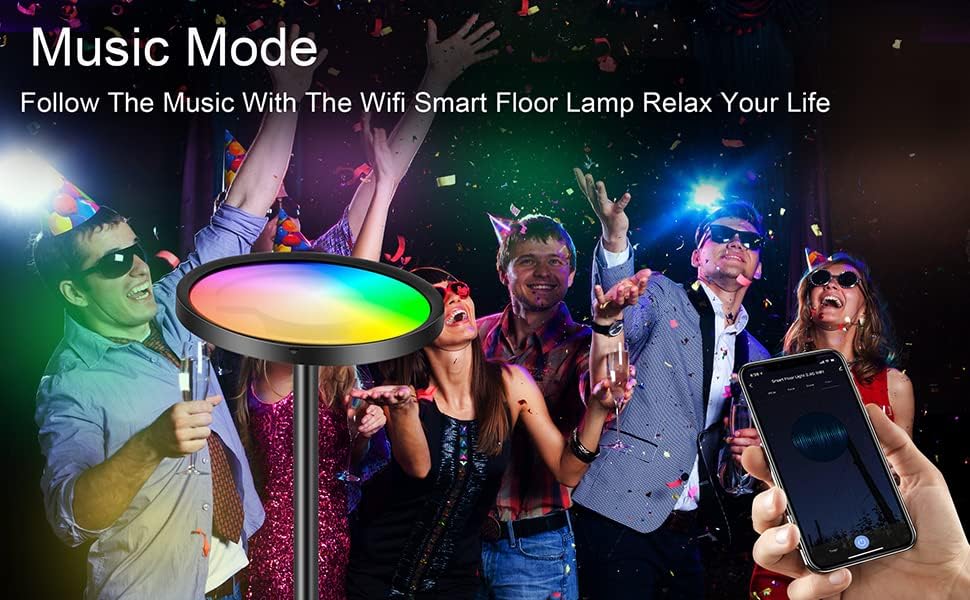
Image: A family interacting with the smart floor lamp using voice commands through Amazon Alexa and Google Assistant, demonstrating hands-free control.
Operating Instructions
1. Touch Control
- Short Press: Turn the lamp ON/OFF.
- Long Press (5-10 seconds): Enter Wi-Fi pairing mode (light blinks rapidly).
2. App Control (Smart Life App)
Once connected, the Smart Life app provides full control over your lamp:
- Brightness Adjustment: Smoothly adjust brightness from 0% to 100%.
- Color Temperature: Change white light from warm (2700K) to cool (6500K).
- RGB Color Selection: Choose from 16 million colors.
- Scene Modes: Select from multiple pre-set scenes for different moods or activities.
- Music Sync: The lamp's colors can change in rhythm with music played near your phone or smart speaker.
- Timer Function: Set schedules for the lamp to turn ON/OFF automatically.

Image: Visual representation of the lamp's stepless dimming capability and adjustable color temperature, ranging from warm 2700K to cool 6500K.

Image: A group of people at a party, with the smart floor lamp displaying dynamic colors synchronized to music, enhancing the festive atmosphere.
3. Voice Control
Use simple voice commands through Amazon Alexa or Google Home to control your lamp. Examples:
- "Alexa, turn on [Lamp Name]."
- "Hey Google, set [Lamp Name] to blue."
- "Alexa, dim [Lamp Name] to 50%."
- "Hey Google, change [Lamp Name] to warm white."
Maintenance
- Cleaning: Use a soft, dry cloth to wipe the lamp. Do not use abrasive cleaners or solvents.
- Storage: If storing the lamp for an extended period, unplug it and store it in a cool, dry place.
- Bulb Replacement: The LED light source is integrated and not user-replaceable.
Troubleshooting
| Problem | Possible Cause | Solution |
|---|---|---|
| Lamp does not turn on. | No power, loose connection. | Check if the power cord is securely plugged in. Test the outlet with another device. |
| Cannot connect to Wi-Fi. | Incorrect Wi-Fi band (5GHz), wrong password, lamp not in pairing mode, weak signal. |
|
| Voice control not working. | Smart Life skill not enabled, lamp not discovered, incorrect commands. |
|
| Lamp is unresponsive. | Temporary software glitch. | Unplug the lamp from the power outlet for 10 seconds, then plug it back in. |
Specifications
| Feature | Detail |
|---|---|
| Model Number | LDD-25W-C |
| Brand | Wixann |
| Light Source Type | LED |
| Wattage | 25 Watts |
| Lumen Output | Up to 2000 Lumens |
| Color Temperature | 2700K-6500K (Adjustable) |
| Color Options | 16 Million RGB Colors |
| Control Methods | App (Smart Life), Touch, Voice (Alexa, Google Assistant) |
| Connectivity | Wi-Fi (2.4GHz only) |
| Material | Porcelain, Metal, Iron |
| Product Dimensions | 11.5"D x 8.9"W x 2.6"H (approximate) |
| Item Weight | 9.9 pounds (approximate) |
| Indoor/Outdoor Usage | Indoor |
| Energy Efficiency Class | F (as per EU energy label) [View EU Energy Label] |
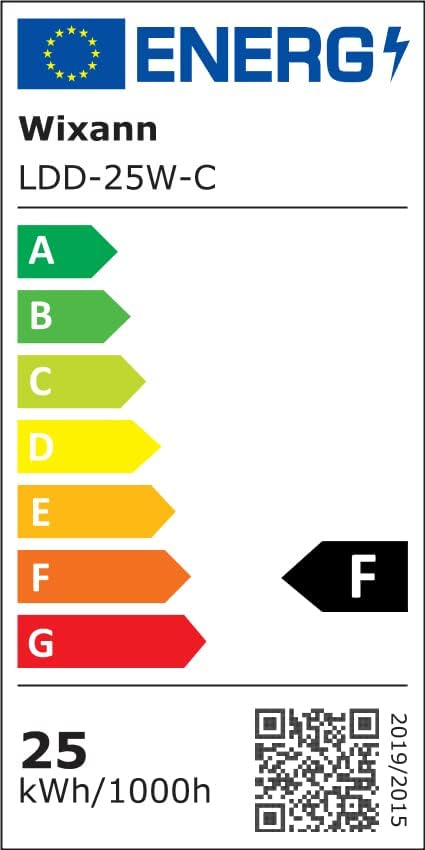
Image: The EU Energy Label for the Wixann LDD-25W-C lamp, indicating its energy efficiency class F and power consumption of 25 kWh/1000h.
Warranty and Support
Wixann provides a standard warranty for this product. For specific warranty terms, please refer to the documentation included with your purchase or contact Wixann customer support.
If you encounter any issues not covered in this manual or require further assistance, please contact Wixann customer support through their official website or the contact information provided on the product packaging.
For additional resources, you may visit the Wixann Store on Amazon.
Related documentsLDD-25W-C


Ask a question about this manual
Ask about setup, troubleshooting, compatibility, parts, safety, or missing instructions. Manuals+ will review the question and use this page’s manual context to help answer it.