
Introduction
Thank you for purchasing the Maxcio Smart RGBW LED Ceiling Light. This manual provides essential information for the safe installation, operation, and maintenance of your new smart lighting product. Please read this manual thoroughly before installation and keep it for future reference.
Safety Information
- Always disconnect power before installation or maintenance.
- Installation should be performed by a qualified electrician if you are unsure.
- Ensure the power supply voltage matches the product's requirements (220V AC).
- Do not expose the light to excessive moisture or extreme temperatures beyond its IP54 rating.
- This product is designed for indoor and outdoor use, but avoid direct water jets.
- Do not attempt to disassemble or modify the light, as this will void the warranty and may cause electric shock.
Package Contents
Please check the package for the following items:
- Maxcio Smart RGBW LED Ceiling Light (1 unit)
- Mounting hardware (screws, wall anchors)
- User Manual
Product Overview
The Maxcio Smart RGBW LED Ceiling Light offers versatile lighting options with smart control capabilities. It features:
- RGBW Lighting: 16 million colors, warm white (3000K) to cool white (6500K).
- Dimmable: Adjust brightness from 1% to 100%.
- Smart Control: Compatible with Maxcio App, Alexa, and Google Home.
- Timer & Schedule: Set custom lighting schedules and biorhythms.
- Memory Function: Retains last setting upon power cycle.
- Durable Design: IP54 rated for indoor and outdoor use.

Image: Overview of the Maxcio Smart RGBW LED Ceiling Light's key features, including Maxcio APP control, timer settings, dimmable functionality, cool and warm white options, RGB color selection, family sharing, and voice control.
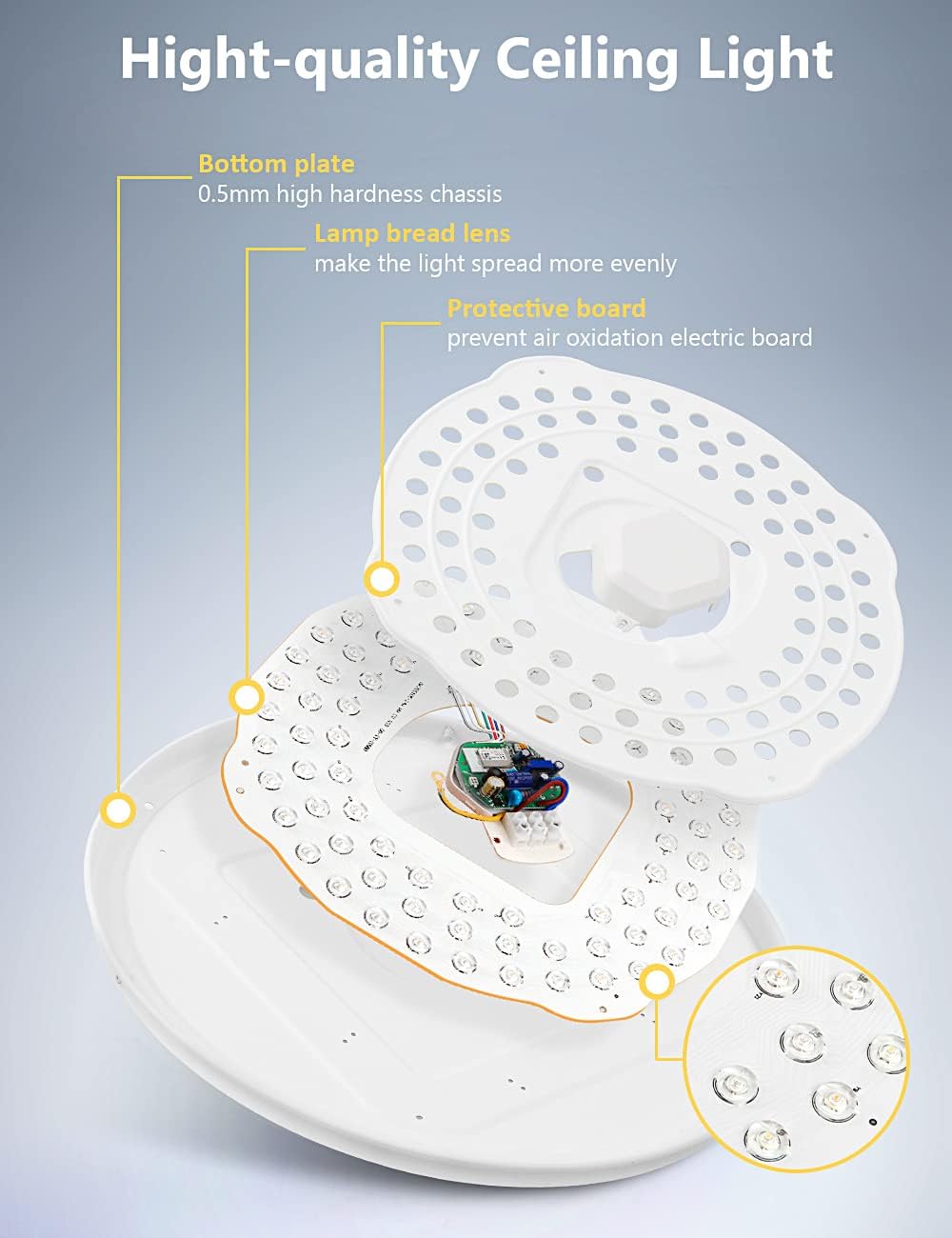
Image: Detailed view of the ceiling light's internal structure, highlighting the 0.5mm high hardness chassis bottom plate, the lamp bead lens designed for even light spread, and the protective board to prevent air oxidation of the electric board.
Setup
1. Physical Installation
- Power Off: Before starting, ensure the main power supply to the installation area is turned off at the circuit breaker.
- Mounting: Securely attach the mounting bracket to the ceiling using the provided screws and wall anchors.
- Wiring: Connect the live, neutral, and ground wires from your ceiling to the corresponding terminals on the light fixture. Ensure all connections are tight and secure.
- Attach Light: Mount the light fixture onto the installed bracket, ensuring it is firmly in place.
- Power On: Restore power at the circuit breaker.
2. App Connection (Maxcio App)
- Download App: Download the "Maxcio" app from the App Store (iOS) or Google Play Store (Android).
- Register/Login: Open the app and register a new account or log in if you already have one.
- Wi-Fi Network: Ensure your smartphone is connected to a 2.4 GHz Wi-Fi network. The light does not support 5 GHz Wi-Fi.
- Add Device: In the Maxcio app, tap "+" or "Add Device". Follow the on-screen instructions to put the light into pairing mode (usually by cycling power 3 times until it flashes).
- Connect: Select your Wi-Fi network and enter the password. The app will then connect to the light.
- Rename Device: Once connected, you can rename the light for easier control.
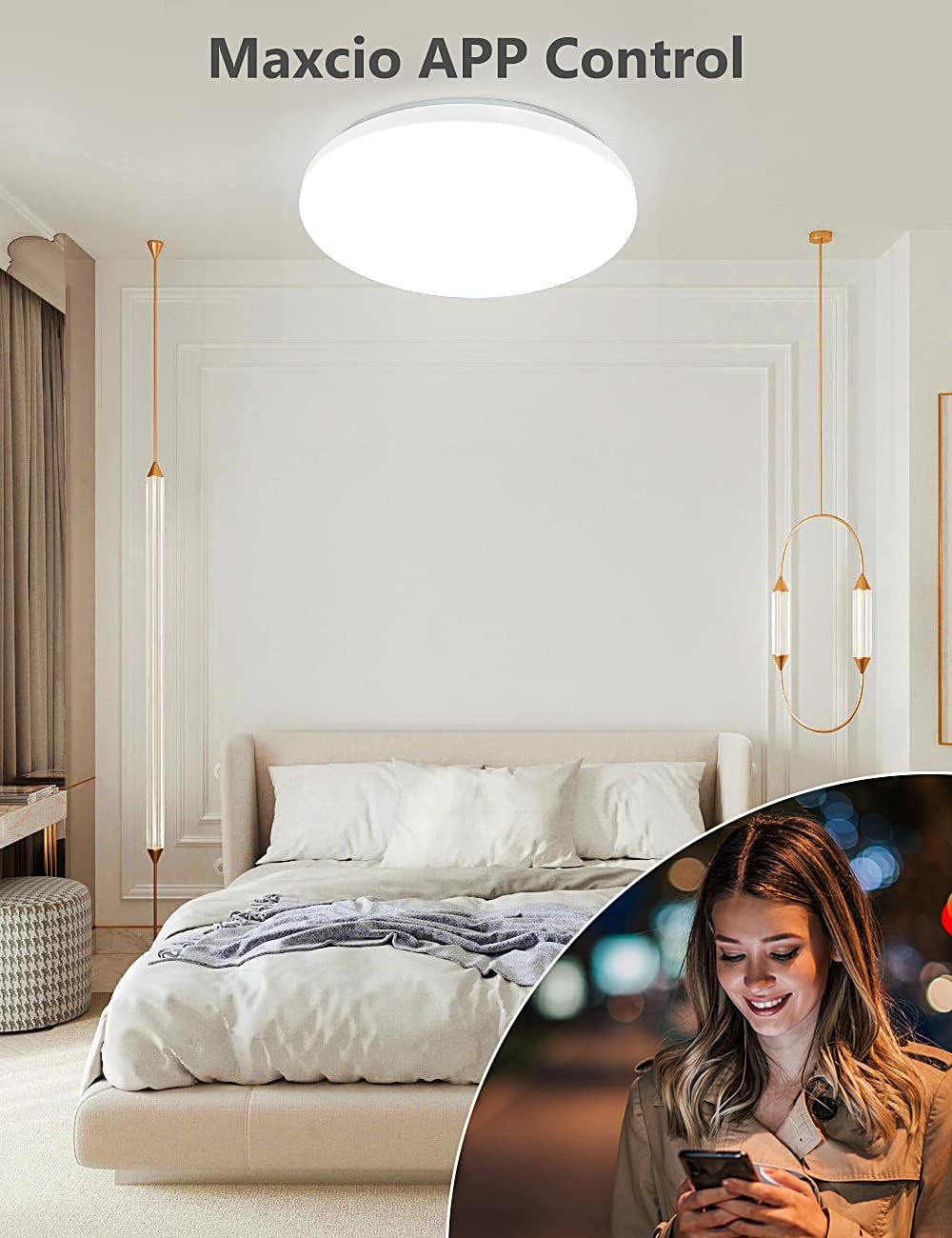
Image: A smartphone displaying the Maxcio App interface for controlling the smart ceiling light, which is shown installed in a modern bedroom setting.
Operating Instructions
1. Using the Maxcio App
- On/Off: Tap the power icon to turn the light on or off.
- Brightness Adjustment: Use the slider to adjust brightness from 1% to 100%.
- Color Temperature: Select color temperatures between 3000K (warm white) and 6500K (cool white).
- RGB Colors: Choose from 16 million RGB colors using the color wheel.
- Scenes: Select pre-set scenes or create custom ones for different moods and activities.
- Timer: Set schedules for the light to turn on/off at specific times.
- Biorhythm: Configure up to eight light scenes for each day of the week, including brightness, color, and color temperature.

Image: The Maxcio App interface demonstrating options for selecting white light (2700K-6500K) and over 16 million colors, with accompanying images of the ceiling light illuminating different rooms in various colors and brightness levels.

Image: An illustration of the timer function within the Maxcio App, demonstrating how to set the light to turn off at 10:00 PM and turn on at 8:00 AM, aligning with a daily routine.
2. Voice Control (Alexa / Google Home)
- Enable Skill: In the Alexa or Google Assistant app, enable the "Maxcio Skill".
- Link Account: Link your Maxcio account to your Alexa/Google Home account.
- Discover Devices: Ask Alexa or Google Assistant to "Discover devices".
- Voice Commands: Use commands such as:
- "Alexa, turn on/off [Light Name]."
- "Hey Google, set [Light Name] to green."
- "Alexa, dim [Light Name] to 50%."
- "Hey Google, change [Light Name] to warm white."
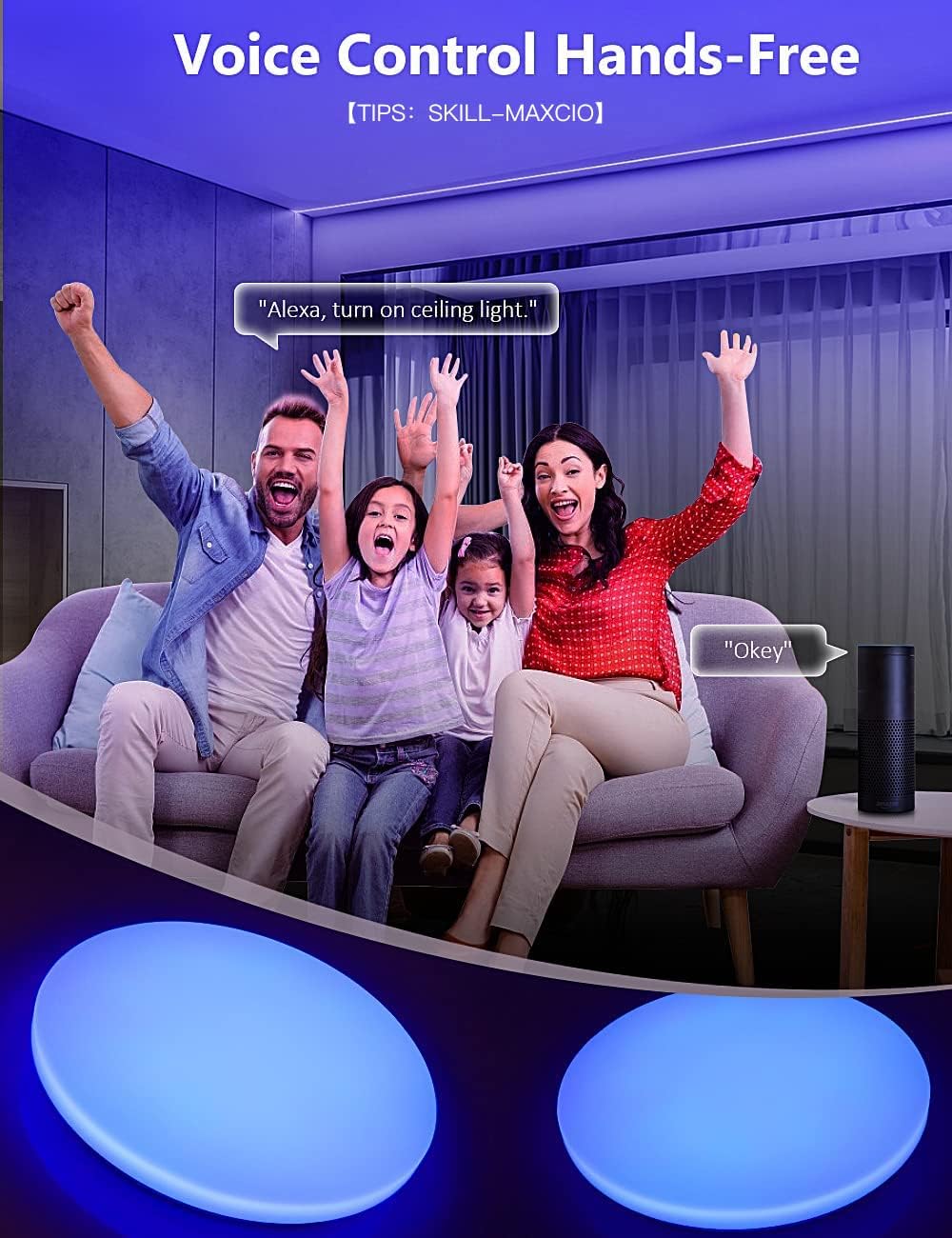
Image: A family interacting with an Amazon Echo device, demonstrating hands-free voice control to operate the Maxcio smart ceiling light. The image shows the light changing color in response to voice commands.
Maintenance
- Cleaning: Ensure the light is off and cool before cleaning. Wipe the surface with a soft, dry cloth. Do not use abrasive cleaners or solvents.
- Inspection: Periodically check for any signs of damage to the fixture or wiring. If damage is found, disconnect power and contact support.
- Software Updates: Keep the Maxcio app updated to ensure optimal performance and access to new features.
Troubleshooting
| Problem | Possible Cause | Solution |
|---|---|---|
| Light does not turn on. | No power; loose wiring; faulty fixture. | Check circuit breaker. Ensure wiring is secure. Contact support if problem persists. |
| Cannot connect to Maxcio App. | Incorrect Wi-Fi band (5GHz); wrong password; light not in pairing mode; weak signal. | Ensure 2.4 GHz Wi-Fi. Verify password. Cycle power to put light in pairing mode. Move router closer. |
| Voice control not working. | Maxcio skill not enabled; account not linked; device not discovered. | Enable "Maxcio Skill" in Alexa/Google Home app. Link accounts. Ask voice assistant to "Discover devices". |
| Light flickers or behaves erratically. | Unstable power supply; loose connection; software glitch. | Check power supply stability. Verify wiring. Restart the light by cycling power. Update app. |
Specifications
| Brand | Maxcio |
| Model Number | ZDXD0002-001 |
| Dimensions (Diameter x Height) | 35 cm x 5.5 cm (approx. 13.78 x 2.17 inches) |
| Weight | 990 grams |
| Material | PS + Iron + Attached Membrane (Plastic and Iron) |
| Power | 24 Watts |
| Voltage | 220 Volts AC |
| Light Source Type | LED (84 bulbs) |
| Average Lifespan | 30,000 Hours |
| Color Temperature | 3000K - 6500K (Warm White to Cool White) |
| Color Options | 16 Million RGB Colors |
| Dimmable Range | 1% - 100% |
| Connectivity | 2.4 GHz WLAN (Wi-Fi) |
| Smart Home Compatibility | Amazon Alexa, Google Home |
| IP Rating | IP54 |
| Certifications | CE |
Warranty and Support
Maxcio provides a 24-month warranty for this product from the date of purchase. This warranty covers manufacturing defects and material faults under normal use.
For technical support, warranty claims, or any questions regarding your Maxcio Smart RGBW LED Ceiling Light, please contact Maxcio customer service through the official website or your purchase platform. Please have your model number (ZDXD0002-001) and proof of purchase ready.