
1. Introduction
The DROP CTRL Mechanical Keyboard is a high-performance tenkeyless (TKL) keyboard designed for enthusiasts and professionals. It features a robust aluminum frame, hot-swappable switch sockets for easy customization, fully programmable macros via QMK firmware, and vibrant RGB LED backlighting. This manual provides essential information for setting up, operating, and maintaining your keyboard.

Figure 1: The DROP CTRL Mechanical Keyboard (Barebones Black model).
2. Package Contents
Verify that all items are present in your package:
- DROP CTRL Mechanical Keyboard (Barebones Black)
- USB-C Cable
- Keycap Puller
- Switch Puller (if included with your specific barebones kit)
- Magnetic Feet (pre-installed or separate)
- 1-Year Drop Warranty Information
3. Setup
3.1 Installing Switches and Keycaps (Barebones Model)
As a barebones model, the DROP CTRL does not come with pre-installed switches or keycaps. You will need to install your preferred plate-mounted Cherry-style mechanical switches and keycaps.
- Prepare Switches: Ensure your mechanical switches are compatible with the CTRL's hot-swap sockets. Align the pins on the bottom of the switch with the holes on the PCB.
- Install Switches: Gently press each switch into its corresponding socket on the keyboard plate until it clicks into place. Ensure the switch is fully seated and the pins are not bent. Repeat for all desired keys.
- Install Keycaps: Place your chosen keycaps onto the installed switches. Press firmly until each keycap is securely attached.

Figure 2: Hot-swap sockets and stabilizers on the keyboard PCB.
3.2 Connecting the Keyboard
- Attach Magnetic Feet: If not already attached, secure the magnetic feet to the designated slots on the underside of the keyboard for preferred typing angle.
- Connect USB-C Cable: Plug one end of the provided USB-C cable into either of the two USB-C ports on the keyboard.
- Connect to Computer: Plug the other end of the USB-C cable into an available USB port on your computer. The keyboard will be automatically detected.

Figure 3: Underside of the keyboard with magnetic feet.
4. Operating Instructions
4.1 Default Hotkeys
The DROP CTRL keyboard includes a set of default hotkeys for controlling LED patterns, brightness, and media functions. To activate these functions, hold down the Fn key and press the corresponding key.

Figure 4: Default hotkeys for LED and media controls.
- LED Keys (Hold Fn + Key):
- A: LED Pattern Select Previous
- D: LED Pattern Select Next
- W: LED Brightness Increase
- S: LED Brightness Decrease
- Q: LED Scrolling Pattern Speed Decrease
- E: LED Scrolling Pattern Speed Increase
- Tab: LED Toggle Breathe Effect
- Capslock: LED Toggle Scrolling Pattern Direction
- X: LED Toggle On/Off
- Z: LED Toggle Mode (Keys+Edge, Keys Only, Edge Only)
- Media Keys (Hold Fn + Key):
- Page Up: Volume Up
- Page Down: Volume Down
- Print: Mute
- Insert: Play/Pause
- Home: Stop
- Delete: Previous Track
- End: Next Track
- Keyboard Option Keys (Hold Fn + Key):
- N: Toggle keyboard 6KRO/NKRO (Default state 6KRO)
4.2 RGB Lighting
The CTRL keyboard features optimized per-key RGB lighting and underlighting, offering millions of color options. You can program the lighting to cycle through the entire spectrum, set it to a single color, or create two-toned effects. The built-in translucent LED diffuser minimizes hotspots for a smooth lighting experience. The LEDs operate at a frequency of 100 Hz to prevent visible flickering.
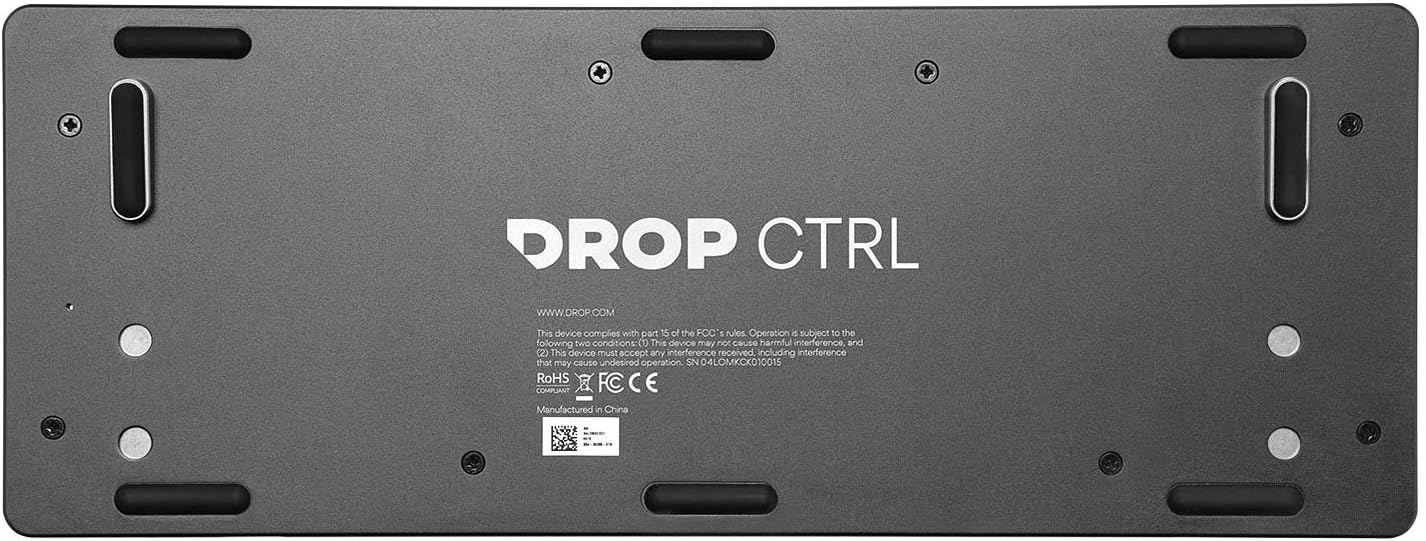
Figure 5: Customizable RGB lighting in action.
4.3 QMK Firmware and Customization
The CTRL keyboard is fully programmable via QMK firmware, allowing for extensive customization of keymaps, macros, and lighting effects. To build new keymaps and hotkeys, visit the official keyboard configurator at dro.ps/ctrl-setup-guide. This tool enables you to fine-tune your keyboard for various applications, including gaming and work.
4.4 Dual USB-C Connectors
The keyboard is equipped with two USB Type-C connectors, one on each side. These ports facilitate data transfer and can charge devices at USB 2.0 speeds, offering flexibility in cable management and peripheral connectivity.
5. Maintenance
5.1 Cleaning the Keyboard
- Keycaps: Use the included keycap puller to remove keycaps. Clean them with a mild soap solution and a soft cloth, then dry thoroughly before reattaching.
- Keyboard Plate: Use compressed air to remove dust and debris from between the switches. For stubborn dirt, use a cotton swab lightly dampened with isopropyl alcohol.
- Frame: Wipe the aluminum frame with a soft, dry, or slightly damp cloth. Avoid harsh chemicals.
5.2 Switch Care
If a switch becomes faulty or you wish to change switch types, use the switch puller to carefully remove the switch. Ensure the new switch's pins are straight before inserting it into the hot-swap socket to prevent damage.
6. Troubleshooting
- Keyboard Not Responding:
- Ensure the USB-C cable is securely connected to both the keyboard and your computer.
- Try connecting the keyboard to a different USB port on your computer.
- Test with a different USB-C cable if available.
- Restart your computer.
- LEDs Not Lighting Up or Incorrectly:
- Check the LED hotkeys (Fn + X) to ensure lighting is not turned off.
- Adjust brightness using Fn + W/S.
- If using custom firmware, ensure it was flashed correctly.
- Ensure your computer's USB port provides sufficient power, especially if using a long cable or unpowered USB hub.
- Specific Keys Not Working:
- Carefully remove the keycap and then the switch for the non-functional key.
- Inspect the switch pins for bends or damage. Straighten bent pins or replace the switch if damaged.
- Reinsert the switch firmly into the hot-swap socket.
- QMK Programming Issues:
- Refer to the QMK documentation and the DROP CTRL configurator guide for detailed instructions.
- Ensure you are using the correct firmware file for your keyboard model.
7. Specifications
| Feature | Detail |
|---|---|
| Brand | DROP |
| Model Name | CTRL Mechanical Keyboard |
| Model Number | MDX-31830-14 |
| Keyboard Description | Mechanical, Tenkeyless (TKL) |
| Number of Keys | 87 |
| Connectivity Technology | USB, USB-C (Dual ports) |
| Special Feature | Hot-Swap Switches, RGB Backlighting, Programmable (QMK) |
| Keyboard Backlighting Color Support | RGB |
| Style | Barebones |
| Color | Black |
| Product Dimensions (L x W x H) | 14.5" x 5.5" x 1.4" |
| Item Weight | 2.1 pounds |
| Enclosure Material | Aluminum |
| Compatible Operating System Family | Linux, MacOS, Windows |
8. Warranty and Support
8.1 Warranty Information
The DROP CTRL Mechanical Keyboard comes with a 1-Year Drop Warranty from the date of purchase. This warranty covers manufacturing defects and workmanship under normal use. Please retain your proof of purchase for warranty claims.
8.2 Customer Support
For technical assistance, warranty claims, or further inquiries, please visit the official DROP website or contact their customer support team. Detailed contact information can typically be found on the DROP website's support section.


