
Hisense 50R6090G
Hisense 50-Inch Class R6090G Roku 4K UHD Smart TV User Manual
Model: 50R6090G
Introduction
This manual provides essential information for setting up, operating, and maintaining your Hisense 50-Inch Class R6090G Roku 4K UHD Smart TV. Please read this manual thoroughly before using your television to ensure proper operation and safety.
The Hisense R6090G Series 4K UHD Smart TV delivers more than four times the resolution of a regular 1080p high-definition screen, featuring Dolby Vision HDR for enhanced color and contrast, and Motion Rate 120 technology for smoother fast-action scenes. It integrates the intuitive Roku TV platform for easy access to streaming content.
What's in the Box
Upon unpacking, please ensure all the following items are present:
- Hisense 50-Inch Class R6090G Roku 4K UHD Smart TV
- TV Stand (2 pieces)
- Power Cable
- Remote Control
- Quick Start Guide
- AAA Batteries (3, for remote control)
Setup
Attaching the TV Stand
To set up your TV on a flat surface, follow these steps to attach the included stands:
- Carefully place the TV face-down on a soft, clean surface to prevent screen damage.
- Align each stand with the corresponding screw holes on the bottom of the TV.
- Securely fasten the stands using the provided screws.
Note: Ensure the stands are firmly attached before placing the TV upright.
Wall Mounting (Optional)
If you plan to wall mount your TV, you will need a VESA-compatible wall mount (sold separately). The VESA measurements for this model are 200 x 300mm, using M6 screw size.
Always consult the wall mount manufacturer's instructions for proper installation. Professional installation is recommended for wall mounting.

Image: Rear view of the Hisense 50-inch TV with dimensions indicating 25.5 inches height, 3.2 inches depth, and 43.9 inches width. This image helps in understanding the physical size for placement or wall mounting.
Connecting Devices
Your Hisense TV offers various input and output ports for connecting external devices:
- HDMI: 3 (2.0b inputs) for high-definition audio and video.
- USB: 1 port for media playback.
- Ethernet: 1 port for wired internet connection.
- RF Antenna: 1 port for connecting an antenna or cable.
- RCA Composite Video Input: 1 for older devices.
- L/R Audio Input for Composite: 1 for composite video audio.
- Digital Audio Output: 1 Optical for connecting to soundbars or audio receivers.
- Earphone/Audio Output: 1 (3.5mm jack) for headphones or external speakers with variable volume control.

Image: Close-up of the back panel of the Hisense TV, clearly showing the arrangement of HDMI, USB, Ethernet, RF, RCA, and audio ports. This visual aid assists users in correctly identifying and connecting their devices.
Operating Your TV
Powering On/Off
Connect the power cable to the TV and a power outlet. Press the power button on the remote control to turn the TV on or off. The TV powers on and is usable in approximately 2 seconds.
Roku TV Interface
Your Hisense TV features the Roku TV operating system, known for its simplified home screen and user-friendly interface. The home screen provides easy access to your cable box, HDTV antenna, favorite channels, and streaming services.
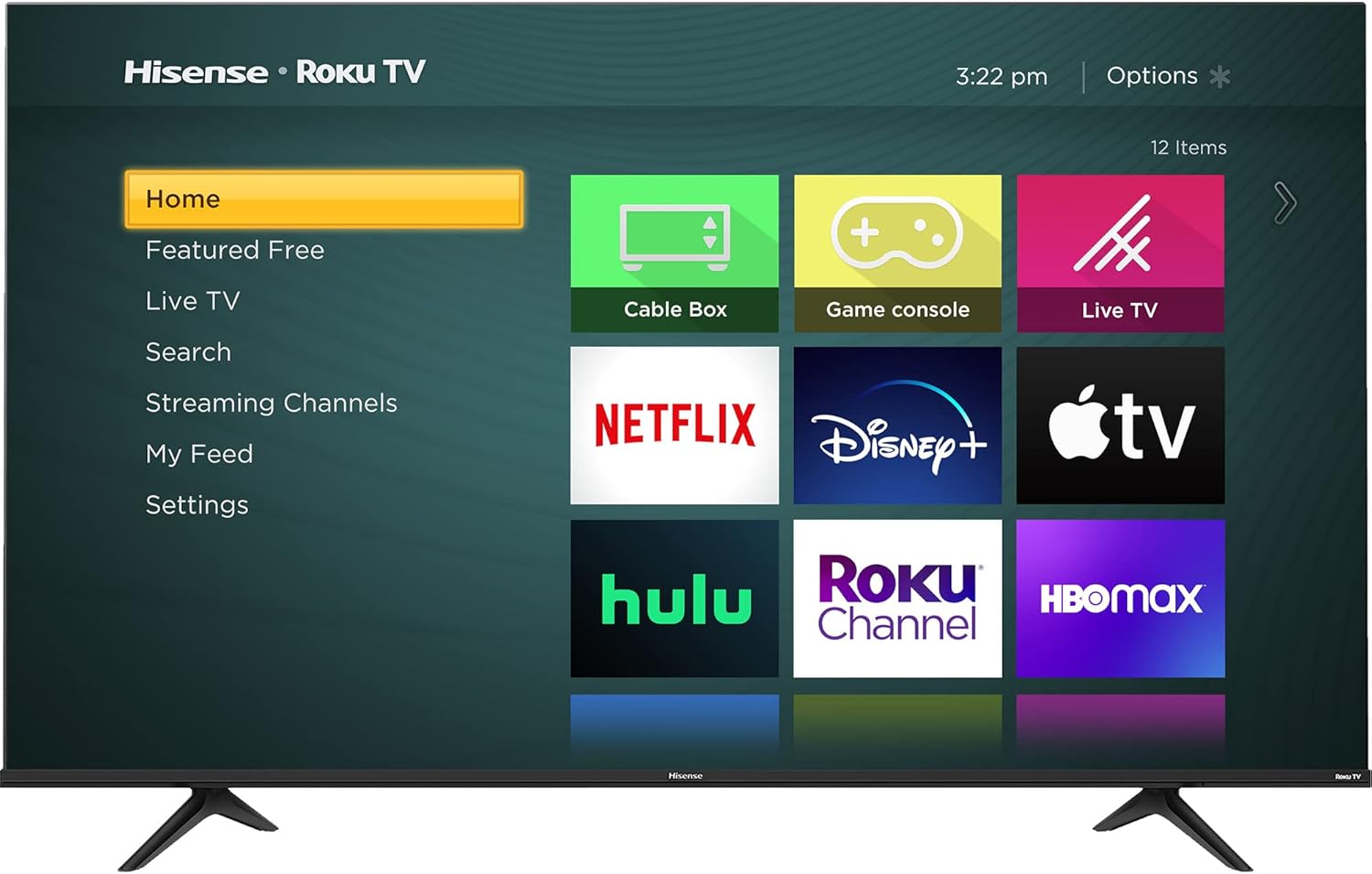
Image: The main screen of the Hisense Roku TV, showing a menu on the left (Home, Featured Free, Live TV, Search, Streaming Channels, My Feed, Settings) and a grid of application icons on the right (Cable Box, Game Console, Live TV, Netflix, Disney+, Apple TV, Hulu, Roku Channel, HBO Max). This illustrates the intuitive user interface.
Key Features
- 4K UHD Resolution: Experience stunning clarity and detail with over four times the resolution of Full HD.
- Dolby Vision HDR & HDR10: Boosts color, contrast, and brightness for a more dynamic and realistic picture, bringing cinema-quality visuals to your home.
- Motion Rate 120: Minimizes picture lag and motion blur, ensuring smooth fast-paced action in sports, movies, and games.
- Game Mode: Significantly improves input lag for an optimized gaming experience.
- DTS Studio Sound: Provides crisp, immersive audio from the built-in 10-watt speakers, creating a virtual surround sound experience.
- Smart Control: Control the TV using the easy-to-use Roku TV remote, or via free iOS and Android apps. Voice control is also available through an Alexa-enabled device (sold separately). Note: This TV model is not Bluetooth compatible for external audio devices.
Maintenance
Cleaning Your TV
- Always unplug the TV before cleaning.
- Use a soft, lint-free cloth to gently wipe the screen and cabinet.
- For stubborn marks, lightly dampen the cloth with water or a mild, non-abrasive screen cleaner. Never spray cleaner directly onto the screen.
- Avoid using harsh chemicals, abrasive pads, or solvents as they can damage the TV's finish.
General Care
- Do not block ventilation openings on the back of the TV.
- Keep the TV away from direct sunlight, heat sources, and excessive dust.
- Avoid placing heavy objects on top of the TV.
- If moving the TV, ensure it is properly supported to prevent damage.
Troubleshooting
If you encounter issues with your Hisense TV, refer to the following common solutions:
| Problem | Possible Solution |
|---|---|
| No Power |
|
| No Picture / Poor Picture Quality |
|
| No Sound / Poor Sound Quality |
|
| Remote Control Not Working |
|
For more detailed troubleshooting or complex issues, please refer to the official User Guide or contact Hisense customer support.
Specifications
| Feature | Detail |
|---|---|
| Brand | Hisense |
| Model Number | 50R6090G |
| Screen Size | 49.5 Inches (diagonal) |
| Display Technology | LCD |
| Resolution | 4K UHD (3840 x 2160) |
| Refresh Rate | 60 Hz (Motion Rate 120) |
| Product Dimensions (with stand) | 43.9" W x 27.9" H x 8.9" D |
| Product Dimensions (without stand) | 43.9" W x 25.5" H x 3.2" D |
| Item Weight | 21.8 Pounds |
| Voltage | 120V, 60Hz |
| Wattage | 120 watts |
| VESA Pattern | 200 x 300mm (M6 Screw size) |
| HDMI Inputs | 3 (2.0b) |
| USB Ports | 1 |
| Connectivity | Wireless (Wi-Fi), Ethernet |
| Special Features | Flat Screen, Roku TV, Dolby Vision HDR, HDR10, Motion Rate 120, Game Mode, DTS Studio Sound |
Warranty and Support
For detailed warranty information, please refer to the official Warranty document provided by Hisense. You can access the digital version here: Hisense Warranty (PDF).
For comprehensive instructions and additional support, please consult the full User Guide: Hisense 50R6090G User Guide (PDF).
If you require further assistance, please visit the official Hisense support website or contact their customer service.
Related documents50R6090G


Ask a question about this manual
Ask about setup, troubleshooting, compatibility, parts, safety, or missing instructions. Manuals+ will review the question and use this page’s manual context to help answer it.