
1. Introduction
This manual provides essential information for the proper setup, operation, maintenance, and troubleshooting of your MSI GS66 Stealth 10SFS-440 gaming laptop. Please read this manual thoroughly before using your device to ensure optimal performance and longevity.
2. Package Contents
Verify that all items are present in the package:
- MSI GS66 Stealth 10SFS-440 Gaming Laptop
- Power Adaptor
If any items are missing or damaged, contact your retailer or MSI customer support.
3. Product Overview
The MSI GS66 Stealth 10SFS-440 is a high-performance gaming laptop designed for demanding applications and gaming. It features a 15.6-inch Full HD display with a 300Hz refresh rate, an Intel Core i7-10875H processor, and an NVIDIA GeForce RTX 2070 Super Max-Q graphics card.
3.1 Key Features
- Display: 15.6" FHD, Anti-Glare Wide View Angle 300Hz 3ms
- Processor: Intel Core i7-10875H (2.3 - 5.1GHz)
- Graphics: NVIDIA GeForce RTX2070 Super Max-Q 8G GDDR6
- Memory: 32GB (16G*2) DDR4 3200MHz (Max 64GB)
- Storage: 512GB NVMe SSD
- Operating System: Windows 10 Pro
- Networking: Intel Wi-Fi 6 AX201(2*2 ax), Killer LAN E3100
- Audio: Dynaudio Speakers 2W*2
- Webcam: 720p HD
- Keyboard: Steel Series per-Key RGB with Anti-Ghost key (84 Key)
- Touchpad: Silky Glass Touchpad
3.2 Laptop Views
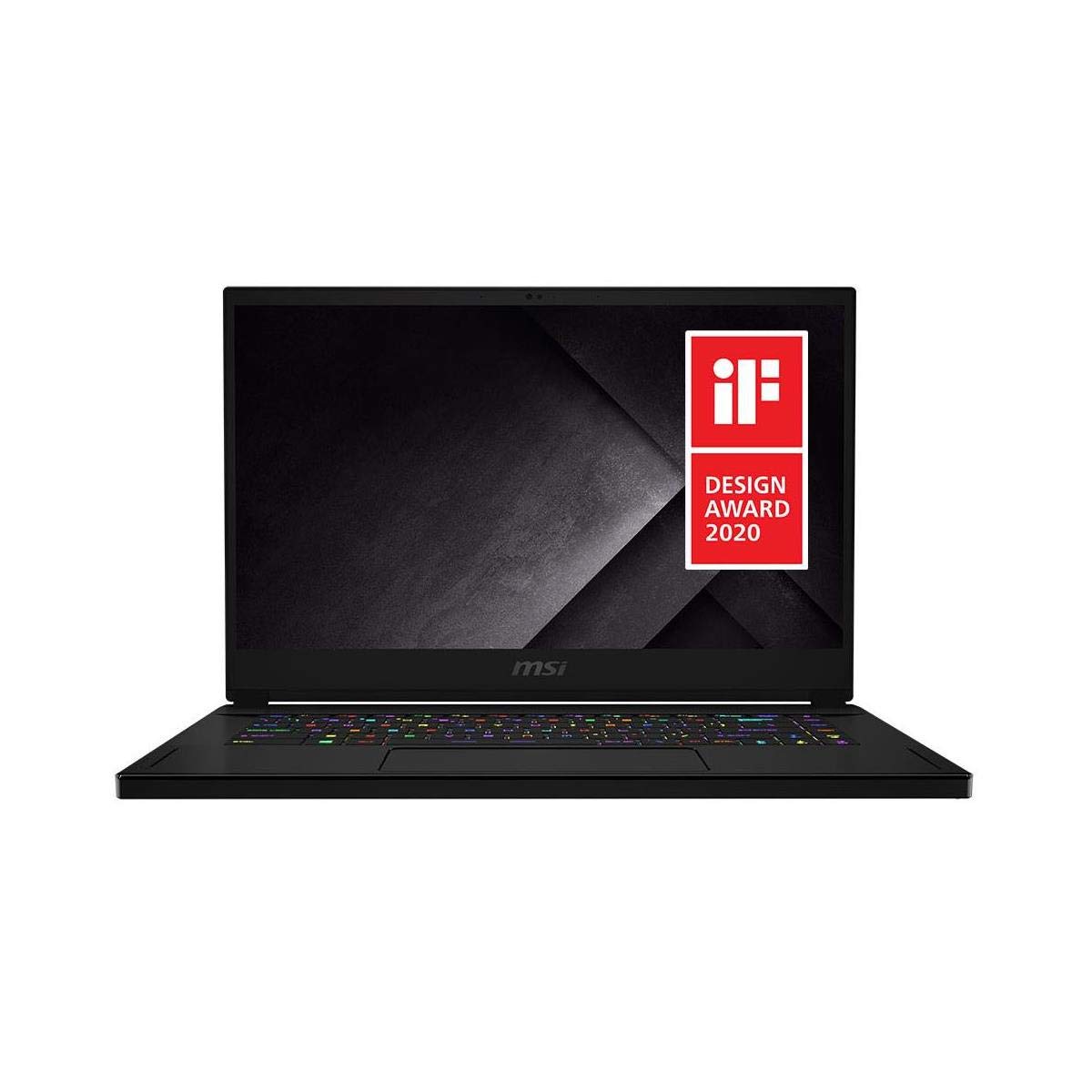
Figure 3.2.1: Front view of the MSI GS66 Stealth 10SFS-440 gaming laptop, showcasing the display and RGB keyboard.
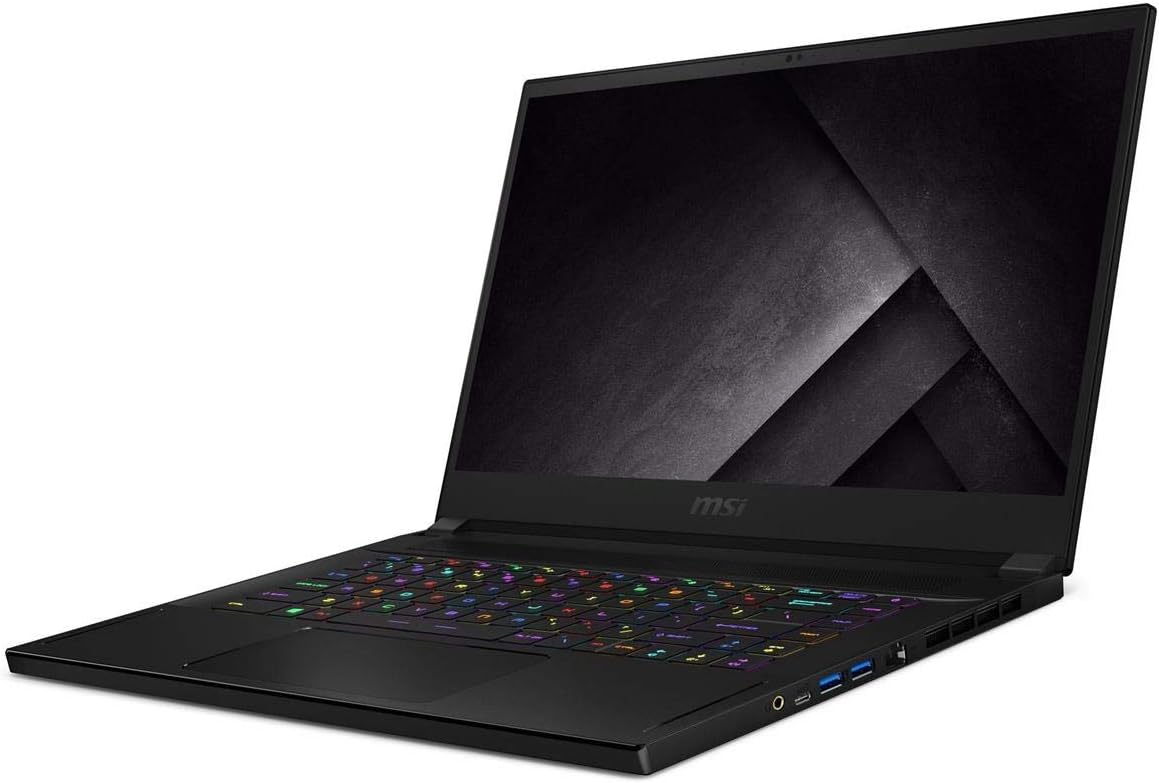
Figure 3.2.2: Angled view of the MSI GS66 Stealth 10SFS-440, highlighting the sleek design and keyboard layout.

Figure 3.2.3: Side profile of the MSI GS66 Stealth 10SFS-440, illustrating its thin chassis and port configuration.
4. Setup
4.1 Initial Power-On
- Unpack the laptop and power adaptor from the box.
- Connect the power adaptor to the laptop's power input port and then plug it into a power outlet.
- Open the laptop lid. The laptop may power on automatically, or you may need to press the power button.
- Follow the on-screen instructions to complete the Windows 10 Pro initial setup, including language, region, network connection, and user account creation.
4.2 Connecting Peripherals
Connect external devices such as a mouse, keyboard, external monitor, or headset to the available ports on the laptop. Refer to the product overview images for port locations.
- USB Ports: For mouse, keyboard, external storage.
- HDMI Port: For external displays.
- Audio Jacks: For headphones or external speakers.
- Ethernet Port (LAN): For wired network connection.
5. Operating Instructions
5.1 Power On/Off and Sleep Mode
- Power On: Press the power button located on the laptop chassis.
- Shut Down: Click the Windows Start button, then select Power > Shut down.
- Sleep Mode: Close the laptop lid or click the Windows Start button, then select Power > Sleep.
5.2 Keyboard and Touchpad
The laptop features a Steel Series per-Key RGB keyboard and a silky glass touchpad. Customize keyboard backlighting and touchpad settings through the MSI Dragon Center software or Windows settings.
5.3 Display Settings
Your laptop's 300Hz display provides a smooth visual experience. To adjust display settings:
- Right-click on the desktop and select "Display settings."
- Scroll down and click "Advanced display settings."
- Select the desired refresh rate (e.g., 300Hz) from the "Refresh rate" dropdown menu.
5.4 Performance Management (MSI Dragon Center)
Utilize the pre-installed MSI Dragon Center software to manage system performance, fan speeds, RGB lighting, and other settings. This software allows you to switch between performance modes (e.g., Extreme Performance, Balanced, Silent, Super Battery) to optimize for different tasks.
- Gaming Mode: Activate for optimized gaming performance. Ensure your primary graphics card is set to the NVIDIA RTX card in NVIDIA Control Panel for best results.
- Battery Mode: Select for extended battery life during general use or work.
6. Maintenance
6.1 Cleaning
- Use a soft, lint-free cloth to clean the screen and chassis.
- For stubborn marks, lightly dampen the cloth with water or a screen-safe cleaner.
- Avoid spraying liquids directly onto the laptop.
- Regularly clean the keyboard and touchpad to prevent dust buildup.
6.2 Battery Care
- Avoid fully discharging the battery frequently.
- For prolonged storage, charge the battery to approximately 50-60%.
- While gaming or performing intensive tasks, keep the laptop plugged in to ensure stable power and prevent rapid battery drain.
6.3 Software Updates
Regularly update your operating system, drivers (especially graphics drivers), and MSI software (e.g., Dragon Center) to ensure optimal performance, security, and compatibility.
- Windows Updates: Go to Settings > Update & Security > Windows Update.
- NVIDIA Drivers: Download from the official NVIDIA website or use GeForce Experience.
- MSI Drivers/Utilities: Check the official MSI support website for your model.
6.4 Storage and RAM Upgrades
The laptop supports upgrades for storage (NVMe SSD) and RAM (DDR4). However, upgrading internal components requires careful handling. It is recommended to consult a qualified technician or refer to official MSI service guides, as improper installation can void your warranty or damage the device. Note that internal screws may vary in size and require specific tools.
7. Troubleshooting
7.1 Common Issues and Solutions
| Issue | Possible Solution |
|---|---|
| Laptop not powering on | Ensure the power adaptor is securely connected to both the laptop and a working power outlet. Try a different outlet. |
| Short battery life | Adjust power settings in Windows or MSI Dragon Center to "Balanced" or "Super Battery" mode. Reduce screen brightness. Close unnecessary background applications. |
| Loud fan noise | This is common during intensive tasks like gaming. Ensure vents are not obstructed. Use MSI Dragon Center to adjust fan profiles. Consider a cooling pad for extended heavy use. |
| Poor Wi-Fi connectivity | Ensure you are within range of your Wi-Fi router. Update Wi-Fi drivers. Try connecting via an Ethernet cable if possible. |
| Low FPS in games | Verify that the NVIDIA GeForce RTX 2070 Super Max-Q is selected as the primary graphics card in the NVIDIA Control Panel. Ensure the laptop is plugged in and set to "Extreme Performance" mode in MSI Dragon Center. Update graphics drivers. |
| Keyboard RGB not working | Check settings within MSI Dragon Center or SteelSeries Engine software. Ensure the software is up to date. |
For issues not listed here, refer to the MSI support website or contact customer service.
8. Specifications
| Feature | Detail |
|---|---|
| Model Name | GS66 Stealth 10SFS-440 |
| Screen Size | 15.6 Inches |
| Screen Resolution | 1920 x 1080 pixels (FHD) |
| Refresh Rate | 300Hz |
| Response Time | 3ms |
| Processor | Intel Core i7-10875H (2.3 - 5.1 GHz) |
| RAM | 32 GB DDR4 (3200 MHz) |
| Max Memory Support | 64 GB |
| Storage | 512 GB NVMe SSD |
| Graphics Card | NVIDIA GeForce RTX2070 Super Max-Q |
| Graphics Card RAM | 8 GB GDDR6 |
| Operating System | Windows 10 Pro |
| Wireless Connectivity | Intel Wi-Fi 6 AX201 (802.11ax) |
| Wired LAN | Killer LAN E3100 |
| USB 3.0 Ports | 3 |
| Audio | Dynaudio Speakers 2W*2 |
| Webcam | 720p HD |
| Keyboard | Steel Series per-Key RGB |
| Touchpad | Silky Glass |
| Item Weight | 4.63 pounds (2.1 kg) |
| Product Dimensions (LxWxH) | 14.17 x 9.65 x 0.71 inches (36 x 24.5 x 1.8 cm) |
| Color | Core black |
| Battery | 1 Lithium Ion battery |
| Special Feature | Anti-Glare Coating |
9. Warranty and Support
Your MSI GS66 Stealth 10SFS-440 laptop comes with a limited warranty. For detailed warranty terms and conditions, please refer to the warranty card included with your product or visit the official MSI website.
For technical support, driver downloads, FAQs, and service center locations, please visit the official MSI support website:
When contacting support, please have your laptop's serial number and model name (GS66 Stealth 10SFS-440) ready.


