
Welcome
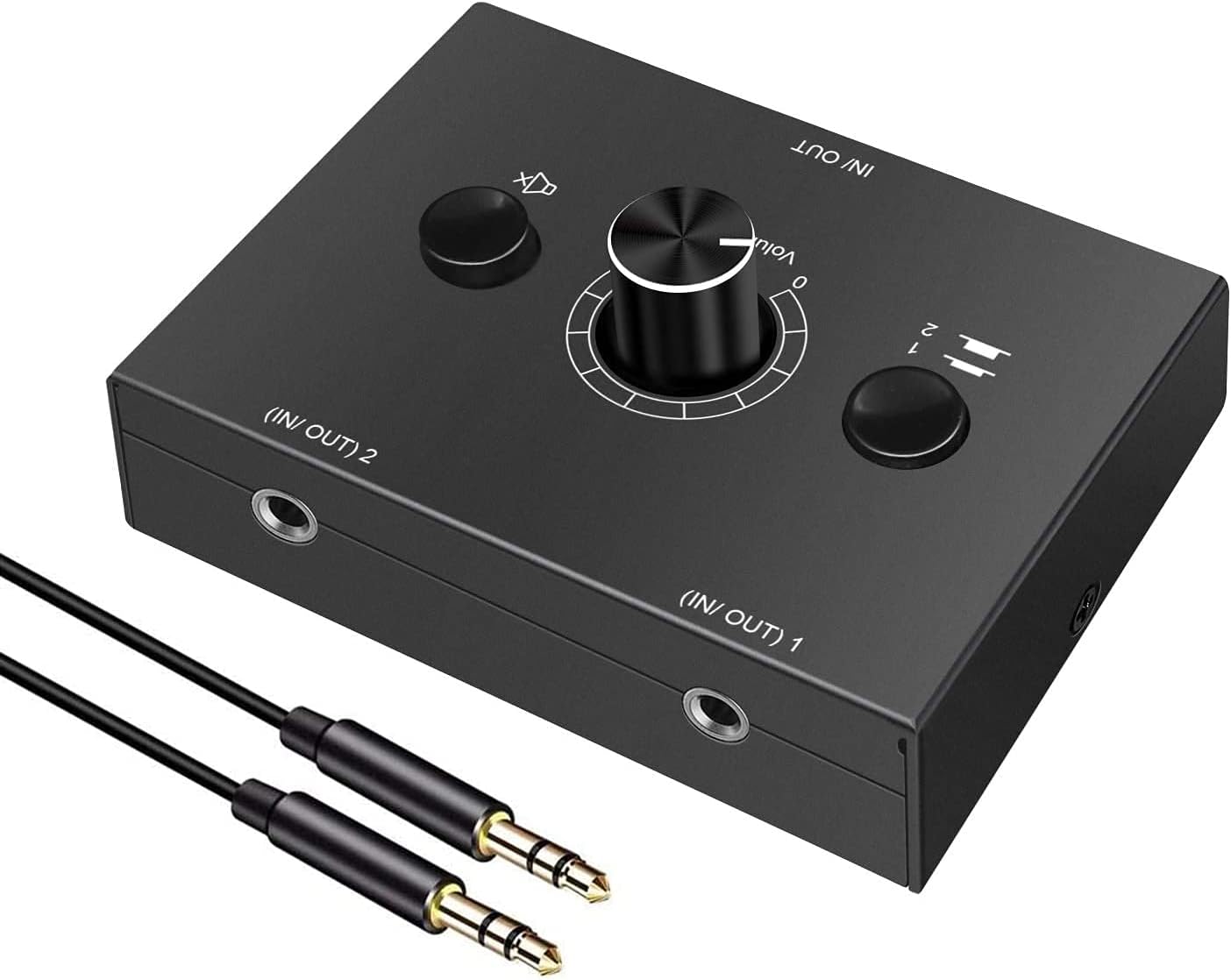
Thank you for choosing the Y.D.F 3.5mm Stereo Audio Switcher. This device is designed to provide a convenient solution for managing multiple audio sources and outputs. It allows you to easily switch between two audio inputs to one output, or one audio input to two outputs, enhancing your audio experience without affecting sound quality. This manual provides detailed instructions for setup, operation, maintenance, and troubleshooting.
Product Features
- Bi-directional Functionality: Operates as a 2-in-1-out audio switcher or a 1-in-2-out audio splitter.
- Passive Design: No external power supply is required, ensuring pure audio signal transmission.
- Volume Control: Integrated rotary knob for precise volume adjustment.
- Mute Function: Dedicated button for instant audio muting.
- Input/Output Selector: Easy toggle button to switch between connected devices.
- Durable Construction: Designed for long-term reliability.
Package Contents
Please verify that all items are present in your package:
- Y.D.F 3.5mm Stereo Audio Switcher Unit
- 3.5mm Audio Cable
- User Manual (this document)

Setup Instructions
The Y.D.F 3.5mm Stereo Audio Switcher offers flexible connectivity options. Ensure all connections are secure before operation.
Important Note: 3-Pole 3.5mm Audio Cables Only
This device is designed for use with 3-pole (TRS) 3.5mm audio cables. It does not support 4-pole (TRRS) cables, which typically include a microphone channel. Using a 4-pole cable may result in improper audio transmission or functionality.

Configuration 1: 2-IN-1-OUT (Switching Audio Sources)
In this configuration, you can connect two audio sources (e.g., a computer and a smartphone) to the switcher and select which source outputs to a single audio device (e.g., speakers or headphones).
- Connect your first audio source to the (IN/OUT) 1 port using a 3.5mm audio cable.
- Connect your second audio source to the (IN/OUT) 2 port using a 3.5mm audio cable.
- Connect your audio output device (speakers, headphones) to the IN/OUT port using a 3.5mm audio cable.
- Use the '1/2' selector button on the switcher to choose between audio source 1 or 2.

Configuration 2: 1-IN-2-OUT (Switching Audio Outputs)
In this configuration, you can connect a single audio source (e.g., a computer) to the switcher and select which of two audio output devices (e.g., speakers or headphones) receives the audio signal.
- Connect your audio source (e.g., PC, smartphone) to the IN/OUT port using a 3.5mm audio cable.
- Connect your first audio output device (e.g., speakers) to the (IN/OUT) 1 port using a 3.5mm audio cable.
- Connect your second audio output device (e.g., headphones) to the (IN/OUT) 2 port using a 3.5mm audio cable.
- Use the '1/2' selector button on the switcher to choose between output device 1 or 2.

Operating Instructions
The Y.D.F Audio Switcher features intuitive controls for seamless audio management.
Controls Overview

- Volume Control Knob: Rotate clockwise to increase volume, counter-clockwise to decrease volume.
- Mute Button: Press this button to instantly mute or unmute the audio output.
- 1/2 Selector Button: Press to toggle between the two connected input/output channels.
Switching Audio
To switch between connected audio sources or output devices, simply press the '1/2' selector button. The active channel will be indicated by the position of the button.
Muting Audio
To temporarily silence the audio, press the mute button. Press it again to restore the audio to its previous volume level.
Maintenance
Proper care will ensure the longevity and optimal performance of your audio switcher.
- Cleaning: Use a soft, dry cloth to clean the exterior of the device. Avoid using liquid cleaners or abrasive materials.
- Storage: Store the device in a cool, dry place away from direct sunlight and extreme temperatures.
- Handling: Avoid dropping the device or subjecting it to strong impacts.
Troubleshooting
If you encounter issues with your Y.D.F Audio Switcher, please refer to the following common problems and solutions:
- No Sound:
- Ensure all 3.5mm audio cables are securely connected to the correct ports.
- Verify that the '1/2' selector button is set to the desired active channel.
- Check the volume level on both the switcher and your connected audio devices.
- Ensure the mute button is not active.
- Confirm that you are using 3-pole (TRS) 3.5mm audio cables.
- Static or Hissing Noise:
- Ensure all cable connections are tight and free from damage.
- Test with different audio cables to rule out faulty cables.
- If connecting multiple devices, a ground loop noise isolator may be necessary to eliminate hum or hiss.
- Ensure the audio source is not producing the noise.
- Intermittent Audio:
- Check for loose cable connections.
- Inspect 3.5mm jacks and plugs for debris or damage.
If these steps do not resolve the issue, please contact our after-sales service for further assistance.
Product Specifications
| Feature | Specification |
|---|---|
| Product Dimensions | 7.8 x 5 x 0.69 inches |
| Item Weight | 1.5 ounces |
| Model Number | Audio Selector |
| Brand | Y.D.F |
| Connector Type | 3.5mm Jack (3-pole TRS recommended) |
| Compatible Devices | Laptop, PC, Smartphone, Tablet, iPod touch, Speakers, Headphones |
| Cable Type | Auxiliary |
| Color | Black |
Warranty and Support
Y.D.F is committed to providing quality products and customer satisfaction. If you experience any issues with your 3.5mm Stereo Audio Switcher, please do not hesitate to contact our customer support team. We are dedicated to providing prompt and effective after-sales support.
For assistance, please refer to the contact information provided with your purchase or visit the official Y.D.F website.


