
Introduction
The Phanteks Enthoo Pro 2 is a high-performance full tower PC chassis designed for enthusiasts and professionals. It features an innovative High-Performance Fabric mesh for optimal airflow, tempered glass side panel, and extensive support for high-end components, including dual systems and PSUs. This manual provides detailed instructions for setup, operation, and maintenance of your Enthoo Pro 2 chassis.

Image: Front-side view of the Phanteks Enthoo Pro 2 Full Tower PC Chassis, showcasing its tempered glass side panel and fabric mesh front panel.
Safety Information
Please read and understand all safety instructions before installing components into the chassis. Failure to do so may result in personal injury or damage to the product or components.
- Always disconnect the power supply from the wall outlet before performing any installation or maintenance.
- Handle components with care to prevent electrostatic discharge (ESD) damage. Consider using an anti-static wrist strap.
- Avoid placing the chassis in direct sunlight, near heat sources, or in environments with excessive dust or moisture.
- Do not attempt to modify the chassis in any way not described in this manual.
- Keep small parts and screws out of reach of children.
Package Contents
Verify that all components are present in the package:
- Phanteks Enthoo Pro 2 Chassis
- Accessory Box (containing screws, zip ties, and other mounting hardware)
- User Manual (this document)
- Additional brackets for dual system/PSU support (if applicable to your model variant)
Setup and Component Installation
Follow these steps for proper installation of your PC components into the Enthoo Pro 2 chassis.
1. Preparing the Chassis
- Place the chassis on a flat, stable surface.
- Remove the tempered glass side panel by unscrewing the thumb screws and carefully pulling it away. Place it on a soft, non-abrasive surface to prevent scratches.
- Remove the opposite steel side panel by unscrewing the thumb screws and sliding it backward.
- Familiarize yourself with the interior layout, including motherboard tray, PSU shroud, and drive bays.

Image: Interior view of the Phanteks Enthoo Pro 2 chassis, showing the spacious layout for component installation.
2. Motherboard Installation
- The Enthoo Pro 2 supports various motherboard form factors, including E-ATX.
- Install the necessary motherboard standoffs into the motherboard tray according to your motherboard's form factor.
- Carefully place your motherboard onto the standoffs, aligning the screw holes.
- Secure the motherboard with the provided screws from the accessory box.
3. Power Supply Unit (PSU) Installation
- The chassis features a bottom-mount PSU design with an integrated PSU cover for a clean aesthetic.
- Slide the PSU into its designated compartment from the rear of the chassis.
- Secure the PSU with screws from the rear of the chassis.
- Route the necessary PSU cables through the cable management cutouts.
4. Storage Device Installation
- The Enthoo Pro 2 offers massive storage capacity, supporting up to 12x HDDs or 11x SSDs.
- Install 3.5" HDDs into the removable drive cages located beneath the PSU shroud or in the front compartment.
- Install 2.5" SSDs onto the dedicated SSD brackets, often found behind the motherboard tray or on the PSU shroud.
- Secure all storage devices with the appropriate screws.
5. Fan and Radiator Installation
- The chassis supports extensive air and water cooling configurations, including dual 480mm and dual 360mm radiator support simultaneously.
- Install case fans or radiators into the designated mounting locations (front, top, rear, bottom, side).
- Ensure proper airflow direction for optimal cooling performance.
6. Graphics Card (GPU) Installation
- Install your graphics card into the appropriate PCIe slot on your motherboard.
- The Enthoo Pro 2 supports dual vertical GPU installations (requires optional vertical GPU mount and riser cable, sold separately).
- Secure the GPU with the provided thumb screws or standard screws.
7. Cable Management
- Utilize the integrated cable routes, straps, and covers behind the motherboard tray to organize and hide cables.
- Proper cable management improves airflow and aesthetics.
8. Digital-RGB Lighting Setup
- The chassis features an integrated Digital-RGB controller.
- Connect the chassis's RGB cable to a compatible Digital-RGB header on your motherboard or to other Phanteks Digital-RGB products for synchronized lighting effects.
- Refer to your motherboard's manual for specific Digital-RGB software control.
9. Dual System/PSU Support
- The Enthoo Pro 2 is designed to accommodate a secondary ITX system or PSU.
- Specific mounting hardware and instructions for dual system configurations are typically provided with the optional ITX upgrade kit or secondary PSU.
Operating Features
Airflow and Cooling
The High-Performance Fabric mesh front panel and extensive ventilation throughout the chassis ensure superior airflow, contributing to lower component temperatures and stable system performance.

Image: Front view of the Phanteks Enthoo Pro 2 chassis, highlighting the high-performance fabric mesh for optimal airflow.
Digital-RGB Lighting Control
The integrated Digital-RGB controller allows for customizable lighting effects. Connect it to your motherboard's compatible header to synchronize lighting with other system components via motherboard software, or use Phanteks' own Digital-RGB products for expanded control.
Maintenance
Cleaning Dust Filters
The Enthoo Pro 2 features easily removable dust filters on the front, top, and bottom. Regularly clean these filters to maintain optimal airflow and prevent dust buildup inside your system.
- Gently pull out the dust filters.
- Use a soft brush or vacuum cleaner to remove accumulated dust.
- Reinsert the filters securely.

Image: Side view of the Phanteks Enthoo Pro 2 chassis, showing the ventilation areas that are protected by dust filters.
General Cleaning
Wipe the exterior of the chassis with a soft, damp cloth. Avoid using harsh chemicals or abrasive materials that could damage the finish.
Troubleshooting
If you encounter issues with your Enthoo Pro 2 chassis, consider the following common troubleshooting steps:
- No Power/System Not Starting: Ensure all power cables (24-pin ATX, CPU, GPU, etc.) are securely connected to the motherboard and components. Verify the PSU is switched on.
- Fans Not Spinning/RGB Not Lighting Up: Check fan headers and RGB connections to the motherboard or controller. Ensure all cables are properly seated.
- Poor Airflow/High Temperatures: Clean dust filters. Ensure fans are installed in the correct orientation (intake/exhaust). Verify no cables are obstructing airflow.
- Loose Components: Re-check all screws and mounting points for components like the motherboard, GPU, and storage drives.
Specifications
| Feature | Detail |
|---|---|
| Brand | Phanteks |
| Model Name | Enthoo Pro 2 |
| Item Model Number | PH-ES620PTG_DBK01 |
| Case Type | Full Tower |
| Motherboard Compatibility | Extended ATX |
| Material | Alloy Steel, Plastic |
| Color | Black |
| Item Weight | 26.5 pounds |
| Product Dimensions (LxWxH) | 22.8 x 9.49 x 22.01 inches |
| Number of USB 3.0 Ports | 4 |
| Power Supply Mounting Type | Bottom Mount |
| Cooling Method | Water, Air |
| Light Color | RGB |
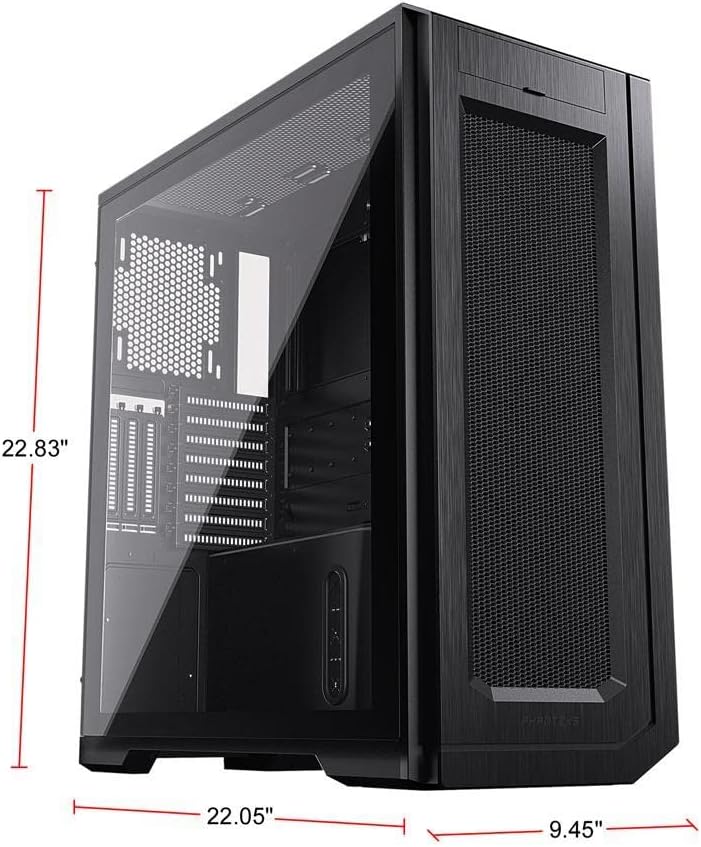
Image: Phanteks Enthoo Pro 2 chassis with key dimensions labeled.
Warranty and Support
The Phanteks Enthoo Pro 2 chassis is covered by the manufacturer's standard warranty. For detailed warranty terms, technical support, or to purchase additional accessories, please visit the official Phanteks website:


