
1. Product Overview
The HENEX HC-6032 is a desktop hands-free 2D barcode scanner designed for efficient and automatic scanning of 1D, 2D, and QR codes. Its omnidirectional scanning capability and intelligent detection features make it suitable for various commercial and industrial applications.
2. Package Contents
Verify that all items are present in the package:
- 1 x HC-6032 Barcode Scanner
- 1 x 1.8M USB Cable
- 1 x User Manual
Video: Unboxing and initial setup of the HENEX HC-6032 barcode scanner, demonstrating package contents and basic connection.
3. Setup Instructions
3.1. Connecting the Scanner
The HC-6032 barcode scanner is designed for plug-and-play operation, requiring no additional drivers or software installation. It is compatible with Windows XP/7/8/10, Android, and Linux systems.
- Connect the provided USB cable to the data transmission port on the back of the scanner.
- Plug the other end of the USB cable into an available USB port on your computer or host device.
- The scanner will automatically power on and be ready for use.

Image: The HC-6032 scanner connected to a laptop, highlighting its plug-and-play functionality across various operating systems.
4. Operating the Scanner
4.1. Automatic Scanning
The scanner features an induction trigger for automatic detection and scanning. When in standby mode, it will activate and read barcodes placed within its scan window.
4.2. Supported Barcode Types
The HC-6032 supports a wide range of 1D and 2D barcodes, including QR codes, from both physical labels and digital screens (mobile phones, computer monitors).
- 1D Decoding Capability: EAN-8, EAN-13, ISSN, ISBN, UPC-A, UPC-E, Code 32, Code 39, Code 93, Code 128, Interleaved 2/5, Matrix 2/5, ISBT-128, GS1-128, GS1 Databar Limited, GS1 Databar Expanded.
- 2D Decoding Capability: PDF417, MicroPDF417, QR Code, MicroQR, Data Matrix, Azte.

Image: Visual representation of the diverse 1D and 2D barcode symbologies supported by the scanner.
Video: Demonstration of the scanner's ability to quickly read various 1D and 2D barcodes from different surfaces, including product packaging and mobile phone screens.
4.3. Reading Mode Switching
The scanner allows switching between different reading modes. Press the button on the top of the scanner to toggle between one-dimensional (1D) and one-dimensional + two-dimensional (1D+2D) scanning modes. The indicator light will change color to reflect the active mode.

Image: Illustration of the reading mode switch button and corresponding indicator light colors for 1D and 1D+2D modes.
5. Product Features and Design
5.1. Adjustable Angle
The compact design of the scanner allows for an adjustable angle, providing flexibility for various scanning positions and optimizing space on cash registers or workstations. It features an elevation of 6 degrees and a tilt angle of 10 degrees.
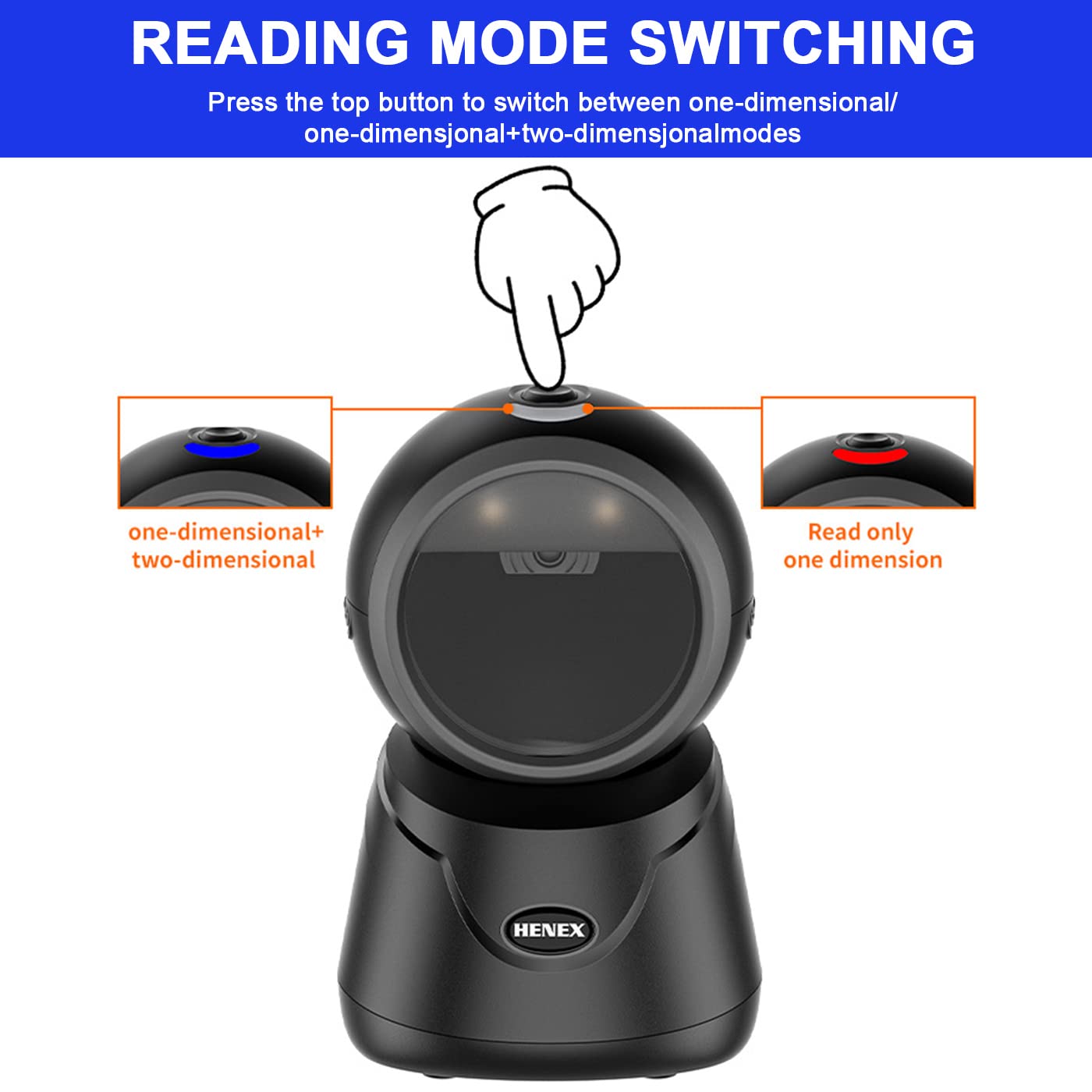
Image: Diagram detailing the adjustable elevation and tilt angles of the scanner.
5.2. Appearance Details
The scanner's design includes an indicator light, a mode-switching button, a fill-in light for low-light conditions, a prominent scan window, and a data transmission port for connectivity.

Image: Close-up view of the scanner, labeling its key external features.
6. Application Scenarios
The HENEX HC-6032 barcode scanner is versatile and suitable for a variety of environments requiring efficient barcode and QR code scanning:
- Supermarkets and Retail Stores
- Convenience Stores
- Libraries
- Pharmacies
- Hotel Services
- Warehouses and Logistics

Image: Examples of the scanner's use in different commercial settings.
7. Specifications
| Feature | Detail |
|---|---|
| Brand | HENEX |
| Model Number | HC-6032 |
| Color | Black |
| Item Weight | 290 g |
| Product Dimensions | 10D x 10W x 15.9H Centimeters |
| Connectivity Technology | USB Cable |
| Power Source | Corded Electric |
| Operating System Compatibility | Windows XP/7/8/10, Android, Linux, Mac OS |
| Decoding Capability | 1D, 2D, QR codes (from paper and screen) |
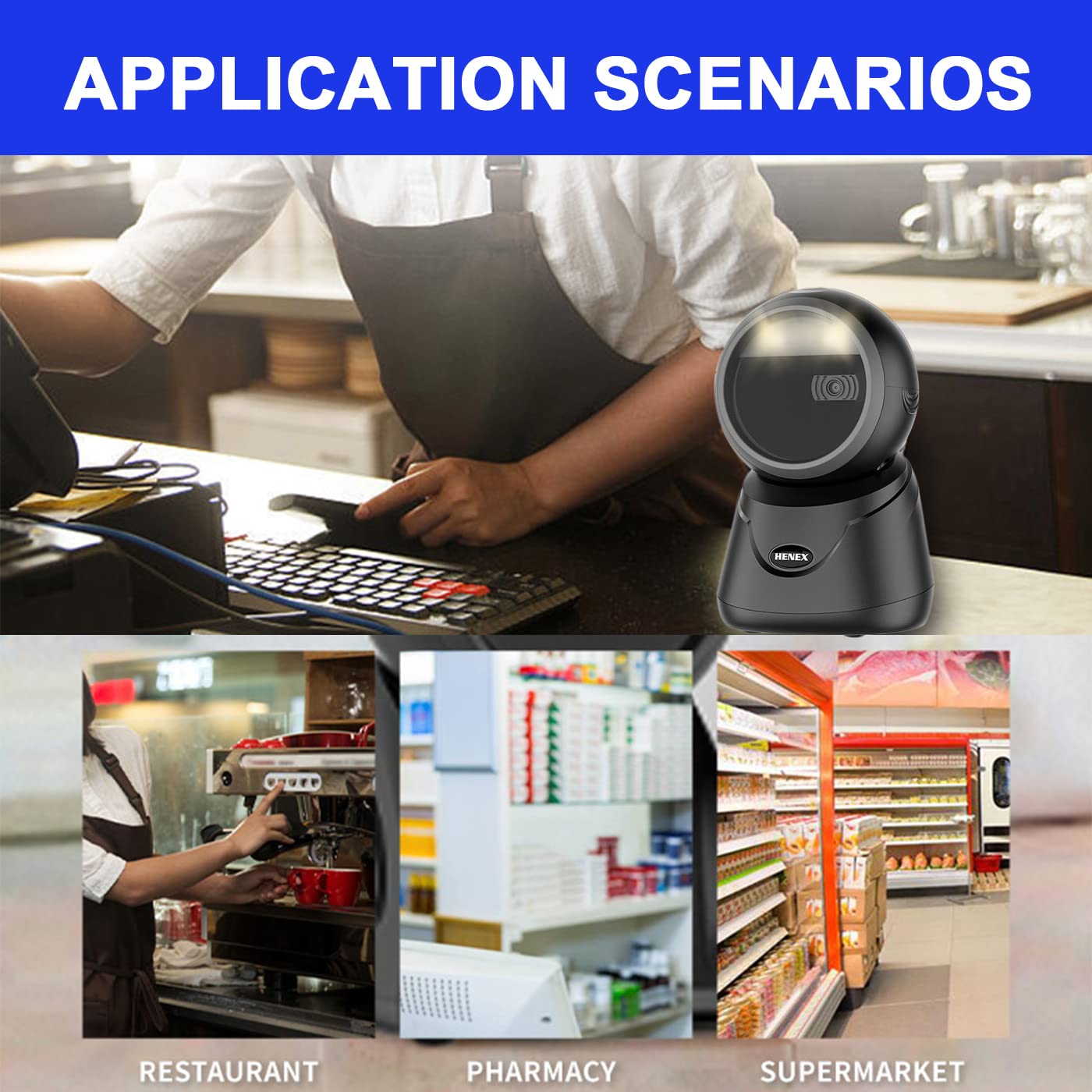
Image: Detailed dimensions of the HC-6032 barcode scanner.
8. Troubleshooting
- Scanner not responding: Ensure the USB cable is securely connected to both the scanner and the host device. Try a different USB port.
- Unable to read barcodes:
- Verify the scanner is in the correct reading mode (1D or 1D+2D) by pressing the top button.
- Ensure the barcode is clean, undamaged, and within the scanner's field of view.
- Adjust the distance and angle between the scanner and the barcode.
- For screen barcodes, ensure screen brightness is adequate.
- Incorrect data output: Check if any custom prefixes or suffixes have been accidentally enabled. Refer to the full user manual for advanced configuration.
- System compatibility issues: While compatible with most systems, ensure your operating system is updated. If issues persist, contact technical support.
9. Warranty and Support
HENEX is committed to providing high-quality products and professional support. For any questions, technical assistance, or warranty claims, please contact our support team.
- Warranty Policy: Information regarding the product warranty can be found here.
- Returns Policy: Details on product returns are available here.
- Technical Support:
- Email: support@lenvii.net, support@lenvii.in
- Phone: +86 13316203488, +91 9100763594
- Website: www.lenvii.net, www.lenvii.in

Image: Contact information for HENEX technical support.
