
1. Overview
The GOBOULT ProBass Thunder headphones are designed to deliver a powerful and immersive audio experience. Featuring advanced Bluetooth 5.0 connectivity, these over-ear headphones provide deep bass, clear audio, and comfortable wear for extended periods. They are equipped with a built-in microphone for calls and support voice assistant commands, making them versatile for various activities.
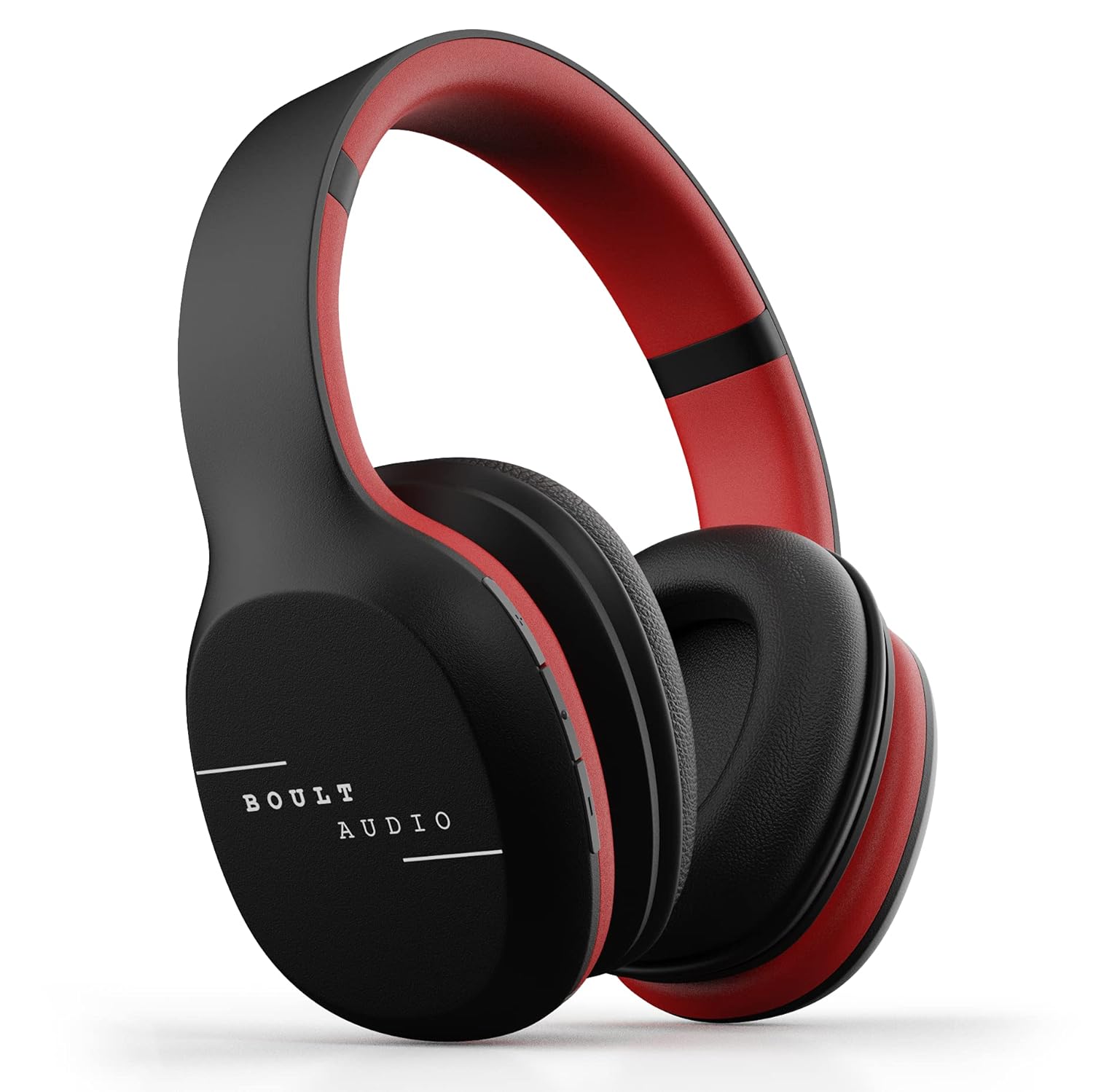
Image: GOBOULT ProBass Thunder Over-Ear Wireless Bluetooth Headphones.
2. What's in the Box
Your GOBOULT ProBass Thunder package includes the following items:
- GOBOULT ProBass Thunder Over-Ear Wireless Bluetooth Headphones
- Micro-USB Charging Cable
- 3.5mm Auxiliary (AUX) Cable
- Instruction Manual
Video: An unboxing video demonstrating the contents of the Boult Audio ProBass Thunder headphone package, including the headphones, cables, and user manual.
3. Setup
3.1 Charging the Headphones
Before initial use, fully charge your headphones. Use the provided Micro-USB charging cable.
- Connect the Micro-USB end of the charging cable to the charging port on the headphone (typically on the right earcup).
- Connect the USB-A end of the cable to a compatible USB power source (e.g., computer USB port, wall adapter).
- The LED indicator on the headphone will illuminate during charging and change color or turn off when fully charged.
Note: The charging cable is approximately 40-45cm long.
3.2 Bluetooth Pairing
To connect your headphones wirelessly:
- Ensure the headphones are charged and powered off.
- Press and hold the power button on the headphone until the LED indicator flashes blue and red, indicating pairing mode.
- On your smartphone or audio device, enable Bluetooth and search for available devices.
- Select "Boult Audio ProBass Thunder" from the list.
- Once connected, the LED indicator will typically show a solid blue light or flash blue slowly.
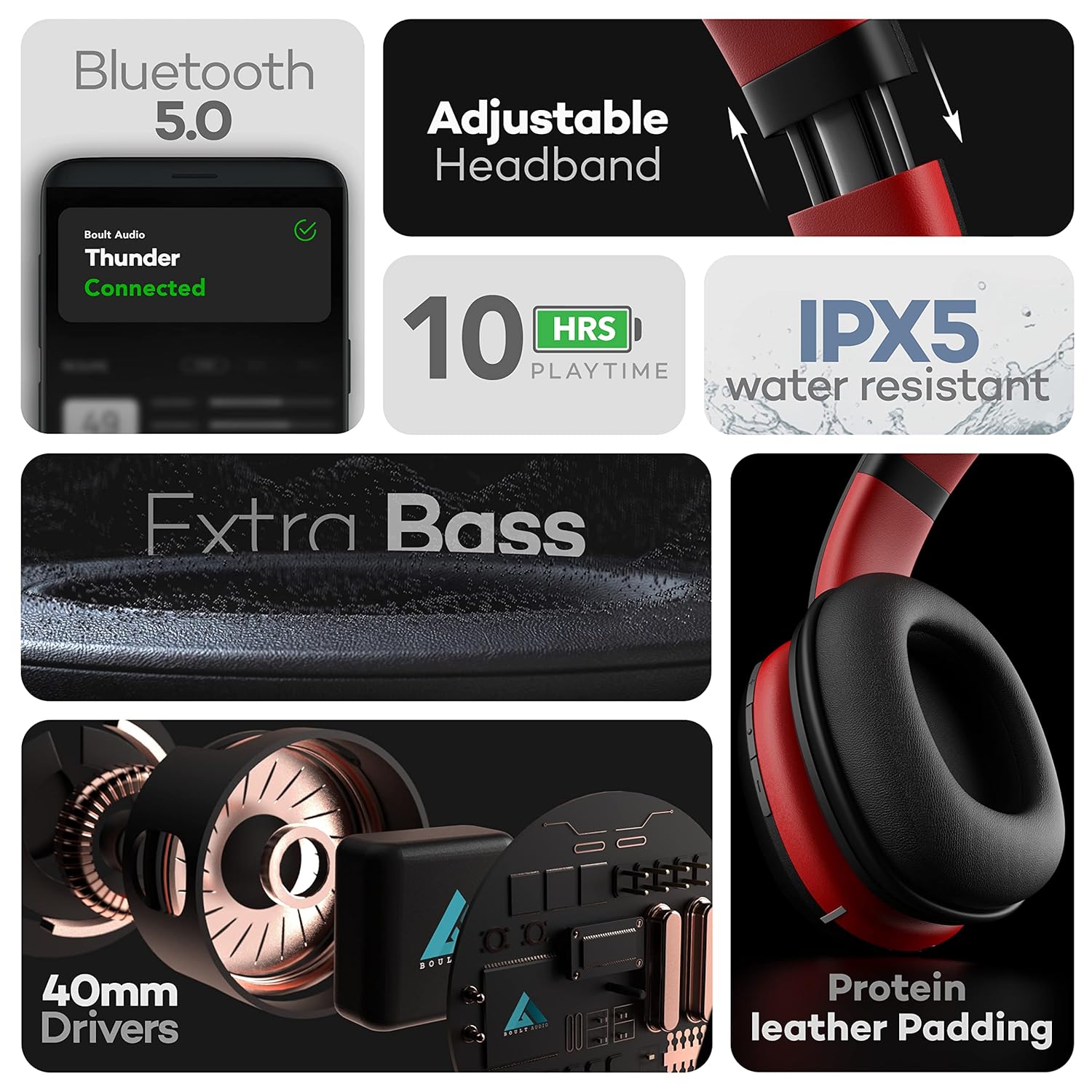
Image: Features of the headphones, including Bluetooth 5.0 connectivity.
Video: A tutorial video demonstrating how to connect the Boult Audio ProBass Thunder S07 headphones via Bluetooth to a mobile device.
3.3 Wired Connection (AUX Mode)
For a wired connection, use the provided 3.5mm auxiliary cable.
- Plug one end of the 3.5mm AUX cable into the AUX port on the headphone.
- Plug the other end into the 3.5mm audio jack of your audio device.
- The headphones will automatically switch to wired mode.

Image: Headphones showing dual mode connectivity with Bluetooth and Aux-in cable.
4. Operating the Headphones
4.1 Power On/Off
- Power On: Press and hold the multi-function button (usually the center button on the right earcup) for a few seconds until the LED indicator lights up.
- Power Off: Press and hold the multi-function button for a few seconds until the LED indicator turns off.
4.2 Audio Controls
The inline controls on the right earcup allow you to manage your audio playback and calls:
- Play/Pause: Short press the multi-function button.
- Volume Up: Short press the '+' button.
- Volume Down: Short press the '-' button.
- Next Track: Long press the '+' button.
- Previous Track: Long press the '-' button.
4.3 Call Management
- Answer/End Call: Short press the multi-function button.
- Reject Call: Long press the multi-function button.
4.4 Voice Assistant
Activate your device's voice assistant (Siri, Google Assistant) directly from the headphones:
- Activate Voice Assistant: Press the power button for 2 seconds.

Image: Voice Assistant activation and inline controls on the headphones.
5. Maintenance
5.1 Cleaning
- Wipe the headphones with a soft, dry cloth.
- Avoid using harsh chemicals, cleaning solvents, or strong detergents.
- Do not immerse the headphones in water.
5.2 Water Resistance
The headphones are IPX5 water-resistant, meaning they can withstand splashes and sweat. This makes them suitable for workouts or light rain. However, they are not designed for swimming or submersion in water.
5.3 Storage
When not in use, store the headphones in a cool, dry place away from direct sunlight and extreme temperatures. Avoid placing heavy objects on them.
6. Troubleshooting
If you encounter any issues with your GOBOULT ProBass Thunder headphones, refer to the following common solutions:
- No Power: Ensure the headphones are fully charged. Connect them to a power source using the Micro-USB cable.
- Cannot Pair via Bluetooth:
- Make sure the headphones are in pairing mode (LED flashing blue/red).
- Ensure Bluetooth is enabled on your device and it is within the 20m transmission range.
- Forget previous pairings on your device and try pairing again.
- Restart both the headphones and your device.
- No Sound (Bluetooth):
- Check the volume levels on both the headphones and your connected device.
- Ensure the headphones are correctly selected as the audio output device on your phone/computer.
- No Sound (Wired AUX):
- Ensure the 3.5mm AUX cable is fully inserted into both the headphone and the audio device.
- Check the AUX cable for any visible damage. Try a different cable if available.
- Poor Sound Quality:
- Move closer to your Bluetooth device to avoid interference.
- Ensure the audio source (music file, streaming service) is of high quality.
7. Specifications
| Model Name | ProBass Thunder |
| Connectivity Technology | Wireless (Bluetooth 5.0), Wired (3.5mm AUX) |
| Audio Driver Type | 40mm Dynamic Driver |
| Battery Life | 10 Hours Playtime, 48 Hours Standby |
| Water Resistance Level | IPX5 Water Resistant |
| Control Type | Voice Control, Inline Buttons |
| Item Weight | 200 Grams |
| Product Dimensions | 16 x 19 x 6.5 cm |
| Compatible Devices | Android, iOS, Windows |
Video: An official product video showcasing the key features, design, battery life, and device compatibility of the Boult Audio ProBass Thunder headphones.
8. Warranty and Support
8.1 Manufacturer's Warranty
The GOBOULT ProBass Thunder headphones come with a 1-Year Manufacturer Warranty. Please retain your purchase receipt for warranty claims.
8.2 Customer Support
For any support, service, or warranty-related queries, please refer to the contact information provided in the included user manual or visit the official GOBOULT website. You may also find additional support on the product's Amazon detail page.
Manufacturer: Exotic Mile
Importer: Exotic Mile Private Limited, B-67 Wazirpur Industrial Area, Delhi - 110052.
Packer: 9555602502, Exotic Mile Private Limited, B-67 Wazirpur Industrial Area, Delhi - 110052.