
Delock 11477
Delock 11477 HDMI/USB-C™ KVM Switch User Manual
Model: 11477
1. Introduction
This user manual provides detailed instructions for the installation, operation, and maintenance of the Delock HDMI/USB-C™ KVM Switch 4K 60Hz with USB 2.0, Model 11477. Please read this manual thoroughly before using the device to ensure proper functionality and to prevent damage.
2. Safety Information
To ensure safe operation and prolong the life of your device, please observe the following safety precautions:
- Do not expose the device to moisture, extreme temperatures, or direct sunlight.
- Do not disassemble or modify the device. This will void the warranty and may cause damage.
- Use only the specified power adapter (if applicable) and cables.
- Keep the device away from strong electromagnetic fields.
- Ensure proper ventilation around the device during operation.
3. Package Contents
Please check the package contents upon unpacking. If any items are missing or damaged, contact your vendor immediately.
- Delock HDMI/USB-C™ KVM Switch 4K 60Hz (Model 11477)
- USB-C™ to USB-C™ cable
- USB-A to USB-B cable
- User Manual

Figure 3.1: Delock KVM Switch with included USB-C to USB-C and USB-A to USB-B cables.
4. Product Overview
The Delock KVM Switch allows you to control two computers (one with HDMI/USB-A, one with USB-C) from a single set of console peripherals (monitor, keyboard, mouse).
4.1 Front/Top Panel

Figure 4.1: Top view of the Delock KVM Switch.
- Console USB Ports (Keyboard/Mouse): Two USB 2.0 Type-A ports for connecting your keyboard and mouse.
- PC 2 USB-C™ Port: Connects to a computer with a USB-C™ port for video and USB data.
- PC 1 USB Port: Connects to a computer's USB-A port for USB data.
- PC 1 HDMI Port: Connects to a computer's HDMI output for video.
- Switch Button: Press to switch between PC 1 and PC 2.
- LED Indicators: Indicate the currently active PC (PC 1 or PC 2).
4.2 Rear Panel
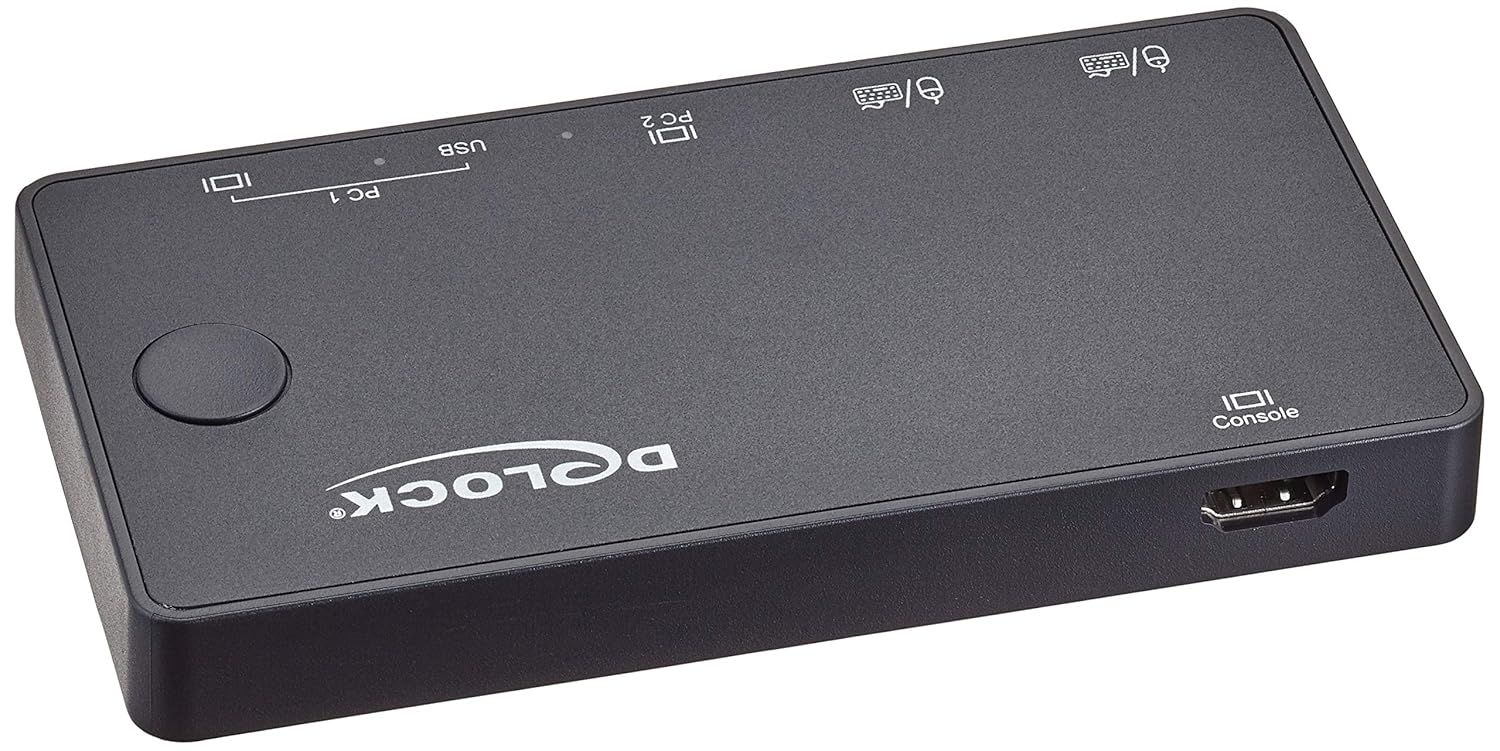
Figure 4.2: Rear view of the Delock KVM Switch.
- Console HDMI Port: Connects to your monitor.
5. Setup and Installation
Follow these steps to set up your Delock KVM Switch:
- Connect Console Peripherals:
- Connect your HDMI monitor to the "Console HDMI" port on the rear of the KVM switch.
- Connect your USB keyboard and mouse to the "Console USB" ports on the front of the KVM switch.
- Connect PC 1:
- Connect an HDMI cable from your PC 1's HDMI output to the "PC 1 HDMI" input on the KVM switch.
- Connect the included USB-A to USB-B cable from your PC 1's USB-A port to the "PC 1 USB" input on the KVM switch.
- Connect PC 2:
- Connect the included USB-C™ to USB-C™ cable from your PC 2's USB-C™ port (which supports DisplayPort Alternate Mode and USB data) to the "PC 2 USB-C™" input on the KVM switch.
- Power On:
The KVM switch is typically powered via the USB connections from the connected computers. Ensure both PCs are powered on for stable operation.
Once all connections are made, the KVM switch should automatically detect the active computer. The LED indicator will show which PC is currently selected.
6. Operating Instructions
The Delock KVM Switch offers simple operation to switch between connected computers.
6.1 Switching Between Computers
To switch between PC 1 and PC 2, simply press the "Switch Button" located on the top panel of the KVM switch. The corresponding LED indicator will illuminate to show the active computer.
Note: Ensure both computers are powered on and sending a video signal for seamless switching.
7. Troubleshooting
If you encounter issues with your Delock KVM Switch, please refer to the following common problems and solutions:
| Problem | Possible Cause / Solution |
|---|---|
| No video output on monitor. |
|
| Keyboard/Mouse not responding. |
|
| Cannot switch between PCs. |
|
| Video resolution/refresh rate issues. |
|
8. Specifications
The following are the technical specifications for the Delock KVM Switch 11477:
- Model: 11477
- Function: HDMI / USB-C™ KVM Switch
- Video Resolution: Up to 4K (3840 x 2160) @ 60Hz
- USB Standard: USB 2.0 (for keyboard/mouse), USB-C™ (for PC 2 data/video)
- Input Ports:
- PC 1: 1 x HDMI, 1 x USB-B
- PC 2: 1 x USB-C™ (DisplayPort Alt Mode)
- Output Ports (Console):
- 1 x HDMI
- 2 x USB-A (for keyboard/mouse)
- Switching Method: Push button
- Dimensions (LxWxH): 3.6 x 1.72 x 2.25 inches (approx. 91.44 x 43.69 x 57.15 mm)
- Weight: 11.29 ounces (approx. 320 grams)
- Operation Mode: Manual
- Manufacturer: Delock
9. Maintenance
The Delock KVM Switch requires minimal maintenance. Follow these guidelines to keep your device in optimal condition:
- Cleaning: Use a soft, dry cloth to clean the exterior of the device. Do not use liquid cleaners or aerosols.
- Storage: When not in use for extended periods, store the device in a cool, dry place away from direct sunlight and extreme temperatures.
- Ventilation: Ensure the device's ventilation openings are not blocked to prevent overheating.
10. Warranty and Support
For warranty information and technical support, please refer to the documentation provided with your purchase or visit the official Delock website. Keep your proof of purchase for warranty claims.
Delock Official Website: www.delock.com
Related documents11477


Ask a question about this manual
Ask about setup, troubleshooting, compatibility, parts, safety, or missing instructions. Manuals+ will review the question and use this page’s manual context to help answer it.