
1. Setup Instructions
1.1 Package Contents
- Srihome SH004 USB Webcam
- USB Cable (integrated)
1.2 Connecting the Webcam
The Srihome SH004 webcam is designed for plug-and-play operation, requiring no additional driver installation on most compatible systems.
- Connect to USB Port: Insert the webcam's USB cable into an available USB 2.0 or USB 3.0 port on your computer (PC, laptop, or desktop).
- System Recognition: Your operating system (Windows 7/8/10, LINUX, Mac OS, Android TV) should automatically detect and configure the webcam. A notification may appear indicating successful device installation.
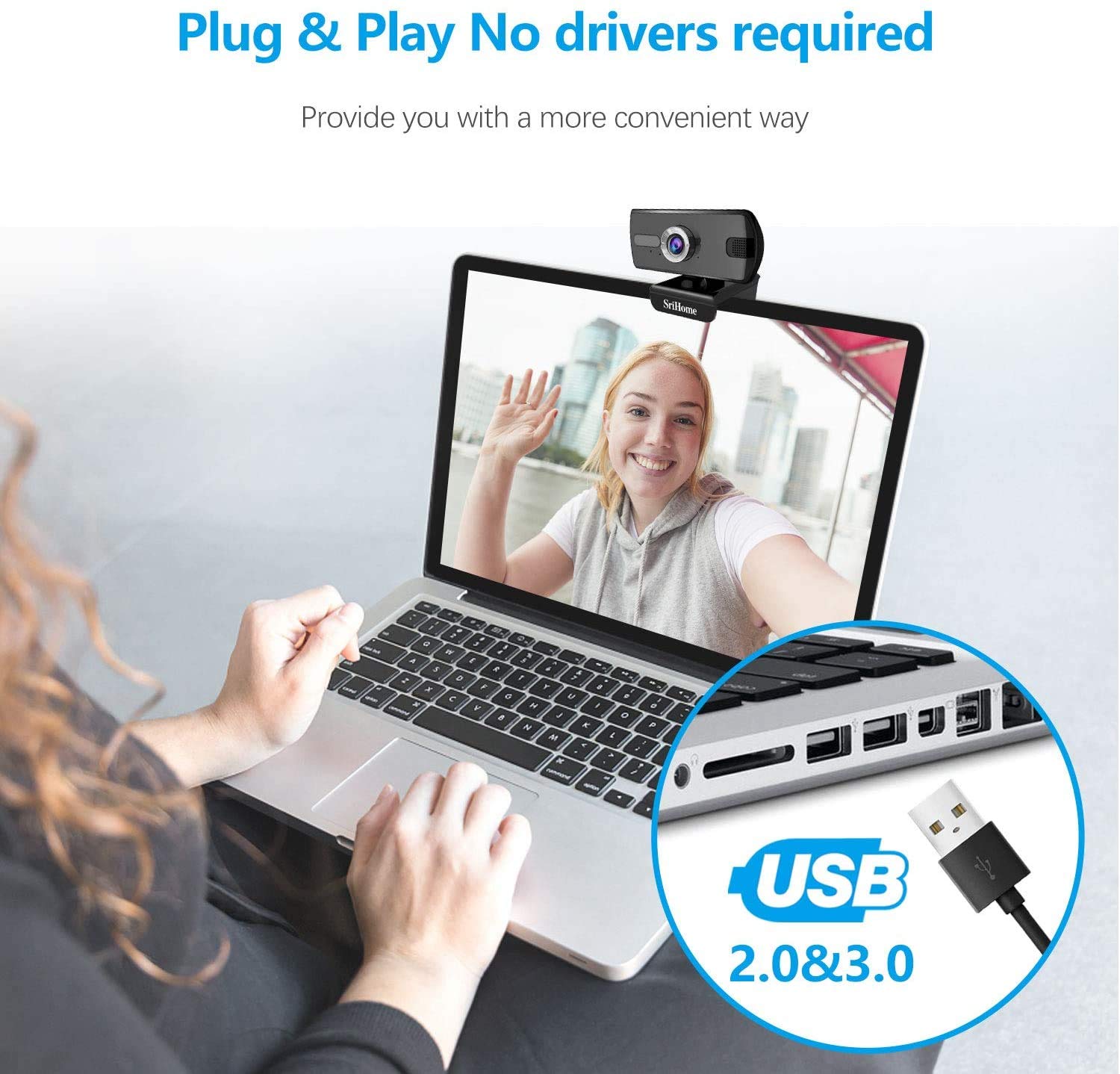
Figure 1: Connecting the webcam to a USB port. The device is plug-and-play, requiring no driver installation.
1.3 Mounting the Webcam
The webcam features a versatile clip that allows it to be securely mounted on various devices, such as laptop screens, desktop monitors, or placed on a flat surface.
- Adjust the Clip: Open the clip to fit over the top edge of your monitor or laptop screen.
- Position the Webcam: Ensure the webcam is centered and stable.
- Rotate for Optimal Angle: The webcam's bracket allows for 360-degree rotation, enabling you to adjust the camera angle as needed.

Figure 2: The webcam features a 360-degree rotatable bracket for flexible positioning.
1.4 Focus Adjustment
For optimal image clarity, the webcam features a manual focus adjustment. If the image appears blurred, gently rotate the silver-colored ring around the lens until the picture becomes sharp.
2. Operating Instructions
2.1 Video Calls and Conferencing
The Srihome SH004 webcam is suitable for various communication platforms and applications.
- Application Compatibility: Use with popular applications such as Skype, Yahoo, FaceTime, Hangouts, YouTube, Zoom, and other video conferencing software.
- Selecting the Webcam: In your chosen application's settings, ensure "Srihome SH004" is selected as the primary video and audio input device.

Figure 3: Key features of the Srihome SH004 webcam, including HD video, 3MP resolution, wide-angle lens, built-in microphone, and plug-and-play functionality.
2.2 Image and Audio Quality
- High Definition Video: The webcam provides a maximum resolution of 3 Megapixels (2048x1536) with H.264 video compression, ensuring clear and detailed images.
- Wide Field of View: A 110° wide-angle lens captures a broad perspective, ideal for group calls or presentations.
- Built-in Microphone: The integrated stereo microphone features noise cancellation, designed to capture your voice clearly even in moderately noisy environments.

Figure 4: The 110-degree wide-angle field of view provides extensive coverage.

Figure 5: The built-in microphone with noise cancellation enhances audio clarity.
3. Maintenance
To ensure the longevity and optimal performance of your Srihome SH004 webcam, follow these simple maintenance guidelines:
- Cleaning the Lens: Gently wipe the camera lens with a soft, lint-free cloth. Avoid using harsh chemicals or abrasive materials that could scratch the lens.
- Cleaning the Body: Use a dry or slightly damp soft cloth to clean the webcam's body. Do not immerse the device in water or any other liquid.
- Storage: When not in use, store the webcam in a clean, dry place away from direct sunlight and extreme temperatures.
- Cable Care: Avoid bending or twisting the USB cable excessively to prevent internal damage.
4. Troubleshooting
If you encounter issues with your Srihome SH004 webcam, refer to the following common problems and solutions:
- Problem: The system does not detect the webcam.
Solution:
- Disconnect and reconnect the USB cable.
- Try connecting the webcam to a different USB port on your computer.
- Restart the application you are trying to use with the webcam (e.g., Skype, Zoom).
- Restart your computer.
- Ensure your operating system is up to date.
- Problem: The image appears blurred or out of focus.
Solution:
- Gently rotate the silver-colored ring around the webcam lens to manually adjust the focus until the image is clear.
- Ensure the lens is clean and free from smudges or dust.
- Problem: The webcam frequently disconnects during use.
Solution:
- Ensure the USB cable is securely connected to both the webcam and the computer.
- Try a different USB port, preferably a USB 3.0 port if available, to ensure sufficient power and stable connection.
- Avoid using long USB extension cables, which can sometimes cause connectivity issues.
- Problem: The built-in microphone is not working or audio quality is poor.
Solution:
- Check your computer's sound settings to ensure the "Srihome SH004" is selected as the default recording device.
- Verify microphone settings within your video conferencing application (e.g., Zoom, Skype).
- Ensure there are no physical obstructions blocking the microphone on the webcam.
- Test the microphone in a quieter environment to rule out excessive background noise.
5. Product Specifications
| Feature | Detail |
|---|---|
| Brand | Srihome |
| Model Name | SH004 |
| Effective Still Resolution | 3 MP |
| Video Capture Resolution | 2048x1536 (3MP), also supports 1080p, 720p, 480p |
| Image Capture Speed | 30 fps |
| Photo Sensor Technology | CMOS |
| Lens Type | Wide Angle (3.6mm) |
| Field of View | 110° |
| Focus Type | Manual Focus |
| Connectivity Technology | USB 2.0 / 3.0 |
| Built-in Microphone | Yes, with Noise Cancellation |
| Compatible Devices | PC, Laptop, Desktop, Android TV |
| Operating Systems | Windows 7 / Win8 / Win10 / LINUX / Mac OS / Android TV |
| Special Feature | Night Vision |
| Color | Black |
| Item Weight | 250 Grams |
6. Warranty and Support
6.1 Warranty Information
The Srihome SH004 webcam comes with a standard manufacturer's warranty. Please refer to the warranty card included with your purchase or contact your retailer for specific terms and conditions regarding warranty coverage and duration.
6.2 Customer Support
For technical assistance, product inquiries, or support, please contact Srihome customer service through their official website or the contact information provided in your product packaging. When contacting support, please have your product model (SH004) and purchase details ready.