
Introduction
Welcome to the user manual for your Konnek Stein M23 HD 1080P Webcam. This guide provides essential information for setting up, operating, and maintaining your webcam to ensure optimal performance for video calls, conferencing, and streaming.
Important Safety Information
- Do not expose the device to extreme temperatures or humidity.
- Avoid dropping or subjecting the webcam to strong impacts.
- Do not attempt to disassemble or repair the device yourself. Contact customer support for assistance.
- Keep the lens clean using a soft, dry cloth.
Package Contents
- Konnek Stein M23 HD 1080P Webcam
- Tripod
- Privacy Cover
- Integrated USB Cable
- User Manual (this document)
Product Overview
The Konnek Stein M23 HD 1080P Webcam features a Full HD 1080P video sensor, a built-in noise-reduction microphone, and a plug-and-play USB connection. It comes with a flexible tripod and a privacy cover for enhanced security and versatility.

The Konnek Stein M23 HD 1080P Webcam, a compact black device with a lens, a small tripod attached, and its USB cable.
Setup Instructions
Connecting the Webcam
- Connect the USB cable from the webcam to an available USB 2.0 or 3.0 port on your computer (desktop or laptop).
- The LED indicator on the webcam will show a red light upon connection.
- No additional drivers are required for most operating systems; the webcam is plug-and-play.

The image illustrates the webcam connected to a laptop, demonstrating its plug-and-play functionality without the need for additional drivers.
Positioning the Webcam
The webcam can be placed on a flat surface using its integrated stand or mounted on the included tripod. The stand also allows it to be clamped onto the top edge of a monitor or laptop screen.
This image highlights the webcam's adjustable base, which can be used to place it on a desktop or clamp it onto a display, and its small tripod.
Operating Your Webcam
Using for Video Calls and Recording
- Open your preferred video chat or recording application (e.g., Facebook, YouTube, Skype, Zoom, Microsoft Teams).
- In the application's settings, select "USB Camera" as your video input device.
- Also, select "USB Camera" as your microphone input device.
- When the camera is active and selected in your application, the LED indicator will show a green light. You are now ready to use the webcam.
This video provides a general overview of the Konnek Stein HD Webcam, demonstrating its features and ease of use.
Using the Privacy Cover
The included privacy cover can be slid over the webcam lens when not in use. This provides physical privacy protection and helps prevent unauthorized access to your camera feed. It also protects the lens from scratches or damage.
The image displays the webcam with its privacy cover in the closed position, illustrating how it provides privacy and lens protection.
Compatibility
The Konnek Stein M23 HD 1080P Webcam is compatible with a wide range of operating systems and applications:
- Operating Systems: Windows 7/8/10 or higher, Mac OS 10.6 or higher, Android V 5.0 or later.
- Applications: Facebook, YouTube, Skype, Xbox One, xSplit, Zoom, Microsoft Teams, and most other video conferencing and streaming platforms.
- Note: Xbox and PlayStation platforms may only support video resolutions up to 720P.

This image visually represents the webcam's wide compatibility with popular video and streaming applications.
Care and Maintenance
- Cleaning the Lens: Gently wipe the webcam lens with a soft, lint-free cloth. Avoid using harsh chemicals or abrasive materials.
- Storage: When not in use, store the webcam in a clean, dry place. Use the privacy cover to protect the lens.
- Cable Care: Avoid bending or twisting the USB cable excessively to prevent damage.
Troubleshooting
- Q: How do I know if my camera is recognized by the operating system?
- A: Connect the camera to any USB 2.0/3.0 port. Once connected, allow a few moments for the camera to be recognized. To verify correct installation, check under Control Panel > System and Security > System > Device Manager.
- Q: How to improve image effect while my PC is used online?
- A: Lighting plays an important role in image quality. Adjust your webcam parameters in your application settings to optimize the image under different lighting conditions.
- Q: Why does my camera not perform normally while used online?
- A: If you disconnect your camera before stopping your webcam application, the program may become unstable. Restarting your computer usually resolves this issue.
- Q: Why doesn't the image look like 1080P?
- A: The camera itself supports 1080P, but some video call software may compress the video quality, resulting in a lower perceived resolution.

This image shows the webcam in different usage scenarios, including online lessons, video conferences, live streaming, and family video calls.
Technical Specifications
| Feature | Detail |
|---|---|
| Model | M23 |
| Max Screen Resolution | FHD, HD (1920x1080 30fps) |
| Photo Sensor Technology | CMOS |
| Video Capture Resolution | 1080p |
| Connectivity Technology | USB |
| Operating System Compatibility | Windows 7/8/10+, Mac OS 10.6+, Android V 5.0+ |
| Item Weight | 6.7 ounces |
| Product Dimensions (LxWxH) | 2.69 x 2.45 x 4.93 inches |
| Cable Length | 4.60ft (140cm) |
| Built-in Microphone | Noise Reduction Mic |
| Wide Angle | 110 Degree |
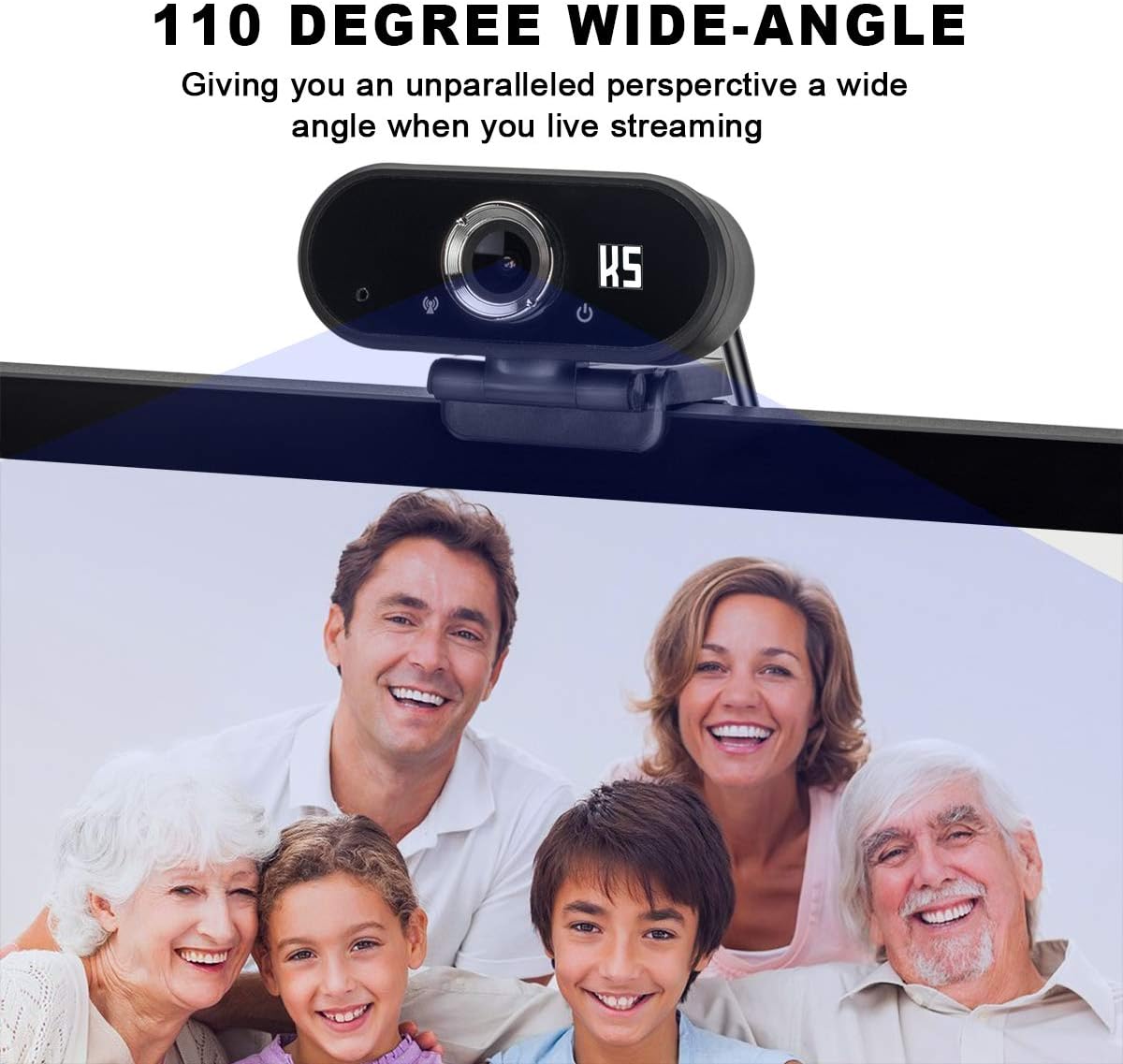
The image illustrates the webcam's 110-degree wide-angle capability, providing a broad perspective for video calls and streaming.

This image highlights the webcam's built-in noise-reduction microphone, designed to capture clear audio within 10 meters.
Warranty and Customer Support
For any questions or assistance, please contact our customer support team. The after-sales email address can be found in the instruction manual included with your product.
The product comes with a standard return policy. Please refer to your purchase documentation for specific warranty details.