
1. Introduction
Thank you for choosing the LVLUP LU737 Pro Gaming Mouse. This manual provides detailed instructions for setting up, operating, and maintaining your new gaming mouse. Please read this manual thoroughly before use to ensure optimal performance and longevity of your device.
2. Product Overview
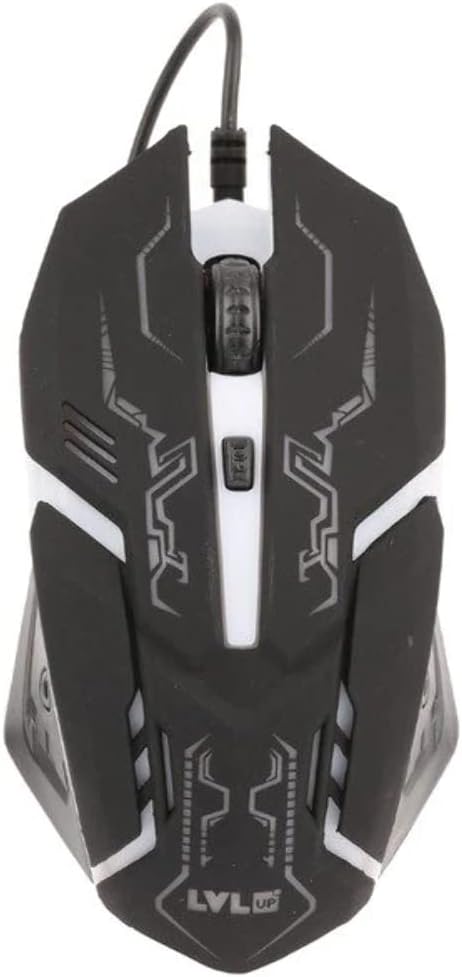
Figure 2.1: LVLUP LU737 Pro Gaming Mouse. This image displays the top-down view of the mouse, highlighting its black body with white illuminated accents, the scroll wheel, and the DPI adjustment button located behind the scroll wheel. The braided USB cable is visible extending from the front of the mouse.
The LVLUP LU737 Pro Gaming Mouse is designed for precision and comfort during extended gaming sessions. It features a durable build, responsive buttons, and customizable backlighting. The mouse is equipped with a high-precision optical sensor and a dedicated DPI button for on-the-fly sensitivity adjustments.
3. Setup
- Unpack the Mouse: Carefully remove the LVLUP LU737 Pro Gaming Mouse from its packaging.
- Connect to Device: Plug the USB connector of the mouse into an available USB port on your PC, PlayStation 4 (PS4), PS4 Pro, or Xbox One console.
- Driver Installation: The mouse is plug-and-play. Your operating system (e.g., Windows, macOS, Chrome OS) will automatically detect and install the necessary drivers. No additional software installation is typically required for basic functionality.
- Verify Connection: Once connected, the mouse's backlighting should illuminate, indicating a successful connection. Move the mouse to confirm cursor movement on your screen.
4. Operating Instructions
4.1 Basic Functions
- Left Click: Primary action button.
- Right Click: Secondary action button, typically for context menus.
- Scroll Wheel: Scroll up or down through documents and web pages. Can also be pressed for middle-click functionality.
4.2 DPI Adjustment
The LVLUP LU737 features a dedicated DPI (Dots Per Inch) button located behind the scroll wheel. Press this button to cycle through different sensitivity levels. Each press will change the cursor speed, allowing you to quickly adapt to various gaming scenarios or desktop tasks.
4.3 Backlighting
The mouse features integrated backlighting that illuminates its accents. The backlighting is active when the mouse is connected and powered. Specific controls for backlighting modes or colors are not available through dedicated buttons on this model.
5. Features
- Wide Compatibility: Compatible with PC, PlayStation 4, PlayStation 4 Pro, and Xbox One.
- Optical Tracking: Utilizes optical movement detection technology for precise cursor control.
- Adjustable DPI: On-the-fly sensitivity adjustment via a dedicated DPI button.
- Backlit Design: Features integrated backlighting for enhanced aesthetics.
- Wired Connectivity: Reliable USB corded connection for consistent performance.
- Ergonomic Design: Crafted for comfort during extended use.
6. Specifications
| Model Number | LU737 |
| Brand | LVLUP |
| Connectivity Technology | USB (Corded Electric) |
| Movement Detection | Optical |
| Color | Black |
| Item Weight | 4.9 ounces (approx. 139 grams) |
| Product Dimensions (LxWxH) | 4 x 3 x 1 inches (approx. 10.16 x 7.62 x 2.54 cm) |
| Hardware Platform | PC |
| Operating System Compatibility | Chrome OS (and other standard OS for PC/consoles) |
| Special Feature | Backlit |
7. Maintenance
- Cleaning: Use a soft, dry cloth to wipe the surface of the mouse. For stubborn dirt, slightly dampen the cloth with water or a mild, non-abrasive cleaner. Avoid using harsh chemicals or abrasive materials.
- Sensor Maintenance: Ensure the optical sensor on the bottom of the mouse is clean and free of dust or debris for optimal tracking performance.
- Cable Care: Avoid sharp bends or excessive pulling on the USB cable to prevent damage.
- Storage: When not in use, store the mouse in a clean, dry environment away from extreme temperatures.
8. Troubleshooting
| Problem | Solution |
|---|---|
| Mouse not responding / No cursor movement. |
|
| Cursor movement is erratic or jumpy. |
|
| Backlighting is not working. |
|
9. Safety Information
WARNING: This product contains chemicals known to the State of California to cause cancer and birth defects or other reproductive harm.
Please handle this product responsibly and dispose of it according to local regulations. Keep out of reach of children.
10. Warranty and Support
Specific warranty details for the LVLUP LU737 Pro Gaming Mouse are not provided within this manual. For information regarding warranty coverage, technical support, or service, please refer to the official LVLUP website or contact their customer support directly. Please retain your proof of purchase for any warranty claims.