
1. Introduction
The Zebronics ZEB-BS2H1000 is a high-performance 2D handheld barcode scanner designed for efficient and accurate data capture. It supports USB connectivity, making it compatible with various systems such as desktops and laptops. This manual provides essential information for setting up, operating, and maintaining your scanner.
2. Product Overview
Familiarize yourself with the components of your ZEB-BS2H1000 barcode scanner.
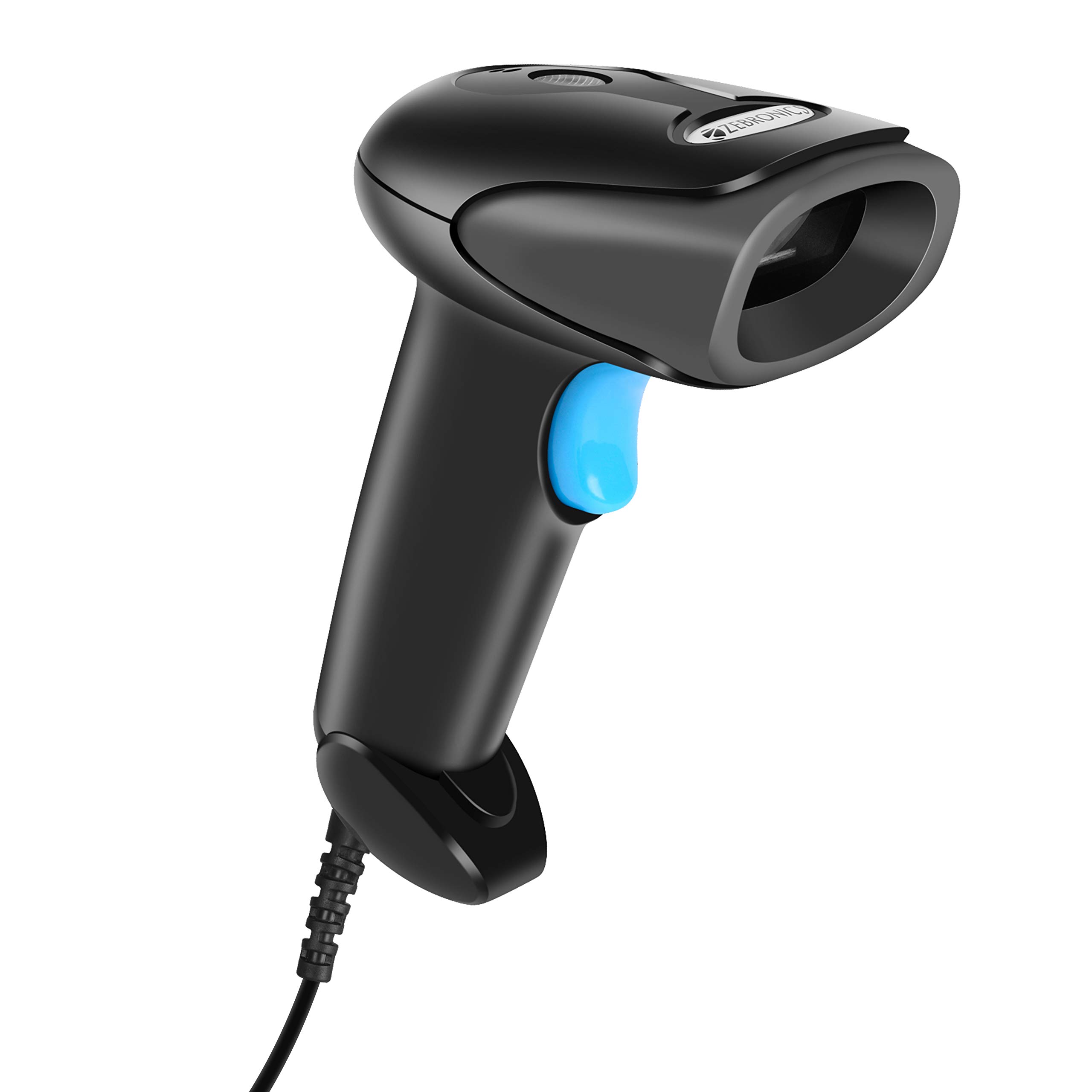
Front view of the Zebronics ZEB-BS2H1000 2D Handheld Barcode Scanner.

Key features of the scanner: 2D scanning capability, USB interface for connectivity, trigger for operation, and an LED indicator for status.

The scanner includes a speaker for audible feedback and a light source for illuminating barcodes during scanning.

Ergonomic hand grip for comfortable use and a prominent trigger button for initiating scans.
3. Setup
Follow these steps to set up your Zebronics ZEB-BS2H1000 barcode scanner.
- Unpack the Scanner: Carefully remove the scanner and its USB cable from the packaging.
- Connect to Computer: Plug the USB cable from the scanner into an available USB port on your desktop or laptop computer.
- Driver Installation: The scanner is typically plug-and-play. Your operating system should automatically detect and install the necessary drivers. No manual driver installation is usually required.
- Confirmation: Once connected, the scanner's LED indicator may light up, and you might hear a short beep, indicating it is ready for use.
4. Operating Instructions
Learn how to effectively use your ZEB-BS2H1000 scanner for barcode reading.

The scanner being used to read a QR code on a package, demonstrating its application in inventory or shipping.
- Hold the Scanner: Grip the scanner comfortably in your hand.
- Aim at Barcode: Point the scanner's light source directly at the barcode you wish to scan. Ensure the entire barcode is within the scanning area.
- Press the Trigger: Press and hold the trigger button. The scanner will emit a light beam.
- Scan Confirmation: Upon a successful scan, the scanner will typically emit a beep (from the speaker) and the LED indicator will flash. The scanned data will appear in the active application on your connected computer.
- 2D Barcode Scanning: This scanner is capable of reading both 1D and 2D barcodes, including QR codes.
The ZEB-BS2H1000 is suitable for various applications:
- Airport / Hotels Check-in
- Point of Sale (POS)
- Warehouse Management
- Libraries
- Cargo & Shipping
- Attendance & Biometrics
- Courier Services
- Super Markets
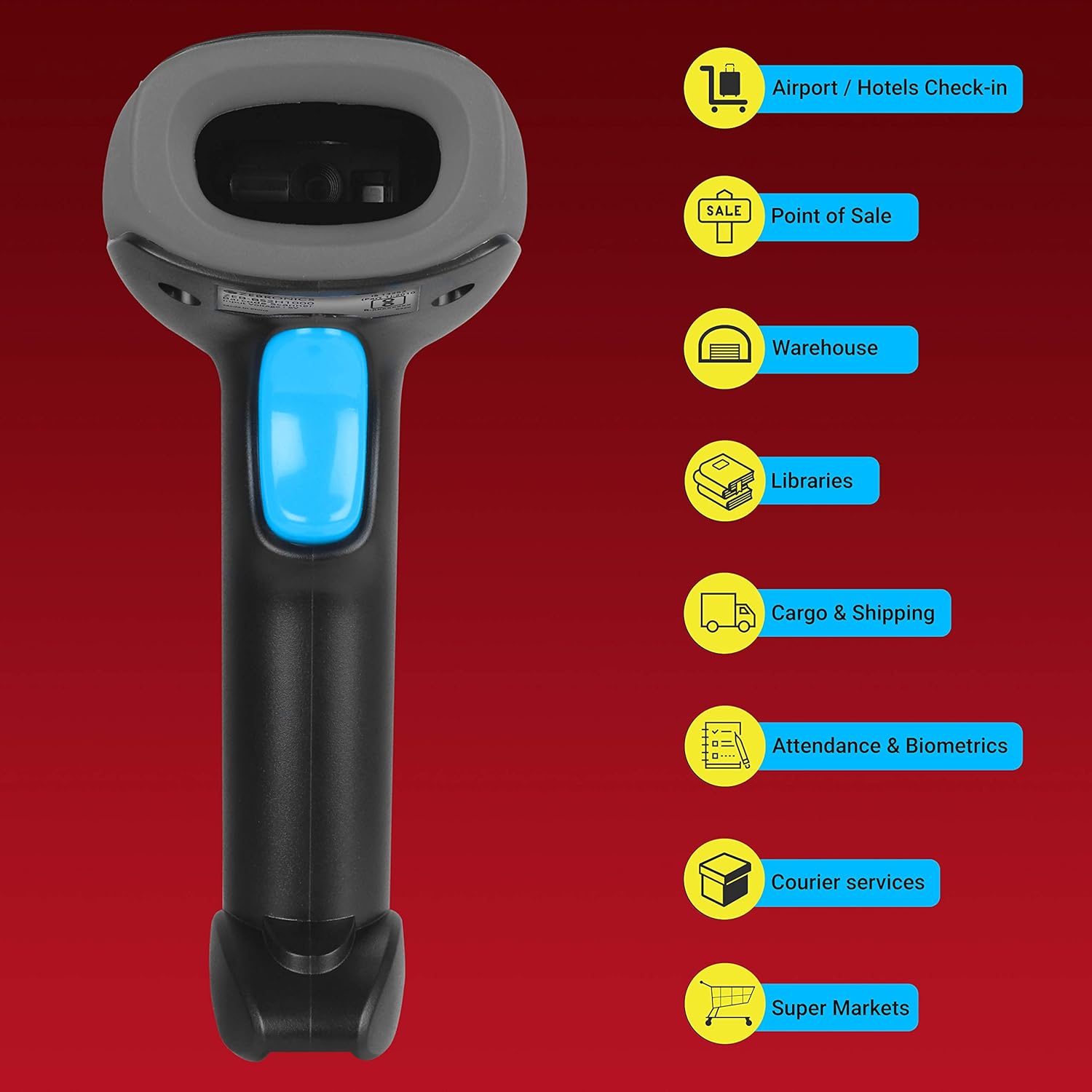
Visual representation of common environments where the ZEB-BS2H1000 barcode scanner can be effectively utilized.
5. Maintenance
Proper maintenance ensures the longevity and optimal performance of your scanner.
- Cleaning: Use a soft, dry, lint-free cloth to clean the scanner's exterior. For the scanning window, use a soft cloth lightly dampened with water or a mild, non-abrasive cleaner. Avoid harsh chemicals or abrasive materials.
- Storage: Store the scanner in a cool, dry place away from direct sunlight and extreme temperatures.
- Cable Care: Avoid bending or twisting the USB cable excessively to prevent internal damage.
6. Troubleshooting
If you encounter issues with your scanner, refer to the following common problems and solutions.
| Problem | Possible Cause | Solution |
|---|---|---|
| Scanner does not power on or respond. | USB cable not properly connected or faulty USB port. | Ensure the USB cable is securely plugged into both the scanner and the computer. Try a different USB port. |
| Scanner does not read barcodes. | Barcode is damaged, poorly printed, or scanner is not aimed correctly. | Ensure the barcode is clear and undamaged. Aim the scanner directly at the center of the barcode. Try scanning a different, known-good barcode. |
| Scanned data is incorrect or incomplete. | Partial scan or incorrect scanner settings. | Ensure the entire barcode is scanned. If issues persist, consult the product support for advanced configuration options. |
| No beep or LED flash after scanning. | Scanner feedback settings disabled or scanner malfunction. | Check if the scanner is successfully transmitting data to the computer. If so, feedback settings might be off. If not, refer to power-on troubleshooting. |
7. Specifications
Technical specifications for the Zebronics ZEB-BS2H1000 barcode scanner.
- Brand: ZEBRONICS
- Model: ZEB-BS2H1000
- Device Type: Handheld 2D Barcode Scanner
- Connectivity Technology: USB Cable
- Compatible Devices: Desktop, Laptop
- Product Dimensions: 8.6 x 6.5 x 16.5 cm
- Item Weight: 120 g
- Mounting Hardware: Barcode Scanner - 1 unit
- Batteries Required: No
8. Warranty and Support
For warranty information or technical assistance, please contact Zebronics customer support. Details can typically be found on the official Zebronics website or on the product packaging.


