
1. Introduction
This manual provides detailed instructions for the proper use, setup, operation, and maintenance of your Other HF-Q3 Wireless Bluetooth 2.1 Multifunction Sub-woofer Speaker. Please read this manual thoroughly before operating the device to ensure optimal performance and longevity.
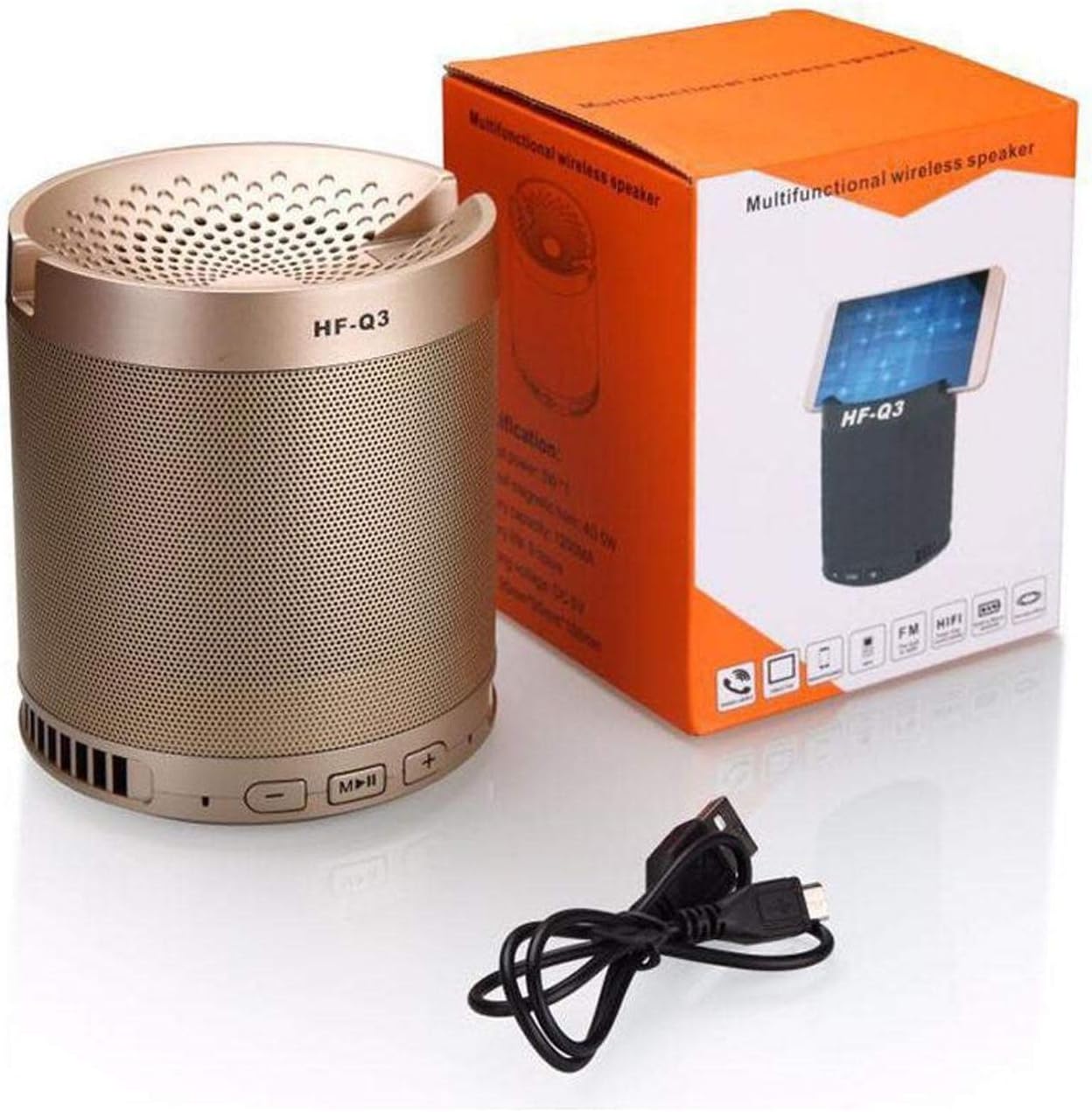
Figure 1.1: The HF-Q3 Wireless Bluetooth Speaker, its retail packaging, and a USB charging cable. This image illustrates the product as it appears when unboxed, highlighting its compact cylindrical design and included accessories.
2. Product Features
- Wireless Connectivity: Bluetooth for seamless audio streaming.
- Multifunction Design: Combines speaker functionality with a built-in phone stand.
- Sub-woofer Speaker: Designed to deliver enhanced bass audio.
- Portable: Compact and lightweight for easy transport.
- Audio Input: Supports Audio Jack (AUX) connection.
- Power Output: Nominal output of 40-50 Watts.

Figure 2.1: The HF-Q3 speaker demonstrating its integrated phone stand feature. A smartphone is shown resting securely in the top groove of the speaker, illustrating its dual functionality.
3. Package Contents
Please check the package for the following items:
- HF-Q3 Wireless Bluetooth Speaker
- USB Charging Cable
- User Manual (this document)
4. Setup
4.1 Charging the Speaker
- Connect the small end of the provided USB charging cable to the charging port on the speaker.
- Connect the larger end of the USB cable to a USB power adapter (not included) or a computer's USB port.
- The charging indicator light (if present) will illuminate, typically red, during charging.
- Once fully charged, the indicator light may change color (e.g., turn off or turn blue/green). Disconnect the speaker from the charger.
4.2 Powering On/Off
- To Power On: Press and hold the Power button (often integrated with the Play/Pause button) for a few seconds until you hear an audible prompt or see an indicator light.
- To Power Off: Press and hold the Power button again for a few seconds until you hear an audible prompt or the indicator light turns off.
5. Operating Instructions

Figure 5.1: A detailed view of the control panel located on the top edge of the HF-Q3 speaker. Buttons for volume control (- and +) and media playback (Play/Pause/Mode) are clearly visible, indicating their positions for user interaction.
5.1 Bluetooth Pairing
- Ensure the speaker is powered on and in Bluetooth pairing mode. An indicator light (often blue) will flash rapidly, and you may hear an audible prompt.
- On your smartphone, tablet, or other Bluetooth-enabled device, navigate to the Bluetooth settings.
- Scan for available devices. You should see "HF-Q3" or a similar name appear in the list.
- Select "HF-Q3" to initiate pairing.
- Once paired, the speaker will emit an audible confirmation, and the Bluetooth indicator light will typically stop flashing and remain solid.
5.2 Using the Control Buttons
- Play/Pause Button (M/||):
- Press once to Play or Pause audio.
- Press and hold to switch between modes (Bluetooth, AUX, FM Radio if available).
- Volume Down / Previous Track Button (-):
- Press once to decrease volume.
- Press and hold to go to the previous track.
- Volume Up / Next Track Button (+):
- Press once to increase volume.
- Press and hold to go to the next track.
5.3 AUX Input Mode
- Connect one end of a 3.5mm audio cable (not included) to the AUX port on the speaker.
- Connect the other end of the audio cable to the audio output jack of your device (e.g., smartphone, MP3 player).
- The speaker should automatically switch to AUX mode, or you may need to press the Mode button (often the Play/Pause button) to select AUX.
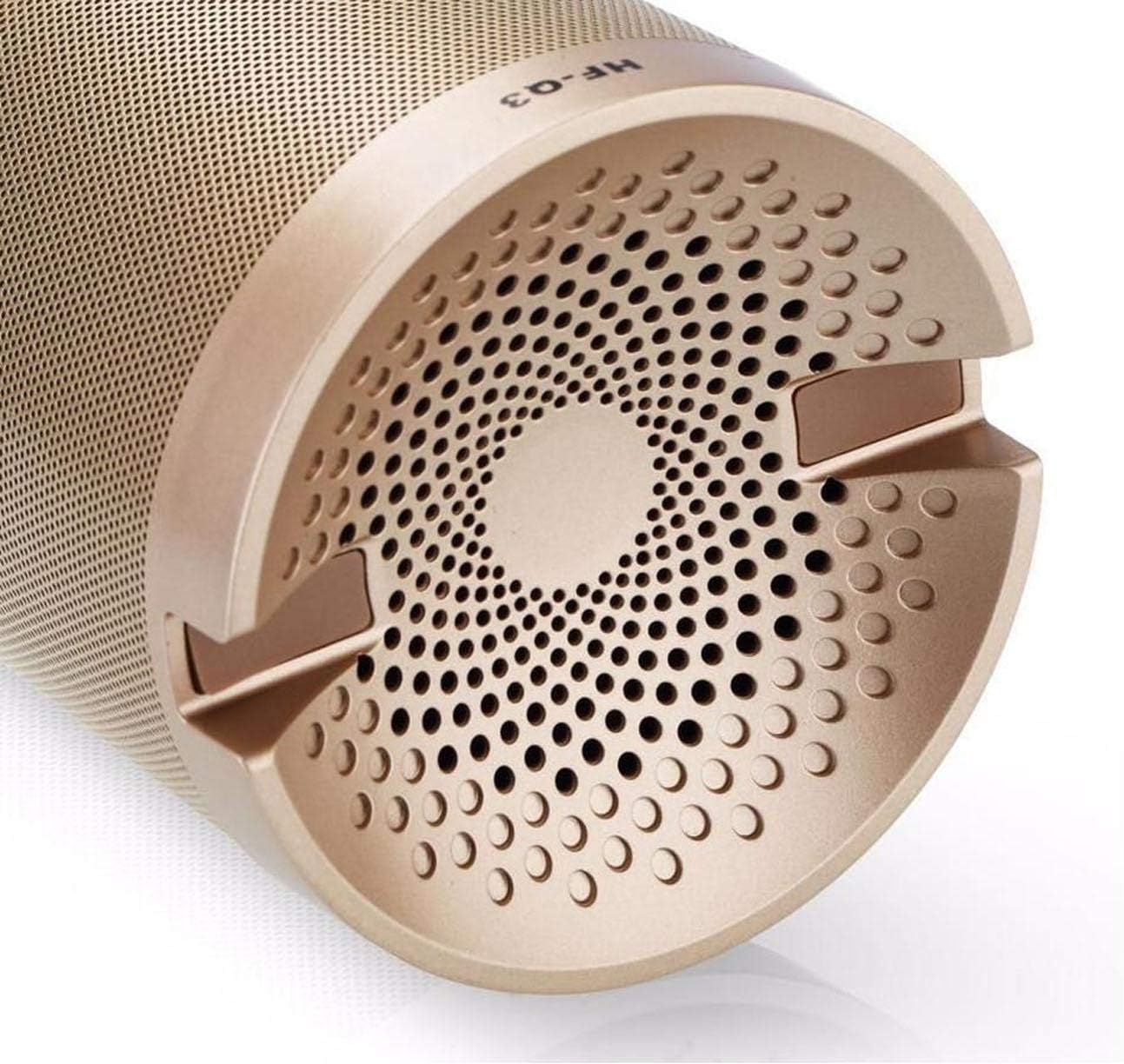
Figure 5.2: The underside of the HF-Q3 speaker, revealing the charging port and the AUX input port. This view is crucial for understanding how to connect power and external audio sources to the device.
6. Maintenance
- Cleaning: Use a soft, dry cloth to wipe the speaker's surface. Do not use abrasive cleaners or solvents.
- Storage: Store the speaker in a cool, dry place away from direct sunlight and extreme temperatures.
- Battery Care: To prolong battery life, avoid fully discharging the speaker frequently. Charge it regularly, even if not in use for extended periods.
- Water Exposure: This speaker is not waterproof. Avoid exposure to water or high humidity.
7. Troubleshooting
| Problem | Possible Cause | Solution |
|---|---|---|
| Speaker does not power on. | Low battery or no charge. | Charge the speaker using the provided USB cable. |
| No sound from the speaker. | Volume too low, incorrect mode, or device not connected. | Increase speaker and device volume. Ensure correct mode (Bluetooth/AUX) is selected. Re-pair Bluetooth or re-connect AUX cable. |
| Cannot pair via Bluetooth. | Speaker not in pairing mode, device Bluetooth off, or too far away. | Ensure speaker is in pairing mode (flashing indicator). Turn Bluetooth on your device. Move device closer to the speaker (within 10 meters). |
| Poor audio quality. | Interference, low battery, or source audio quality. | Move speaker closer to the source device. Charge the speaker. Try a different audio source or file. |
8. Specifications
| Model Name: | HF-Q3 |
| Brand: | Other |
| Speaker Type: | Bluetooth Speakers, Sub-woofer |
| Connectivity Technology: | Wireless (Bluetooth), Wired (Audio Jack) |
| Nominal Output: | 40 - 50 Watts |
| Audio Output Mode: | Stereo |
| Compatible Devices: | Smartphones, Tablets, Laptops, Televisions |
| Shape: | Cylinder |
| Product Weight: | Approximately 1.16 lbs |
9. Warranty and Support
For warranty information and customer support, please refer to the documentation provided at the time of purchase or contact your retailer. Keep your proof of purchase for any warranty claims.
For further assistance, please visit the manufacturer's website or contact their customer service department.