1. Introduction
This manual provides essential information for the setup, operation, maintenance, and troubleshooting of your ASUS ROG Zephyrus G14 14-inch Gaming Laptop. Please read this manual thoroughly to ensure proper usage and to maximize the performance and longevity of your device.
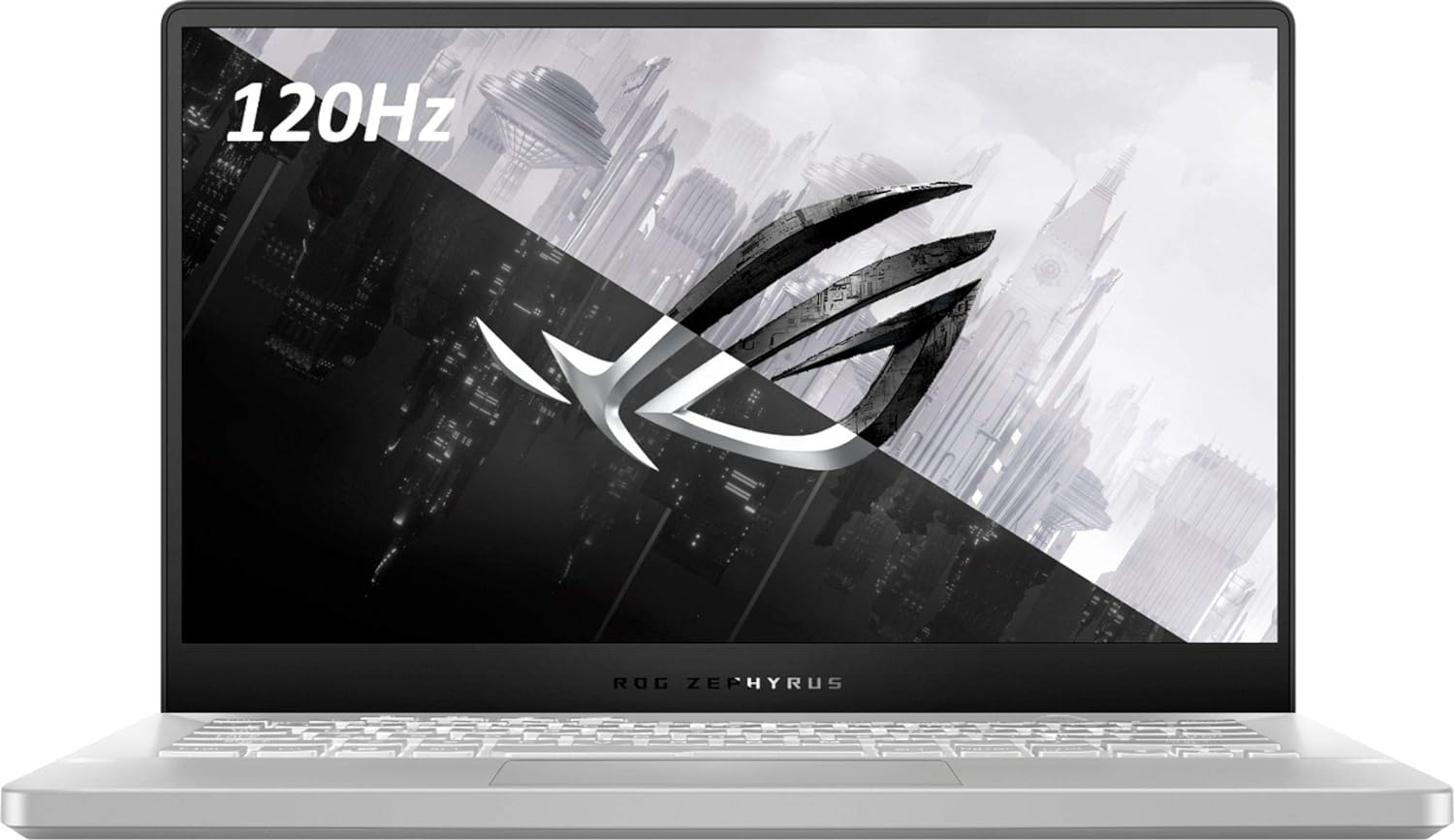
Figure 1: Front view of the ASUS ROG Zephyrus G14 Laptop.
2. Setup
2.1 Unpacking and Initial Inspection
- Carefully remove the laptop and all accessories from the packaging.
- Verify that all components are present: laptop, power adapter, and any included documentation.
- Inspect the laptop for any physical damage. If damage is found, contact your retailer immediately.
2.2 Connecting the Power Adapter
- Connect the AC adapter to the power jack on the laptop.
- Plug the power cord into a wall outlet.
- The battery indicator light will illuminate, indicating that the laptop is charging.
2.3 First Power On
- Open the laptop lid.
- Press the power button located on the top-right of the keyboard deck.
- Follow the on-screen instructions to complete the initial setup of Windows 10 Home.
3. Operating the Laptop
3.1 Keyboard and Touchpad
The ASUS ROG Zephyrus G14 features a full-sized keyboard and a precision touchpad. Familiarize yourself with the layout and special function keys (Fn keys) for quick access to system settings like volume, brightness, and Wi-Fi.

Figure 2: Keyboard and Touchpad Layout.
3.2 Display Features
Your laptop is equipped with a 14-inch display offering a 1920 x 1080 pixel resolution. For optimal viewing, ensure display drivers are up to date.
3.3 I/O Ports
The laptop provides various ports for connecting external devices:
- Left Side: 1x 3.5mm Combo Audio Jack, 1x HDMI 2.0b, 1x USB 3.2 Gen 2 Type-C (supporting DisplayPort / power delivery / G-SYNC).
- Right Side: 2x USB 3.2 Gen 1 Type-A, 1x USB 3.2 Gen 2 Type-C.

Figure 3: Left Side Ports.

Figure 4: Right Side Ports.
3.4 Power Management
The laptop is designed for efficient power usage. To optimize battery life, adjust screen brightness, close unused applications, and utilize power-saving modes available in Windows settings. The average battery life is approximately 8 hours under typical usage conditions.
4. Maintenance
4.1 Cleaning Instructions
- Use a soft, lint-free cloth to clean the screen and chassis.
- For stubborn marks, dampen the cloth lightly with water or a screen-safe cleaning solution.
- Avoid harsh chemicals or abrasive materials.
- Regularly clean the keyboard and touchpad to prevent dust buildup.
4.2 Battery Care
- Avoid fully discharging the battery frequently.
- Store the laptop in a cool, dry place if not used for extended periods.
- If the battery performance significantly degrades, contact ASUS support for replacement options.
4.3 Software Updates
Regularly update your operating system (Windows 10 Home) and drivers to ensure optimal performance, security, and compatibility. ASUS provides utility software to assist with driver updates.
5. Troubleshooting
This section addresses common issues you might encounter with your laptop.
5.1 Power Issues
- Laptop does not turn on: Ensure the power adapter is securely connected and the wall outlet is functional. If the battery is completely drained, allow it to charge for a few minutes before attempting to power on.
- Laptop stuck in reboot loop: Try performing a hard reset by holding the power button for 15 seconds. If the issue persists, it may indicate a hardware problem; contact support.
5.2 Display Problems
- No display on screen: Connect an external monitor to verify if the issue is with the laptop's internal display. Ensure display drivers are updated.
5.3 Performance and Heat
- Laptop runs hot: Ensure ventilation vents are clear and not obstructed. Consider using the laptop on a hard, flat surface. High temperatures during intensive tasks (like gaming) are normal, but excessive heat during light use may indicate an issue.
5.4 Fingerprint Reader Issues
- Fingerprint reader inconsistent: Ensure your finger is clean and dry. Re-register your fingerprints in Windows Hello settings if accuracy is consistently low.
5.5 Keyboard Backlight
- Uneven keyboard backlight: This can be a characteristic of some keyboard designs. Ensure backlight settings are adjusted to your preference using the dedicated function keys or ASUS software.
6. Specifications
| Feature | Detail |
|---|---|
| Model Name | Zephyrus 14 (GA401IV-BR9N6) |
| Processor | AMD Ryzen 9 (3 GHz) |
| Graphics Coprocessor | NVIDIA GeForce RTX 2060 (Dedicated) |
| RAM | 16 GB DDR4 (3200 MHz) |
| Storage | 1 TB SSD (Solid State) |
| Display Size | 14 Inches |
| Screen Resolution | 1920 x 1080 pixels |
| Operating System | Windows 10 Home |
| Wireless Type | 802.11ax |
| I/O Ports | 4x USB 3.0 Ports (including Type-C with DisplayPort/Power Delivery/G-SYNC), 1x HDMI 2.0b, 1x 3.5mm Combo Audio Jack |
| Average Battery Life | 8 Hours |
| Item Weight | 3.64 pounds |
| Product Dimensions | 12.8 x 8.7 x 0.7 inches |
| Special Features | Anti Glare Coating, Fingerprint Reader, HD Audio, Spill Resistant |
Note: Some configurations may feature upgraded components such as 40GB RAM or Windows 11 Pro, depending on the specific purchase variant.
7. Warranty and Support
7.1 Product Warranty
Your ASUS ROG Zephyrus G14 laptop comes with a standard manufacturer's warranty. For professionally upgraded components like RAM and SSD, a 1-year standard warranty is typically provided. Please refer to the warranty card included with your product for specific terms and conditions, or visit the official ASUS support website.
7.2 Technical Support
For technical assistance, driver downloads, or service inquiries, please visit the official ASUS support website or contact their customer service. Have your product model number (GA401IV-BR9N6) and serial number ready when contacting support.
Official ASUS Support: https://www.asus.com/support/


