1. Introduction
This manual provides essential information for the safe and efficient use of your Lenovo IdeaPad Flex 5 14ARE05 2-in-1 Notebook Computer. Please read this manual thoroughly before operating your device to ensure proper setup, operation, and maintenance. Keep this manual for future reference.
2. Product Overview
The Lenovo IdeaPad Flex 5 14ARE05 is a versatile 14-inch Full HD touchscreen 2-in-1 notebook computer designed for flexibility and performance. It features an AMD Ryzen 7 4700U processor, 8GB of RAM, and a 512GB SSD, running on Windows 10 Home. Its 2-in-1 design allows it to function as a traditional laptop, a tablet, or in tent and stand modes.

Figure 2.1: Lenovo IdeaPad Flex 5 in standard laptop configuration.

Figure 2.2: The device configured in tablet mode, demonstrating touchscreen and digital pen functionality.

Figure 2.3: The device in stand mode, ideal for media consumption or presentations.
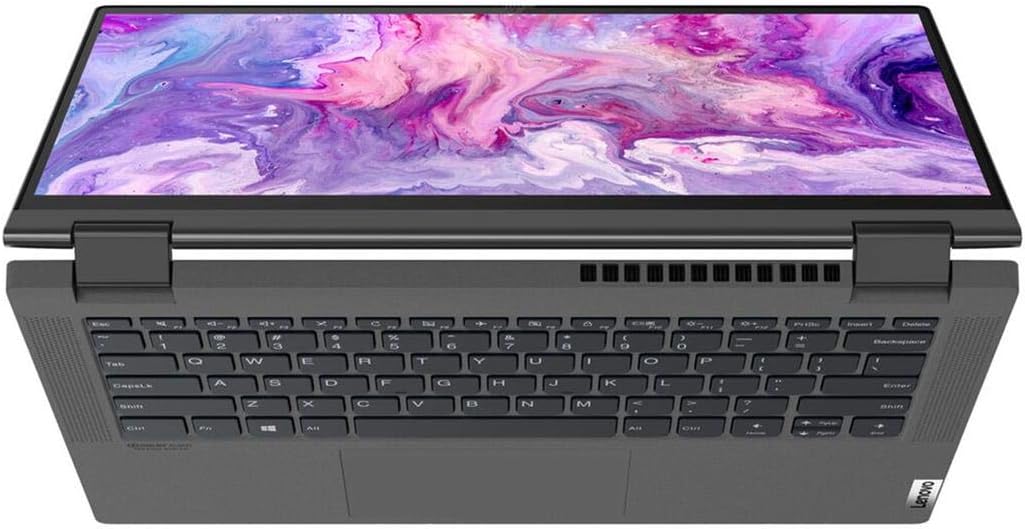
Figure 2.4: Top-down view highlighting the keyboard and touchpad layout.
3. Setup
3.1 Unpacking
Carefully remove the notebook and all accessories from the packaging. Verify that all components listed in the packing list are present.
3.2 Connecting the Power Adapter
- Connect the power adapter to the power connector on the side of the notebook.
- Plug the power cord into an electrical outlet.
- Allow the battery to charge for at least 30 minutes before initial use, or until the battery indicator shows a sufficient charge.
3.3 Initial Power-On and Windows Setup
- Press the power button to turn on the notebook.
- Follow the on-screen instructions to complete the Windows 10 Home setup process. This includes selecting your region, language, connecting to a Wi-Fi network, and creating a user account.
3.4 Connecting Peripherals
The IdeaPad Flex 5 14ARE05 includes various ports for connecting external devices:
- USB Ports: Connect USB devices such as mice, keyboards, or external storage drives.
- HDMI Port: Connect an external monitor or projector.
- USB-C Port: For data transfer, display output, or charging (with compatible adapters).
- Headphone Jack: Connect headphones or external speakers.
- SD Card Reader: Insert an SD card for data transfer.
For wireless connections, enable Bluetooth in Windows settings to pair with Bluetooth-enabled devices.
4. Operating Instructions
4.1 Basic Navigation
- Keyboard: Use for typing and executing commands. The keyboard features backlighting, which can be toggled on/off.
- Touchpad: Use for cursor control and multi-touch gestures.
- Touchscreen: Interact directly with the display using your fingers or a compatible digital pen.
4.2 Using 2-in-1 Modes
The IdeaPad Flex 5 can be used in four primary modes:
- Laptop Mode: Standard notebook configuration for typing and productivity.
- Tent Mode: Fold the display back to form an inverted 'V' shape, ideal for watching videos or presentations in confined spaces.
- Stand Mode: Fold the display back further, with the keyboard facing down, to use the screen for media viewing or touch interaction.
- Tablet Mode: Fold the display completely back against the base, converting the notebook into a tablet for touch-first interaction. Windows will automatically prompt to switch to Tablet Mode for an optimized experience.
4.3 Battery Management
- To maximize battery life, adjust screen brightness, close unused applications, and enable power-saving modes in Windows settings.
- Avoid fully discharging the battery frequently.
- Store the device with a partial charge (around 50%) if not used for extended periods.
5. Maintenance
5.1 Cleaning the Device
- Screen: Use a soft, lint-free cloth lightly dampened with water or a screen cleaner. Do not spray liquid directly onto the screen.
- Chassis and Keyboard: Use a soft, dry cloth. For stubborn dirt, a slightly damp cloth can be used. Avoid harsh chemicals or abrasive materials.
- Ports: Use compressed air to gently clear dust from ports.
5.2 Software Updates
Regularly update your Windows operating system and device drivers to ensure optimal performance, security, and compatibility. Windows Update can be accessed through the Settings menu.
5.3 Storage Management
Periodically review and delete unnecessary files to free up storage space on the 512GB SSD. Utilize cloud storage or external drives for large files to maintain system performance.
6. Troubleshooting
This section addresses common issues you might encounter with your Lenovo IdeaPad Flex 5.
6.1 Power Issues
- Device does not turn on: Ensure the power adapter is securely connected and the outlet is functional. Try pressing and holding the power button for 10-15 seconds.
- Battery not charging: Verify the power adapter and cable are not damaged. Try a different outlet. Check the charging indicator light on the device.
6.2 Display Issues
- No display or black screen: Connect an external monitor to check if the issue is with the internal display. Restart the device.
- Touchscreen unresponsive: Restart the device. Ensure display drivers are up to date.
6.3 Keyboard/Touchpad Issues
- Keyboard or touchpad not responding: Restart the device. Check for any physical obstructions. Ensure drivers are updated. For specific key sections not working, a hardware issue may be present.
6.4 Performance Issues
- Slow performance: Close unnecessary applications. Check Task Manager for high CPU/RAM usage. Ensure sufficient free storage space. Run a virus scan.
6.5 Contacting Support
If troubleshooting steps do not resolve the issue, please refer to the Warranty and Support section for information on contacting Lenovo customer service.
7. Specifications
| Model Name | Lenovo IdeaPad Flex 5 14ARE05 |
| Screen Size | 14 Inches |
| Screen Resolution | 1920 x 1080 pixels (Full HD) |
| Processor | AMD Ryzen 7 4700U (2 GHz base, 8 cores) |
| RAM | 8 GB DDR4 |
| Storage | 512 GB SSD |
| Graphics Coprocessor | Radeon (Integrated) |
| Operating System | Windows 10 Home |
| Wireless Type | Bluetooth |
| Average Battery Life | 6 Hours (approximate) |
| Item Weight | 5.06 pounds |
| Product Dimensions | 19 x 11 x 3 inches |
| Color | Graphite Gray |
| Special Feature | Backlit Keyboard |
8. Warranty and Support
8.1 Product Warranty
Your Lenovo IdeaPad Flex 5 14ARE05 typically comes with a standard manufacturer's warranty, which usually covers defects in materials and workmanship for a period of one year from the date of purchase. Please refer to the warranty card included with your product or visit the official Lenovo support website for specific terms and conditions applicable to your region.
8.2 Technical Support
For technical assistance, driver downloads, or service requests, please visit the official Lenovo Support website. You will need your product's serial number, which can usually be found on a sticker on the bottom of the device or within the system information in Windows.
Lenovo Support Website: https://support.lenovo.com/


