
Intenso 3502491
Intenso Rainbow Line USB 2.0 Flash Drive 128GB User Manual
Model: 3502491
1. Introduction
This manual provides comprehensive instructions for the Intenso Rainbow Line USB 2.0 Flash Drive, 128GB model. It covers product overview, setup, operation, maintenance, and troubleshooting to ensure optimal performance and longevity of your device. Please read this manual carefully before using the product.
2. Product Overview
The Intenso Rainbow Line USB 2.0 Flash Drive is a portable storage device designed for easy data transfer and backup. It features a durable casing and a standard USB-A 2.0 connector.

Figure 2.1: Front view of the Intenso Rainbow Line USB 2.0 Flash Drive (Red, 128GB).

Figure 2.2: Key components including the keychain loop and the USB-A 2.0 connector.
Package Contents:
- Intenso Rainbow Line USB 2.0 Flash Drive (128GB, Red)
- Protective Cap
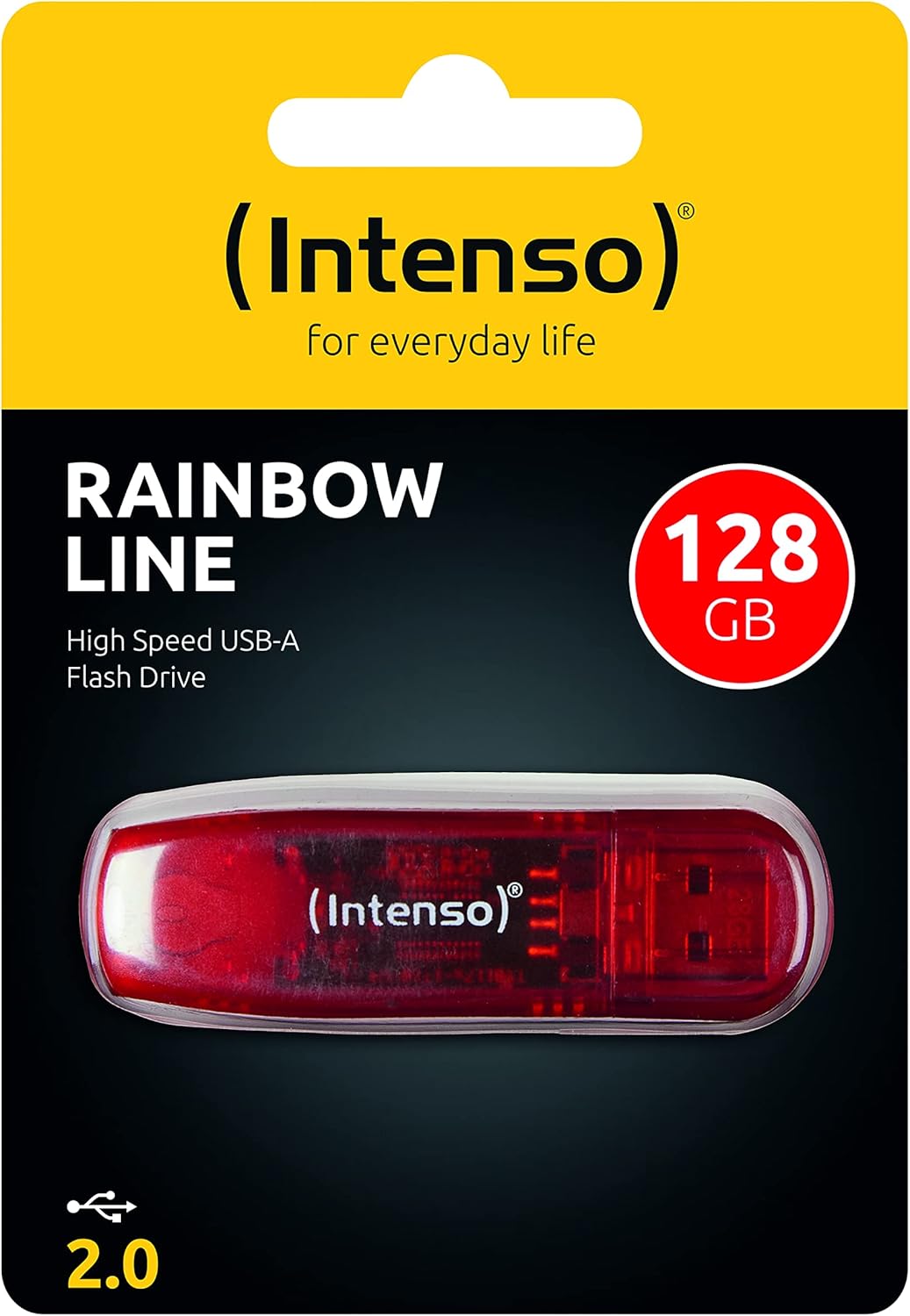
Figure 2.3: The Intenso Rainbow Line USB 2.0 Flash Drive as packaged.
3. Setup
The Intenso Rainbow Line USB 2.0 Flash Drive is designed for plug-and-play functionality with most modern operating systems. No special drivers are typically required.
Connecting the Flash Drive:
- Remove the protective cap from the USB flash drive.
- Locate an available USB-A port on your computer or compatible device.
- Insert the USB flash drive firmly into the USB-A port. Ensure the connection is secure.
- The operating system should automatically detect the device and make it available for use. A small LED indicator on the drive may illuminate or flash to indicate activity.

Figure 3.1: The flash drive connected to a laptop.
For optimal performance, ensure the USB port is functioning correctly. If the device is not recognized, try a different USB port or restart your computer.
4. Operating Instructions
Once connected, the flash drive will appear as a removable storage device in your computer's file explorer (e.g., "This PC" on Windows, "Finder" on macOS).
Transferring Files:
- Open the file explorer on your computer.
- Navigate to the files or folders you wish to transfer.
- Drag and drop the selected files/folders to the flash drive icon, or copy them and paste them into the flash drive's directory.
- Wait for the transfer process to complete. Do not remove the drive during file transfer.
Safely Removing the Flash Drive:
To prevent data corruption, always safely remove the flash drive before physically disconnecting it.
- Windows: Click the "Safely Remove Hardware and Eject Media" icon in the system tray (bottom right corner), then select the flash drive and choose "Eject".
- macOS: Drag the flash drive icon from the desktop or Finder sidebar to the Trash icon, or right-click (Control-click) the drive icon and select "Eject".
Once the operating system confirms it is safe to remove, you can physically disconnect the flash drive from the USB port.
5. Maintenance
Proper care and maintenance will extend the life of your Intenso Rainbow Line USB 2.0 Flash Drive.
- Physical Protection: Always keep the protective cap on the USB connector when not in use to prevent dust and damage.
- Cleaning: Use a soft, dry, lint-free cloth to clean the exterior of the flash drive. Do not use liquid cleaners or solvents.
- Storage: Store the flash drive in a cool, dry place away from direct sunlight, extreme temperatures, and strong magnetic fields.
- Data Backup: Regularly back up important data stored on the flash drive to another storage medium to prevent data loss.
- Avoid Impact: Do not drop or subject the flash drive to strong impacts.
6. Troubleshooting
If you encounter issues with your Intenso Rainbow Line USB 2.0 Flash Drive, refer to the following common problems and solutions.
| Problem | Possible Cause | Solution |
|---|---|---|
| Drive not recognized by computer. |
|
|
| Slow file transfer speeds. |
|
|
| Cannot write or delete files. |
|
|
7. Specifications
| Feature | Detail |
|---|---|
| Brand | Intenso |
| Model Name | Rainbow Line |
| Item Model Number | 3502491 |
| Memory Storage Capacity | 128 GB |
| Hardware Interface | USB 2.0 |
| Connectivity Technology | USB (Type A) |
| Read Speed | Up to 28 MB/s |
| Write Speed | Up to 6.5 MB/s |
| Color | Red |
| Item Dimensions (LxWxH) | 0.75 x 2.52 x 0.28 inches (approx.) |
| Item Weight | 0.247 ounces (approx.) |
| Special Feature | Lightweight, Keychain design |
8. Warranty and Support
Intenso products are designed for reliability. For information regarding warranty terms and conditions, please refer to the official Intenso website or contact their customer support directly. Keep your proof of purchase for warranty claims.
For technical assistance or further inquiries, please visit the Intenso Service & Support page.
Extended protection plans may be available from your retailer. For example, 2-year and 3-year Photo and Data Recovery Plans are sometimes offered.
Related documents3502491


Ask a question about this manual
Ask about setup, troubleshooting, compatibility, parts, safety, or missing instructions. Manuals+ will review the question and use this page’s manual context to help answer it.