
Introduction
This manual provides essential information for setting up, operating, maintaining, and troubleshooting your Acer Aspire C27-962-UA91 All-in-One Desktop PC. The Acer Aspire C27-962-UA91 features a 27-inch Full HD Widescreen Edge-to-Edge LED Back-lit Display, powered by a 10th Generation Intel Core i5-1035G1 processor and NVIDIA GeForce MX130 graphics with 2GB GDDR5 VRAM. It includes 12GB DDR4 Memory, a 512GB NVMe M.2 SSD, 802.11ac Wi-Fi, Bluetooth 5.0, and runs on Windows 10 Home. Please read these instructions carefully to ensure optimal performance and longevity of your device.
What's in the Box
Verify that all components are present in the packaging:
- Acer Aspire C27-962-UA91 All-in-One Desktop
- Wireless Keyboard
- Wireless Mouse
- Power Cord
Setup
Follow these steps to set up your Acer Aspire C27-962-UA91 All-in-One Desktop:
- Unpack the System: Carefully remove the desktop, keyboard, mouse, and power cord from their packaging.
- Position the Desktop: Place the All-in-One desktop on a stable, flat surface. Ensure adequate ventilation around the device.
- Connect Power: Connect the power cord to the desktop's power input and then to a wall outlet.
- Install Keyboard and Mouse Batteries: Insert the provided batteries into the wireless keyboard and mouse.
- Connect Wireless Receiver: Plug the wireless USB receiver (usually found in the mouse or keyboard packaging) into an available USB port on the desktop.
- Power On: Press the power button, typically located on the side or bottom edge of the display.
- Initial Windows Setup: Follow the on-screen instructions to complete the Windows 10 Home setup, including language, region, network connection, and user account creation.

Figure 1: Acer Aspire C27-962-UA91 All-in-One Desktop with included wireless keyboard and mouse.
Operating Instructions
This section covers basic operation of your Acer Aspire C27-962-UA91.
- Power On/Off: Press the power button to turn the system on. To shut down, click the Start button, then Power > Shut down.
- Display: The 27-inch Full HD display offers a clear viewing experience. The narrow bezel design maximizes screen space.

Figure 2: The narrow bezel design of the Acer Aspire C27-962-UA91 display.
- Adjusting the Display: The display features an adjustable tilt from -5° to 25° for ergonomic viewing.

Figure 3: Adjustable tilt feature of the display stand.
- Webcam: The integrated 1.0 MP HD High-Sense Webcam is located at the top of the display. It includes a physical camera shutter for privacy.

Figure 4: Integrated webcam with privacy shutter.
- Connectivity: The desktop offers various ports for connecting peripherals and external devices.
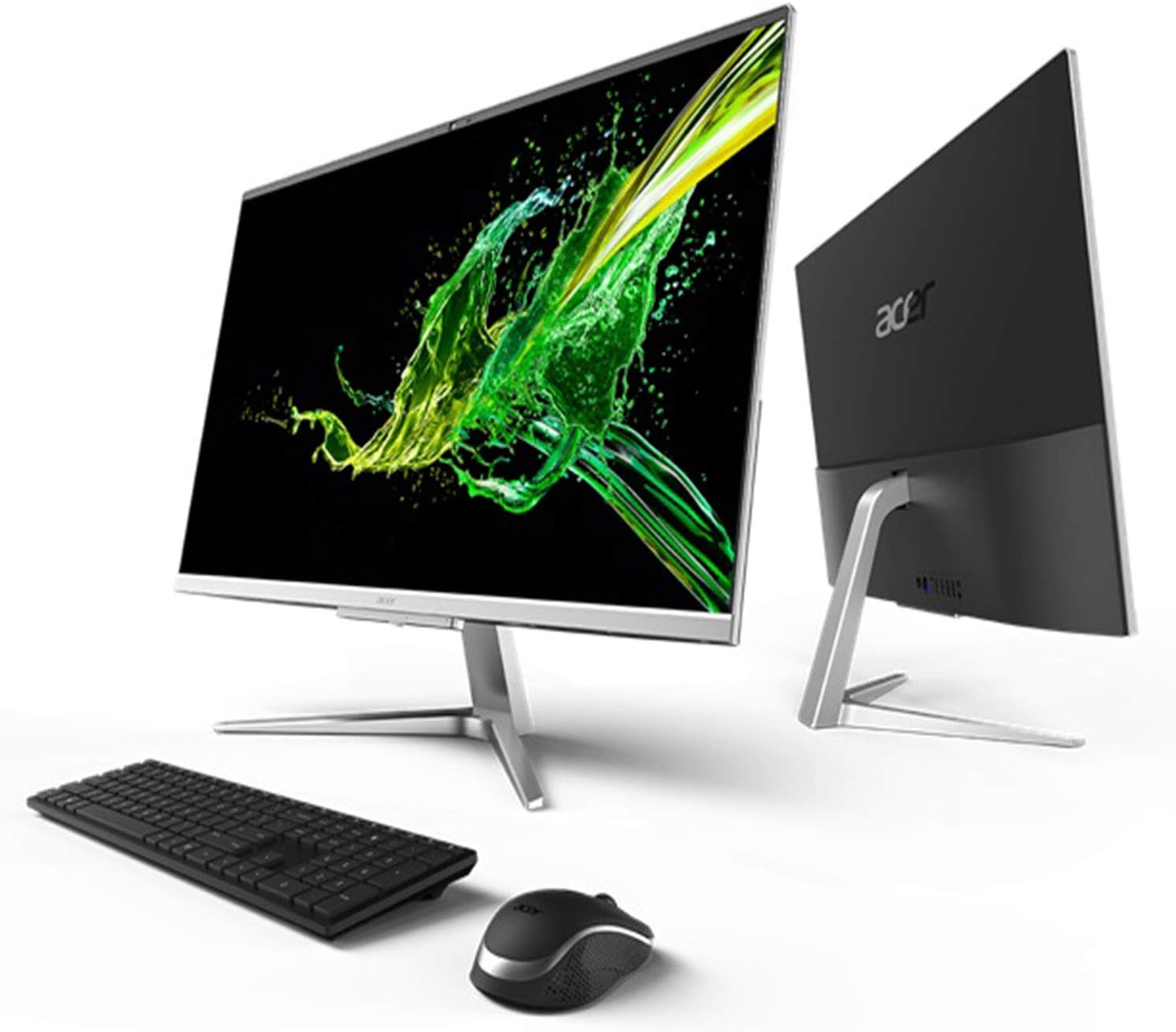
Figure 5: Rear connectivity ports for the Acer Aspire C27-962-UA91.
- Audio: Two built-in stereo speakers provide audio output. External speakers or headphones can be connected via the audio jacks.
Maintenance
Regular maintenance helps ensure the longevity and optimal performance of your desktop.
- Cleaning: Use a soft, lint-free cloth to clean the screen and exterior surfaces. Avoid abrasive cleaners or solvents.
- Software Updates: Regularly check for and install Windows updates and driver updates for your components (Intel, NVIDIA) to ensure security and performance.
- Ventilation: Ensure that the ventilation openings on the desktop are not blocked to prevent overheating.
- Data Backup: Periodically back up important data to an external drive or cloud storage to prevent data loss.
Troubleshooting
This section addresses common issues you might encounter.
- No Power: Ensure the power cord is securely connected to both the desktop and the wall outlet. Try a different outlet.
- No Display: Check if the desktop is powered on. If connected to an external monitor, ensure the correct input source is selected on the monitor.
- Wireless Keyboard/Mouse Not Responding: Check battery levels and replace if necessary. Ensure the USB wireless receiver is properly plugged into a USB port.
- Slow Performance: Close unnecessary applications. Check for malware or viruses. Ensure sufficient free space on the SSD.
- No Internet Connection: Verify Wi-Fi is enabled and connected to the correct network. If using Ethernet, ensure the cable is securely connected. Restart your router/modem.
Specifications
Detailed technical specifications for the Acer Aspire C27-962-UA91:
| Feature | Specification |
|---|---|
| Model Number | C27-962-UA91 |
| Display Size | 27 Inches |
| Screen Resolution | 1920 x 1080 (Full HD) |
| Processor | 10th Generation Intel Core i5-1035G1 (up to 3.6 GHz) |
| RAM | 12 GB DDR4 |
| Storage | 512 GB NVMe M.2 SSD |
| Graphics Coprocessor | NVIDIA GeForce MX130 with 2GB GDDR5 VRAM |
| Wireless Type | 802.11ac Wi-Fi, Bluetooth 5.0 |
| Operating System | Windows 10 Home |
| USB 2.0 Ports | 2 |
| USB 3.0 Ports | 2 |
| HDMI Port | 1 |
| Ethernet Port | 1 (10/100/1000 Gigabit) |
| Item Weight | 14.82 pounds (6.72 kg) |
| Product Dimensions | 24.21 x 0.27 x 17.72 inches |
Warranty and Support
Your Acer Aspire C27-962-UA91 All-in-One Desktop comes with a 1 Year Parts and Labor Limited Warranty, including Toll Free Tech Support. For warranty claims, technical assistance, or further support, please refer to the official Acer support website or contact their customer service directly.
Product Videos
No official product videos from the seller were available for embedding in this manual.


