
Introduction
This manual provides detailed instructions for the installation, operation, maintenance, and troubleshooting of your KUNFINE CarPlay Android Auto Car Navigation Headunit. Please read this manual thoroughly before using the product to ensure proper function and safety. Keep this manual for future reference.

Image: KUNFINE 10-inch Car Navigation Headunit. This image displays the main unit with its 10-inch IPS touchscreen, showing the Android interface with icons for 4G RAM, 64G ROM, Octa Core processor, Android Auto, and CarPlay.
Setup and Installation
Package Contents
Verify that all components are present in the package before beginning installation:
- 1x Car Android Head Unit with Mask
- 1x GPS Antenna
- 1x Power Cable
- 2x USB Port Cables
- 1x RCA Expand Cable
- 1x RCA Connector for Reverse Camera
- 1x Install Kit
- 1x External Microphone
- 1x AHD 720 Reverse Camera
- 1x Android Data Cable

Image: Package Contents. This diagram illustrates all items included in the product package, such as the Android stereo unit, AHD reverse camera, external mic, power cable, RCA cable, GPS antenna, install kit, USB port cables, CAM-IN cable, and 4G antennas.
General Installation Guidelines
Installation of this headunit requires technical knowledge and experience with car electronics. It is recommended to have the unit installed by a qualified professional. Incorrect installation can damage the vehicle's electrical system or the headunit itself.
- Disconnect Battery: Before starting, disconnect the vehicle's negative battery terminal to prevent electrical shorts.
- Remove Existing Unit: Carefully remove the factory car stereo and trim panels.
- Connect Wiring: Connect the provided power cable, GPS antenna, USB cables, and other necessary wiring to the headunit and the vehicle's harness. Ensure all connections are secure.
- Install Reverse Camera (Optional): If installing the reverse camera, route the cable from the rear of the vehicle to the headunit and connect it to the RCA connector.
- Mount Headunit: Secure the new headunit into the dashboard opening using the provided install kit.
- Reconnect Battery: Reconnect the vehicle's negative battery terminal.
- Test Functionality: Turn on the vehicle and test all functions of the headunit, including audio, navigation, and connectivity.
Operating Instructions
CarPlay and Android Auto
This headunit supports both Apple CarPlay and Android Auto, allowing seamless integration with your smartphone for navigation, communication, and entertainment. Connect your device via USB for wired connection or wirelessly if supported by your device and the headunit version.
- CarPlay: For iOS devices, connect your iPhone to the headunit via a USB cable. CarPlay will launch automatically.
- Android Auto: For Android devices, connect your phone via a USB cable. Ensure the Android Auto app is installed on your phone.
- Voice Assistant: Utilize voice commands (Siri for CarPlay, Google Assistant for Android Auto) to control functions, minimizing driver distraction.

Image: Connect to Your Phone. This graphic illustrates the connectivity options including CarPlay, Mirror Link, and Android Auto, highlighting voice assistant integration with Siri and Google Assistant. It also shows a smartphone screen mirrored on the headunit display.
GPS Navigation
The headunit features integrated GPS for navigation. Based on the Android system, various navigation applications such as Google Maps, Waze, and iGO can be installed and used. If your version supports CarPlay or Android Auto, you can also use your phone's navigation apps through those interfaces.

Image: GPS Navigation. This image shows the headunit displaying a map with navigation apps like iGO, Waze, and Google Maps, indicating the unit's ability to provide directions and help users find destinations.
Multimedia Functions (Music & Radio)
Enjoy a wide range of multimedia options including music playback and radio. The unit supports various audio formats and features a high-specification radio module for clear reception.
- Radio Function: The integrated radio module offers high search sensitivity and low noise. Reception quality may vary based on environmental factors and vehicle speed.
- EQ Equalization: Adjust audio output with multi-band equalization to customize your listening experience.
- DSP Chip: Octa Core versions include a professional DSP (Digital Signal Processor) chip for enhanced sound quality.

Image: Music & Radio. This graphic details the radio function, EQ equalization with multi-EQ bands, and the professional DSP chip for superior sound quality (note: DSP is only supported on Octa Core versions).
Other Functions
The headunit offers additional functionalities:
- Bluetooth (BT): Connect your smartphone for hands-free calling and audio streaming.
- Wi-Fi: Connect to a Wi-Fi network for internet access, app downloads, and online services.
- Steering Wheel Control (SWC): Integrate with your vehicle's steering wheel controls for convenient operation.
- Video Playback: Supports various video formats for entertainment.
Specifications
The following table outlines the key specifications of the KUNFINE Car Navigation Headunit (Octa Core-4G-64G-RHD version):
| Feature | Specification |
|---|---|
| Brand | KUNFINE |
| Vehicle Service Type | Car |
| Screen Size | 10 Inches |
| Resolution | 1024 x 600 |
| Special Feature | Voice Assistant Integration, Advanced Multimedia Features |
| Connectivity Technology | USB |
| Map Type | North America (Pre-installed or compatible) |
| Audio Output Mode | Stereo |
| Mounting Type | Panel Mount |
| Processor | Octa Core |
| RAM | 4GB |
| Internal Storage | 64GB |
| Operating System | Android |
| CarPlay/Android Auto | Wired (Wireless optional on some versions) |
| Screen Type | IPS |
| Bluetooth Version | 5.0 |
| Network | 4G+WiFi |
| DSP | Yes |
| RDS | Yes |

Image: Version Parameter Comparison. This table provides a detailed comparison of various headunit versions, outlining differences in size, CPU, RAM+ROM, OS, resolution, CarPlay/Android Auto support, screen type, network connectivity, Bluetooth version, and other features like DSP and RDS.
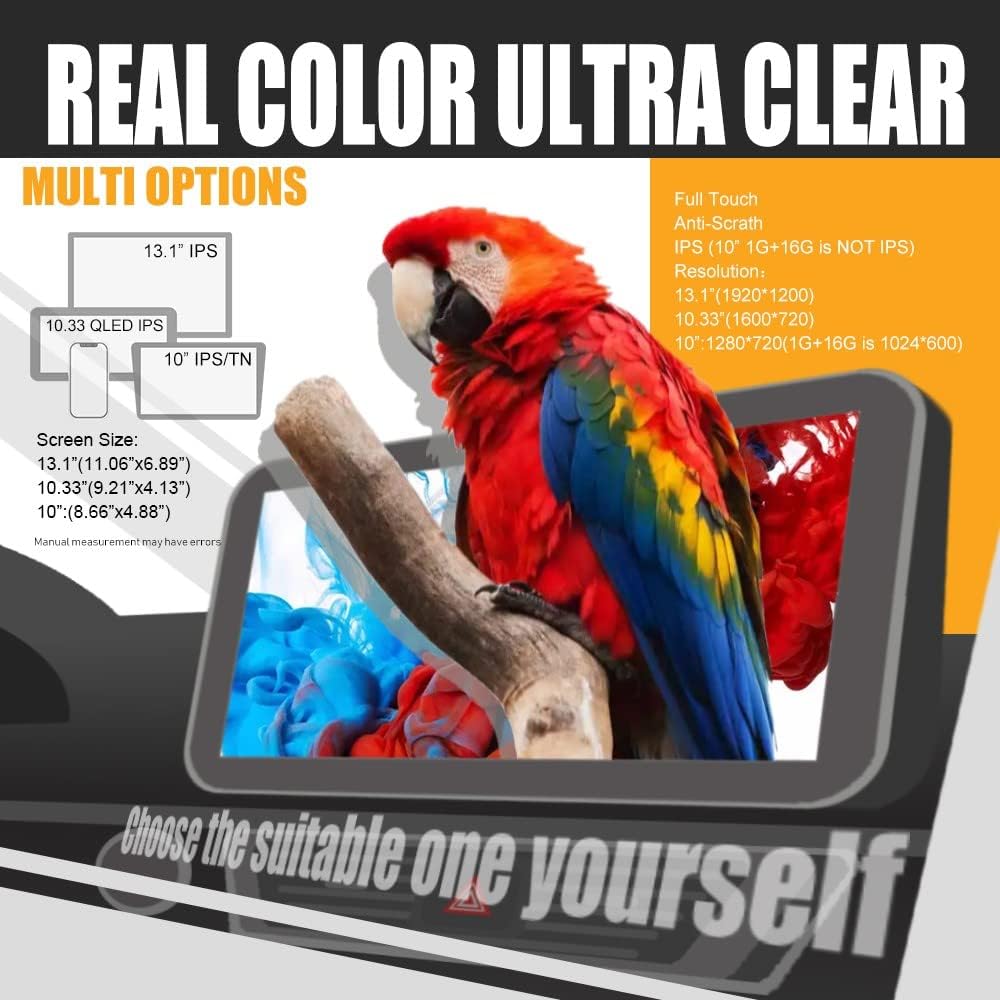
Image: Real Color Ultra Clear. This graphic highlights the display features, including Full Touch, Anti-Scratch, IPS screen type, and various resolution options across different screen sizes (10", 10.33", 13.1").
Maintenance
Proper maintenance ensures the longevity and optimal performance of your headunit.
- Cleaning: Use a soft, dry cloth to clean the screen and exterior. Avoid abrasive cleaners or solvents that could damage the display or finish.
- Software Updates: Periodically check for software updates to ensure the system has the latest features and security patches. Updates can typically be performed via Wi-Fi.
- Temperature: Avoid exposing the unit to extreme temperatures, which can affect performance and lifespan.
Troubleshooting
If you encounter issues with your headunit, refer to the following common troubleshooting steps:
- No Power: Check all power connections and ensure the vehicle's battery is charged. Verify fuses are intact.
- No Sound: Check speaker connections, volume settings, and ensure the audio source is correctly selected.
- GPS Signal Loss: Ensure the GPS antenna is properly installed and has a clear view of the sky.
- Touchscreen Unresponsive: Try restarting the unit. If the issue persists, a factory reset might be necessary (note: this will erase all user data).
- Connectivity Issues (Bluetooth/Wi-Fi): Ensure devices are within range and correctly paired. Check network settings.
- System Lag: Close unnecessary applications and clear cache. Consider a factory reset if performance does not improve.
For persistent issues or problems not covered here, please contact customer support.
Warranty and Support
Warranty Information
This KUNFINE headunit comes with a one-year warranty from the date of purchase. The warranty covers manufacturing defects and malfunctions under normal use. It does not cover damage caused by improper installation, misuse, accidents, or unauthorized modifications.
Customer Support
For any questions, technical assistance, or warranty claims, please contact the seller, Jiaxing Kunfine Auto Parts Co., Ltd., directly. Your consultation is always welcomed, and after-sales support is guaranteed.

Image: Professional After-sales Service. This image displays FCC and EC certificates, indicating compliance with international standards and commitment to professional after-sales support.


