
Ctronics CTIPC-285C
Ctronics CTIPC-285C Security Camera User Manual
Model: CTIPC-285C
1. Introduction
Thank you for choosing the Ctronics CTIPC-285C Security Camera. This manual provides detailed instructions for the installation, operation, and maintenance of your new security camera. Please read this manual thoroughly before use to ensure proper functionality and safety. This 1080P Full HD outdoor PTZ camera offers advanced features such as colored night vision, auto-tracking, human detection, and two-way audio communication, providing comprehensive surveillance for your property.
2. Safety Information
- Ensure the power supply is compatible with the camera's requirements (12 Volts, 24 watts).
- Do not expose the camera to extreme temperatures or direct sunlight for prolonged periods.
- Avoid placing the camera near strong electromagnetic fields.
- Do not attempt to disassemble or modify the camera. Refer all servicing to qualified personnel.
- Keep the camera and its accessories out of reach of children.
- Ensure proper sealing of all connections to maintain the IP66 waterproof rating.
3. Package Contents
Please check the package contents upon unboxing:
- Ctronics CTIPC-285C Security Camera
- Power Adapter
- Mounting Screws and Wall Plugs
- Waterproof Kit for Network Cable (if applicable)
- Quick Start Guide
4. Product Overview
Familiarize yourself with the main components and features of your Ctronics security camera.

Figure 4.1: Front view of the Ctronics CTIPC-285C Security Camera, showcasing its dome design and dual antennas.
Key Features:
- 1080P Full HD Resolution: Provides clear and detailed video footage.
- Colored Night Vision: Equipped with 4 floodlights and 5 infrared lights for clear, colored surveillance up to 80 feet at night.
- PTZ Functionality: Pan 355° horizontally and Tilt 90° vertically for wide area coverage.
- Auto Tracking & Human Detection: Intelligently recognizes and tracks human movement, reducing false alarms.
- Two-Way Audio: Built-in microphone and speaker for real-time communication.
- IP66 Waterproof: Durable design for outdoor use in various weather conditions.

Figure 4.2: The camera's 1080P HD Color Night Vision capability, showing a clear view of a car in a driveway at night.

Figure 4.3: Illustration of the camera's 355-degree pan and 90-degree tilt rotation, covering a wide outdoor area including a house and pool.
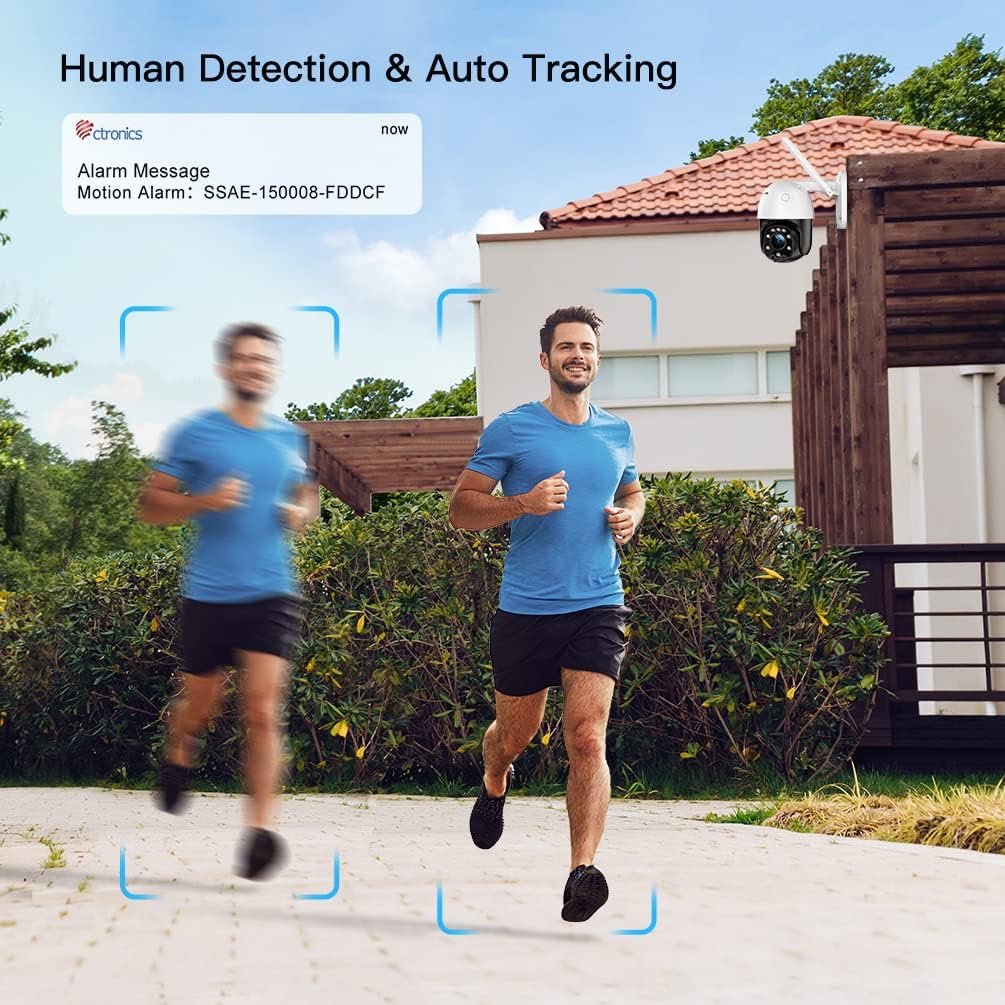
Figure 4.4: The camera's human detection and auto-tracking feature, highlighting a person being tracked in a garden setting.
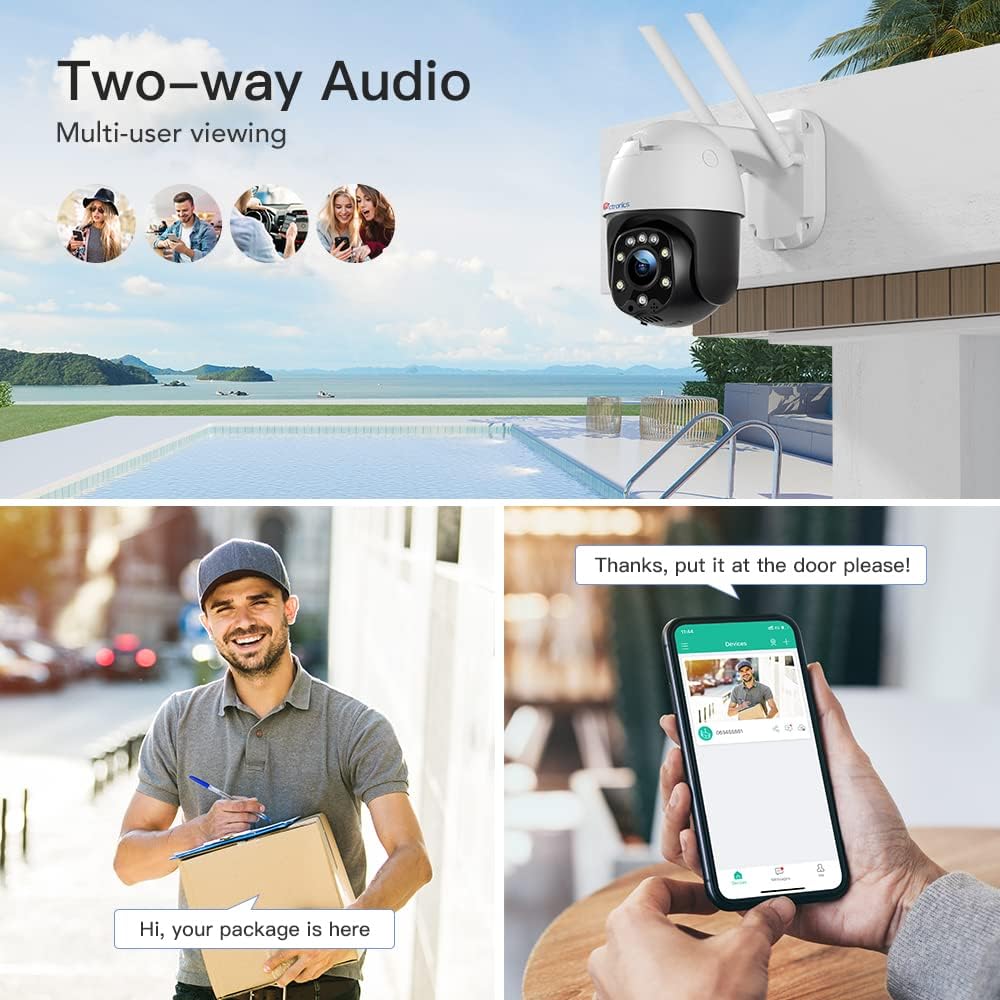
Figure 4.5: Demonstrates the two-way audio feature, showing a user communicating with a delivery person via the camera's app.

Figure 4.6: The camera's IP66 waterproof rating, showing it installed outdoors during rainfall, indicating its weather resistance.
5. Setup and Installation
5.1 Mounting the Camera
The CTIPC-285C camera is designed for wall-mounted installation. Choose a location that provides optimal viewing angles and is within range of your Wi-Fi network and a power outlet.
- Mark the drilling positions on the wall using the mounting template (if provided).
- Drill holes and insert wall plugs.
- Secure the mounting bracket to the wall using the provided screws.
- Attach the camera to the mounting bracket.
5.2 Powering On and Initial Connection
- Connect the power adapter to the camera and plug it into a power outlet.
- Download the "Ctronics App" from your mobile device's app store (iOS/Android). The camera also supports HIP2P.
- Open the app and follow the on-screen instructions to add your camera. This typically involves scanning a QR code on the camera or manually entering its ID.
- Connect the camera to your Wi-Fi network through the app. Ensure your router is within an optimal distance for stable connection (up to 80ft recommended).
5.3 Installing an SD Card (Optional)
The camera supports an SD card up to 64GB for local video storage.
- Locate the SD card slot on the camera (refer to the product diagram in the quick start guide).
- Gently insert the SD card until it clicks into place.
- Format the SD card via the Ctronics App settings for proper recording functionality.
6. Operating the Camera
6.1 Live View and PTZ Control
Access the live feed of your camera through the Ctronics App. Use the on-screen controls to pan (355° horizontal) and tilt (90° vertical) the camera to monitor different areas. Digital zoom is also available to view details.
6.2 Night Vision Modes
The camera offers both colored and infrared (IR) night vision. The 4 built-in floodlights enable full-color night vision, while 5 infrared lights provide clear black-and-white vision in complete darkness. You can switch between modes or set it to automatic in the app settings.
6.3 Auto Tracking and Human Detection
Enable the auto-tracking and human detection features in the app. The camera will intelligently identify human shapes and automatically follow their movement within its monitoring range, recording relevant footage and sending alerts.
6.4 Two-Way Audio Communication
Utilize the built-in microphone and speaker for two-way communication. This allows you to speak to visitors or deter intruders directly through the app.
6.5 Recording and Playback
Recordings can be stored on the installed SD card or an FTP server. You can configure recording schedules, motion-triggered recordings, and alarm recordings through the app. Access recorded footage for playback directly from the app's timeline.
Video 6.1: Official Ctronics video demonstrating the features of the Security Camera Color Night Vision 1080P, including its pan-tilt capabilities and clear image quality.
7. Maintenance
- Cleaning: Regularly wipe the camera lens with a soft, dry cloth to ensure clear image quality. Do not use harsh chemicals or abrasive materials.
- Firmware Updates: Check the Ctronics App periodically for firmware updates to ensure optimal performance and access to new features.
- Power Supply: Ensure the power connection is secure and free from damage.
- Environmental Protection: While IP66 rated, avoid direct high-pressure water jets on the camera.
8. Troubleshooting
- Camera Offline: Check Wi-Fi signal strength, ensure the camera is powered on, and verify router connectivity. Restarting the camera and router may resolve the issue.
- No Recording to SD Card: Ensure the SD card is correctly inserted and formatted within the app. Verify that recording settings (e.g., motion detection recording) are enabled.
- PC Software Issues: Older PC software versions may rely on outdated technologies like Adobe Flash Player. Ensure you are using the latest software from the Ctronics website or rely on the mobile app for full functionality.
- Pan/Tilt Control Not Responding: Check network connection stability. If using the mobile app, ensure it is updated to the latest version. Restarting the camera may also help.
- False Alarms: Adjust the sensitivity settings for motion detection and human detection within the app to minimize unwanted alerts.
- Poor Night Vision: Ensure the camera lens is clean and free from obstructions. Verify that the night vision mode is set correctly in the app (Auto, Color, or IR).
9. Specifications
| Feature | Specification |
|---|---|
| Model Number | CTIPC-285C |
| Video Capture Resolution | 1080p (1920x1080 Pixels) |
| Connectivity Technology | Wireless (Wi-Fi) |
| Pan Range | 355 Degrees |
| Tilt Range | 90 Degrees |
| Night Vision Range | 100 Feet (approx. 30 meters) |
| Waterproof Rating | IP66 |
| Power Source | AC/DC (12 Volts, 24 watts) |
| Storage | SD Card (up to 64GB) |
| Dimensions (L x W x H) | 11.8 x 4.3 x 6.7 inches |
| Item Weight | 1.74 pounds |
10. Warranty and Support
Ctronics provides a limited warranty for this product. For detailed warranty information, please refer to the warranty card included in your package or visit the official Ctronics website. For technical support, troubleshooting assistance, or any inquiries, please contact Ctronics customer service through their official website or the contact information provided in the quick start guide. Regular updates and support resources are available online to ensure the best experience with your camera.
Related documentsCTIPC-285C


Ask a question about this manual
Ask about setup, troubleshooting, compatibility, parts, safety, or missing instructions. Manuals+ will review the question and use this page’s manual context to help answer it.