
1. Introduction
This manual provides essential information for the installation, configuration, and operation of your FORTINET FortiGate-1800F Network Security Appliance. The FortiGate-1800F series is designed to deliver high-performance next-generation firewall (NGFW) capabilities for large enterprises and service providers, offering robust threat protection and network optimization.
Please read this manual thoroughly before using the device to ensure proper setup and to maximize its security and performance benefits.
2. Safety Information
Observe the following safety precautions to prevent damage to the device and ensure personal safety:
- Power Source: Use only the power supplies provided or specified by FORTINET. Ensure the power outlet is properly grounded.
- Ventilation: Do not block ventilation openings. Ensure adequate airflow around the appliance to prevent overheating.
- Environment: Operate the device in a clean, dry environment within the specified temperature and humidity ranges. Avoid exposure to direct sunlight, heat sources, and moisture.
- Installation: Install the appliance on a stable, level surface or in a standard equipment rack. Ensure all cables are securely connected.
- Servicing: Refer all servicing to qualified service personnel. Do not attempt to open or repair the device yourself.
3. Package Contents
Carefully unpack the FortiGate-1800F appliance and verify that all items are present and undamaged. If any items are missing or damaged, contact your vendor immediately.
The package should include:
- 1x FORTINET FortiGate-1800F Network Security Appliance
- 2x Power Supply
- 1x Rack Mount Kit
- 2x Power Cords
- 1x Console Cable
4. Product Overview
4.1. Hardware Features
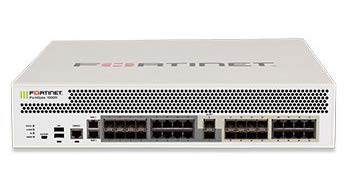
The FortiGate-1800F is equipped with advanced hardware for high-speed network security. Key hardware specifications include:
- Throughput: 198 Gbps
- IPS Throughput: 13 Gbps
- NGFW Throughput: 11 Gbps
- Threat Protection Throughput: 9.1 Gbps
- Interfaces:
- 4 x 40 GE QSFP+ slots
- 12 x 25 GE SFP28 / 10GE SFP+ slots
- 2 x 10GE SFP+ HA slots
- 8 x GE SFP slots
- 18 x GE RJ45 ports
- Processors: SPU NP7 and CP9 hardware accelerated
4.2. Key Features and Capabilities
The FortiGate-1800F offers a comprehensive suite of features designed for robust network security and performance:
- Security: Identifies thousands of applications within network traffic for deep inspection and granular policy enforcement. Protects against malware, exploits, and malicious websites in both encrypted and non-encrypted traffic.
- Performance: Engineered with Fortinet’s purpose-built security processors (SPU) to deliver industry-leading threat protection performance and ultra-low latency. Provides high performance and protection for SSL encrypted traffic, including TLS 1.3 deep inspection.
- Networking: Features application-aware routing with in-built SD-WAN capabilities to achieve consistent application performance and optimal user experience. Includes advanced routing capabilities for high performance with encrypted IPSEC tunnels at scale.
- Management: Incorporates an effective and simple-to-use management console, providing comprehensive network automation and visibility. Supports Zero Touch Provisioning leveraging Single Pane of Glass Management powered by the Fabric Management Center.
- Security Fabric: Enables seamless integration with Fortinet and Fabric-ready partners’ products to provide broader visibility, integrated end-to-end detection, threat intelligence sharing, and automated remediation. Automatically builds Network Topology visualizations, discovering IoT devices and providing complete visibility.
5. Setup
This section outlines the general steps for setting up your FortiGate-1800F appliance. For detailed configuration, refer to the FortiGate documentation available on the FORTINET support portal.
5.1. Rack Installation
- Attach the provided rack mount ears to the sides of the appliance using the screws included in the rack mount kit.
- Secure the appliance into a standard 19-inch equipment rack using appropriate rack screws.
- Ensure sufficient space for airflow around the front and rear panels.
5.2. Connecting Power
- Connect the power cords to the power supply units on the appliance.
- Plug the other end of the power cords into grounded electrical outlets.
- The appliance will power on automatically. Observe the power indicator LEDs.
5.3. Initial Network Connection
- Connect a network cable from your management workstation to one of the GE RJ45 management ports on the FortiGate-1800F.
- Alternatively, use the console cable to connect to the console port for command-line interface (CLI) access.
- Configure your workstation's network settings to match the default management IP address of the FortiGate (refer to the quick start guide for default IP).
- Access the FortiGate web-based manager via a web browser or use the CLI for initial configuration.
6. Operating the FortiGate-1800F
Once the FortiGate-1800F is powered on and initially configured, you can begin to deploy its full range of features. Operation typically involves:
- Policy Configuration: Defining security policies to control traffic flow, apply threat protection, and manage user access.
- Interface Configuration: Setting up network interfaces, VLANs, and routing protocols to integrate with your existing network infrastructure.
- VPN Setup: Configuring Virtual Private Networks (VPNs) for secure remote access or site-to-site connectivity.
- Monitoring and Logging: Utilizing the FortiGate's dashboard and logging features to monitor network activity, security events, and system performance.
- Firmware Updates: Regularly updating the FortiGate firmware to ensure the latest security patches and features are applied.
Detailed operational guides and best practices are available on the official FORTINET documentation portal.
7. Maintenance
Regular maintenance ensures the optimal performance and longevity of your FortiGate-1800F appliance.
- Firmware Updates: Periodically check for and apply the latest firmware updates from FORTINET to benefit from new features, performance enhancements, and critical security fixes.
- Configuration Backups: Regularly back up your FortiGate configuration to a secure location. This allows for quick recovery in case of unexpected issues or hardware replacement.
- System Monitoring: Monitor system resources (CPU, memory, disk usage) and network traffic through the FortiGate dashboard to identify potential bottlenecks or issues early.
- Physical Inspection: Periodically inspect the appliance for dust accumulation, especially around ventilation areas. Ensure all cable connections are secure.
- Log Review: Regularly review system logs and security event logs to detect suspicious activities or operational errors.
8. Troubleshooting
This section provides general troubleshooting tips for common issues. For more complex problems, consult the FORTINET support resources.
8.1. Power Issues
- No Power: Ensure power cords are securely connected to both the appliance and the power outlet. Verify the power outlet is functional.
- LED Indicators: Check the status of power and system LEDs. Refer to the quick start guide for LED interpretations.
8.2. Network Connectivity Problems
- No Network Access: Verify network cable connections. Check interface status LEDs. Ensure correct IP address and subnet mask configurations.
- Cannot Access Web UI: Confirm your management workstation's IP address is in the same subnet as the FortiGate's management interface. Try clearing browser cache or using a different browser.
- Slow Performance: Check CPU and memory utilization on the FortiGate. Review traffic logs for potential bottlenecks or attacks.
8.3. Configuration Issues
- Incorrect Policies: Review security policies to ensure they permit the desired traffic and block unwanted traffic.
- Lost Password: Follow the password recovery procedure outlined in the FORTINET documentation.
9. Specifications
Detailed technical specifications for the FORTINET FortiGate-1800F Network Security Appliance (FG-1800F):
| Brand | FORTINET |
| Model Number | FG-1800F |
| Number of Ports | 18 (GE RJ45) + 26 (SFP/SFP+/QSFP+) |
| Interface Type | SFP, SFP+, RJ45, QSFP+ |
| Data Transfer Rate | 198 Gigabits Per Second |
| Switch Type | Managed |
| Compatible Devices | Laptop (for management), Network Devices |
| Color | White |
| UPC | 842382168905 |
| ASIN | B088FZ8FRF |
10. Warranty & Support
FORTINET products are backed by a limited warranty. For specific warranty terms and conditions applicable to your FortiGate-1800F, please refer to the warranty information provided with your purchase or visit the official FORTINET website.
For technical assistance, product documentation, software downloads, and support resources, please visit the official FORTINET support portal:
When contacting support, please have your product model (FG-1800F) and serial number ready.


