
1. Introduction
This manual provides detailed instructions for the installation, operation, and maintenance of your QDVOPHZA Tuya Smart Life 4K 8MP Dual Lens PTZ WiFi Camera. This advanced security camera features 4K 8MP resolution, dual lenses, Pan-Tilt-Zoom (PTZ) functionality with 5X optical zoom, auto-tracking, and is designed for outdoor surveillance. It integrates with the Tuya Smart Life platform for convenient remote access and control.
2. Product Overview
The QDVOPHZA 4K 8MP Dual Lens PTZ WiFi Camera is equipped with features for comprehensive surveillance. Familiarize yourself with the camera's components:
- Dual Lenses: For enhanced field of view and detail capture.
- Infrared LEDs: For clear black and white night vision.
- White Light LEDs: For full-color night vision and deterrence.
- Microphone & Speaker: For two-way audio communication.
- Antenna: For stable WiFi connectivity.
- Mounting Bracket: For secure installation.

Figure 2.1: Front view of the QDVOPHZA 4K 8MP Dual Lens PTZ WiFi Camera, showing the dual lenses, LEDs, and overall dome design.
3. Setup
3.1 Package Contents
Verify that all items are present in the package:
- QDVOPHZA 4K 8MP Dual Lens PTZ WiFi Camera
- Power Adapter
- Mounting Screws and Wall Plugs
- User Manual
3.2 App Installation and Account Registration
- Download the 'Tuya Smart' or 'Smart Life' app from your mobile device's app store (available on Android and iOS).
- Open the app and register for a new account using your email address or phone number. Follow the on-screen prompts to complete registration and log in.
3.3 Camera Connection
- Power on the camera by connecting the power adapter. The camera will perform a self-test and indicate readiness for pairing (e.g., a flashing indicator light or voice prompt).
- Open the Tuya Smart app, tap '+' or 'Add Device', and select 'Security & Video Surveillance' > 'Smart Camera (Wi-Fi)'.
- Follow the in-app instructions to connect the camera to your 2.4GHz Wi-Fi network. Ensure your Wi-Fi password is correct.
- During the pairing process, you may be prompted to scan a QR code displayed on your phone with the camera lens or use AP mode for connection.
- Once connected, the camera will be added to your device list in the app.
3.4 Physical Installation
Choose a suitable outdoor or indoor location that provides the desired surveillance coverage and is within range of your 2.4GHz Wi-Fi network.
- Mark the drilling positions using the mounting bracket as a template.
- Drill holes and insert wall plugs if mounting on a masonry surface.
- Secure the mounting bracket to the wall or ceiling using the provided screws.
- Attach the camera to the mounting bracket and adjust its position as needed.

Figure 3.1: Example of the camera mounted on an exterior wall, demonstrating its outdoor placement and two-way audio capability.
4. Operating Instructions
4.1 Live View and PTZ Control
Access the live video feed through the Tuya Smart app. Use the on-screen controls to pan (horizontal rotation), tilt (vertical movement), and zoom (5X optical zoom) the camera to monitor different areas.

Figure 4.1: Smartphone interface displaying the PTZ control options for adjusting the camera's viewing angle.
4.2 Two-Way Audio
The camera supports two-way audio. Tap the microphone icon in the app to speak through the camera's speaker, and listen to audio from the camera's microphone.
4.3 Smart Night Vision Modes
The camera offers multiple night vision modes:
- Double Light Smart Color Night Vision: Utilizes both infrared and white light LEDs to provide full-color video in low-light conditions.
- Normal Color Night Vision: Provides color images in ambient low light without activating white LEDs.
- IR Night Vision: Uses only infrared LEDs for clear black and white video in complete darkness.
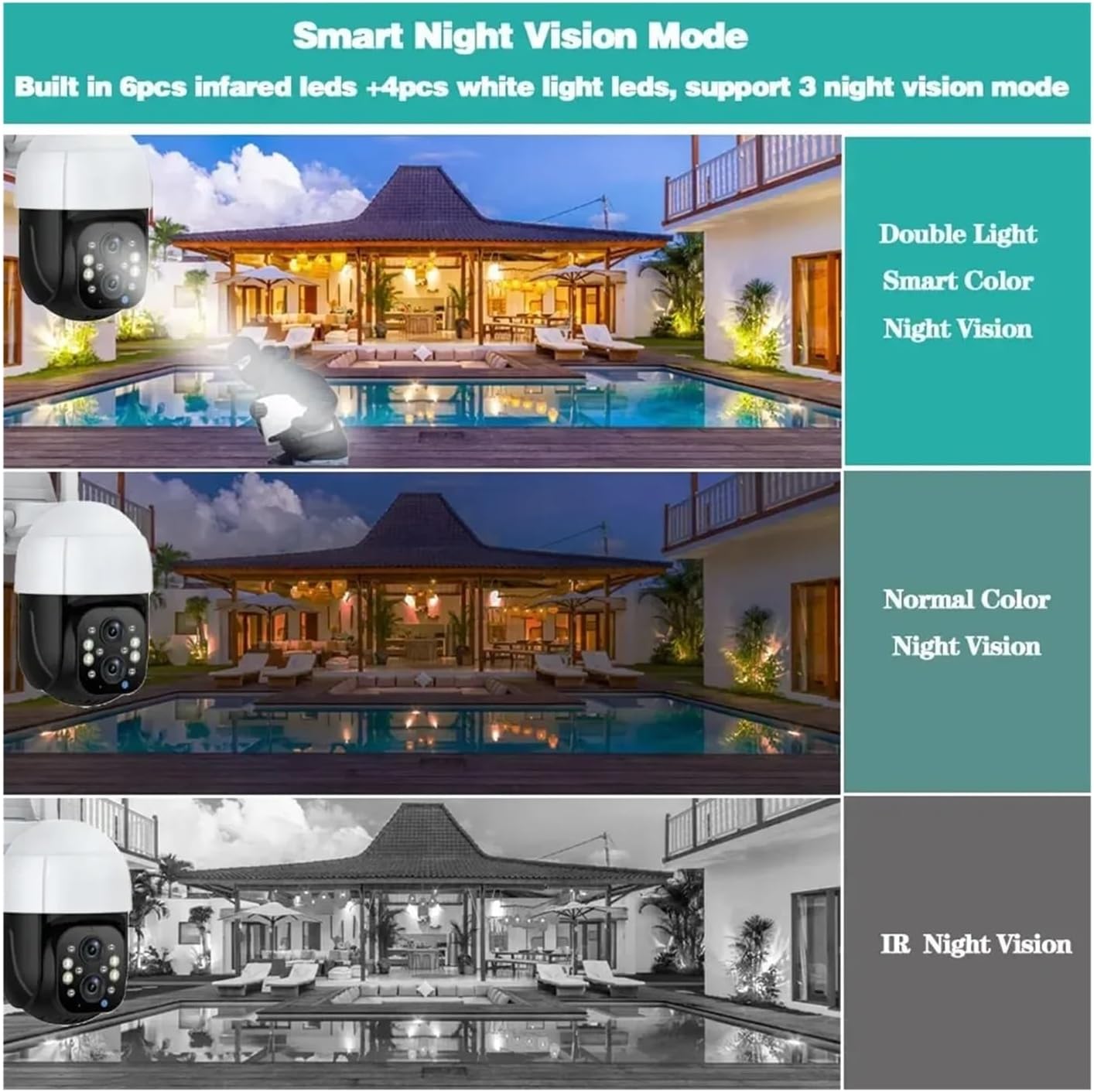
Figure 4.2: Visual representation of the three smart night vision modes available on the camera.
4.4 Motion Detection and Smart Tracking
Configure motion detection settings within the app. You can define specific detection zones and adjust sensitivity. When motion is detected, the camera can:
- Send push notifications to your mobile device.
- Trigger email alerts with photo attachments.
- Initiate automatic recording.
The Smart Tracking feature allows the camera to automatically follow detected human movement within its field of view, ensuring continuous surveillance of the subject.

Figure 4.3: Illustration of the motion detection and email alert functionality, showing a detected intruder and the corresponding app notification.
4.5 Recording and Storage
The camera supports local storage via a TF (microSD) card (up to 128GB, not included) and cloud storage (subscription may be required). Recordings can be accessed and played back through the Tuya Smart app.
5. Maintenance
- Cleaning: Gently wipe the camera lens and body with a soft, dry cloth. Do not use harsh chemicals or abrasive cleaners.
- Firmware Updates: Regularly check for and install firmware updates via the Tuya Smart app to ensure optimal performance and security.
- Power Connection: Periodically inspect the power adapter and cable for any signs of damage.
6. Troubleshooting
| Problem | Possible Cause | Solution |
|---|---|---|
| Camera does not power on | Power adapter disconnected or faulty; power outlet issue. | Ensure power adapter is securely connected to camera and a working power outlet. Try a different outlet. |
| Cannot connect to Wi-Fi | Incorrect Wi-Fi password; camera too far from router; 5GHz Wi-Fi network used. | Verify Wi-Fi password. Move camera closer to router. Ensure you are connecting to a 2.4GHz Wi-Fi network. |
| No image or poor image quality | Network instability; dirty lens. | Check your internet connection. Clean the camera lens with a soft cloth. |
| Motion detection not triggering alerts | Detection settings incorrect; sensitivity too low. | Review motion detection settings in the app. Adjust detection zones and increase sensitivity. |
| App crashes or freezes | App software issue; phone memory low. | Restart the app or your mobile device. Reinstall the app if the issue persists. |
7. Specifications
- Resolution: 8MP (4K)
- Lenses: Dual Lens (2.8-8mm, 3.6mm)
- Optical Zoom: 5X
- Connectivity: IP/Network Wireless (2.4GHz WiFi)
- Video Compression: H.265
- Night Vision: Full Color Night Vision, IR Infrared Night Vision (6pcs IR LEDs + 4pcs White Light LEDs)
- IR Distance: 50-60 meters
- Audio: Two-Way Audio
- Storage: TF Card (Max 128GB), Cloud Storage (subscription required)
- IP Rating: IP66 (Waterproof / Weatherproof)
- Viewing Angle: 360° (Pan-Tilt-Zoom)
- AI Functions: Smart Tracking, AI Human Detection, Motion Detection
- Supported Mobile Systems: Android, iOS (via Tuya App)
- Power Supply: Normal (specific voltage/current not provided)
- Shell Material: Plastic
- Color: White
- Minimum Illumination: 0.001lux
- Alarm Action: FTP Photo, Email Photo, APP Push
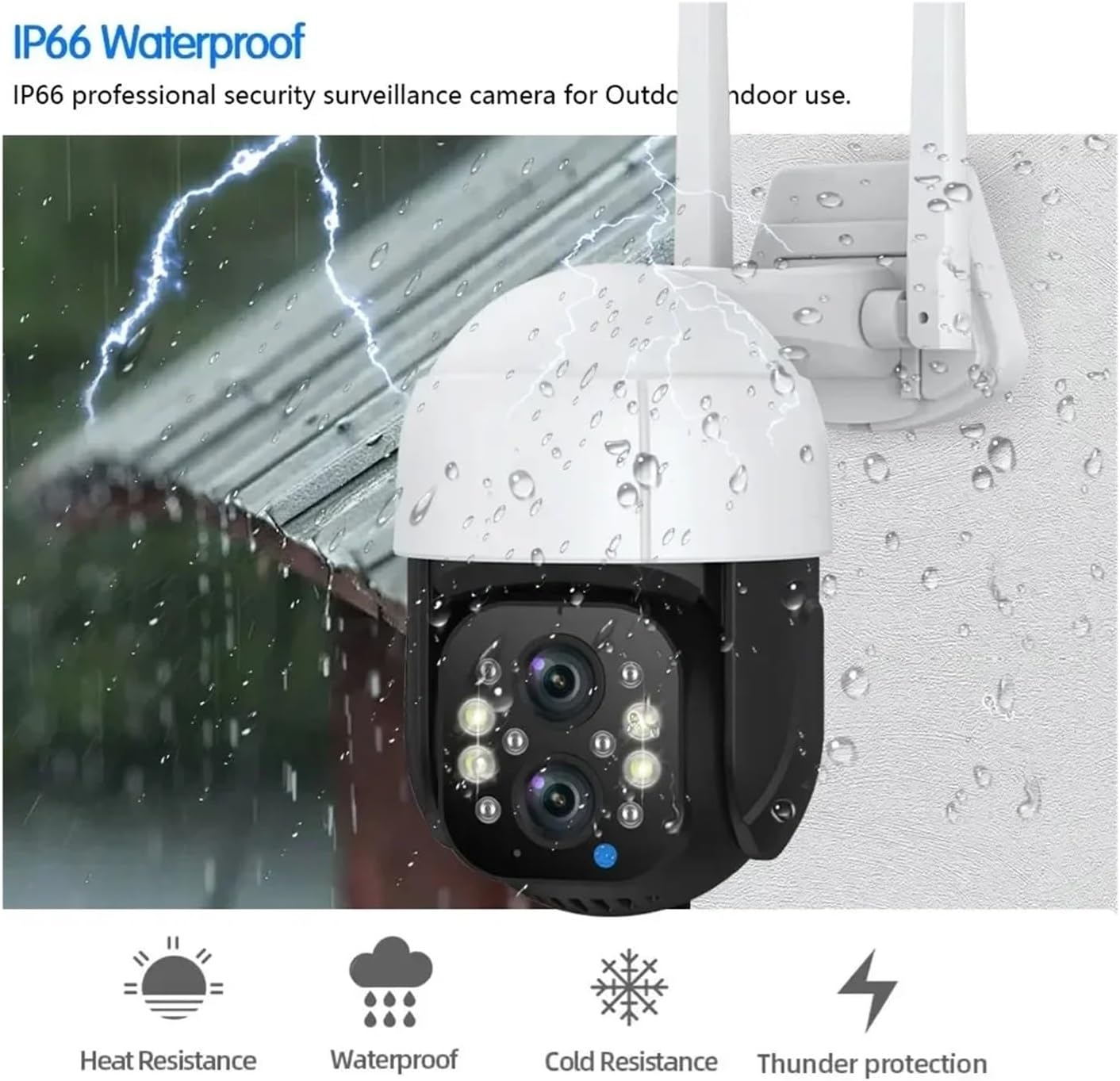
Figure 7.1: The camera's IP66 rating ensures protection against dust and water, making it suitable for various weather conditions.
8. Safety Information
- Use only the power adapter provided with the camera.
- Do not expose the camera to extreme temperatures or direct sunlight for prolonged periods.
- Avoid disassembling the camera, as this will void the warranty and may cause damage.
- Keep the camera and its accessories out of reach of children.
- Ensure proper ventilation around the camera to prevent overheating.
9. Warranty and Support
For warranty information and technical support, please refer to the documentation included with your purchase or visit the official QDVOPHZA website. Contact details for customer service are typically provided on the product packaging or within the Tuya Smart app's support section.