
1. Product Overview
The Cecotec Conga 1090 Connected Force is a versatile 4-in-1 robot vacuum cleaner designed to sweep, vacuum, mop, and scrub your floors. It features intelligent navigation, app control, and compatibility with voice assistants for a comprehensive cleaning experience.

Image 1.1: The Conga 1090 Connected Force robot vacuum cleaner, showcasing its sleek design, accompanying smartphone application interface, and compatibility with Alexa and Google Assistant.
Key Features:
- 4-in-1 Functionality: Sweeps, vacuums, mops, and scrubs simultaneously.
- iTech Smart 2.0 Navigation: Intelligent navigation system for efficient cleaning paths.
- App Control: Manage cleaning modes, scheduling, suction, and scrubbing levels from your smartphone.
- Voice Assistant Compatibility: Works with Amazon Alexa and Google Assistant for hands-free control.
- Turbo Mode on Carpets: Automatically increases suction power on carpets for deeper cleaning.
- BestFriend Care System: Includes a special silicone brush designed for pet hair.
- Multiple Cleaning Modes: Auto, Edges, Manual, Room, Spiral, and Return to Home.
- Programmable: Schedule cleaning sessions 24/7.
- Long Battery Life: Up to 160 minutes of continuous cleaning.
- High-Efficiency Filter: Captures allergens and fine dust particles.
2. Setup Guide
2.1 Unpacking and Component Check
Carefully remove all components from the packaging. Ensure all items listed below are present:
- Cecotec Conga 1090 Connected Force Robot Vacuum Cleaner
- Charging Base and Power Adapter
- Multifunction Brush (bristles and silicone)
- BestFriend Care Silicone Brush
- 4 Side Brushes
- Mixed Tank (solids and liquids)
- Mop and Mop Pad
- High-Efficiency Filter
- Instruction Guide
2.2 Charging Base Placement
Place the charging base against a wall in an open area, ensuring there are no obstacles within 1 meter (3 feet) to the sides and 2 meters (6 feet) in front of the base. Connect the power adapter to the charging base and plug it into a power outlet.
2.3 Initial Charging
Place the robot vacuum cleaner onto the charging base. Ensure the charging contacts on the robot align with those on the base. The robot will begin charging automatically. For optimal battery life, fully charge the robot before its first use (approximately 3-4 hours).
2.4 App Download and Wi-Fi Connection
- Download the official Cecotec Conga app from your smartphone's app store (Google Play Store or Apple App Store).
- Open the app and follow the on-screen instructions to create an account and add your Conga 1090 Connected Force robot.
- During the connection process, ensure your smartphone is connected to a 2.4GHz Wi-Fi network. The robot is not compatible with 5GHz networks. If you experience connection issues, verify that your router's 2.4GHz Wi-Fi channel is enabled at 20Hz (in addition to 40Hz if applicable).
- Once connected, you can control the robot and access all its features via the app.

Image 2.1: Controlling the robot vacuum cleaner using the dedicated smartphone application.
2.5 Voice Assistant Setup (Optional)
To integrate with Amazon Alexa or Google Assistant:
- Open the Alexa or Google Home app on your smartphone.
- Navigate to the 'Skills' or 'Works with Google' section.
- Search for 'Cecotec Conga' and enable the skill/service.
- Link your Cecotec account when prompted.
- You can now use voice commands to start, stop, or send the robot back to its charging base.
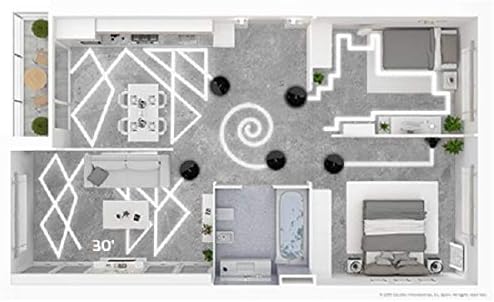
Image 2.2: The robot vacuum cleaner integrated with smart home voice assistants.
3. Operating Instructions
3.1 Starting and Stopping Cleaning
- Via Robot Button: Press the main power button on the robot once to start cleaning in Auto mode. Press again to pause. Hold to send it back to the charging base.
- Via App: Open the Conga app, select your robot, and tap 'Clean' or choose a specific cleaning mode.
- Via Voice Command: Use your configured voice assistant (e.g., "Alexa, tell Conga to start cleaning").
3.2 Cleaning Modes
The Conga 1090 Connected Force offers 6 cleaning modes:
- Auto: The robot intelligently cleans the entire floor area.
- Edges: Cleans along walls and furniture edges.
- Manual: Control the robot's movement manually via the app.
- Room: Cleans a specific room or area.
- Spiral: Cleans a concentrated area in a spiral pattern.
- Return to Home: The robot returns to its charging base.

Image 3.1: Visualization of different cleaning patterns the robot can perform.
3.3 Adjusting Suction and Scrubbing Levels
Through the Conga app, you can select from three power levels (Eco, Normal, Turbo) for vacuuming and three scrubbing levels for mopping, adapting to different floor types and cleaning needs.
3.4 Scheduling Cleaning
Use the app to set up daily or weekly cleaning schedules. The robot will automatically start cleaning at the programmed times.
4. Maintenance
Regular maintenance ensures optimal performance and extends the lifespan of your robot vacuum cleaner.
4.1 Emptying the Dust Tank
After each cleaning cycle, or when indicated by the app, remove the dust tank and empty its contents into a waste bin. Clean any debris from the tank and filter compartment.
4.2 Cleaning Brushes
- Multifunction Brush / BestFriend Care Brush: Remove the main brush from the robot. Use the included cleaning tool to cut and remove any tangled hair or fibers.
- Side Brushes: Periodically check side brushes for wear or entanglement. Remove any debris and replace worn brushes as needed.

Image 4.1: The robot vacuum cleaner's main brush engaging with a carpeted surface.
4.3 Cleaning Filters
Tap the high-efficiency filter gently to remove dust. Do not wash the HEPA filter with water, as this can damage it. Replace the filter every 3-6 months, depending on usage.
4.4 Cleaning the Mop and Water Tank
After mopping, remove the mop pad and wash it thoroughly. Empty any remaining water from the mixed tank and allow it to air dry before reinserting. Clean the water outlet ports on the tank to prevent blockages.
4.5 Cleaning Sensors
Wipe the robot's sensors (anti-drop sensors, obstacle detection sensors) with a clean, dry cloth to ensure accurate navigation.
5. Troubleshooting
If you encounter issues with your Conga 1090 Connected Force, refer to the following common solutions:
- Robot not charging: Ensure the charging base is plugged in and the robot's charging contacts are clean and properly aligned with the base.
- Robot not connecting to Wi-Fi: Verify your Wi-Fi network is 2.4GHz. Check router settings to ensure the 2.4GHz channel is enabled at 20Hz. Restart both the robot and your router.
- Poor cleaning performance: Empty the dust tank, clean all brushes, and check the filter for blockages. Ensure sensors are clean.
- Robot getting stuck frequently: Clear obstacles from the cleaning area. Ensure cables, loose rugs, or small items are removed.
- Unusual noises: Check main and side brushes for tangled hair or debris. Inspect wheels for obstructions.
For persistent issues, consult the full instruction manual or contact Cecotec customer support.
6. Specifications
| Feature | Specification |
|---|---|
| Brand | Cecotec |
| Model Number | Conga 1090 Connected Force |
| Color | Black |
| Product Dimensions (L x W x H) | 32.5 x 32.5 x 7.5 cm |
| Dust Tank Capacity | 500 Milliliters |
| Voltage | 14.4 Volts |
| Material | Plastic |
| Noise Level | 64 dB |
| Compatibility | Amazon Echo, Google Home, Smartphones |
| Item Weight | 4.1 Kilograms |
| Filter Type | HEPA |
| Battery Life | Up to 160 minutes |
| Control Type | App Control |
7. Warranty and Support
For warranty information, please refer to the documentation included with your product or visit the official Cecotec website. For technical support or service inquiries, please contact Cecotec customer service through their official channels.