
1. Product Overview
The BENEWY 1080P Full HD USB Webcam is designed to provide high-quality video and audio for various applications, including video calls, online teaching, live streaming, and conferencing. It features a 1080P Full HD sensor, auto-focus, and a built-in noise-reduction microphone.

Figure 1: BENEWY 1080P Full HD USB Webcam
Key Features:
- 1080P Full HD Video: Delivers crisp images and crystal-clear video at 30 frames per second (fps) with a 2-million high-definition image sensor. Auto-focus and light correction enhance video clarity and brightness.
- Built-in Dual Noise Reduction Microphones: Equipped with omnidirectional microphones that filter background noise, capturing your voice clearly from up to 5 meters away. Ideal for online teaching, blogging, conferencing, and live streaming.
- Easy Auto-Installation: No additional drivers or software are required. Simply connect the webcam to a computer USB port for immediate use.
- Flexible Mounting Options: Features a multi-angle tripod and universal clips suitable for laptops, desktops, and LCD monitors.
- Smooth Live Streaming: Advanced H.264 Video Compression Technology ensures faster and smoother uploads and streaming, providing excellent video quality across various platforms like Skype, Facetime, OBS, Zoom, and YouTube.
- Superior Compatibility: Works in USB Video Device Class (UVC) mode, compatible with Windows 7/8/10/XP/2000, Mac 10.6, Chrome OS, and Android V5.0 or above.
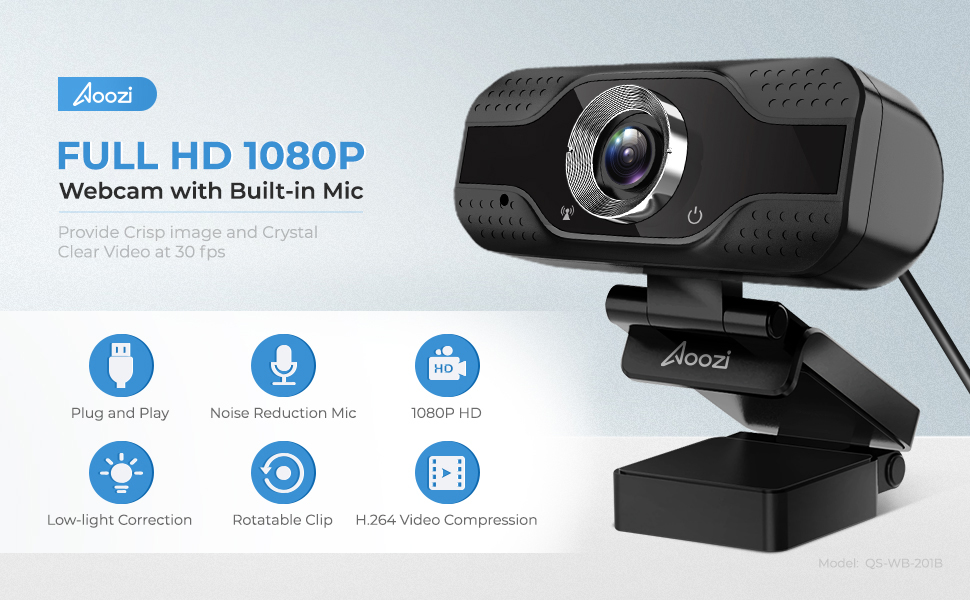
Figure 2: Webcam Component Diagram
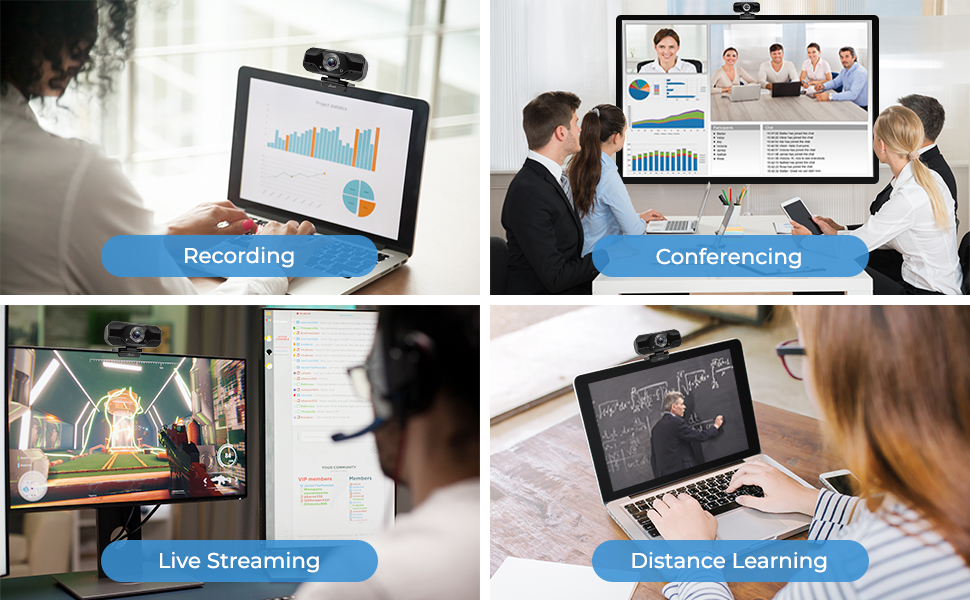
Figure 3: Various Usage Scenarios
2. Setup Instructions
What's in the Box:
- BENEWY 1080P Full HD USB Webcam
- USB Cable (1.8M/6ft)
- Mini Tripod (optional accessory, may be included)
- User Manual
Connecting the Webcam:
- Unpack the Webcam: Carefully remove the webcam and any accessories from the packaging.
- Remove Protective Film: Gently peel off any protective film from the webcam lens and the mounting clip.
- Choose Placement: The webcam can be placed on a flat surface using the included mini tripod, or mounted on top of a laptop screen or desktop monitor using its flexible clip. The clip features an adjustable skid-resistant base for secure attachment.

Figure 4: Webcam Mounted on a Laptop
- Connect to USB Port: Plug the USB cable from the webcam into an available USB port on your computer.
- Automatic Installation: The webcam is plug-and-play. Your operating system should automatically detect and install the necessary drivers. No manual driver installation is typically required.
- Verify Connection: Once connected, the webcam is ready for use with your preferred video conferencing or streaming software.

Figure 5: Webcam on Mini Tripod
Video 1: Demonstrates unboxing, setup, and features of the BENEWY 1080P HD Webcam.
3. Operating Instructions
Using the Webcam for Video and Audio:
- Launch Application: Open your preferred video conferencing, streaming, or recording application (e.g., Zoom, Skype, OBS, YouTube).
- Select Webcam: In the application's settings, select the BENEWY Webcam as your video input device.
- Select Microphone: Also, select the BENEWY Webcam's built-in microphone as your audio input device. The dual noise-reduction microphones will automatically work to provide clear audio.
- Adjust Settings (Optional): Most applications allow you to adjust video resolution, brightness, contrast, and other settings. The webcam supports 1080P Full HD resolution and features automatic light correction.
- Start Your Session: Begin your video call, recording, or live stream. The webcam's 120-degree wide-angle lens captures a broad field of view, suitable for individual or group use.

Figure 6: 1080P Full HD Video Quality

Figure 7: Noise Reduction Microphone in Action
Compatibility:
The BENEWY Webcam is compatible with a wide range of operating systems and applications:
- Operating Systems: Windows 7/8/10/XP/2000, Mac OS 10.6 or later, Chrome OS V29.0.154.70 or above, Android 5.0 or later, Linux 2.6.24, Ubuntu V10.04.
- Applications: Skype, Facetime, OBS, XBOX ONE, Hangouts, Facebook, Zoom, YouTube, Twitch, and more.
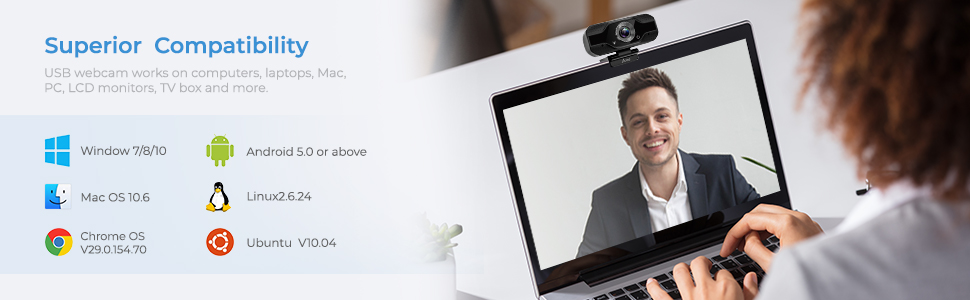
Figure 8: System and Application Compatibility
4. Maintenance
Proper maintenance ensures the longevity and optimal performance of your BENEWY Webcam.
- Cleaning the Lens: Use a soft, lint-free cloth specifically designed for optics to gently wipe the lens. Avoid abrasive materials or harsh chemicals that could scratch the lens.
- Cleaning the Body: Wipe the webcam body with a soft, damp cloth. Do not use liquid cleaners directly on the device.
- Storage: When not in use, store the webcam in a clean, dry place away from extreme temperatures and direct sunlight.
- Cable Care: Avoid bending or twisting the USB cable excessively to prevent internal damage.
5. Troubleshooting
If you encounter issues with your BENEWY Webcam, refer to the following common troubleshooting steps:
- Webcam Not Detected:
- Ensure the USB cable is securely plugged into both the webcam and the computer.
- Try plugging the webcam into a different USB port on your computer.
- Restart your computer.
- Check your operating system's device manager (Windows) or system information (Mac) to see if the webcam is listed.
- Poor Image Quality:
- Ensure the lens is clean and free of dust or smudges.
- Check the lighting in your environment. The webcam has automatic light correction, but sufficient ambient light is always beneficial.
- Verify the resolution settings in your video application. Ensure it's set to 1080P if desired.
- Close any other applications that might be using the webcam.
- Microphone Not Working or Poor Audio:
- Ensure the BENEWY Webcam's microphone is selected as the audio input device in your application's settings.
- Check your computer's sound settings to ensure the microphone is enabled and not muted.
- Ensure you are within the effective range (up to 5 meters) of the microphone.
- Minimize background noise in your environment.
- Application Freezing or Crashing:
- Ensure your operating system and video application are up to date.
- Try using the webcam with a different application to isolate the issue.
6. Specifications
| Feature | Specification |
|---|---|
| Brand | BENEWY |
| Model Name | BENEWY |
| Style Name | 201B |
| Connectivity Technology | USB |
| Video Capture Resolution | 1080p, 720p |
| Image Capture Speed | 30 fps |
| Photo Sensor Technology | CMOS |
| Focus Type | Auto Focus |
| Viewing Angle | 120 Degrees |
| Built-In Media | USB Cable |
| Color | Black |
| Compatible Devices | Personal Computer |
| Manufacturer | Aoozi |
7. Warranty and Support
BENEWY products are designed for reliability and performance. For any questions or support needs, please refer to the contact information provided with your purchase or visit the official BENEWY website.
- Warranty Information: Please retain your proof of purchase for warranty claims. Specific warranty terms and duration may vary by region and retailer.
- Customer Support: For technical assistance, troubleshooting, or product inquiries, please contact BENEWY customer support.