
Introduction
Thank you for choosing the cimetech EasyTyping KF10 Wireless Keyboard and Mouse Combo. This product is designed to provide a comfortable, quiet, and efficient input experience for your PC, laptop, or Windows-based computer. Featuring silent scissor switch keys and a convenient 2.4G wireless connection, this combo aims to enhance your productivity and comfort.

Image: cimetech EasyTyping KF10 Wireless Keyboard and Mouse Combo in Wine Red. This image displays the full keyboard and mouse set.
Setup Instructions
- Battery Installation:
- For the keyboard: Open the battery compartment on the underside. Insert two (2) AAA batteries, ensuring correct polarity. Close the compartment.
- For the mouse: Open the battery compartment on the underside. Insert one (1) AA battery, ensuring correct polarity. Close the compartment.
- USB Receiver Connection:
- Locate the Nano USB receiver, typically stored within the mouse's battery compartment.
- Plug the Nano USB receiver into an available USB port on your computer.
- The keyboard and mouse are designed for plug-and-play functionality and should connect automatically.
- Power On:
- Ensure the power switch on both the keyboard and mouse is set to the 'ON' position. The power switch for the keyboard is located on the back edge, and for the mouse, it is on the underside.

Image: A diagram illustrating the easy connection process, showing a laptop connected to the keyboard and mouse via a single 2.4GHz USB receiver.

Image: The underside of the mouse, revealing the battery compartment and a convenient storage slot for the Nano USB receiver.
Operating Instructions
Keyboard Usage
- Scissor Switch Keys: The keyboard features scissor switch keys for a comfortable and quiet typing experience. These keys offer uniform force distribution, low sound, and short travel, reducing typing fatigue.
- Function Keys: Utilize the 'Fn' key in combination with the F1-F12 keys for various multimedia and system shortcuts. Refer to the keycap legends for specific functions.
- Ergonomic Design: The keyboard is designed with an 8-degree tilted angle to help alleviate wrist pressure during extended use.

Image: A close-up view of a scissor switch key mechanism, demonstrating its precise and stable design for enhanced typing comfort.

Image: A visual comparison showing the shorter 2.5mm key travel of the EasyTyping keyboard compared to the 5mm travel of traditional keys, indicating reduced effort.

Image: This image depicts a user typing on the keyboard in a quiet environment, with graphics highlighting 90% typing noise reduction, ideal for undisturbed work or home settings.
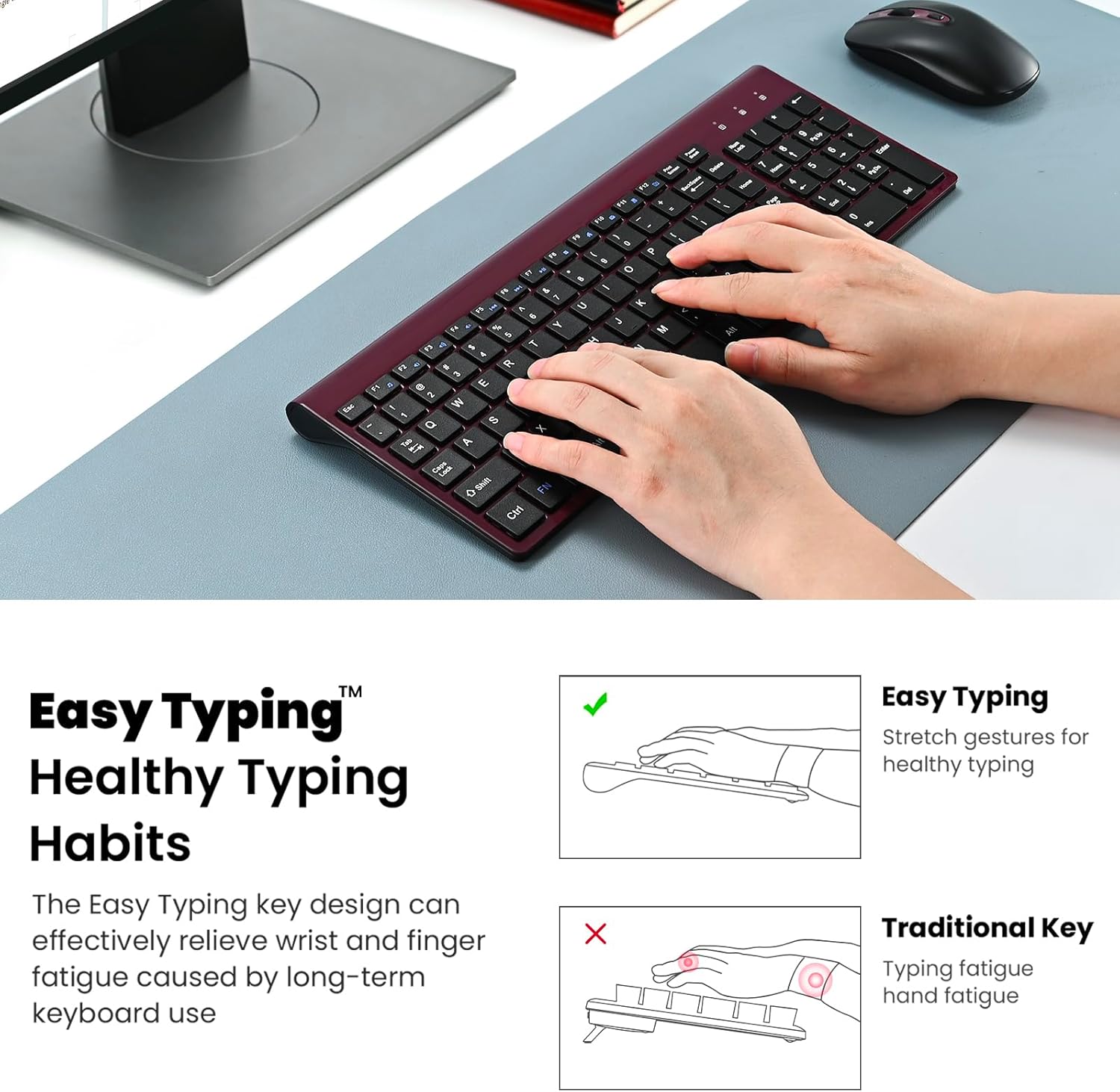
Image: Illustration of proper hand placement on the keyboard, demonstrating how the ergonomic design supports healthy typing habits and minimizes wrist fatigue.
Mouse Usage
- Silent Clicks: The mouse is designed for silent operation, providing a quiet working environment.
- DPI Setting: The mouse has a default DPI of 1600, offering precise tracking for most tasks.
- Power Saving: The mouse features an auto-sleep function that activates after a period of inactivity to conserve battery life. Simply move or click the mouse to wake it up.
Maintenance
- Cleaning: Use a soft, dry cloth to clean the surfaces of the keyboard and mouse. For stubborn dirt, a slightly damp cloth with mild soap can be used, ensuring no liquid enters the device.
- Battery Replacement: Replace batteries when performance degrades. Always use fresh batteries of the specified type (AAA for keyboard, AA for mouse).
- Storage: When not in use for extended periods, turn off both devices to prolong battery life. The USB receiver can be stored in the mouse's dedicated compartment.
Troubleshooting
- No Connection/Unresponsive Devices:
- Ensure batteries are correctly installed and not depleted. Replace if necessary.
- Verify that the power switches on both the keyboard and mouse are in the 'ON' position.
- Confirm the USB receiver is securely plugged into a working USB port on your computer. Try a different USB port if issues persist.
- Restart your computer.
- Lag or Intermittent Connection:
- Ensure the devices are within the 10-meter operating range of the USB receiver.
- Minimize interference from other wireless devices (e.g., Wi-Fi routers, other 2.4GHz devices).
- Avoid placing the receiver near large metal objects that could block the signal.
- Keys Not Functioning Correctly:
- Check for any debris under the keys.
- Ensure the keyboard is powered on and connected.
Specifications
| Feature | Detail |
|---|---|
| Model Number | KF10 |
| Connectivity Technology | 2.4GHz Radio Frequency (USB Receiver) |
| Wireless Range | Up to 10 meters (33 feet) |
| Keyboard Key Type | Scissor Switch |
| Mouse DPI | 1600 (Default) |
| Product Dimensions | 14.37 x 5.51 x 0.24 inches |
| Item Weight | 1.32 pounds |
| Compatible Devices | Laptop, Personal Computer (Windows) |
Warranty and Support
cimetech is committed to providing excellent customer service. If you encounter any technical problems or require assistance with your EasyTyping KF10 Wireless Keyboard and Mouse Combo, please contact our sales customer service support team. They are equipped to quickly address any issues you may experience.
For further support, please refer to the official cimetech website or contact the retailer where the product was purchased.