
AUSDOM AW335
AUSDOM AW335 1080P Full HD Webcam User Manual
Model: AW335 | Brand: AUSDOM
Introduction
This manual provides detailed instructions for the setup, operation, and maintenance of your AUSDOM AW335 1080P Full HD Webcam. Please read this manual thoroughly before using the product to ensure proper functionality and to maximize your user experience.
Package Contents
- AUSDOM AW335 1080P Full HD Webcam
- User Manual
Note: Please check all items upon unboxing. If any components are missing or damaged, contact customer support.
Product Overview
The AUSDOM AW335 webcam is designed for high-definition video communication and recording. It features a 1080P Full HD lens, an integrated microphone with noise cancellation, and a versatile mounting clip.

Figure 1: Front view of the AUSDOM AW335 Webcam, showing the lens and integrated microphone.

Figure 2: The AUSDOM AW335 Webcam demonstrating its 360-degree rotation and 180-degree adjustable base for flexible positioning. It also highlights the 1.5m USB cable.
Setup Instructions
- Mounting the Webcam:
The AW335 webcam features an adjustable clip/stand. You can mount it on top of your computer monitor, laptop screen, or place it on a flat surface. The base also supports tripod mounting.

Figure 3: The AUSDOM AW335 Webcam securely mounted on top of a laptop screen, ready for use.
- Connecting to Your Computer:
Connect the USB cable from the webcam to an available USB port on your computer (PC, Mac, Desktop, or Smart TV Box). The webcam is plug-and-play, meaning no additional drivers are typically required for basic functionality.
- Initial Setup (Windows/macOS):
Once connected, your operating system should automatically detect the webcam. You may need to select the "AUSDOM AW335" as your preferred camera and microphone in your video conferencing software (e.g., Skype, Zoom, Google Meet) or recording applications.
- Windows: Go to Settings > Devices > Cameras or Sound > Input to verify the webcam is recognized.
- macOS: Go to System Preferences > Sound > Input or use applications like Photo Booth or FaceTime to select the camera.
Operating Instructions
Manual Focus Adjustment
The AW335 features a manual focus lens. To adjust the focus, gently rotate the lens ring until the image appears clear and sharp on your screen.
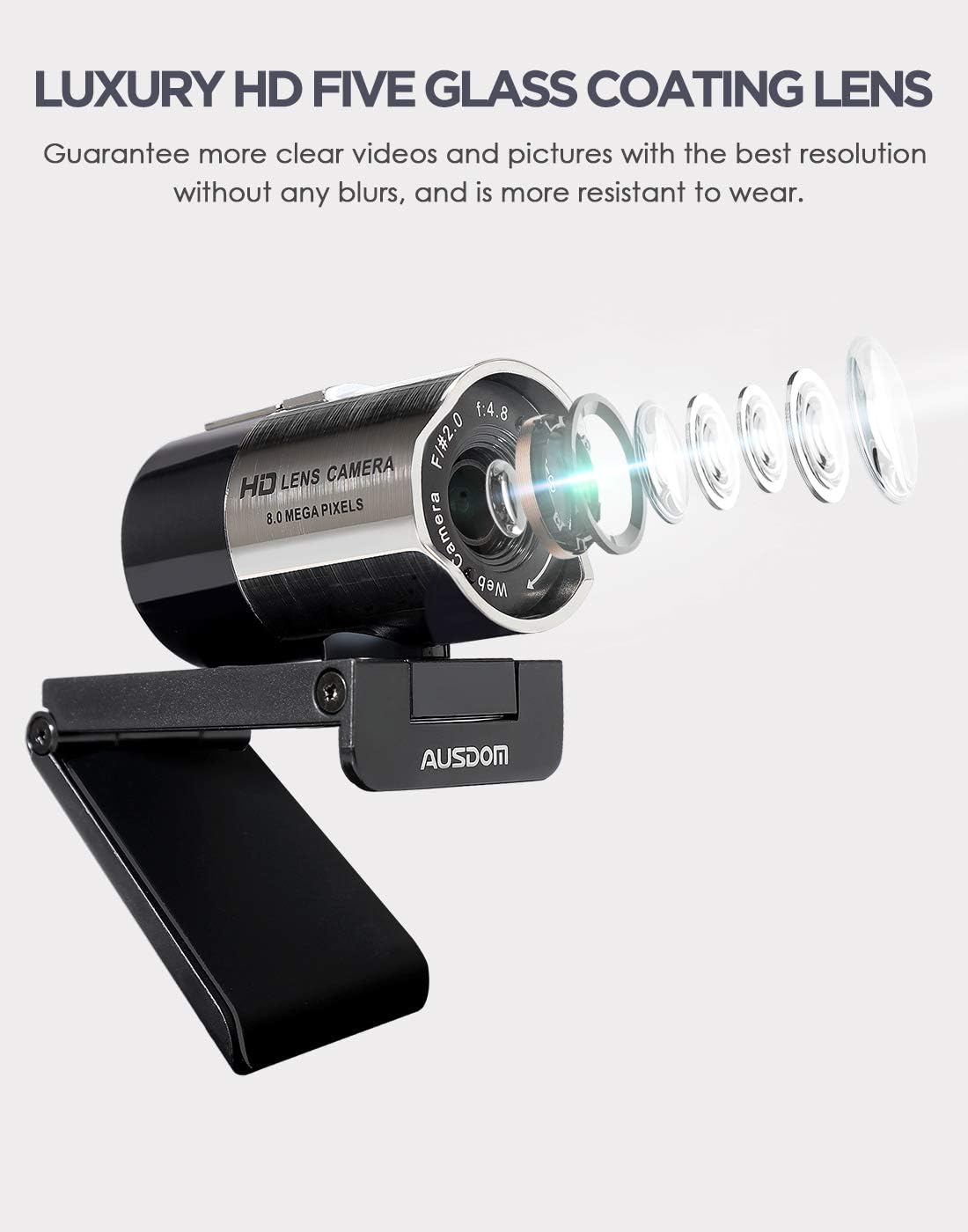
Figure 4: Close-up view of the AUSDOM AW335 Webcam lens, indicating the manual focus ring for sharpness adjustment.
Key Features and Usage
- 1080P Full HD Video: The webcam delivers high-definition video at 1920 x 1080 pixels, suitable for video calls, streaming, and recording.
- Integrated Noise-Cancelling Microphone: The built-in omni-directional microphone captures clear audio and filters out background noise. Ensure the webcam's microphone is selected as the input device in your application settings.
- Automatic Low-Light Correction: The webcam automatically adjusts to dim or overexposed lighting conditions to maintain clear video quality.
- Wide Compatibility: Compatible with Windows (7/8/10/XP), macOS, Chrome OS, Android, and Linux. It supports various platforms like Skype, Zoom, OBS, YouTube, Twitch, and more.
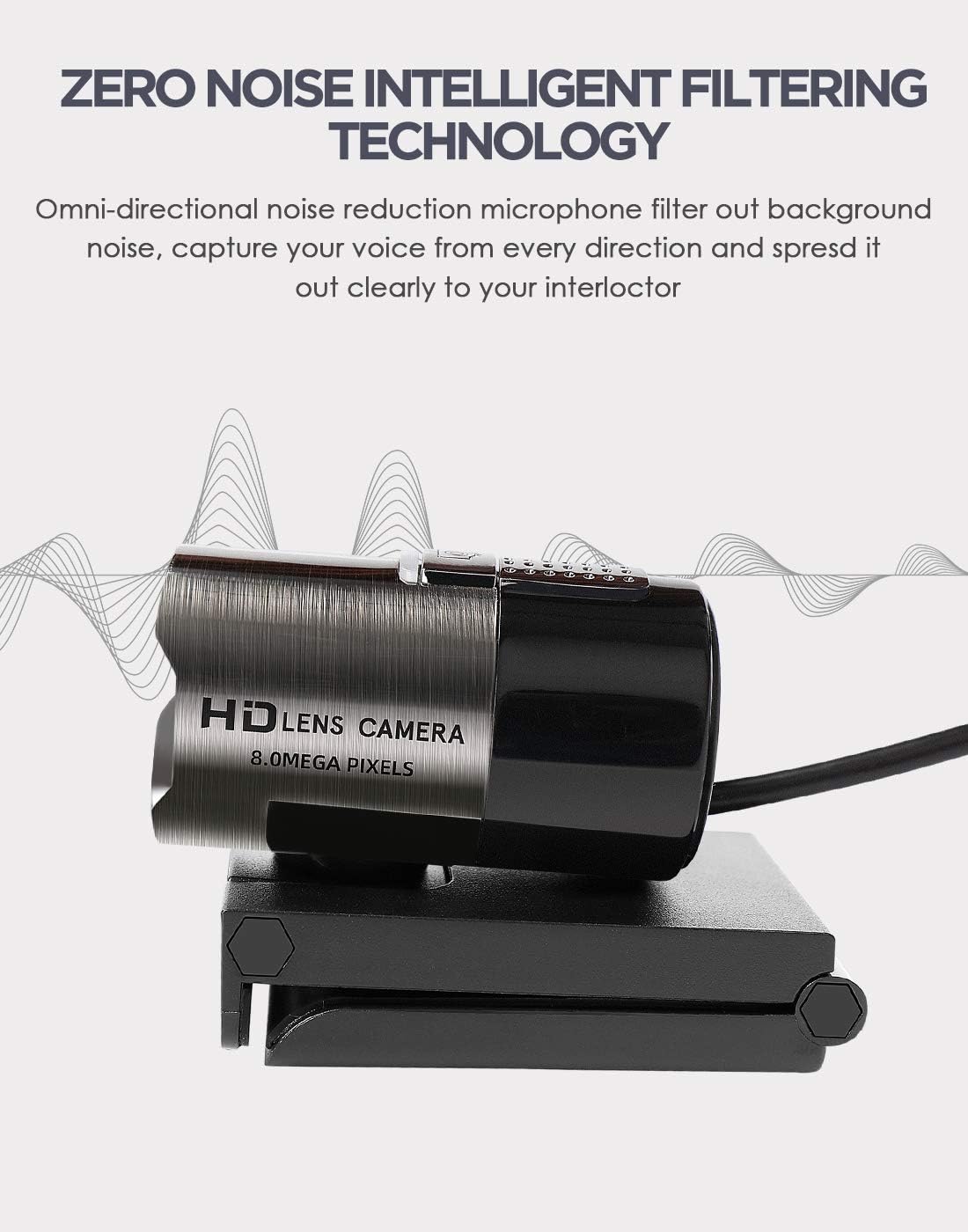
Figure 5: Illustration highlighting the omni-directional noise-cancelling microphone feature of the AUSDOM AW335 Webcam, designed to capture clear audio.

Figure 6: The AUSDOM AW335 Webcam in use for smooth live streaming and video conferencing, demonstrating its 1080P resolution capability.

Figure 7: Visual representation of the AUSDOM AW335 Webcam's automatic low-light correction feature, showing improved image quality in dim conditions.

Figure 8: Collage illustrating diverse applications of the AUSDOM AW335 Webcam, including video conferencing, widescreen video calls, and game streaming.

Figure 9: Diagram showcasing the broad compatibility of the AUSDOM AW335 Webcam with operating systems such as Windows, Mac OS, Chrome OS, Android, Linux, and Ubuntu.
Maintenance
- Cleaning the Lens: Use a soft, lint-free cloth specifically designed for optical lenses to gently wipe the webcam lens. Avoid abrasive materials or harsh chemicals.
- General Cleaning: Wipe the body of the webcam with a soft, dry cloth. Do not use liquid cleaners directly on the device.
- Storage: When not in use, store the webcam in a clean, dry place away from extreme temperatures and direct sunlight.
Troubleshooting
| Problem | Possible Cause | Solution |
|---|---|---|
| No image/video |
|
|
| Fuzzy or blurry image |
|
|
| No audio or poor audio quality |
|
|
| Webcam not recognized by OS |
|
|
Specifications
| Feature | Detail |
|---|---|
| Model | AW335 |
| Video Capture Resolution | 1080p Full HD (1920 x 1080 pixels) |
| Lens Type | Luxury HD 5-glass coating lens |
| Focus Type | Manual Focus |
| Microphone | Built-in Omni-directional, Noise-Cancelling |
| Connectivity | USB |
| Special Features | High Dynamic Range Tech (HDR), Automatic Low-Light Correction |
| Compatibility | Windows (7/8/10/XP), macOS, Chrome OS, Android, Linux |
| Product Dimensions | 11.5 x 12 x 5 cm |
| Weight | 181 g |
Warranty and Support
For warranty information and technical support, please refer to the official AUSDOM website or contact their customer service directly. Keep your purchase receipt as proof of purchase for warranty claims.
Note: Specific warranty terms may vary by region.
Related documentsAW335

Ask a question about this manual
Ask about setup, troubleshooting, compatibility, parts, safety, or missing instructions. Manuals+ will review the question and use this page’s manual context to help answer it.