
1. Introduction
This manual provides comprehensive instructions for the setup, operation, and maintenance of your IINE Wireless Controller. Designed for compatibility with Nintendo Switch, Switch Lite, Switch OLED, and Windows PC, this controller offers an enhanced gaming experience with advanced features such as Macro programming, Turbo function, NFC support, 6-axis gyro motion control, and adjustable vibration.
2. Features
- Multi-Platform Compatibility: Seamlessly connects with Nintendo Switch, Switch Lite, Switch OLED, and Windows PC, supporting a wide range of games including Nintendo titles and Steam games.
- Advanced Gaming Experience: Features include Wake-Up function for the console, precise 6-axis Gyro motion control, adjustable Dual Vibration for immersive feedback, Screenshot capability, and Turbo Boost for rapid button presses.
- NFC Functionality: Integrated Amiibo support allows for scanning Amiibo figures to unlock in-game content and enhance gameplay.
- Customizable Macro & Turbo Functions: Equipped with programmable Macro (ML/MR) buttons on the back, enabling complex command sequences with a single press. The Turbo function provides automatic rapid firing for designated buttons.
- One-Key Wake-Up: Conveniently wake up your Nintendo Switch console directly from the controller with a single button press.
- Long-Lasting Battery: Built-in 600mAh rechargeable battery provides 6-8 hours of continuous gameplay on a 2-hour charge.
- 3.5mm Headset Jack: Allows for direct audio output through the controller.
3. Package Contents
Please verify that all items are present in your package:
- 1 x IINE Wireless Pro Switch Controller (Pink)
- 1 x USB Type-C Charging Cable
- 1 x Instruction Manual
4. Controller Layout

Figure 4.1: Front view of the IINE Wireless Controller, showcasing the joysticks, D-pad, A/B/X/Y buttons, Home button, Capture button, and indicator lights.

Figure 4.2: Back view of the IINE Wireless Controller, highlighting the programmable ML and MR buttons.
The IINE Wireless Controller features a standard layout with two analog joysticks, a D-pad, A/B/X/Y action buttons, L/R shoulder buttons, ZL/ZR trigger buttons, a Home button, a Capture button, and Plus/Minus buttons. Additionally, it includes two programmable Macro buttons (ML and MR) on the underside for custom command mapping.
5. Setup
5.1 Connecting to Nintendo Switch/Lite/OLED
- From the Nintendo Switch HOME Menu, select "Controllers", then "Change Grip/Order".
- For the first connection, press and hold the "Y" button and the "HOME" button simultaneously for 2-3 seconds until the indicator lights flash rapidly.
- Once paired, the controller's indicator lights will become solid.
- For subsequent connections, simply press the "HOME" button to wake up and reconnect the controller to your Switch console.

Figure 5.1: Visual guide for connecting the controller to a Nintendo Switch console.
5.2 Connecting to Windows PC
The IINE Wireless Controller supports wired connection to Windows PC for Steam games. Connect the controller to your PC using the provided USB Type-C charging cable. The PC should automatically recognize the controller.
6. Operating Instructions
6.1 Wake-Up Function
To wake up your Nintendo Switch console from sleep mode, simply press the "HOME" button on the controller. The console will power on and the controller will automatically reconnect.

Figure 6.1: The controller's Home button can wake up the Nintendo Switch console.
6.2 Macro Function (ML/MR Buttons)
The ML and MR buttons on the back of the controller can be programmed to execute a sequence of button presses, allowing for complex actions with a single input. Refer to the detailed instructions in the included quick start guide for specific programming steps.
Figure 6.2: Illustration of the Macro mapping capability for the ML and MR buttons.
6.3 Turbo/Auto-Fire Function
The Turbo function allows for rapid, continuous input of a button press. To activate, press the Turbo button simultaneously with any action button (A/B/X/Y/L/R/ZL/ZR). To set Auto-fire, repeat the same step. To cancel the Turbo/Auto-fire function, repeat the process again.

Figure 6.3: Diagram explaining how to activate and deactivate the Turbo and Auto-fire functions.
6.4 NFC Function (Amiibo Support)
The controller features built-in NFC for Amiibo support. To use, place your Amiibo figure on the NFC detection area of the controller (typically near the center, below the Home button) to scan and unlock in-game content.

Figure 6.4: Illustration of the NFC scanning area for Amiibo figures on the controller.
6.5 6-Axis Gyro Motion Control
The integrated 6-axis gyroscope provides precise motion control for compatible games. This allows for intuitive aiming, steering, and other in-game actions by simply tilting and moving the controller.
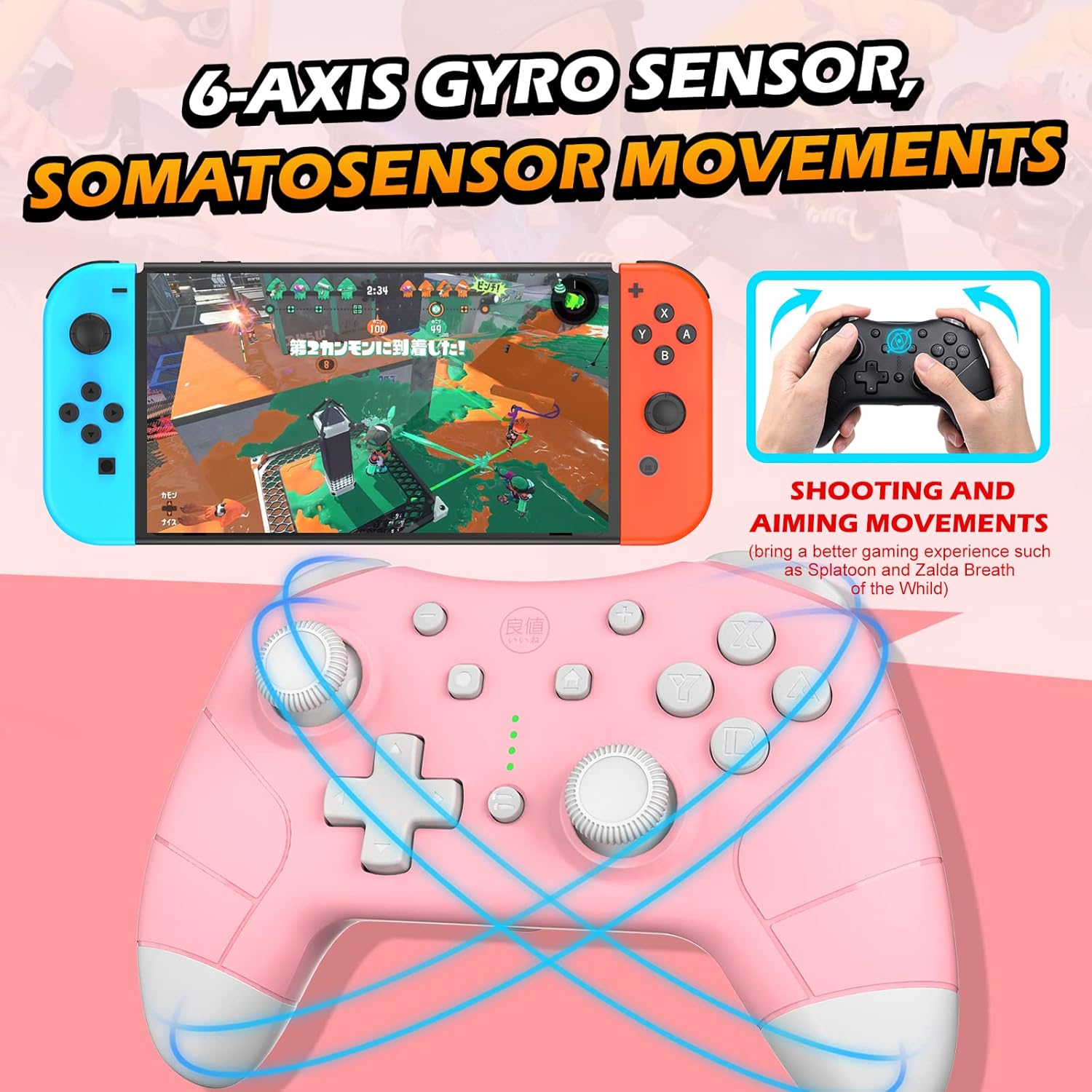
Figure 6.5: Examples of how 6-axis gyro motion control enhances gameplay, such as aiming and direction control.
6.6 Vibration Adjustment
The controller features dual vibration motors with adjustable intensity. Specific instructions for adjusting vibration levels are typically found in the controller's quick start guide or through in-game settings for compatible titles.
7. Maintenance
- Cleaning: Use a soft, dry cloth to clean the controller. For stubborn dirt, slightly dampen the cloth with water. Avoid using harsh chemicals or abrasive materials.
- Storage: Store the controller in a cool, dry place away from direct sunlight and extreme temperatures.
- Battery Care: To prolong battery life, avoid fully discharging the controller frequently. Charge the controller regularly, even if not in use for extended periods.
8. Troubleshooting
| Problem | Possible Cause | Solution |
|---|---|---|
| Controller does not connect to Switch. | Incorrect pairing procedure; low battery; interference. | Ensure the Switch is in "Change Grip/Order" mode. Press and hold Y + HOME for first connection. Ensure controller is charged. Move closer to the console. |
| Controller does not turn on or charge. | Battery fully depleted; faulty charging cable/port. | Connect the controller to a power source using the provided USB Type-C cable. Allow at least 2 hours for a full charge. Try a different USB port or cable. |
| Buttons or joysticks are unresponsive. | Software glitch; physical obstruction; low battery. | Restart the controller and the console. Ensure the controller is fully charged. Check for any debris around buttons or joysticks. |
9. Specifications
- Model: B0888DJGGD
- Connectivity: Bluetooth (Wireless), USB Type-C (Wired)
- Battery: 600mAh Lithium Polymer (Rechargeable)
- Battery Life: Approximately 6-8 hours (per charge)
- Charging Time: Approximately 2 hours
- Dimensions: 6.69 x 5.98 x 2.4 inches
- Weight: 7.7 ounces
- Compatibility: Nintendo Switch, Switch Lite, Switch OLED, Windows PC
- Features: Gyro Sensor, Dual Vibration, NFC, Macro Programming, Turbo Function, Wake-Up Function, 3.5mm Headset Jack
10. Warranty and Support
IINE is committed to providing high-quality products and excellent customer service. If you encounter any issues or have questions regarding your IINE Wireless Controller, please do not hesitate to contact our customer support team. We offer 24-hour customer service and are dedicated to providing a satisfactory solution.
For support, please refer to the contact information provided on the product packaging or the official IINE website.


