
Introduction
Welcome to your Adonit Gaming Stylus. This manual provides comprehensive instructions for the setup, operation, and maintenance of your stylus, ensuring optimal performance with compatible iPad devices.

Image: The Adonit Gaming Stylus, featuring its sleek black design and illuminated LED gaming light.
Setup
Initial Activation
The Adonit Gaming Stylus does not require Bluetooth pairing. To activate the stylus, simply press the power button located on its body. The stylus will be ready for immediate use.

Image: The stylus positioned near an iPad, illustrating its direct activation without Bluetooth pairing.
iPad iOS Version Requirement
Ensure your iPad is updated to iOS 13.3 or above for full compatibility and functionality. If you have previously connected an Apple Pencil or any other digital stylus to your iPad, please disconnect it from your iPad's Bluetooth settings before using the Adonit Gaming Stylus.
Operating Instructions
Palm Rejection
The stylus features native palm rejection technology. This allows you to comfortably rest your palm on the iPad screen while writing, drawing, or navigating, without causing unintended marks or actions.
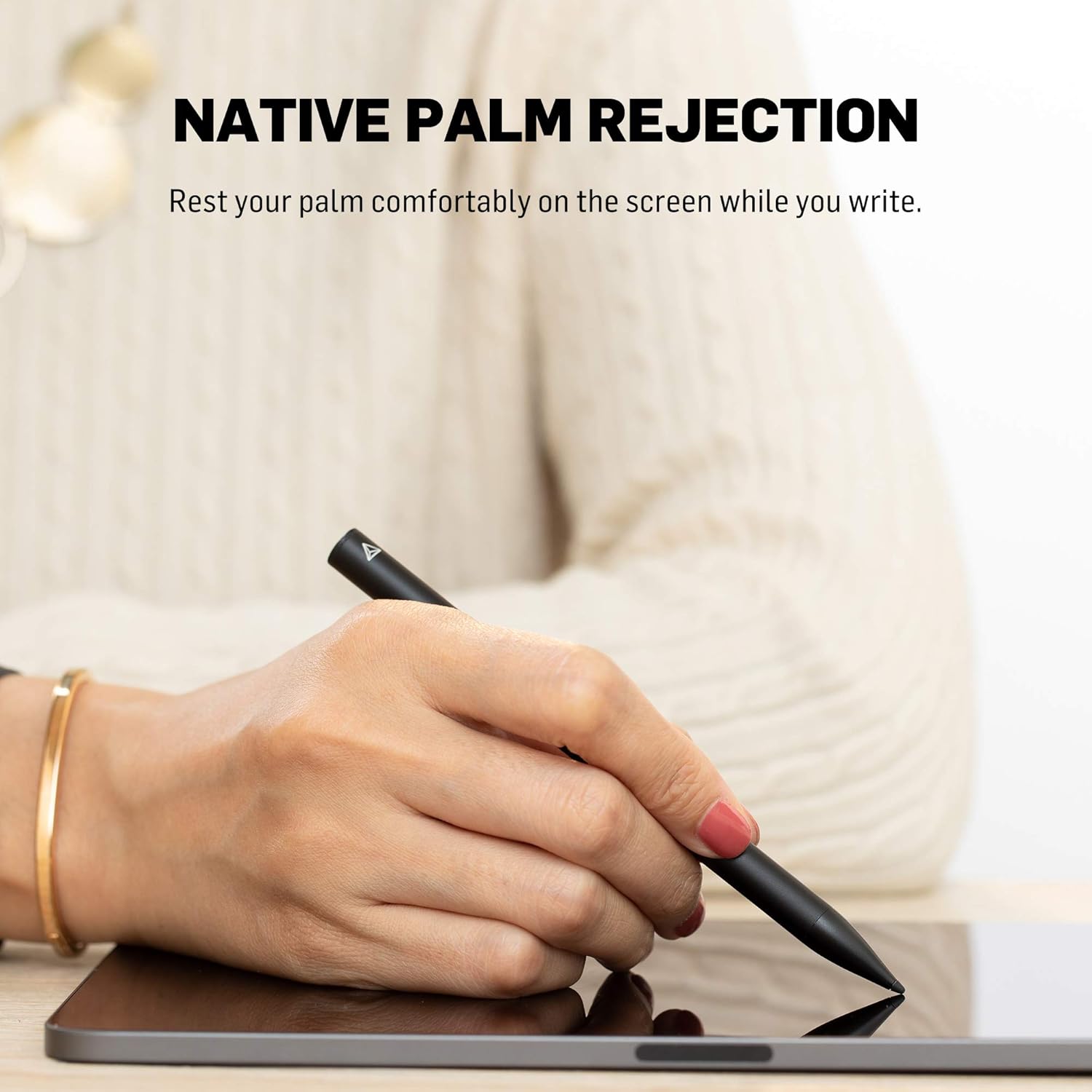
Image: A user demonstrating palm rejection by resting their hand on the iPad screen while using the stylus.
LED Gaming Light
The stylus incorporates two built-in LED lights designed for gaming. These lights activate when the gaming function is enabled, providing visual feedback during use.
Automatic Power-Off
An integrated G-Sensor within the stylus detects when it is flipped upwards. If the LED gaming light function is active, this action will automatically turn off the gaming light to conserve power.
Compatibility
The Adonit Gaming Stylus is compatible with the following iPad models:
- iPad Pro (12.9", 3rd & 4th Gen, 2018/2020)
- iPad Pro (11", 3rd & 4th Gen, 2018/2020)
- iPad (9.7", 6th Gen, 2018)
- iPad (10.2", 7th Gen, 2019)
- iPad (8th Gen)
- iPad Air (3rd Gen, 2019)
- iPad Air (4th Gen)
- iPad Mini (5th Gen, 2019)
Note: This stylus is not compatible with iPad Pro 12.9" (1st & 2nd Gen), iPad Pro 9.7", or iPad Pro 10.5".
Maintenance
Replacing the Tip
The Adonit Note-U stylus features a replaceable spiral tip. If the tip becomes worn or damaged, it can be easily replaced. Replacement tips are available for purchase separately.

Image: A detailed view of the stylus tip, highlighting its replaceable design.
Charging
The stylus is powered by a Lithium Ion battery and charges via a Micro USB port. For optimal battery life, it is recommended to charge the stylus overnight.
Troubleshooting
Stylus Not Responding
- Ensure the stylus is powered on by pressing its power button.
- Verify that your iPad's iOS version is 13.3 or higher.
- Confirm that any previously connected digital styluses (e.g., Apple Pencil) are disconnected from your iPad's Bluetooth settings.
- Check the stylus battery level and charge if necessary using the Micro USB cable.
Gaming Light Not Functioning
- Ensure the gaming function is activated on the stylus.
- Avoid flipping the stylus upwards, as the integrated G-Sensor will automatically turn off the gaming light in this position.
Specifications
| Feature | Detail |
|---|---|
| Model Number | Note-U VC |
| Product Dimensions | 0.36 x 0.36 x 6.02 inches |
| Item Weight | 3.52 ounces (0.1 Kilograms) |
| Material | Aluminum |
| Batteries | 1 Lithium Ion battery (included) |
| Connectivity | No Bluetooth connection required |
| Tip | Ultra-fine 1 mm, replaceable |
| Special Features | Native Palm Rejection, LED Gaming Light, G-Sensor Auto Power-Off |
| UPC | 847663023485 |
Warranty and Support
Adonit provides a 12-month warranty for this stylus, ensuring quality and durability. For support, warranty claims, or to explore additional Adonit products and resources, please visit the official Adonit store or contact customer service.
- Official Adonit Store: Adonit Store on Amazon
- Additional Adonit Resources: Adonit Resources
