
1. Introduction
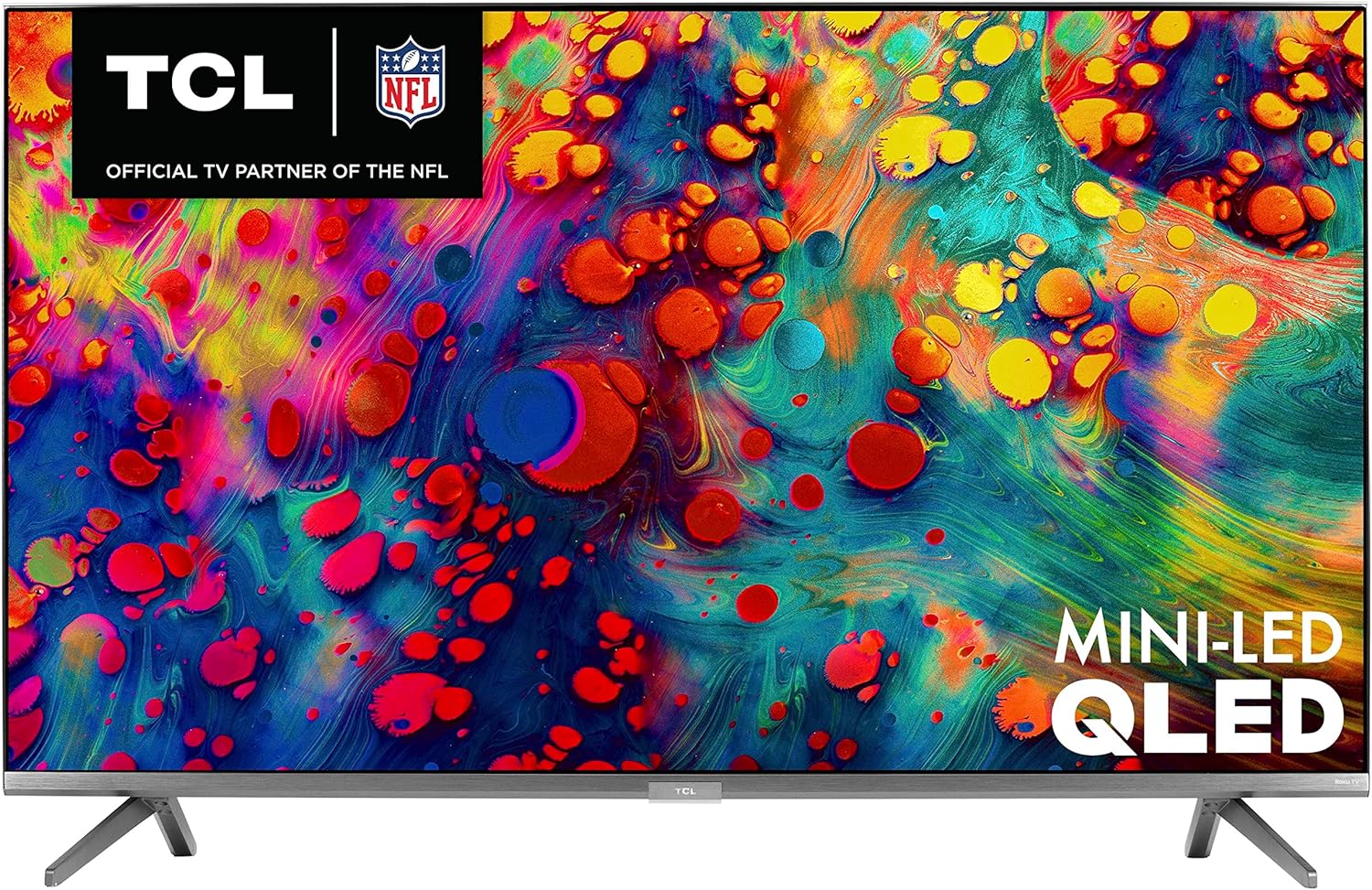
This manual provides essential information for setting up, operating, maintaining, and troubleshooting your new TCL 65-inch 6-Series 4K UHD Dolby Vision HDR QLED Roku Smart TV (Model 65R635). This television combines advanced display technologies like Mini-LED and Quantum Dot for superior picture quality, enhanced by Dolby Vision HDR. The integrated Roku OS offers seamless access to a wide range of streaming content and smart features, including voice control and THX Certified Game Mode for an optimized gaming experience.
2. Safety Information
Please read all safety instructions before operating the television. Keep this manual for future reference. Always ensure the television is placed on a stable, level surface or securely mounted to prevent tipping. Avoid exposing the television to rain or moisture to reduce the risk of fire or electric shock. Do not block ventilation openings. Refer to the full safety guidelines in the Quick Start Guide included with your product.
3. What's in the Box
Upon unpacking your TCL 65R635 TV, please verify that all the following items are included:
- TCL 65-inch 6-Series 4K UHD Roku Smart TV
- Power Cord
- Voice Enabled Remote Control (RC580)
- Two 'AAA' Batteries for Remote Control
- TV Stand (2 pieces)
- Stand Screws
- Quick Start Guide
- Warranty Information
- Analog Audio/Video Input Adapter
4. Setup
4.1 Attaching the TV Stand
- Carefully place the TV face-down on a soft, clean surface to prevent screen damage.
- Align each stand leg with the corresponding screw holes on the bottom of the TV.
- Secure each stand leg using the provided screws. Ensure they are tightened firmly.

4.2 Wall Mounting
The TCL 65R635 TV supports VESA wall mounts with a 300mm x 300mm pattern. Ensure you use a compatible wall mount kit and follow the instructions provided with the mount. Professional installation is recommended for wall mounting.

4.3 Connecting Devices
Your TV is equipped with multiple input ports for connecting external devices:
- HDMI Inputs (4 total, 1 eARC): Connect Blu-ray players, gaming consoles, cable boxes, and other HDMI-compatible devices. HDMI 4 supports eARC for enhanced audio return.
- USB Input: For connecting USB storage devices to play media.
- Ethernet Port: For a wired internet connection.
- Cable/Antenna Input: For connecting an antenna or cable TV.
- AV In (Adapter required): For older devices using composite video and stereo audio.
- Optical Audio Out: For connecting to a soundbar or audio receiver.

4.4 Initial Setup
After connecting your devices and power, turn on the TV. Follow the on-screen instructions to:
- Select your language.
- Connect to your Wi-Fi network.
- Activate your Roku account (or create a new one).
- Scan for channels (if using an antenna).
5. Operating the TV
5.1 Remote Control Functions
The included voice-enabled remote control provides easy navigation and control:
- Power Button: Turns the TV on or off.
- Directional Pad (OK button in center): Navigates menus and selects items.
- Home Button: Returns to the Roku Home screen.
- Back Button: Returns to the previous screen.
- Volume Up/Down: Adjusts the TV volume.
- Mute Button: Mutes or unmutes the sound.
- Channel Up/Down: Changes channels (for live TV).
- Voice Control Button: Activates voice commands for searching or controlling the TV.
- Quick Access Buttons: Dedicated buttons for popular streaming services.

5.2 Roku OS Navigation
The Roku Home screen provides access to all your streaming channels, inputs, and settings. Use the directional pad on your remote to browse and select options. You can customize the order of your channels for quick access to your favorites.

5.3 Voice Control
The TCL 65R635 supports voice control through the remote, Amazon Alexa, and Google Assistant. Press the voice button on your remote or use your smart assistant device to:
- Search for movies, TV shows, or actors.
- Launch or switch streaming channels.
- Change TV inputs.
- Control playback (play, pause, fast forward, rewind).
6. Picture Settings
The TCL 65R635 features advanced picture technologies for an immersive viewing experience:
- 4K Ultra HD & Dolby Vision HDR: Delivers stunning clarity, contrast, and a wide color palette.
- Mini-LED Technology: Provides uncompromised contrast, brightness, and uniformity.
- Quantum Dot Technology: Enhances brightness and color volume for vibrant visuals.
- Contrast Control Zones: Optimizes contrast across up to 240 localized zones.
- AiPQ Engine: Uses machine-learning algorithms to optimize color, contrast, and clarity.
- THX Certified Game Mode: Offers optimal viewing for gaming with reduced input lag and improved motion.
Access picture settings via the Options menu on your Roku remote to adjust brightness, contrast, color, and other display parameters to your preference.
7. Sound Settings
The TV features built-in speakers for clear audio. For enhanced sound, you can connect external audio systems:
- HDMI 4 (eARC): Connect compatible soundbars or AV receivers for high-quality audio passthrough.
- Optical Audio Out: Connect to soundbars or audio receivers using an optical cable.
Adjust sound modes (e.g., Standard, Movie, Music) and other audio settings through the Options menu on your Roku remote.
8. Maintenance
8.1 Cleaning the Screen
To clean the TV screen, gently wipe it with a soft, lint-free cloth. For stubborn marks, lightly dampen the cloth with water or a screen-specific cleaning solution. Never spray liquid directly onto the screen.
8.2 Cleaning the Remote Control
Wipe the remote control with a soft, dry cloth. Avoid using abrasive cleaners or solvents.
9. Troubleshooting
If you encounter issues with your TV, try the following common troubleshooting steps:
- No Power: Ensure the power cord is securely plugged into both the TV and a working electrical outlet. Try a different outlet.
- No Picture/Sound: Verify that the correct input source is selected. Check all cable connections (HDMI, AV, etc.) for looseness.
- Remote Not Working: Replace the batteries in the remote control. Ensure there are no obstructions between the remote and the TV.
- Network Connection Issues: Restart your router and modem. Go to Roku TV Settings > Network > Check connection to diagnose the issue.
- Picture Quality Issues: Adjust picture settings (brightness, contrast, color) in the Options menu. Ensure your content source is high quality.
For more detailed troubleshooting, refer to the Quick Start Guide or visit the TCL support website.
10. Specifications
| Feature | Specification |
|---|---|
| Brand | TCL |
| Model Number | 65R635 |
| Screen Size | 65 Inches |
| Display Technology | Mini-LED, QLED |
| Resolution | 4K UHD (3840 x 2160) |
| Refresh Rate | 120 Hz |
| HDR Support | Dolby Vision, HDR10, HLG |
| Connectivity | HDMI (4 inputs, 1 eARC), USB, Wi-Fi, Ethernet |
| Dimensions (WxHxD with Stand) | 56.9" x 35.7" x 13.7" |
| Dimensions (WxHxD without Stand) | 56.9" x 32.9" x 2.8" |
| Item Weight | 75.4 Pounds |
| VESA Hole Pattern | 300mm x 300mm |
| Voice Control | Roku Voice, Amazon Alexa, Google Assistant |

11. Warranty and Support
11.1 Warranty Information
Your TCL 65R635 TV comes with a limited manufacturer's warranty. Please refer to the Warranty Information document included in your product packaging for specific terms, conditions, and duration of coverage. Keep your proof of purchase for warranty claims.
11.2 Customer Support
For technical assistance, product inquiries, or warranty service, please contact TCL Customer Support. You can find contact information in your Quick Start Guide or by visiting the official TCL website.


