
1. Introduction
This manual provides detailed instructions for the setup, operation, maintenance, and troubleshooting of your Darmoshark ZEUS6400 Wired Gaming Mouse. Please read this manual thoroughly before using the product to ensure proper function and longevity.
2. Package Contents
- Darmoshark ZEUS6400 Wired Gaming Mouse
- User Manual

Image: The Darmoshark ZEUS6400 gaming mouse shown in its retail packaging, highlighting the product and its presentation.
3. Product Overview
The Darmoshark ZEUS6400 is a lightweight wired gaming mouse designed for precision and comfort. It features a honeycomb shell, a 6400 DPI optical sensor, and 6 programmable function buttons.
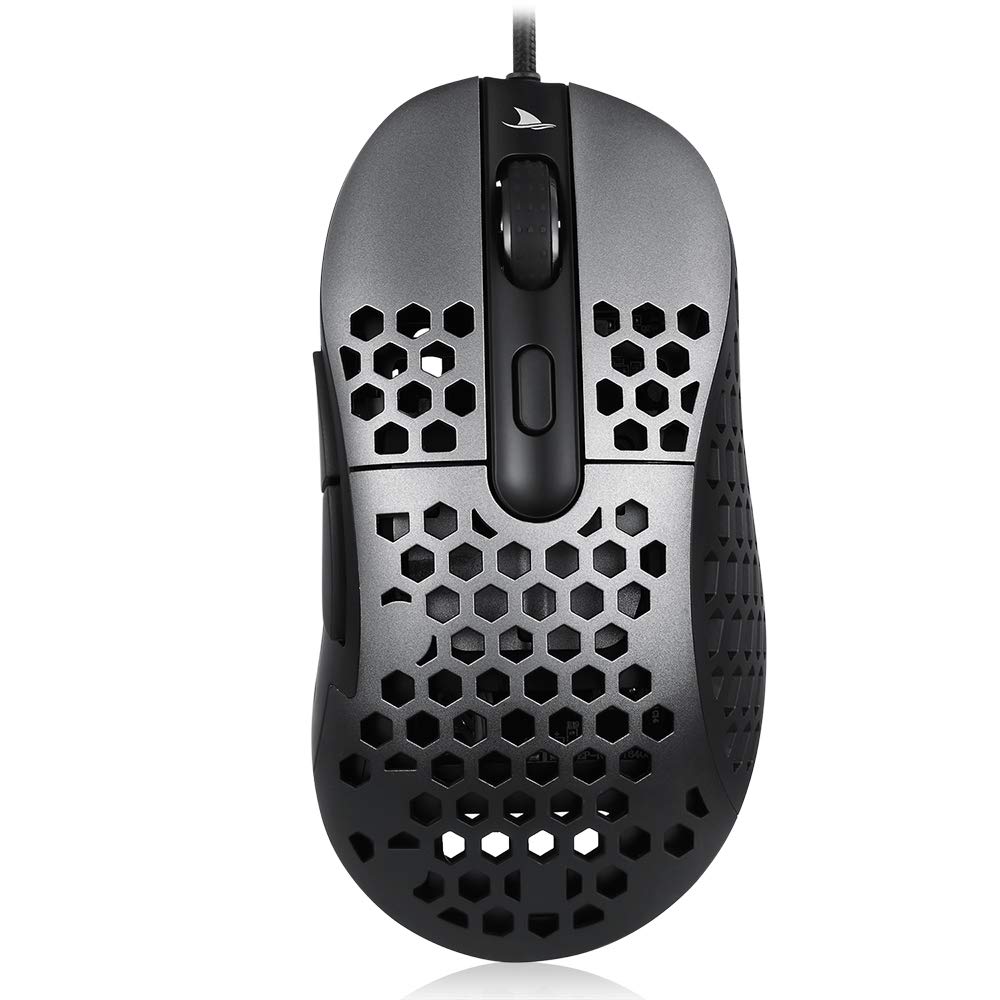
Image: A top-down view of the Darmoshark ZEUS6400 Wired Gaming Mouse, showcasing its dark grey finish and honeycomb shell design.
Key Features:
- Lightweight Honeycomb Shell (approx. 66g)
- 6 Function Buttons + Scroll Wheel
- 6400 DPI Optical Sensor
- Adjustable DPI and USB Refresh Rate
- Durable Teflon Foot Stickers
- 1.8M Ultra-flexible Braided Cable
4. Setup Instructions
Connecting the Mouse:
- Locate an available USB port on your computer.
- Plug the USB connector of the Darmoshark ZEUS6400 mouse into the USB port.
- Your operating system should automatically detect and install the necessary drivers. No additional software installation is typically required for basic functionality.
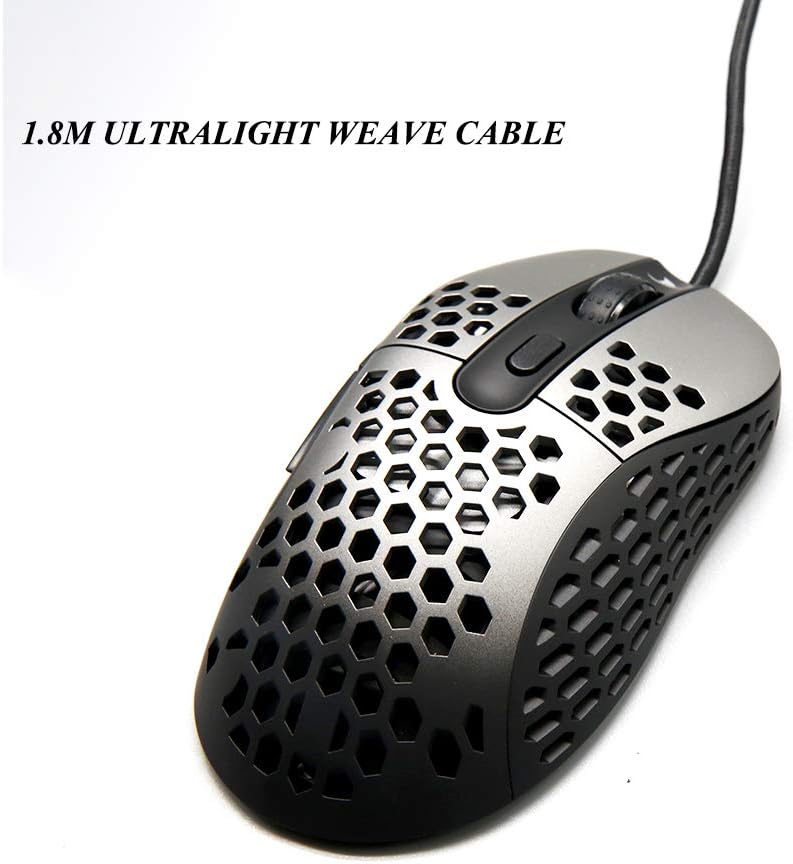
Image: The Darmoshark ZEUS6400 mouse connected via its 1.8-meter ultralight weave cable, illustrating the wired connection.
5. Operating Instructions
Button Functions:
The Darmoshark ZEUS6400 mouse features 6 function buttons and a scroll wheel:
- Left Button: Primary click function.
- Right Button: Secondary click function (context menu).
- Wheel Button: Middle click, often used for opening links in new tabs or specific in-game actions.
- DPI Button: Cycles through DPI settings.
- Forward Button: Navigates forward in web browsers or file explorers.
- Back Button: Navigates backward in web browsers or file explorers.
DPI Adjustment:
Press the DPI button located on the top of the mouse to cycle through the 6 available DPI settings. Each setting is indicated by a specific LED color:
- 400 DPI: Red LED
- 800 DPI: Blue LED
- 1600 DPI: Green LED
- 3200 DPI: Purple LED
- 4800 DPI: Orange LED
- 6400 DPI: Ice Blue LED

Image: The Darmoshark ZEUS6400 mouse, emphasizing its gaming-grade optical sensor and high performance capabilities like 6400 DPI and 6200 FPS scanning rate.
USB Refresh Rate Adjustment:
The USB refresh rate (polling rate) can be adjusted to 125Hz, 500Hz (default), or 1000Hz. The method for adjusting this setting is typically through dedicated software or a combination of mouse buttons. Refer to the manufacturer's website for specific instructions if software is required.
6. Maintenance
Proper maintenance ensures the longevity and optimal performance of your gaming mouse.
Cleaning:
- Exterior: Use a soft, dry cloth to wipe the surface of the mouse. For stubborn dirt, a slightly damp cloth with mild soap can be used, ensuring no liquid enters the mouse.
- Honeycomb Shell: Use compressed air to clear dust and debris from the honeycomb perforations. A soft brush can also be used gently.
- Optical Sensor: Gently clean the optical sensor lens on the underside of the mouse with a cotton swab or compressed air to prevent tracking issues.
Cable Care:
- Avoid sharp bends or kinks in the cable.
- Do not pull the mouse by its cable. Always grasp the mouse body.
- Keep the cable away from heat sources or sharp edges.
Foot Stickers:
The mouse is equipped with super wear-resistant Teflon foot stickers. If these become worn over time, replacement stickers can be purchased from authorized retailers to maintain optimal glide performance.
7. Troubleshooting
If you encounter issues with your Darmoshark ZEUS6400 mouse, refer to the following common problems and solutions:
- Mouse Not Responding:
- Ensure the USB cable is securely plugged into a working USB port on your computer.
- Try plugging the mouse into a different USB port.
- Restart your computer.
- Erratic Cursor Movement:
- Clean the optical sensor on the underside of the mouse.
- Ensure you are using the mouse on a clean, uniform surface (e.g., a mouse pad). Avoid highly reflective or transparent surfaces.
- Check for any physical obstructions around the sensor.
- DPI Setting Not Changing:
- Ensure you are pressing the dedicated DPI button.
- Observe the LED indicator to confirm DPI changes.
- If the issue persists, try restarting your computer.
- Buttons Not Functioning:
- Verify that the buttons are not physically stuck.
- Test the mouse on another computer to rule out software conflicts.
8. Specifications
Detailed technical specifications for the Darmoshark ZEUS6400 Wired Gaming Mouse:
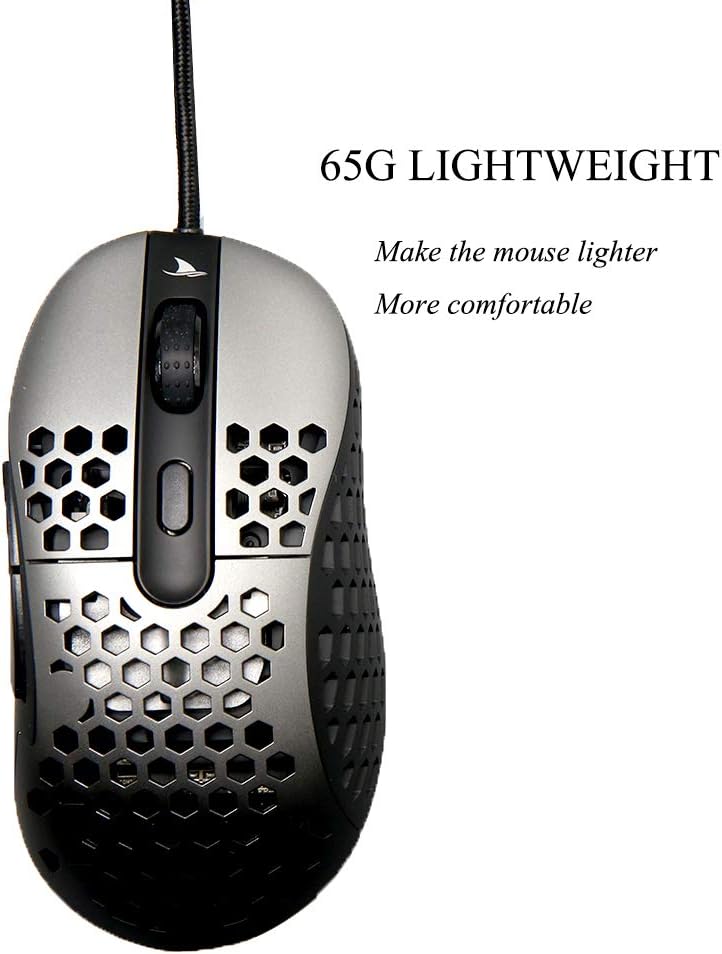
Image: The Darmoshark ZEUS6400 mouse, emphasizing its lightweight design at 65 grams for enhanced comfort and maneuverability.
| Feature | Specification |
|---|---|
| Model | ZEUS6400 |
| Body Size | 128 x 66 x 39 mm |
| Weight (without wire) | 66g ± 5g |
| Material | ABS Plastic (Honeycomb Shell) |
| Buttons | 6 Function Buttons + 3D Scroll Wheel |
| Switch Life | Approx. 20 million clicks |
| Cable Length | 1.8M (exposed 1.7M), USB Gold Plated, Five-core shielded magnetic ring braided wire |
| Operating System | Windows XP/Vista/7/8/10, Macintosh OS |
| Working Voltage | DC 5V ± 5% |
| Working Current | ≤ 100mA |
| Optical IC | ZEUS6400 |
| Interface | USB 2.0 |
| DPI Settings | 400 (Red), 800 (Blue), 1600 (Green), 3200 (Purple), 4800 (Orange), 6400 (Ice Blue) |
| SPI Sampling Time | 8ms / 2ms (default) / 1ms (adjustable) |
| USB Refresh Rate | 125Hz / 500Hz (default) / 1000Hz (adjustable) |
| Image Processing FPS | 6200 frames/sec |
| Maximum Speed | 220 IPS |
| Acceleration | 30g |

Image: The Darmoshark ZEUS6400 mouse, showcasing its comfortable ergonomic design optimized for right-handed gaming, including two extra side buttons.
9. Warranty and Support
Warranty Information:
For specific warranty terms and conditions, please refer to the warranty card included with your product or contact the retailer from whom you purchased the mouse. Warranty coverage typically includes defects in materials and workmanship under normal use.
Customer Support:
If you require further assistance or have questions not covered in this manual, please contact YUNZII customer support through their official website or the contact information provided with your product. When contacting support, please have your product model (ZEUS6400) and purchase details ready.
