
1. Introduction
This manual provides comprehensive instructions for the installation, operation, and maintenance of your AMOCAM 10-Unit Apartment Video Door Phone Kit, Model 70C-520-10. This system is designed to enhance security and communication for multi-unit dwellings by allowing residents to see, hear, and speak with visitors at the entrance, as well as remotely unlock the door.
2. Product Overview
2.1. Key Features
- 1 outdoor camera unit and 10 indoor monitor units, supporting 1 building with 10 households.
- 7-inch LCD touch-key screen for indoor monitors.
- Functions include door answering, monitoring, and remote unlocking.
- Dual-way intercom for communication between indoor monitors and the outdoor unit.
- 25 selectable doorbell chimes.
- Adjustable volume, brightness, and contrast settings on indoor monitors.
- 700TVL CMOS IR night vision camera for clear viewing in low light conditions.
- Wired connection for stable operation, supporting up to 100 meters with 4-core cable.
- Suitable for apartments, villas, hotels, offices, and public buildings.
- Supports up to 12 monitors for expanded security and surveillance.
2.2. Package Contents
- 1 x Outdoor Camera Unit
- 10 x Indoor Monitor Units
- 10 x Hanging Plates for Indoor Monitors
- 10 x Power Adapters
- 10 x 4-core/5-core Connection Cables
- 1 x 2-core Connection Cable
- 1 x Bag of Screws
- 1 x User Manual (this document)
2.3. Product Components

Figure 1: Overview of the AMOCAM 10-Unit Apartment Video Door Phone Kit, showing the outdoor camera unit and indoor monitors.
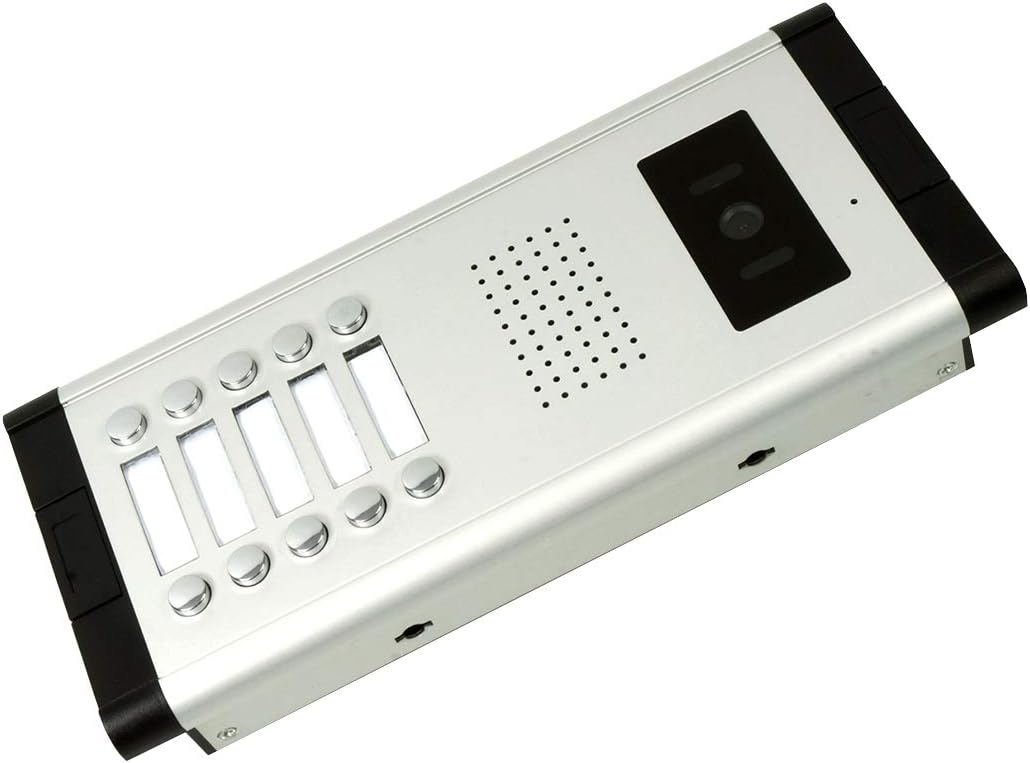
Figure 2: The outdoor camera unit, featuring call buttons and camera lens.

Figure 3: Detailed view of the outdoor camera unit, highlighting the microphone (MIC), camera lens, LED lights for night vision, speaker, and call buttons.
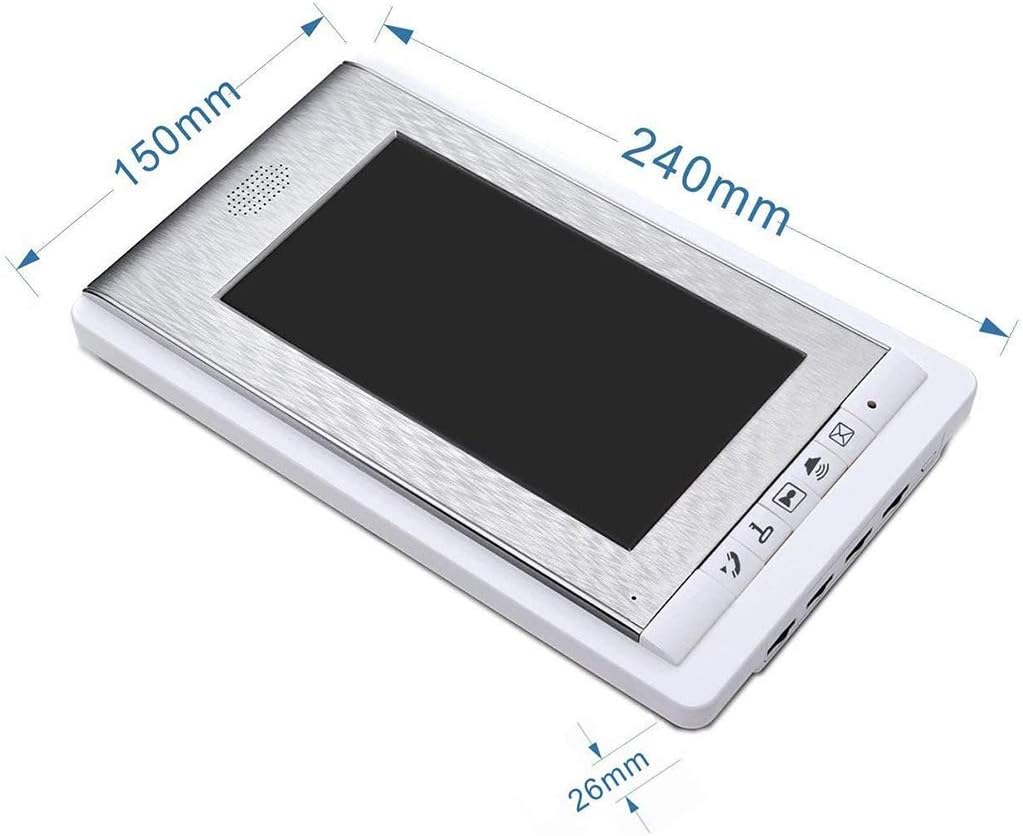
Figure 4: Dimensions of the indoor monitor unit (240mm x 150mm x 26mm).
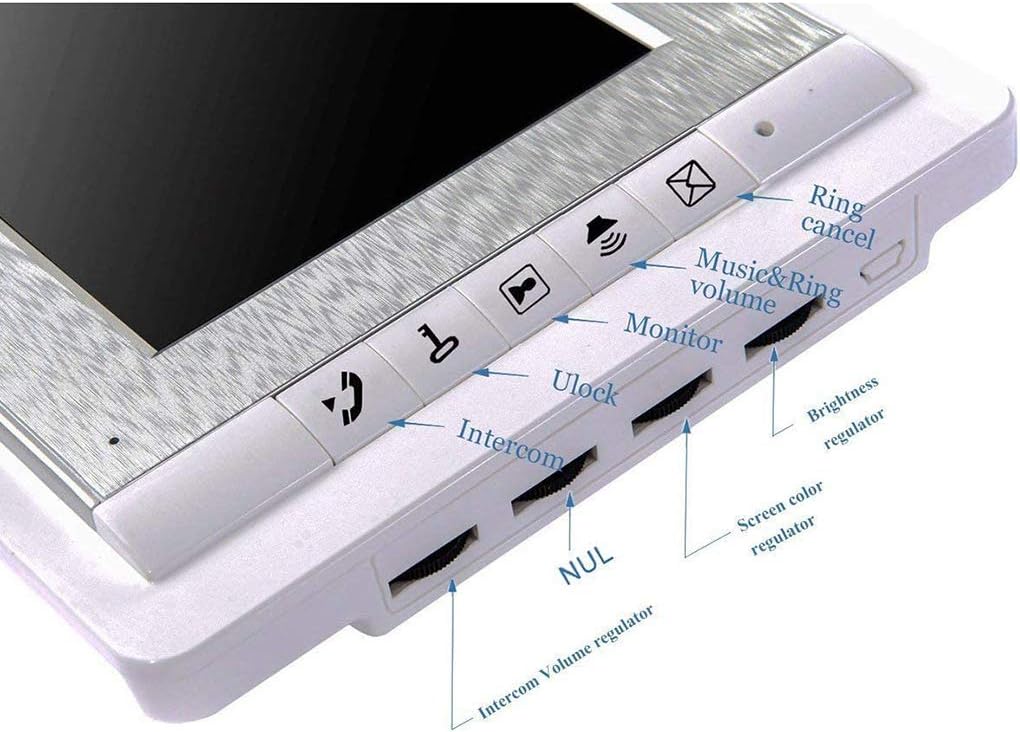
Figure 5: Close-up of the indoor monitor controls, including buttons for ring cancel, music & ring volume, monitor, unlock, intercom, and regulators for intercom volume, brightness, and screen color.

Figure 6: Rear view of the indoor monitor, showing connection ports and mounting points.
3. Setup & Installation
Proper installation is crucial for optimal performance. Please follow these steps carefully. It is recommended to consult a qualified electrician for complex wiring if you are unsure.
3.1. Outdoor Unit Installation
- Pass the set iron through the holes on both sides of the outdoor station.
- Fix the outdoor unit securely on the door or wall using the provided screws. Ensure the camera lens is positioned at a standard height of 145cm-160cm from the ground, with the optimal viewing area between 126cm and 180cm.
- Connect the outdoor unit to the indoor monitors using the 4-core/5-core connection cables.
3.2. Indoor Monitor Installation
- Mount the hanging plate on the desired indoor wall location.
- Connect the power adapter and the 4-core/5-core connection cable to the indoor monitor.
- Hang the indoor monitor onto the mounted hanging plate.
- Connect the power adapter to a suitable power outlet (AC 100-240V 50Hz-60Hz).
3.3. Wiring Diagram
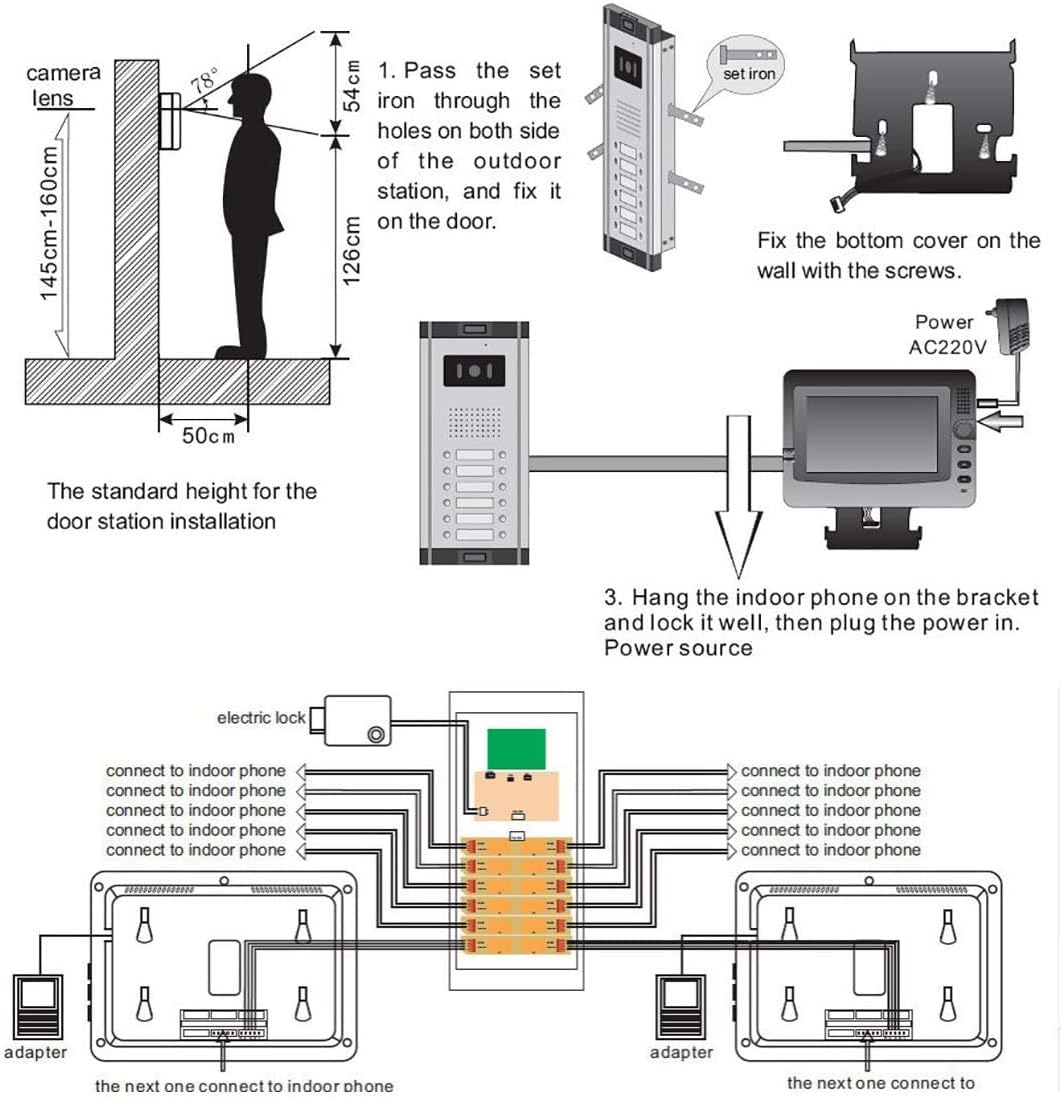
Figure 7: Detailed wiring diagram showing connections between the outdoor unit, indoor monitors, power adapters, and optional electric lock. Ensure correct polarity and secure connections.
3.4. Installation Video Guide
Video 1: This video demonstrates the installation and basic functionality of the AMOCAM Apartment Intercom System 520 Series, including wiring and testing the call function.
4. Operating Instructions
4.1. Receiving a Call
When a visitor presses a call button on the outdoor unit, the corresponding indoor monitor will ring and display the visitor's image. To answer the call, press the Intercom button on the indoor monitor.
4.2. Monitoring
To view the outdoor area without a visitor initiating a call, press the Monitor button on the indoor monitor. The screen will display the live feed from the outdoor camera.
4.3. Unlocking the Door
During an active call or while monitoring, press the Unlock button on the indoor monitor to remotely open the connected electric lock (if installed).
4.4. Adjusting Settings
Use the regulators on the side of the indoor monitor (refer to Figure 5) to adjust:
- Music & Ring Volume: Controls the volume of incoming calls.
- Intercom Volume: Adjusts the volume of the two-way communication.
- Brightness Regulator: Controls the screen brightness.
- Screen Color Regulator: Adjusts the color saturation of the display.
To change the doorbell chime, press the Ring Cancel button repeatedly until your desired chime is selected.
5. Maintenance
To ensure the longevity and optimal performance of your video door phone system, follow these maintenance guidelines:
- Cleaning: Use a soft, dry cloth to clean the indoor monitors and outdoor camera. Avoid abrasive cleaners, solvents, or chemical sprays that could damage the surfaces or electronic components.
- Outdoor Unit Care: Regularly check the outdoor camera lens for dirt, dust, or spiderwebs that might obstruct the view. Clean gently with a soft cloth.
- Cable Inspection: Periodically inspect all visible cables for any signs of wear, damage, or loose connections. Secure or replace damaged cables promptly.
- Power Supply: Ensure the power adapters are securely plugged into outlets and not subjected to excessive strain or damage.
- Environmental Conditions: While the outdoor unit is weatherproof (IP65 rated), extreme weather conditions can still affect performance over time. Ensure proper sealing during installation.
6. Troubleshooting
If you encounter issues with your AMOCAM video door phone system, refer to the following common troubleshooting steps:
| Problem | Possible Cause | Solution |
|---|---|---|
| No image on indoor monitor. |
|
|
| No sound during intercom. |
|
|
| Door unlock function not working. |
|
|
| Outdoor unit call button not responding. |
|
|
7. Specifications
| Feature | Detail |
|---|---|
| Brand | AMOCAM |
| Model Number | 70C-520-10 |
| Indoor Monitor Display | 7 inch TFT LCD screen (16:9 display) |
| Indoor Monitor Resolution | 800 x 480 |
| Indoor Monitor Power Input | AC 100-240V 50 Hz-60 Hz |
| Indoor Monitor Power Output | DC 15V/1500 mA |
| Indoor Monitor Case Material | ABS Engineering Plastics |
| Indoor Monitor Installation | Surface mounting |
| Indoor Monitor Dimensions | 9.4 x 5.9 x 1.0 inches (240mm x 150mm x 26mm) |
| Outdoor Camera Resolution | 700 TV Lines |
| Outdoor Camera Sensor | 1/3 Color CMOS Camera |
| Outdoor Camera Features | Built-in microphone and speaker, 5 white LED lights for night vision |
| Outdoor Camera Power | From Monitor, DC15V |
| Outdoor Camera Viewing Angle | U/D/L/R: 60/35/70/70 degrees |
| Connection Type | 4 core/5 core wire (max support 12 monitors) |
| Outdoor Camera Case Material | Aluminum, weatherproof (IP65 rated) |
| Outdoor Camera Dimensions | 12.2in(L) x 1.8in(H) x 5.0in(W) |
| Product Dimensions (overall) | 16 x 10 x 8 inches |
| UPC | 631579375840 |
8. Warranty & Support
For warranty information and technical support, please refer to the documentation provided with your purchase or visit the official AMOCAM website. Keep your purchase receipt as proof of purchase for warranty claims.
Return Policy: This product typically comes with a 30-day return policy for refund or replacement, subject to retailer terms and conditions.


