Introduction
This manual provides essential information for the HP 15.6-inch Touch-Screen Laptop, model 15-EF0023dx. It covers initial setup, daily operation, maintenance tips, troubleshooting common issues, and detailed product specifications. Please read this manual thoroughly to ensure optimal performance and longevity of your device.
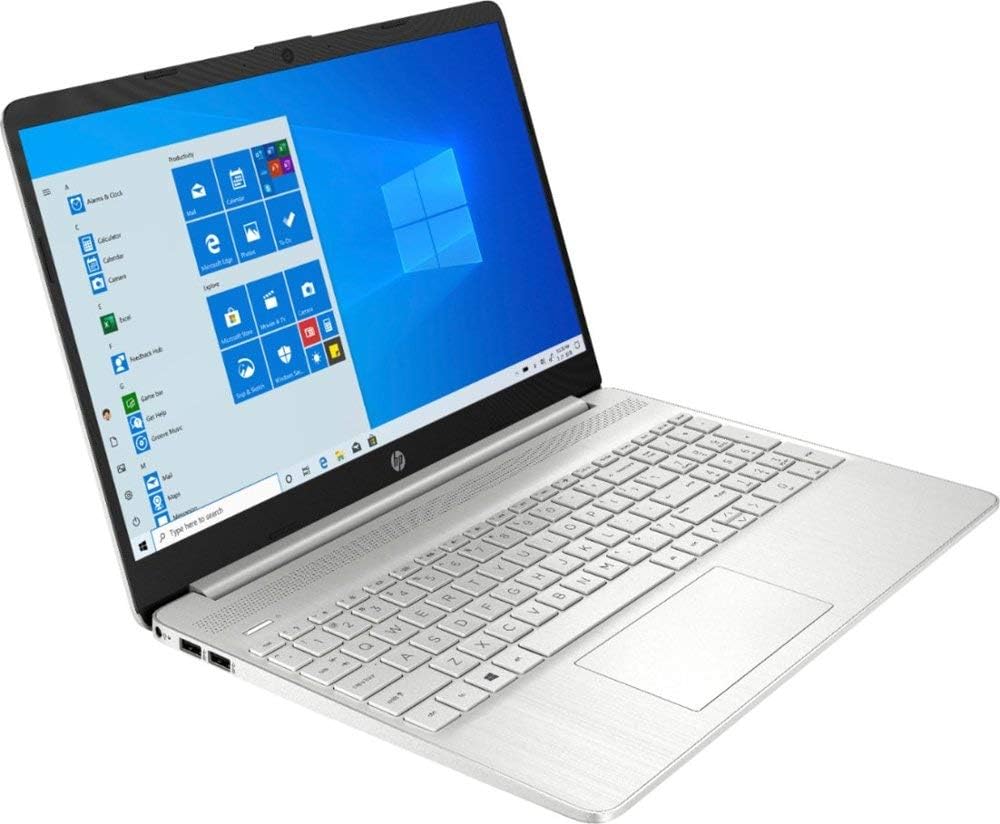
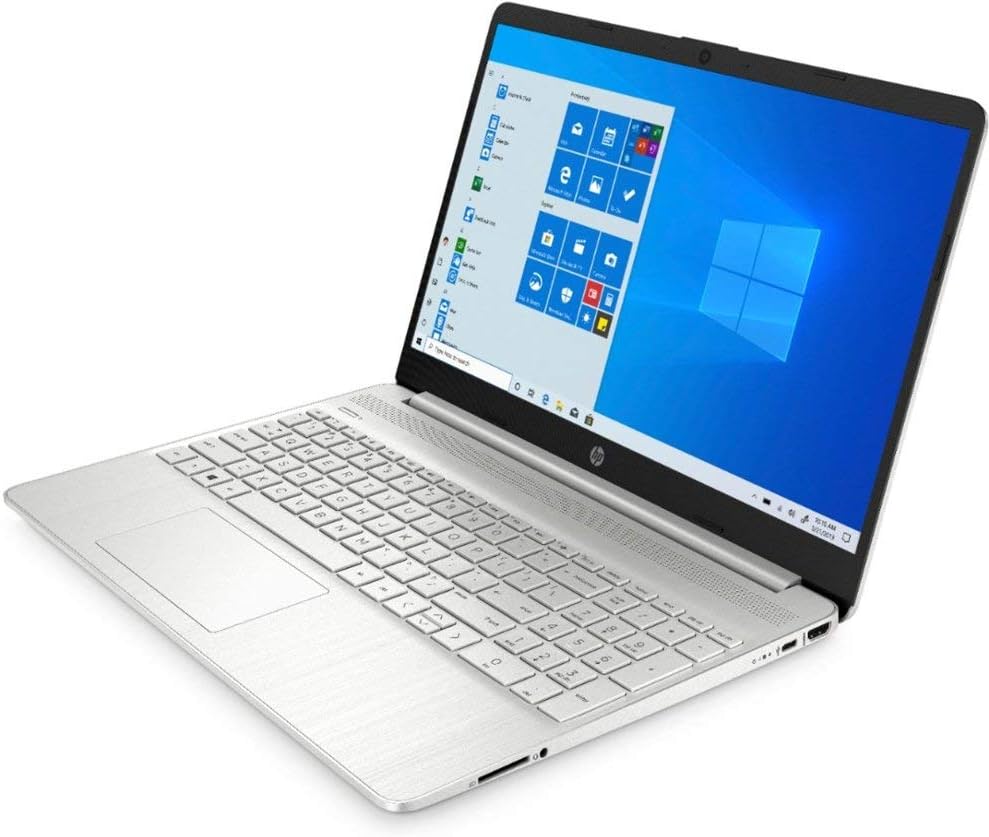
Your HP laptop features an AMD Ryzen 5 3500U processor, 12GB of RAM, a 256GB PCI-e SSD, and a 15.6-inch BrightView HD WLED touch-screen display. It comes pre-installed with Windows 10 Home in S Mode.
1. Setup
1.1 Unboxing and Initial Inspection
Carefully remove your laptop and its accessories from the packaging. Ensure all components are present:
- HP 15.6-inch Touch-Screen Laptop
- Power adapter and power cord
- Documentation (this manual, warranty information)
Inspect the laptop for any physical damage. If you find any, contact your retailer immediately.
1.2 Connecting to Power
Before first use, connect the laptop to a power outlet using the provided power adapter. This ensures the battery is charged and provides stable power during initial setup.
- Plug the power adapter into the charging port on the side of the laptop.
- Plug the power cord into the power adapter.
- Plug the other end of the power cord into a wall outlet.
The charging indicator light (if present) will illuminate, indicating the laptop is receiving power.
1.3 Initial Power On and Windows Setup
Press the power button to turn on your laptop. Follow the on-screen instructions to complete the Windows 10 Home setup process. This includes selecting your region, language, creating a user account, and accepting the license agreement.
Note on Windows 10 Home in S Mode:
Your laptop comes with Windows 10 Home in S Mode, which is designed for security and performance by exclusively running apps from the Microsoft Store. If you require applications outside the Microsoft Store, you can switch out of S Mode at any time. This switch is irreversible.
To switch out of S Mode:
- Go to Settings > Update & Security > Activation.
- In the "Switch to Windows 10 Home" section, select Go to the Store.
- On the "Switch out of S Mode" (or similar) page that appears in the Microsoft Store, click the Get button.
- Follow the prompts to confirm the switch.
1.4 Connecting to Wi-Fi
During the initial Windows setup, you will be prompted to connect to a Wi-Fi network. If you skip this step, you can connect later:
- Click the Network icon (looks like a globe or Wi-Fi signal) in the taskbar.
- Select your desired Wi-Fi network from the list.
- Click Connect and enter the network security key (password) if prompted.
2. Operating Your Laptop
2.1 Using the Touch-Screen and Touch Pad
Your laptop features both a touch-screen and a precision touch pad for navigation.
- Touch-Screen: Use gestures similar to a smartphone or tablet. Tap to select, pinch to zoom, and swipe to scroll.
- Touch Pad: Move your finger across the surface to control the cursor. Tap with one finger for a left-click, tap with two fingers for a right-click. Use two fingers to scroll.
2.2 Keyboard Functions
The keyboard includes standard alphanumeric keys, function keys (F1-F12), and a numeric keypad. Many function keys have secondary actions (e.g., volume control, screen brightness) accessible by pressing the Fn key in combination with the desired function key.
2.3 Connecting External Devices
Your laptop provides various ports for connecting external devices:
- USB Ports (3 total): For connecting USB drives, external keyboards, mice, and other USB accessories.
- HDMI Port (1): For connecting to external displays, monitors, or TVs.
- SD Card Reader: For reading data from SD memory cards.
- Headphone/Microphone Combo Jack: For connecting headphones or a headset with a microphone.
To connect a Bluetooth device, go to Settings > Devices > Bluetooth & other devices and follow the pairing instructions for your specific device.
2.4 Using the Webcam and Microphone
The integrated HP TrueVision HD webcam and dual-array digital microphone are located at the top of the display. They are ready for use with video conferencing applications, online meetings, and recording.
2.5 Battery Management
The laptop is equipped with a Lithium Ion battery providing up to 8 hours of battery life under optimal conditions. To maximize battery lifespan:
- Avoid fully discharging the battery frequently.
- Keep the laptop in a cool, dry environment.
- Adjust screen brightness to a comfortable, lower level when on battery power.
- Close unnecessary applications running in the background.
3. Maintenance
3.1 Cleaning Your Laptop
- Screen: Use a soft, lint-free cloth slightly dampened with water or a screen cleaner specifically designed for electronics. Do not spray cleaner directly onto the screen.
- Chassis and Keyboard: Use a soft, dry cloth. For stubborn dirt, a slightly damp cloth can be used. Avoid harsh chemicals.
- Ports: Use compressed air to gently clear dust from ports.
3.2 Software Updates
Regularly update your operating system and drivers to ensure optimal performance, security, and compatibility. Windows Update will typically handle this automatically, but you can manually check by going to Settings > Update & Security > Windows Update.
3.3 Storage Management
Periodically review and manage your 256GB SSD storage. Delete unnecessary files, uninstall unused applications, and consider cloud storage for large files to maintain system performance.
4. Troubleshooting
This section addresses common issues you might encounter with your HP laptop.
4.1 Laptop Not Powering On
- Ensure the power adapter is securely connected to both the laptop and a working wall outlet.
- Check if the power outlet is functional by plugging in another device.
- If the battery is completely drained, it may take a few minutes of charging before the laptop can power on.
4.2 Wi-Fi Connection Issues
- Verify that Wi-Fi is enabled on your laptop (check the Network icon in the taskbar).
- Restart your Wi-Fi router and modem.
- Ensure you are entering the correct Wi-Fi password.
- Try connecting to a different Wi-Fi network if available to determine if the issue is with your laptop or the network.
4.3 Touch-Screen Not Responding
- Restart the laptop.
- Ensure the screen is clean and free of debris.
- Check for any pending Windows updates that might include touch-screen driver updates.
4.4 Slow Performance
- Close unnecessary applications and browser tabs.
- Check Task Manager (Ctrl+Shift+Esc) for processes consuming high CPU, memory, or disk usage.
- Ensure your system is up to date with the latest Windows updates.
- Run a disk cleanup to remove temporary files.
5. Specifications
Detailed technical specifications for your HP 15.6-inch Touch-Screen Laptop (Model 15-EF0023dx):
| Feature | Specification |
|---|---|
| Model Name | 15-EF0023dx |
| Processor | AMD Ryzen 5 3500U Quad-Core (2.1 GHz, up to 3.7 GHz) |
| Graphics | Integrated AMD Radeon Vega 8 Graphics |
| Display | 15.6-inch BrightView HD WLED Touch-Screen (1366 x 768) |
| RAM | 12 GB DDR4 SDRAM (3200 MHz) |
| Storage | 256 GB PCI-e NVMe M.2 Solid State Drive (SSD) |
| Operating System | Windows 10 Home in S Mode |
| Wireless Connectivity | Wi-Fi 5 (802.11ac), Bluetooth 5 |
| Ports | 3x USB Ports, 1x HDMI, 1x SD Card Reader, 1x Headphone/Microphone Combo Jack |
| Webcam | HP TrueVision HD Webcam with Dual-Array Digital Microphone |
| Battery Life | Up to 8 hours |
| Dimensions | 14.1"L x 9.5"W x 0.7"Th |
| Weight | 3.8 Pounds |
6. Warranty Information
Your HP 15.6-inch Touch-Screen Laptop (Model 15-EF0023dx) comes with a 1 Year Limited Warranty. This warranty covers defects in materials and workmanship under normal use. For full terms and conditions, please refer to the warranty document included with your product or visit the official HP support website.
7. Support
If you encounter issues not covered in this manual or require further assistance, please utilize the following resources:
- HP Support Website: Visit support.hp.com for drivers, software, troubleshooting guides, and contact options.
- Windows Help: Use the built-in "Get Help" app in Windows 10 or visit the Microsoft Support website.
- Retailer Support: Contact your point of purchase for return or exchange policies within their specified period.
Product Images