
1. Introduction
This manual provides essential information for the safe and effective use of your Novation MiniNova Synthesizer Bundle. Please read this manual thoroughly before operating the product and retain it for future reference. The bundle includes the Novation MiniNova Synthesizer, a custom gig bag, and closed-back studio headphones.
2. Safety Information
Always follow basic safety precautions when using this product to reduce the risk of fire, electric shock, and injury to persons. This includes, but is not limited to:
- Do not expose the synthesizer to rain or moisture.
- Do not open the casing; refer all servicing to qualified personnel.
- Ensure proper ventilation around the unit.
- Use only the power adapter supplied with the unit.
- Avoid placing heavy objects on the power cord.
- Keep out of reach of children.
3. Package Contents
Your Novation MiniNova Synthesizer Bundle should contain the following items:
- Novation MiniNova Synthesizer
- MiniNova Gig Bag
- Closed-Back Studio Headphones
- Gooseneck Microphone (for Vocoder functionality)
- Power Supply Unit
- USB Cable
- User Manual (this document)
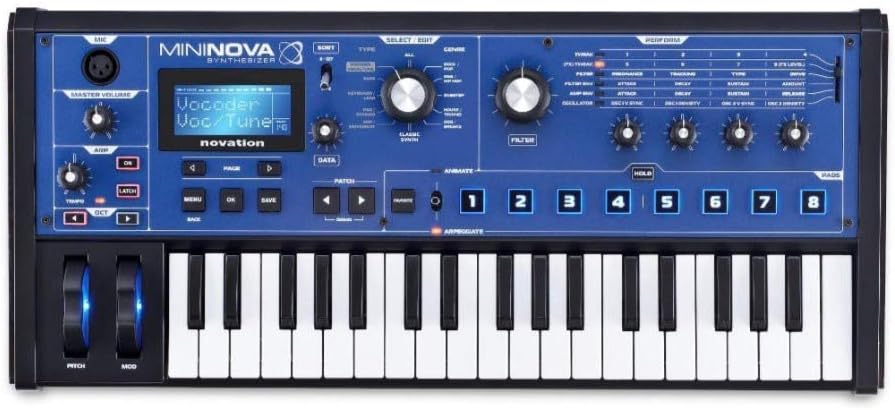
Image 3.1: Front view of the Novation MiniNova Synthesizer, showcasing its keys, controls, and display.

Image 3.2: The custom Novation MiniNova Gig Bag, designed for transport and protection.

Image 3.3: A pair of closed-back studio headphones included in the bundle for monitoring audio.
4. Setup
4.1 Connecting Power
- Connect the supplied power adapter to the "POWER IN - 9V DC" port on the rear of the MiniNova.
- Plug the power adapter into a suitable wall outlet.
- Press the power button located on the top panel to turn on the unit.
4.2 Audio Connections
- Headphones: Connect your closed-back studio headphones to the "HEADPHONES" output (1/4-inch jack) for private monitoring.
- Main Output: Connect the "OUTPUT RIGHT" and "OUTPUT LEFT" (1/4-inch jacks) to your mixer, audio interface, or amplifier.
- External Input: Use the "EXT IN" (1/4-inch jack) to connect external audio sources for processing through the MiniNova's effects.

Image 4.1: Rear panel of the MiniNova, showing power, USB, MIDI, sustain, headphone, and audio output/input ports.
4.3 USB and MIDI Connections
- USB: Connect the MiniNova to your computer using the supplied USB cable for MIDI communication and audio streaming.
- MIDI: Use standard 5-pin MIDI cables to connect the "MIDI IN" and "MIDI OUT" ports to other MIDI devices.
4.4 Microphone Connection
Insert the gooseneck microphone into the XLR input labeled "MIC" on the top left of the synthesizer for Vocoder functionality.

Image 4.2: The MiniNova synthesizer with the gooseneck microphone connected, ready for vocoding.
5. Operating Instructions
5.1 Basic Navigation
- Use the DATA knob to scroll through menus and parameters.
- Press OK to confirm selections and BACK to return to the previous screen.
- The MENU button accesses the main system settings.
5.2 Patch Selection and Editing
- Use the PATCH navigation buttons (left/right arrows) to browse through presets.
- The TYPE knob allows filtering patches by category.
- Adjust the FILTER and ENVELOPE knobs to modify sound parameters.
- The ANIMATE buttons (1-8) trigger pre-assigned modulation effects for dynamic sound changes.
5.3 Vocoder Functionality
With the gooseneck microphone connected, select a Vocoder patch. Speak into the microphone while playing notes on the keyboard to create vocal synthesis effects. Adjust the VOLUME knob for the microphone input.
5.4 Arpeggiator
Activate the ARPEGGIATE function to create rhythmic patterns from held notes. Use the dedicated controls to adjust tempo, octave range, and other arpeggiator parameters.
5.5 Saving Patches
After editing a sound, press the SAVE button to store your custom patch. Follow the on-screen prompts to name and save your sound to a user slot.
6. Maintenance
- Cleaning: Use a soft, dry cloth to clean the surface of the synthesizer. Do not use abrasive cleaners or solvents.
- Storage: When not in use, store the MiniNova in its gig bag to protect it from dust and physical damage.
- Headphones: Clean headphone earcups with a damp cloth. Avoid submerging in water.
- Microphone: Keep the microphone clean and dry. Avoid dropping or subjecting it to harsh impacts.
7. Troubleshooting
| Problem | Possible Cause | Solution |
|---|---|---|
| No sound output | Volume too low, incorrect audio connections, headphones not plugged in correctly. | Check Master Volume knob. Ensure cables are securely connected to the correct output ports. Verify headphones are fully inserted. |
| Vocoder not working | Microphone not connected, microphone volume too low, incorrect patch selected. | Ensure gooseneck microphone is firmly in the XLR input. Adjust the MIC VOLUME knob. Select a patch specifically designed for vocoding. |
| Synthesizer not powering on | Power adapter not connected, faulty power outlet. | Check power adapter connection to the unit and wall outlet. Try a different power outlet. |
8. Specifications
8.1 Novation MiniNova Synthesizer
- Model Name: MiniNova
- Manufacturer: Novation
- Item Model Number: MiniNova
- Product Dimensions: 26 x 19.3 x 12.2 inches
- Body Material: Plastic
- Material: Metal (likely internal components/chassis)
- Connector Type: One Quarter Inch Phone Connector (for audio outputs/inputs), USB, MIDI (5-pin DIN), XLR (for microphone)
8.2 MiniNova Gig Bag
- Included Components: Case
8.3 General Bundle Information
- Brand: Novation
- UPC: 040962896310
- Set Name: MiniNova Synthesizer Bundle
- Date First Available: September 10, 2024
9. Warranty & Support
For detailed warranty information and technical support, please refer to the official Novation website or contact their customer service directly. Keep your proof of purchase for warranty claims.
Novation Official Website: www.novationmusic.com


