1. Product Overview
The MEIZE 10-inch Android Tablet K105 is a versatile device designed for both productivity and entertainment. Featuring a 10.1-inch HD display, a quad-core processor, and the Android 9.0 Pie operating system, it offers a smooth user experience. This tablet supports dual SIM cards for cellular connectivity and includes a 6000mAh battery for extended usage.

Image: Front view of the MEIZE 10-inch Android Tablet K105, displaying its home screen with various application icons.
2. What's in the Box
Upon unboxing your MEIZE K105 tablet, please verify that all the following items are included:
- MEIZE 10-inch Android Tablet K105
- AC Adapter
- USB Cable
- User Manual (this document)

Image: The MEIZE tablet alongside its included accessories, such as the charging cable and power adapter.
3. Product Layout and Components
Familiarize yourself with the physical layout of your tablet:
- Power Button: Located on the side, used to turn the tablet on/off or wake/sleep the screen.
- Volume Buttons: Adjust the audio output level.
- USB Port: For charging and data transfer.
- Headphone Jack: For connecting wired headphones.
- Front Camera: For video calls and selfies (2.0 MP).
- Rear Camera: For taking photos and videos (5.0 MP).
- Speaker: Audio output.
- SIM/SD Card Slot: Houses the dual SIM card slots and the microSD card slot for expandable storage.

Image: Close-up view of the MEIZE tablet's side, showing the open cover for the SD card and dual SIM card slots.

Image: Diagram highlighting the locations of the 2.0 MP front camera and 5.0 MP rear camera on the MEIZE tablet.
4. Setup
4.1 Charging the Tablet
Before first use, fully charge your tablet. Connect the USB cable to the tablet's USB port and the AC adapter, then plug the adapter into a power outlet. The battery indicator on the screen will show charging status.
4.2 Powering On/Off
- To Power On: Press and hold the Power button until the MEIZE logo appears.
- To Power Off: Press and hold the Power button until the power options menu appears, then select "Power off."
- To Sleep/Wake: Briefly press the Power button.
4.3 Initial Setup Wizard
The first time you power on the tablet, you will be guided through an initial setup process. Follow the on-screen prompts to select your language, connect to Wi-Fi, set up your Google account, and configure other basic settings.
4.4 Inserting SIM Cards and SD Card
The MEIZE K105 supports dual SIM cards and expandable storage via a microSD card.
- Locate the SIM/SD card slot cover on the side of the tablet.
- Carefully open the cover.
- Insert your SIM cards into the designated SIM1 and SIM2 slots with the gold contacts facing down.
- Insert your microSD card (up to 128GB, not included) into the SD card slot until it clicks into place.
- Close the slot cover securely.

Image: Detailed diagram showing how to correctly insert SIM cards (SIM1, SIM2) and an SD card into their respective slots on the MEIZE tablet.
5. Operating the Tablet
5.1 Home Screen Navigation
The home screen is your central hub. Swipe left or right to access different panels. Tap on app icons to open applications. Swipe down from the top of the screen to access the notification panel and quick settings.
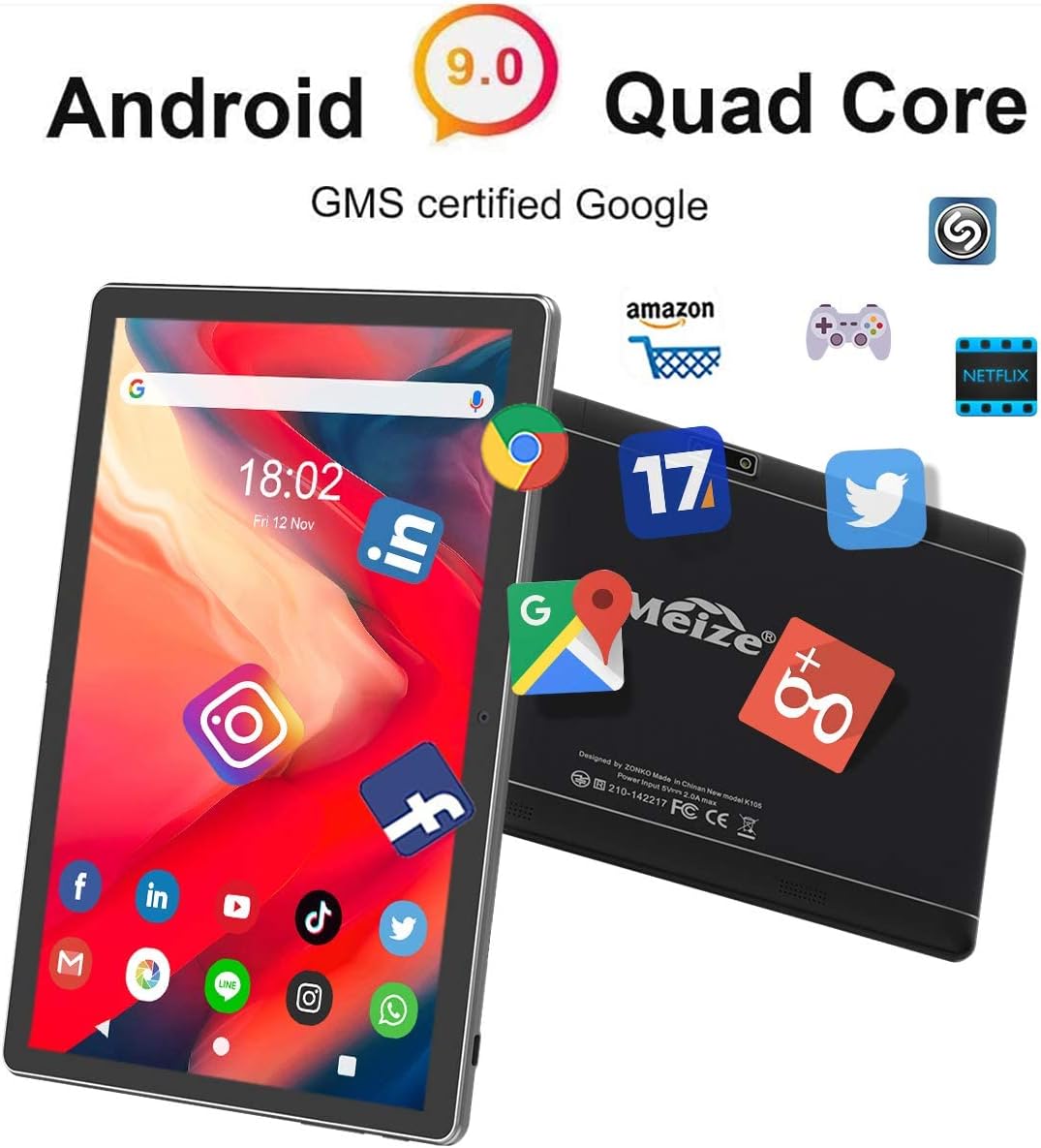
Image: The MEIZE tablet displaying its home screen filled with various application icons, demonstrating the user interface.
5.2 Connecting to Wi-Fi
- Go to Settings > Network & internet > Wi-Fi.
- Toggle Wi-Fi on.
- Select your desired Wi-Fi network from the list.
- Enter the password if prompted, then tap Connect.
5.3 Bluetooth Pairing
- Go to Settings > Connected devices > Bluetooth.
- Toggle Bluetooth on.
- Ensure the device you wish to pair is in pairing mode.
- Select the device from the list of available devices and follow any on-screen prompts to complete pairing.
5.4 Making Calls and Using Cellular Data
With inserted SIM cards, your tablet can function as a large phone. Use the pre-installed Phone app to make calls and the Messages app for SMS. Ensure mobile data is enabled in Settings > Network & internet > Mobile network to use cellular data.
5.5 Camera Usage
Open the Camera app from your home screen or app drawer. You can switch between front and rear cameras, select photo or video mode, and adjust basic settings like flash or timer.
5.6 Managing Storage
Your tablet comes with 32GB of internal storage. You can expand this by inserting a microSD card (up to 128GB). To view storage usage, go to Settings > Storage.
5.7 Installing and Uninstalling Apps
- Install: Open the Google Play Store app, search for your desired app, and tap Install.
- Uninstall: Go to Settings > Apps & notifications, select the app, and tap Uninstall. Alternatively, long-press the app icon on the home screen or app drawer and drag it to "Uninstall."

Image: A person holding the MEIZE tablet, watching a video, demonstrating its use for entertainment.
6. Maintenance
6.1 Cleaning
Use a soft, lint-free cloth to clean the screen and body of the tablet. Avoid using harsh chemicals or abrasive materials that could damage the surface.
6.2 Battery Care
To prolong battery life, avoid exposing the tablet to extreme temperatures. It is recommended to keep the battery charge between 20% and 80% for optimal longevity. Avoid completely draining the battery frequently.
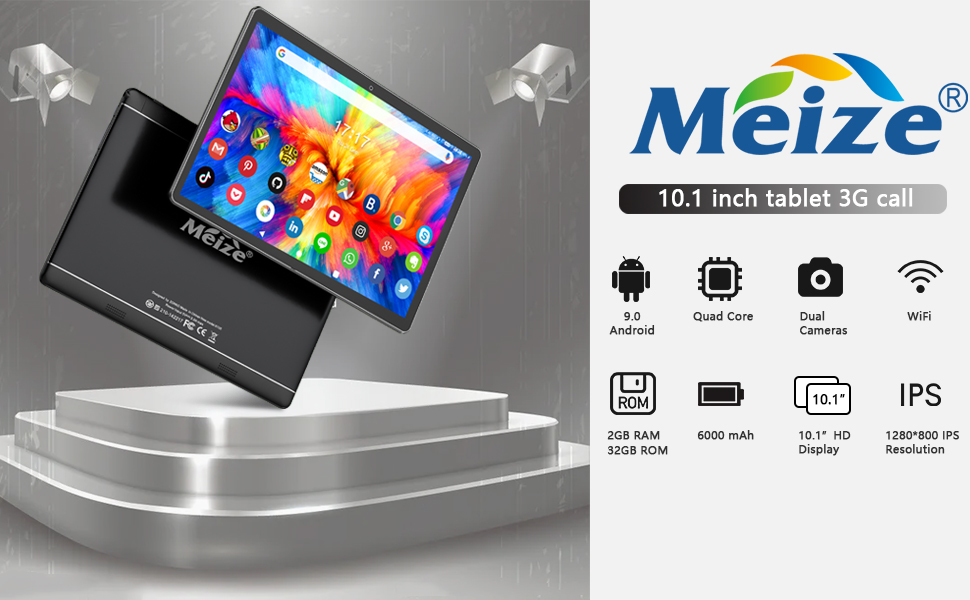
Image: Graphic illustrating the 6000mAh battery capacity of the MEIZE tablet, highlighting its endurance for video, browsing, and e-book reading.
6.3 Software Updates
Periodically check for system updates to ensure your tablet has the latest features and security patches. Go to Settings > System > Advanced > System update.
6.4 Backup Data
Regularly back up important data to a cloud service or external storage device to prevent data loss.
7. Troubleshooting
If you encounter issues with your tablet, try the following solutions:
- Tablet won't turn on: Ensure the tablet is charged. Connect it to the charger for at least 30 minutes before attempting to power on again.
- Tablet is slow or unresponsive: Close unused applications. Restart the tablet. Clear cache data from apps in Settings > Apps & notifications.
- Wi-Fi connection issues: Ensure Wi-Fi is enabled. Restart your Wi-Fi router. Forget the network in tablet settings and reconnect.
- Apps crashing: Ensure the app is updated to the latest version. Clear the app's cache and data in Settings > Apps & notifications. Reinstall the app if necessary.
- Factory Reset (Last Resort): If problems persist, you may need to perform a factory reset. Warning: This will erase all data on your tablet. Go to Settings > System > Advanced > Reset options > Erase all data (factory reset).
For issues not resolved by these steps, please contact customer support.
8. Specifications
Key technical specifications for the MEIZE 10-inch Android Tablet K105:
| Feature | Specification |
|---|---|
| Display Size | 10.1 Inches |
| Screen Resolution | 1280 x 800 (HD) |
| Operating System | Android 9 Pie |
| Processor | 1.3 GHz Quad-Core |
| RAM | 2GB |
| Internal Storage | 32GB |
| Expandable Storage | Up to 128GB (microSD) |
| Rear Camera | 5 MP |
| Front Camera | 2 MP |
| Battery Capacity | 6000 mAh |
| Wireless Connectivity | Wi-Fi (802.11bgn), Bluetooth, GPS |
| Cellular Support | Dual SIM (2G/3G) |
| Item Weight | 1.85 pounds |
| Product Dimensions | 9.84 x 6 x 0.5 inches |
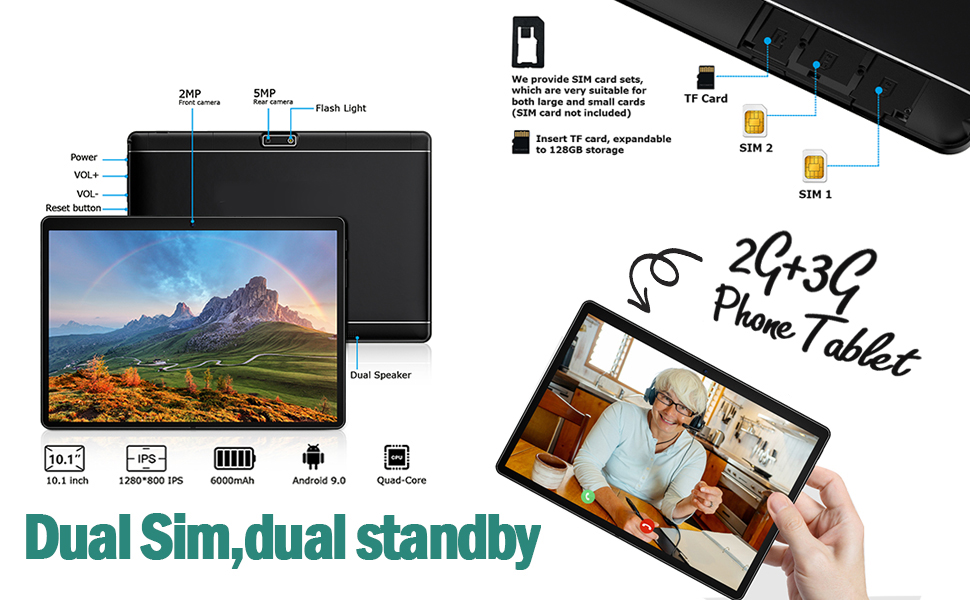
Image: A visual summary of the MEIZE tablet's technical specifications, including processor, memory, camera, and battery details.
9. Warranty and Support
MEIZE provides a 1-year return and exchange service for this product. If you have any questions or require assistance, please contact our customer service team. We are available to assist you 24 hours a day.
For customer service inquiries, please refer to the contact information provided with your purchase or visit the official MEIZE support website.


